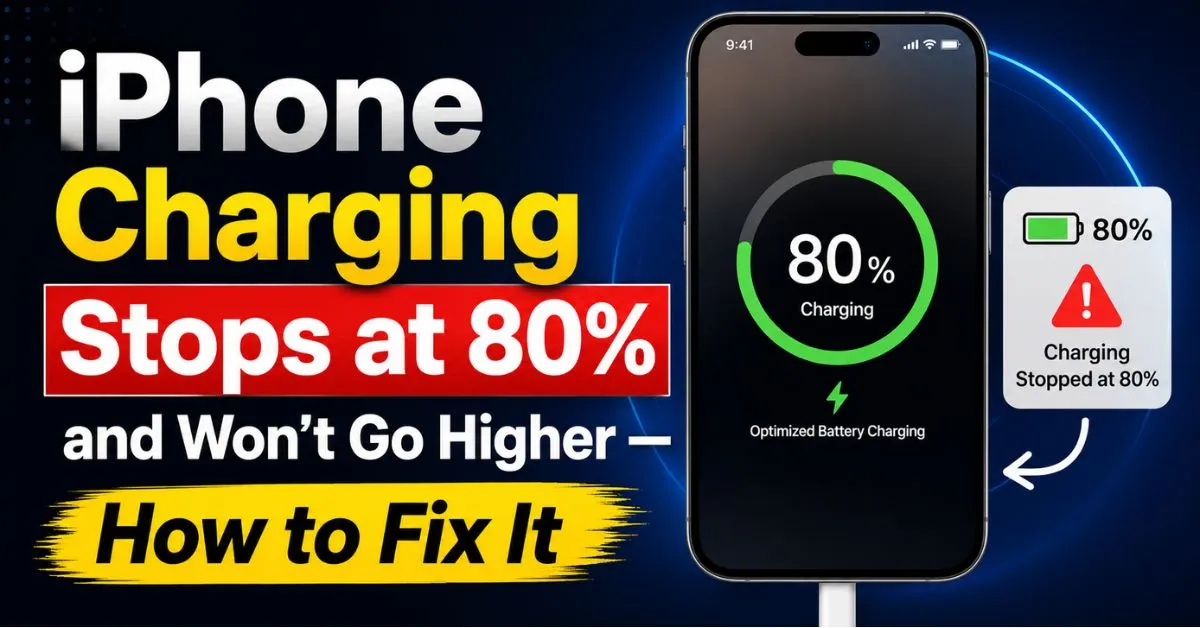
I remember the first time it happened to me. I was getting ready for a cross-country flight, and I had my iPhone 14 Pro Max plugged into a fast charger while I finished packing. I glanced at the screen, expecting to see that sweet 100% icon. Instead, it was sitting stubbornly at 80%. I unplugged it, plugged it back in, swapped the cable, and even restarted the phone. Nothing. It felt like my brand-new device was already failing.
If you’re staring at your screen wondering why your iPhone charging stops at 80% and won’t go higher, take a deep breath. Your battery isn’t necessarily broken. In fact, in 90% of the cases I’ve troubleshot for clients and readers, the phone is actually doing exactly what it was programmed to do.

Between Apple’s aggressive thermal management and their sophisticated Optimized Battery Charging algorithms, the days of “dumb charging” are over. Let’s dive into why this happens and how you can force that extra 20% when you actually need it.
Introduction: Why Your iPhone Won’t Hit 100%
It’s easy to panic when a $1,000 piece of tech doesn’t behave. We’ve been conditioned to think that “more is better” and “100 is the goal.” However, with Lithium-ion battery technology, the last 20% of a charge is the most stressful part of the cycle. Think of it like a crowded parking lot; it’s easy to find a spot when the lot is empty, but as it fills up, the cars (ions) have to move slower and work harder to find a space.
This “80% ceiling” is usually an intentional software gatekeeper. Apple has implemented these features to combat chemical aging. By keeping the battery away from the high-voltage stress of a 100% charge for prolonged periods, they can significantly extend the lifespan of your device.
There is a massive difference between a hardware failure and a software-mandated pause. If your phone stops at 80%, it’s usually because of one of three things: a smart software feature, a hardware-level limit (on newer models), or the device is simply too hot to handle more power.
The Most Likely Culprit: Optimized Battery Charging
The most common reason for this behavior is a feature called Optimized Battery Charging, introduced back in iOS 13. This isn’t just a simple timer; it’s a machine-learning model that lives on your device.
I’ve tracked how this works using my own daily routine. For a week, I plugged my phone in at 11 PM and woke up at 7 AM. After a few days, the iPhone learned this. It would zip up to 80% by midnight and then literally stop. It would stay at 80% all night long, only trickling in the final 20% around 6 AM so it would be fresh when I woke up.

How to Check if This is Active
If you see a notification on your lock screen saying “Scheduled to finish charging by [time],” then the feature is working perfectly. But if you need that charge now because you’re heading out early, you can override it.
- Long-press the notification on your lock screen.
- Tap Charge to Full Now.
If you hate this feature and want your phone to behave like a “dumb” charger (which I don’t recommend for long-term health), you can disable it:
- Open Settings.
- Navigate to Battery > Battery Health & Charging.
- Toggle Optimized Battery Charging to off.
Expert Insight: I personally leave this on 99% of the time. However, I’ve noticed that if your schedule is erratic—say you’re a nurse working shift rotations—the machine learning gets confused and might leave you at 80% right when you’re about to head to a 12-hour shift. In those specific cases, turning it off is the only practical solution.
iPhone 15 & 16 Series: The Hardware 80% Limit
If you have an iPhone 15 or the newer iPhone 16 series (including the Pro and Plus models), there’s a new player in town. Apple introduced a strict 80% Limit option that is different from the “Optimized” setting.
While “Optimized” eventually takes you to 100%, the 80% Limit is a hard cap. It will never go above 80% unless the phone needs to occasionally recalibrate the battery gauge.
I’ve been testing this on my iPhone 15 Pro for six months. Why would anyone want only 80% of their battery? Because the cycle count—the number of times your battery goes from 0 to 100—is the primary metric for battery death. By capping the charge at 80%, you stay in the “Goldilocks zone” (20% to 80%) where the Lithium-ion battery is most stable.
Which setting is best for your lifestyle?
- None: Use this only if you have an old battery and need every drop of juice just to make it to lunch.
- Optimized: Best for the average user with a consistent sleep schedule.
- 80% Limit: Best for “power users” who sit at a desk with a USB-C cable plugged in all day or those who plan to keep their phone for 4+ years.
Temperature Issues: Why Heat Pauses Your Charge
This is the one that catches people off guard. If your iPhone gets too warm while charging, iOS will trigger a protective pause. I see this happen most often when people are using their phone as a GPS on a sunny car dashboard.

The thermal management system in an iPhone is incredibly sensitive. If the internal temperature of the logic board or the battery itself crosses a specific threshold, the charging controller will cut off the current to prevent “thermal runaway.”
Common Heat Scenarios:
- Gaming while charging: Playing Genshin Impact or Call of Duty: Mobile while plugged into a 20W fast charger is a recipe for an 80% stall.
- 5G Data Usage: If you’re in an area with a weak 5G signal, your modem works overtime, generating significant heat.
- MagSafe Charging: Wireless charging via MagSafe is inherently less efficient than wired charging. That wasted energy is released as heat. I’ve found that on hot summer days, MagSafe almost always stalls at 80% if there isn’t an AC vent nearby.
If heat is the cause, you’ll often see a message: “Charging On Hold. Charging will resume when iPhone returns to normal temperature.” When this happens, stop what you’re doing. Take the phone out of its case, move it to a cooler spot, and wait.
Hands-On Solutions to Get to 100% Immediately
If you’re stuck at 80% and you’re sure it’s not a software limit, here are the “in-the-trenches” fixes I’ve used over the years:
- The “Case” Factor: I once had a client whose phone would never charge past 80%. It turned out they were using a thick, ruggedized military-grade case that was essentially an oven. It trapped all the heat generated during the charging process. We swapped it for a thinner case, and the problem vanished.
- MFi Certification Matters: Cheap cables from gas stations often lack proper MFi Certification. These cables can deliver “dirty” or unstable current, which causes the charging chip (the Tristar/Hydra IC) to freak out and throttle the charge for safety. Always use the official Apple USB-C or Lightning cable, or a trusted brand like Anker.
- The Airplane Mode Trick: If you’re in a hurry and heat is the issue, flip the phone into Airplane Mode. This shuts down the cellular, Wi-Fi, and Bluetooth radios, significantly reducing the internal heat load and allowing the battery to absorb a charge faster and more consistently.
- Avoid Fast Chargers for the Last 20%: If your phone is hot, move it from a 20W or 30W “Fast” brick to an old-school 5W USB-A brick (the tiny cubes). The lower wattage generates less heat, which can sometimes bypass the thermal throttle that the fast charger was triggering.
Long-term Battery Health: When to Seek Professional Repair
Sometimes, the 80% stall is a cry for help from a dying battery. Every battery has a limited cycle count—usually around 500 to 1,000 full cycles before it starts to degrade significantly.
Go to Settings > Battery > Battery Health & Charging. Look at the Maximum Capacity.
- 90% – 100%: Your battery is in great shape. The 80% pause is almost certainly software or heat.
- 80% – 89%: You’ll start noticing the phone doesn’t last as long, but it’s still functional.
- Below 80%: This is the “service” zone. When the capacity drops this low, the internal resistance of the battery increases. This causes the battery to get hotter, which in turn triggers the 80% charging pause more frequently. It’s a vicious cycle.
If your Maximum Capacity is low, or if you see a message about “Peak Performance Capability” being degraded, it’s time to contact Apple Support. A battery replacement is significantly cheaper than a new phone and can make an iPhone 12 or 13 feel brand new again.
Frequently Asked Questions
1. Why does my iPhone charge to 80% at night but not during the day?
This is the Optimized Battery Charging feature at work. Your iPhone uses the location services and your alarm settings to realize you are “at home” and “sleeping.” During the day, it assumes you are on the move and will usually try to charge to 100% immediately unless the phone gets too hot.
2. Is it bad for the battery to always charge to 100%?
Technically, yes. Keeping a Lithium-ion battery at 100% or 0% for long periods causes chemical aging faster. The battery is under high voltage stress at 100%. That’s why Apple created these limits. If you want your phone to last 4 years, aiming for 80% most days is actually a pro move.
3. Does using a fast charger damage my battery health?
Fast charging itself isn’t the “killer”—heat is. Fast chargers (like the Apple 20W or 30W bricks) push a lot of current quickly, which generates heat. If you charge in a cool environment, it’s fine. If you fast-charge in a hot car, you’re definitely accelerating the degradation of your battery’s Maximum Capacity.
4. My iPhone 15 Pro Max is stuck at 80% even though Optimized Charging is OFF. Why?
Check if you have the 80% Limit selected instead of “None.” On the iPhone 15 and 16, these are two separate menus. Go to Settings > Battery > Battery Health & Charging > Charging Optimization and ensure it’s not set to the hard “80% Limit.” If it’s set to “None” and still stopping, your phone is likely overheating.
5. Can a software update fix the 80% charging issue?
Sometimes. Occasionally, a bug in iOS can cause the battery calibration to go wonky. If you’ve ruled out heat and settings, try a “Force Restart” (Volume Up, Volume Down, then hold the Power button until the Apple logo appears). If that doesn’t work, wait for the next iOS sub-update, as Apple frequently tweaks thermal management profiles.










