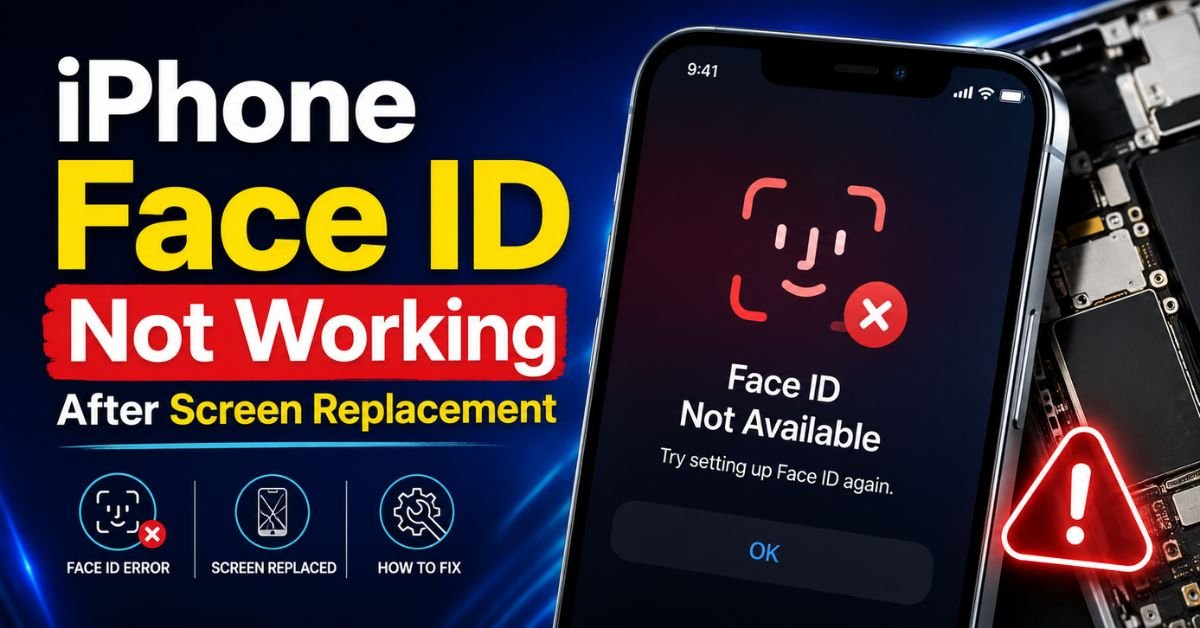
I remember the first time I successfully swapped an iPhone display without a hitch—or so I thought. The screen looked vibrant, the touch response was buttery smooth, and I felt like a tech wizard. Then, I tried to unlock the phone.
“An issue was detected with the TrueDepth camera. Face ID has been disabled.”

That sinking feeling in my gut is something many DIYers and even some professional technicians know all too well. You’ve spent $150 on a premium OLED panel, spent an hour under a microscope, and yet the most convenient feature of the device is now a paperweight. It’s a classic “win the battle, lose the war” scenario.
If you’re staring at that same notification right now, don’t panic. It doesn’t necessarily mean you’ve permanently “bricked” your biometric security. But, I won’t sugarcoat it: restoring Face ID after a screen swap is one of the most delicate dances in the modern repair world. Let’s dig into why this happens and what you can actually do about it.
The Post-Repair Reality: Why Face ID Fails
The initial panic usually stems from a misunderstanding. You might think, “I didn’t even touch the camera, why is it broken?” It’s a logical question. You replaced the glass and the pixels, not the lens, right?
The reality is that Face ID isn’t just a camera; it’s a sophisticated ecosystem of sensors that Apple has tied—quite aggressively—to your specific logic board. When you replace the screen, you aren’t just changing a display; you are interrupting a high-security handshake between the TrueDepth Camera system and the Secure Enclave.
If the logic board doesn’t see exactly what it expects to see, it shuts down the biometric pipeline for “security reasons.” This link between the screen and the motherboard is the fundamental hurdle in modern iPhone repair.
The Science of Serialization: Why Apple Pairs Parts
To understand the fix, you have to understand the components involved. The Face ID assembly is comprised of several key players:

- The Flood Illuminator: This casts infrared light on your face.
- The Proximity Sensor: It tells the phone when it’s near your ear.
- The Ambient Light Sensor: Adjusts screen brightness.
- The Dot Projector: Projects 30,000+ invisible dots to map your facial structure.
Here is the kicker: the Flood Illuminator and the Ambient Light Sensor are physically mounted onto the back of the display assembly (on the flex cable that also holds the ear speaker). These parts are cryptographically “serialized” to your specific iPhone.
When you buy a new screen, it usually doesn’t come with these sensors. You are supposed to transfer your original sensor flex cable from the old, cracked screen to the new one. If you accidentally used a generic flex cable that came pre-installed on a cheap replacement screen, Face ID will never work. Your Secure Enclave (the chip that stores your biometric data) will detect a “stranger” in the hardware chain and kill the Face ID process immediately.
Common Pitfalls: How Technicians (and DIYers) Break Face ID
I’ve spent hundreds of hours at a repair bench, and I’ve seen Face ID break in three main ways during a screen replacement.
1. The “Heat Gun” Overkill
The sensor flex cable is glued to the back of the screen with some pretty stubborn adhesive. To get it off, you need heat. But if you use too much heat—or direct it poorly—you can literally cook the Flood Illuminator. These components are incredibly sensitive to thermal stress. I always tell people: if the plastic around the sensor starts to look shiny or warped, you’ve probably already killed it.
2. Micro-tears in the Flex Cable
These ribbon cables are thinner than a stick of gum and twice as fragile. When prying the sensor assembly off the old glass, it is frighteningly easy to create a microscopic tear. Even a tear you can’t see with the naked eye can sever the communication lines between the Dot Projector and the logic board.
3. Static Discharge (ESD) and Skin Oils
This is the one that catches people off guard. The Dot Projector is an optical masterpiece. If you touch the lens with your bare fingers, the oils from your skin can smudge the projection. Worse, a tiny spark of static electricity (ESD) from your finger can fry the sensitive IC chip on the cable. Always, always use a grounded wrist strap and ceramic tweezers when handling these parts.
Pro Tip: The “Isopropyl” Trap Never use high-percentage isopropyl alcohol directly on the Face ID sensors. While it’s great for cleaning adhesive, if it seeps into the Dot Projector or the TrueDepth camera housing, it can delaminate the internal filters and cause permanent “Move iPhone Lower/Higher” errors that no software update can fix.

Software vs. Hardware: Is it Just a Warning or a Break?
There was a massive shift in the repair landscape around the time of the iPhone 13. Originally, Apple made it so that any screen replacement—even using a genuine Apple screen from another iPhone—would disable Face ID. This was due to a tiny IC chip on the display cable.
After a massive outcry from the “Right to Repair” community, Apple released the iOS 15.2 Update. This update changed the behavior. Now, if you swap a screen on an iPhone 13 or newer, you might see an “Important Display Message” in your settings, but Face ID should continue to function, provided you didn’t damage the sensors during the transfer.
However, if you see the “An issue was detected…” message, that usually points to a hardware failure or a communication break. You need to distinguish between a “Non-genuine part” warning (which is annoying but harmless) and a total “Biometric failure” (which is a hardware issue).
Step-by-Step Fixes to Restore Facial Recognition
If you’ve finished your repair and Face ID is dead, here is my diagnostic checklist.
Step 1: The Software Reset
Before you crack the phone open again, try the “Hard Reset” (Volume Up, Volume Down, hold Power). Occasionally, the Secure Enclave just needs a fresh boot to recognize the reconnected sensors. Also, ensure you are on the latest version of iOS. Apple occasionally tweaks the “handshake” protocols in their updates.
Step 2: The Physical Inspection (Microscope Required)
Open the phone back up. Carefully disconnect the battery first (always!). Unplug the sensor flex cable and inspect the gold pins under a 20x microscope. Look for:
- Bent pins in the connector.
- Debris or dust inside the socket.
- The aforementioned micro-tears in the ribbon.
Step 3: The IC Chip Transfer (Advanced Micro-soldering)
If you are an enthusiast or a pro, you might need to perform an IC chip transfer. This involves desoldering the tiny chip from your original screen’s flex cable and soldering it onto the new screen. This is high-level micro-soldering and requires a steady hand, a high-quality station (like a JBC or Sugon), and plenty of flux. This “tricks” the phone into thinking the original screen is still attached.
Step 4: Reset Face ID Settings
Sometimes the hardware is fine, but the calibration is off. Go to Settings > Face ID & Passcode and tap Reset Face ID. If it allows you to start the setup process (showing the camera feed) but fails during the scan, your Dot Projector is likely the culprit. If the “Reset” button is grayed out, the phone isn’t seeing the Flood Illuminator at all.
How to Choose a Repair Shop That Won’t Break Face ID
If you’re reading this before getting your phone fixed, learn from the mistakes of others. The cheapest repair is almost always the most expensive in the long run.
When calling around, don’t just ask “How much for a screen?” Ask these three questions:
- “Do you transfer the original sensor assembly?” If they say they use a “pre-assembled” screen, hang up.
- “Do you offer a warranty on Face ID specifically?” Many shops will warrant the “touch” but not the “biometrics.” Avoid them.
- “Are you an Apple Authorized Service Provider (AASP)?” AASPs have access to Apple’s “System Configuration” software. This allows them to calibrate new parts to your logic board through the cloud, bypassing the need for risky micro-soldering.
In my experience, if a shop is charging $50 less than everyone else, they are likely cutting corners on the transfer process or using low-grade parts that don’t allow for proper Biometric Security integration.
The Bottom Line
Fixing an iPhone screen used to be a simple mechanical task. Today, it’s a high-stakes marriage of hardware precision and software authentication. If your Face ID isn’t working after a replacement, it’s likely because a serialized component was either damaged by heat or replaced with a non-original part.
While software updates like iOS 15.2 have made things easier, the physical fragility of the TrueDepth Camera remains the same. If you’ve checked the cables and performed the resets and it’s still dead, it might be time to visit a professional who specializes in micro-soldering—or admit defeat and head to the Apple Store.
Frequently Asked Questions
1. Can Face ID be fixed if I lost the original sensor flex cable?
Strictly speaking, no—not by a third-party shop. Because the original Flood Illuminator and Ambient Light Sensor are cryptographically paired to your logic board, losing them means you’ve lost the “key” to your Face ID. Only Apple (or an AASP) can pair a brand-new sensor assembly to your phone using their proprietary internal software.
2. Why does my front camera work, but Face ID doesn’t?
The front-facing “selfie” camera and the Face ID system are two different components. The camera is a standard RGB sensor, while Face ID uses the TrueDepth system (Infrared). It’s very common for the selfie camera to work perfectly while the infrared Dot Projector is broken or disconnected.
3. Will a factory reset fix Face ID after a screen replacement?
Almost never. If the issue is a hardware mismatch or a torn cable, wiping the software won’t change the physical reality of the components. However, “Resetting Face ID” within the settings is a necessary step to re-calibrate the sensors if they were simply moved.
4. Is it worth fixing Face ID on an older iPhone?
It depends on the model. For an iPhone X or XS, the cost of a micro-soldering repair for Face ID might exceed the value of the phone. For an iPhone 13 or 14, it’s absolutely worth it, as the resale value of a phone with “Broken Face ID” drops by about 40-50%.
5. Does a cracked screen affect Face ID before replacement?
Yes. If the glass is cracked directly over the Dot Projector or the TrueDepth Camera, the infrared light can refract incorrectly. This often leads to the “Move iPhone higher/lower” error. In these cases, a screen replacement actually fixes Face ID, provided the sensors underneath aren’t damaged.










