In this guide, I’m going to walk you through the exact steps I take when a device hits my desk with a slow charging android fix request. We’ll look at everything from “pocket lint” to Thermal Throttling and how to use real diagnostic data to find the culprit.
We’ve all been there. You’ve got thirty minutes before you need to head out, you glance at your phone, and it’s sitting at a measly 12%. You plug it in, expecting that lightning bolt icon to do its magic, but ten minutes later, you’re only at 14%.

It’s infuriating. You start wondering if your battery is dying or if your phone is just “getting old.” Before you go out and drop $800 on a new device, let’s take a breath. I’ve spent years troubleshooting mobile hardware—from the early days of Micro-USB to the modern USB-C standard—and more often than not, an android phone charging slowly is a problem you can fix at home for $0.
alsoreade : Android Battery Draining Too Fast, Android Phone Stuck on Boot Screen, Android Screen Not Responding, Android Phone Not Charging Android Microphone Not Working
The Slow Charge Struggle: Why Your Android Isn’t Powering Up
The first thing you need to realize is that “charging” isn’t just a binary “on or off” state anymore. Modern smartphones use complex Fast Charging protocols like Qualcomm Quick Charge or USB Power Delivery (USB-PD). These require a “handshake” between your phone and the Power Adapter. If anything interrupts that handshake, your phone defaults to a “trickle charge” to protect the Lithium-ion battery.
If you see a notification saying “Charging slowly” or if your android charging animation looks different than usual, your phone is telling you there’s a bottleneck. It could be a hardware failure, a software bug, or simply a dirty charging port.
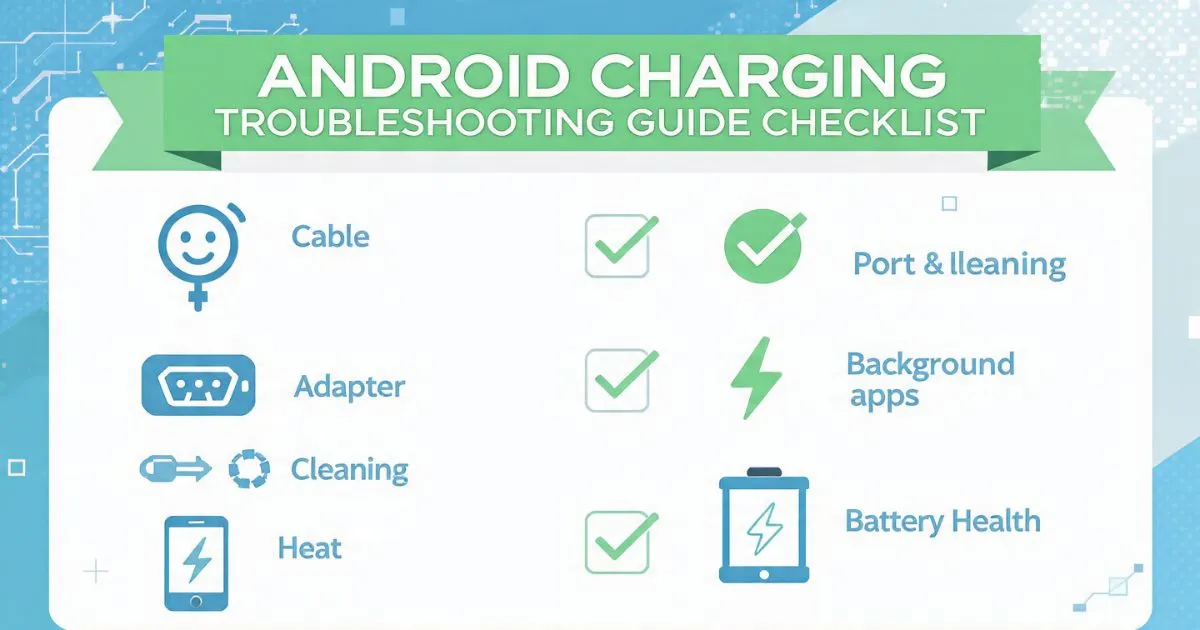
Fix 1: The 80/20 Rule—Inspect Your Cable First
In my experience, 80% of android charging issues are caused by the cable. We treat our cables terribly. We bend them, throw them in backpacks, and let our pets chew on them.
A damaged charging cable might still look okay on the outside, but the internal copper wiring can be frayed. When that happens, the Voltage might stay consistent, but the Amperage (the “flow” of electricity) drops significantly.

My Hands-on Tip:
Don’t trust “gas station” cables. I once bought a $5 colorful braided cable because it looked cool, only to find it was capped at 500mA. Most modern phones need at least 2,000mA (2A) to fast charge. Always try to use your OEM charging cable (the one that came in the box) to see if the speed improves. If you need a replacement, look for brands that specifically mention USB Power Delivery or “high-speed data sync” to ensure they have the proper gauge wire.
Fix 2: Check the Power Adapter (The “Wall Wart”)
If the cable is fine, the next suspect is the Power Adapter. Not all bricks are created equal. If you’re using an old charger from a phone you owned in 2018, it probably doesn’t support the wattage your new phone needs.
For example, a modern Samsung or Pixel might support 25W or 45W charging. If you plug it into a 5W “iPhone cube” from a decade ago, you’re going to experience a massive android charging percentage slow crawl.
Troubleshooting the Adapter:
- Check the fine print on the brick. Look for “Output.” If it says 5V/1A, that’s your problem. You want to see at least 5V/3A or 9V/2A.
- Ensure android fast charger compatibility. If you have a OnePlus (using Warp Charge) and try to use a Samsung brick, it might only charge at standard speeds because the protocols don’t match.
Fix 3: The “Dirty Secret” in Your Charging Port
This is my favorite “fix” because it feels like magic. If your android charger loose connection is driving you crazy, or if the cable doesn’t “click” into place, you likely have a dirty charging port.
Think about it: your phone spends half its life in your pocket. Pockets are full of lint. Every time you plug in your cable, you’re packing that lint deeper into the USB-C or Micro-USB port. Eventually, it forms a felt-like barrier that prevents the pins from making full contact.
Also Reade : Complete Android Fix Guide: Every Android Problem Solved (2026)
How to clean it safely:
- Turn off your phone.
- Use a non-conductive tool. A wooden toothpick or a plastic dental floss pick works best. Never use a needle or paperclip, as you can short out the pins and kill the motherboard.
- Gently scrape the bottom of the port. You’ll be shocked at the “lint brick” that comes out.
- Finish with a blast of compressed air to clear out the remaining dust.
This is a common android charging port cleaning trick that saves people hundreds in “repairs.”

Fix 4: Use the Ampere App for Real-Time Diagnostics
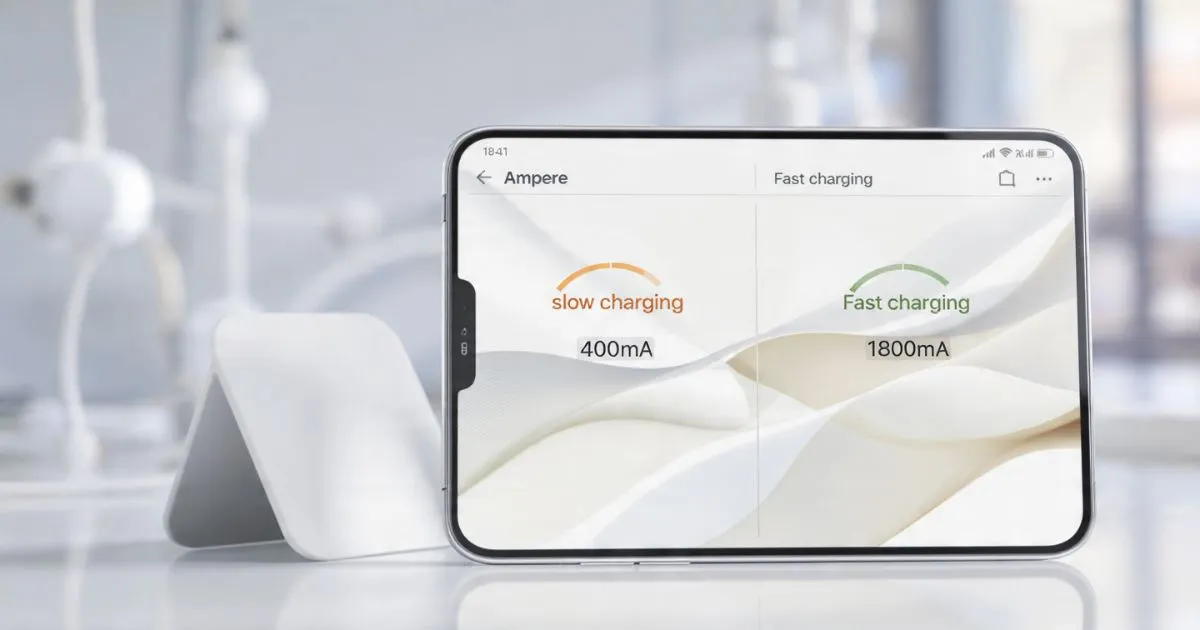
Stop guessing and start measuring. Whenever I’m dealing with an android battery charging slow issue, I download the Ampere app.
Ampere tells you exactly how many milliamperes (mA) are flowing into your battery.
- Open the app and plug in your charger.
- Wait about 30 seconds for it to stabilize.
- Green text indicates your phone is gaining power.
- If the number is below 500mA, you have a low charging current issue.
- A healthy fast charge on a modern phone should usually show 2,000mA (2,000 mAh per hour) or higher.
If you swap cables and the mA jumps from 400 to 2500, you’ve found your culprit. This is the most effective way to perform an android battery charging test at home.
Fix 5: Beware of “Power Vampires” (Background Processes)
Sometimes your android phone not fast charging isn’t a hardware problem; it’s a software struggle. If your phone is using power as fast as the charger is providing it, the percentage won’t budge. This is common when your android battery draining while charging.
How to find the culprits:
- Go to Settings > Battery > Battery Usage. Look for apps with high background activity.
- Social media apps (Facebook, TikTok) and GPS-heavy apps (Maps) are notorious for this.
- Safe Mode Test: Hold the power button, then long-press “Power Off” until the “Safe Mode” prompt appears. In Safe Mode, all third-party apps are disabled. If your phone charges quickly in Safe Mode, you have a rogue app causing an android charging app issue.
Fix 6: Beat the Heat (Thermal Throttling)
Lithium-ion batteries have a very narrow “happy” temperature range. If your phone gets too hot, the charging controller will trigger Thermal Throttling. This artificially slows down the charging speed to prevent the battery from degrading or, in extreme cases, catching fire.
I’ve seen many users complain about android overheating while charging, especially when they play games or watch YouTube while plugged in.
My Pro-Tips for Heat:
- Remove the case: Some thick rugged cases trap heat like a parka.
- Charge on a hard surface: Never leave your phone charging on a bed or sofa. Fabric acts as an insulator and can lead to an android phone charging heat issue.
- Avoid sunlight: Don’t charge your phone on your car’s dashboard in the middle of summer.
Fix 7: Stop Charging via Laptop or PC Ports
I see this all the time at offices. People plug their phones into their laptop’s USB 2.0 port and wonder why is my android charging slowly.
A standard USB 2.0 port on a computer only outputs 0.5A (500mA). That is barely enough to keep a modern screen powered, let alone charge a 5,000 milliampere-hour (mAh) battery. Even a USB 3.0 port usually caps out at 0.9A.
If you want speed, you need a wall charger. Android usb charging slow is almost always a result of using a low-powered source like a PC, a car’s built-in USB port, or an old power bank charging slow.
Fix 8: Software Bugs and Cache Partitions
Sometimes, an android charging after update issue occurs. A bug in the system software can cause the battery calibration to go haywire or the “handshake” protocol to fail.
If your android charging stuck problem started right after an OS update, try wiping the Cache Partition:
- Turn off the phone.
- Press and hold Volume Up + Power (this varies by model like Samsung, OnePlus, or Pixel).
- In the Recovery Menu, use the volume keys to select “Wipe Cache Partition.”
- Restart your phone.
This doesn’t delete your photos or data, but it clears out old system files that might be interfering with android charging optimization.
Fix 9: Check Your Charging Settings (Adaptive Charging)
Modern Android versions (especially on Pixel, Samsung, and Oneplus) have a feature called “Adaptive Charging” or “Battery Protection.” This can cause the android battery charging stuck at 80 phenomenon.
It’s designed to preserve android battery health by slowing down the charge once it hits 80% and finishing the last 20% right before you wake up. If you need a quick boost in the middle of the day, this feature can feel like a “slow charging” bug.
Check your settings:
- Search for “Battery” or “Charging” in your Settings.
- Look for “Adaptive Charging” or “Fast Charging” toggles.
- Make sure android fast charging is actually enabled. Sometimes a system update can flip this switch off.
When to See a Professional: Android Charging Troubleshooting
If you’ve tried a new OEM charging cable, cleaned the port, swapped the Power Adapter, and tried Safe Mode, but your android charging current is still low, you might be looking at a hardware failure.
Signs of a Hardware Issue:
- Water Damage: Even if your phone is “water-resistant,” minerals in the water can corrode the pins, leading to an android charging unstable fix requirement.
- Damaged Port: If the internal “tongue” of the USB-C port is bent or wobbly, it’s an android charging port repair job.
- Battery Swelling: If the back of your phone is bulging, stop charging immediately. This is a Lithium-ion battery safety hazard.
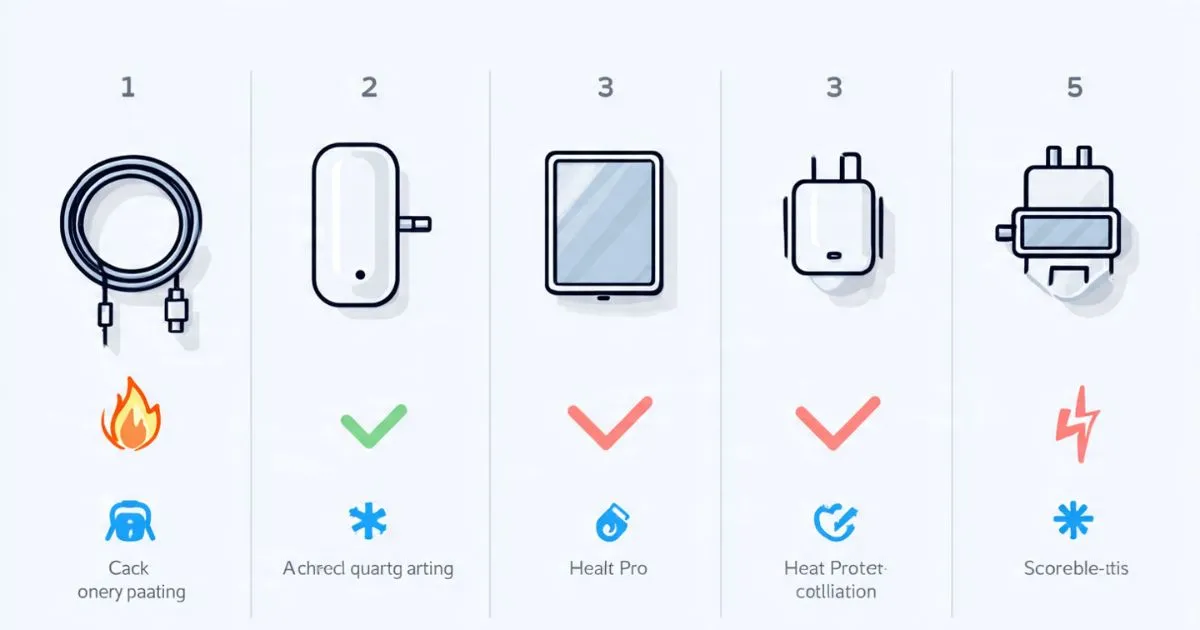
Summary of Fixes for Faster Power
Bottom line: Don’t panic. Before you search for “android mobile repair guide,” do the basics.
- Test the hardware: Swap the cable and brick.
- Clean the port: Look for that hidden pocket lint.
- Monitor the heat: Take the case off and keep it cool.
- Use Diagnostics: Download Ampere to see the real numbers.
By following these android charging maintenance steps, you can usually regain those lightning-fast speeds and keep your android battery life healthy for years. Most of the time, the fix is as simple as a $10 cable or a 30-second cleaning session with a toothpick.
Stay powered up!
FAQ: Quick Hits for Specific Brands
- Android charging issue Samsung: Check “Battery and Device Care” > “Battery” > “More Battery Settings” to ensure “Fast Charging” is toggled on.
- Android charging issue Pixel: Pixel phones are very picky about USB Power Delivery (USB-PD). Cheap non-PD chargers will always be slow.
- Android charging issue OnePlus/Oppo/Realme: These brands use proprietary tech (VOOC/Warp). You must use their specific cable and brick for maximum speed.
- Android charging issue Xiaomi: Xiaomi often uses a modified USB-A to USB-C cable for their 67W+ charging. Using a standard cable will drop the speed significantly.










