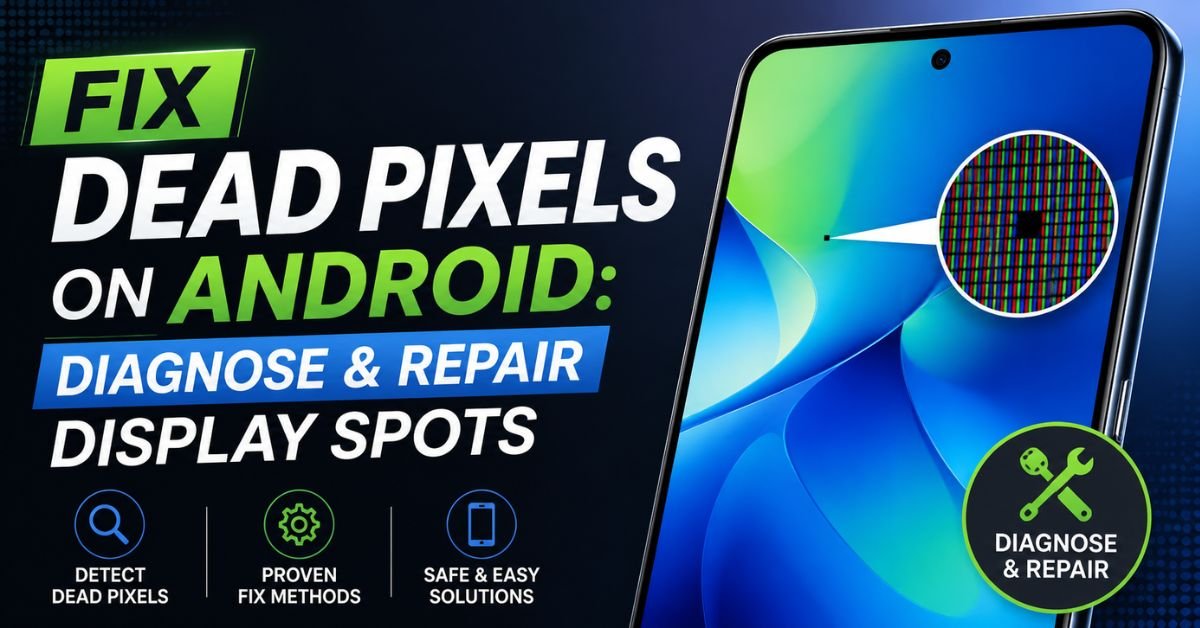
Fix Dead Pixels on Android: Diagnose & Repair Display Spots.I’ll never forget the morning I noticed it. I was scrolling through a particularly minimalist Twitter thread on my Pixel 6 when a tiny, stubborn speck of neon green refused to move. My first instinct? Wipe the screen. I rubbed. I used my fingernail. I even grabbed the microfiber cloth I usually reserve for my “good” camera lenses. Nothing. The speck was mocking me.
If you’re reading this, you’ve likely found a similar uninvited guest on your Android display. Maybe it’s a black dot that looks like a grain of pepper (a dead pixel), or perhaps it’s a bright red or green spark that won’t go away (a stuck pixel). Whatever the case, a spot on your screen feels like a permanent blemish on a $1,000 investment.

Before you panic and start looking up the trade-in value of your phone, let’s get into the weeds of what’s actually happening behind that glass. I’ve spent a decade tearing down phones and testing display panels, and I can tell you: not all spots are created equal.
Understanding the Anatomy of a Screen Spot
Every Android display, whether it’s a high-end AMOLED panel on a Galaxy S24 or a budget-friendly LCD on a Motorola, is a complex sandwich of layers. At the heart are millions of tiny sub-pixels (Red, Green, and Blue).
A dead pixel occurs when a transistor fails to provide power to the entire pixel, leaving it permanently black. Think of it as a burnt-out lightbulb. On the flip side, a stuck pixel happens when one or more sub-pixels are receiving a constant flow of electricity, keeping them locked in a specific color.
There’s a massive difference in how these manifest based on your Display Panel tech:
- OLED/AMOLED: These screens are self-emissive. Each pixel creates its own light. If a pixel dies here, it’s a true void.
- LCD: These rely on a backlight. A “spot” here might actually be a defect in the display panel‘s liquid crystal alignment or even a tiny piece of dust trapped during manufacturing between the digitizer and the backlight.
Then there’s the dreaded Screen Burn-in. This is common on older OLEDs where a static image (like your navigation bar) leaves a “ghost” behind. This isn’t a dead pixel; it’s uneven phosphor degradation. We need to be sure what we’re looking at before we try to “fix” it.
Step-by-Step Diagnostic Routine
You can’t fix what you haven’t identified. Whenever I get a refurbished device for testing, the first thing I do is run a Hardware Diagnostics check.

The Manufacturer Secret Codes
Most Android phones have hidden “Service Modes.” If you’re on a Samsung, open your phone dialer and type *#0*#. This launches a diagnostic menu where you can tap “Red,” “Green,” and “Blue” buttons. This forces the screen to display a solid color, making any sub-pixel failure immediately obvious. For other brands, you might need to dive into the “About Phone” section and tap “Build Number” seven times to enable Developer Options, though the dialer codes are often the quickest route.
Third-Party Apps
If the dialer code doesn’t work, I recommend an app like “Screen Test” or “Display Tester” from the Play Store. These apps cycle through various colors, gradients, and refresh rate patterns. I use these to check for “black crush” and “light leakage” (common on LCDs), where light bleeds from the edges of the screen.
The “Dark Room” Test
This is my personal litmus test. Go into a pitch-black room, turn your screen brightness to about 20%, and open a completely black image.
- If you see a faint glow where the spot is, it’s likely a stuck sub-pixel or light leakage.
- If it’s a “True Black” OLED and you see a bright dot, that pixel is definitely stuck “on.”
- If you see a black hole on a white background, it’s dead.
Software-Based Fixes: Pixel Refresher Tools
Can you actually “fix” a pixel with software? Sometimes, yes. If the pixel is merely stuck (not dead), you might be able to “shock” it back into gear.
The tool I’ve used for years is JScreenFix. It’s a web-based utility that works on any browser. It creates a small box of high-speed flickering pixels. The logic is simple: by rapidly cycling the voltage to the transistor responsible for that pixel, you might break the “stasis” of the liquid crystal or the sub-pixel.
The 30-Minute Stress Test:
- Open JScreenFix (or a similar Android app like “Dead Pixel Test & Fix”).
- Drag the flickering window over the stuck pixel.
- Let it run for at least 30 minutes.
- Important: Turn your screen brightness up to 100% during this process.
I once successfully revived a stubborn blue pixel on an old OnePlus 7T using this method. It took three sessions of 20 minutes each, but eventually, the sub-pixel “snapped” back into its correct orientation. However, let’s be real: if the pixel is black (dead), software almost never fixes it because there is no electrical path to the pixel anymore.

Expert Insight: Don’t confuse a dead pixel with a “dead zone” on your touch screen. If the spot is fine but your touch doesn’t register in that area, your digitizer is failing, not the display panel itself. These are two very different (and expensive) repair scenarios.
Hands-on Physical Techniques (Proceed with Caution)
Now we’re entering “void your warranty” territory. I’ve seen people suggest some wild things online, but only two physical methods have any basis in reality. I call these the “Last Resort” methods.
The Pressure Method
This works primarily on LCD screens. The idea is that the liquid crystal in the panel hasn’t spread correctly into the sub-pixel.
- Wrap a microfiber cloth around the blunt end of a stylus or a capped pen.
- While the screen is on (and showing a white background so you can see the spot), apply very gentle, localized pressure directly to the pixel.
- My Experience: I tried this on a Nexus 5 years ago. It didn’t fix the pixel, and I actually ended up creating a “bruise” on the screen (a pressure mark) because I pushed too hard. If you try this, use less pressure than you think you need.
The Heat Method
The theory here is that heat can help the liquid crystal flow better. People suggest using a warm compress.
- Put a cloth in warm (not boiling!) water, seal it in a plastic bag, and hold it against the spot for a few minutes.
- The Risk: Modern Android phones use adhesives to hold the screen to the frame. Excessive heat can soften this adhesive, compromising your phone’s water resistance or, worse, damaging the AMOLED organic compounds. I generally advise against this unless the phone is already a “lost cause.”
Common Pitfalls and Safety Warnings
I’ve seen too many people turn a minor annoyance into a total hardware failure. Here’s how to avoid being that person.
1. Cracking the Digitizer: When applying pressure, remember that the glass on your phone (Gorilla Glass or otherwise) is incredibly thin. If you flex the glass too much, you’ll hear a “pop,” and suddenly you’re dealing with a shattered screen instead of a single dead pixel.
2. Mistaking Dust for Pixels: If you recently had your screen replaced by a third-party shop, that “dead pixel” might actually be a speck of dust trapped under the glass. Look at the spot from an angle. If the spot seems to “float” above the actual colors, it’s dust. That’s a shop error—take it back!
3. Ignoring the Warranty: Before you start “massaging” your screen, check your warranty status. If you have a Samsung Care+ or Google Device Protection, a single dead pixel might not be covered, but a “cluster” usually is. Which leads us to…
When to Opt for Professional Repair or Warranty
There is an international standard called ISO 13406-2. It defines how many dead pixels are “acceptable” before a screen is considered defective. Most manufacturers follow a variation of this.
- Samsung: Usually requires a certain number of pixels (often 3 or more) before they deem it a warranty-replaceable defect.
- Google: They are hit-or-miss but generally more lenient if the pixel is in the center of the display.
If your phone is under a year old, do not try physical “fixes.” Contact the manufacturer. If you’re out of warranty, you have to do a cost-benefit analysis. A new Display Panel for a flagship phone can cost anywhere from $200 to $400. If the dead pixel is in the corner or near the status bar, you might just have to learn to love it.
I’ve lived with a dead pixel on my secondary “work” phone for two years. After the first week, my brain just started filtering it out. It’s like a tiny crack in a windshield; it’s annoying until it isn’t.
Frequently Asked Questions
Q1: Can a dead pixel spread like a crack?
No. A dead pixel is an isolated electrical or physical failure of a single transistor or sub-pixel. It isn’t “contagious.” However, if the spot was caused by physical impact, the underlying damage to the Display Panel might eventually cause more pixels to fail over time as the layers delaminate.
Q2: Does high pixel density make dead pixels harder to fix?
Actually, yes. On modern phones with high Pixel Density (PPI), the individual pixels are so small that the “pressure method” is almost impossible to target accurately. You’re more likely to hit a cluster of 10 pixels than just the one that’s stuck.
Q3: Can a software update cause dead pixels?
Technically, no. Software cannot physically break a transistor. However, a software bug can cause “image retention” or glitches that look like stuck pixels. If a “dead pixel” appears immediately after an Android OS update, try a factory reset before assuming it’s a hardware failure.
Q4: Is there a difference between a “dead” pixel and a “dim” pixel?
Yes. A dim pixel is usually a sign of OLED aging. Since OLEDs are organic, they lose brightness over time. If one sub-pixel has been used more heavily than others, it may appear dimmer. This is a precursor to burn-in, not a dead pixel.
Q5: Will JScreenFix drain my battery?
It will use a significant amount of power because it requires the screen to be at high brightness and the processor to render rapid color changes. I always recommend plugging your phone into a charger if you’re going to run a pixel-fixer for more than 10 minutes.










