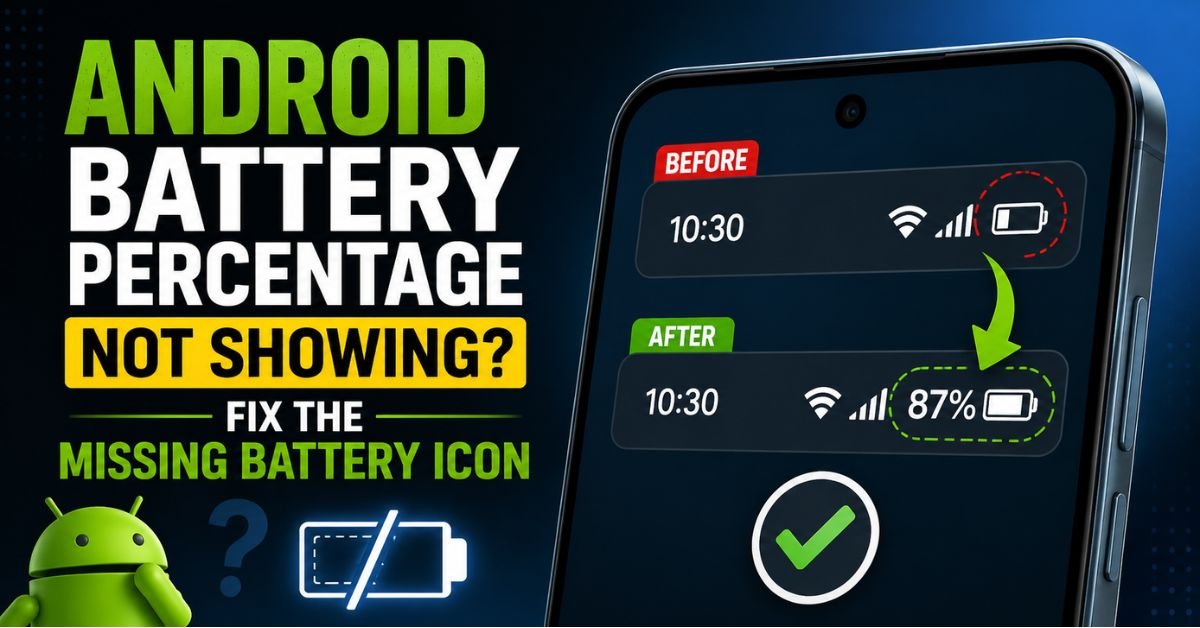
Android Battery Percentage Not Showing? Fix Missing Icon Now.I remember a Tuesday last October when a client walked into my shop, visibly sweating. He handed me a top-of-the-line Samsung Galaxy S23 Ultra. “I’m flying to London in four hours,” he said, “and I have no idea if my phone is at 90% or 9%. The battery icon is just… gone.”
It sounds like a minor annoyance until it happens to you. Navigating your day without a battery indicator is like driving a car with a piece of duct tape over the fuel gauge. You’re flying blind. As a mobile technician who has spent over a decade digging into the guts of the Android Operating System, I’ve seen this “vanishing act” hundreds of times. Usually, it’s not a hardware failure. Your Lithium-ion Battery is likely fine. Instead, it’s almost always a software glitch, a misplaced setting, or a botched Firmware Update.

In this guide, I’m going to walk you through the exact checklist I use at my repair bench to bring those missing percentages back to life.
Introduction: Why Your Battery Indicator Disappeared
The Status Bar is the most valuable real estate on your screen. It’s the dashboard of your digital life. When the battery icon or the numerical percentage disappears, it’s rarely a random event.
From my experience, three things usually trigger this. First, a system update might have reset your User Interface (UI) preferences to default. Second, a third-party “cleaner” or “battery saver” app might have hijacked the system’s display permissions. Third, and most commonly, a “System UI” crash has caused the icons to fail to render.
Why does it matter? Because modern Android skins—think Samsung One UI, Google’s Material You, or OnePlus’s OxygenOS—have become so complex that the “toggle” for the battery percentage is buried three or four layers deep in the Settings App.
Step-by-Step: Enabling Battery Percentage in Settings
Before we start clearing caches or poking around in hidden menus, let’s check the obvious. Manufacturers love to move these toggles around just to keep us on our toes.
Stock Android (Google Pixel, Motorola, Nokia)
If you’re rocking a Google Pixel or a Motorola, you’re dealing with a “clean” version of Android.

- Open Settings.
- Tap on Battery.
- Toggle the switch for Battery Percentage.
I’ve noticed that on Pixel devices running Android 14, this toggle sometimes “sticks.” If it’s already on but not showing, toggle it off and back on again. It sounds like IT Support 101, but it works surprisingly often.
Samsung One UI (Galaxy Series)
Samsung is the king of burying settings. You won’t find the percentage toggle in the “Battery” menu (which is where a logical person would look).
- Go to Settings.
- Tap Notifications.
- Select Advanced settings.
- Look for Show battery percentage and flip that switch.
Xiaomi and OnePlus
Xiaomi’s MIUI (or the newer HyperOS) and OnePlus’s OxygenOS often hide this under Notifications & Status Bar. On a OnePlus 11 I worked on recently, the setting was specifically under “Status Bar” -> “Battery Style.” You could choose between a loop, a vertical bar, or just the number. If “Don’t show” was selected, the icon would disappear entirely.
Real-World Scenarios: When Settings Alone Aren’t Enough
Sometimes you flip the switch, and… nothing. The screen stares back at you, blank. This is where my “bench experience” comes in.
The Power Saving Mode Glitch
I once spent forty minutes diagnosing a disappearing icon only to realize the user had a specialized Power Saving Mode active. Some aggressive power-saving profiles (especially “Ultra” or “Max” modes) strip away all “unnecessary” UI elements to save a fraction of a milliamp. Check your Notification Shade. Is there a leaf icon or a yellow battery? Turn off power saving and see if the icon returns.
The “Do Not Disturb” and Focus Mode Interference
This is a weird one. On certain versions of Android, particularly custom skins like Oppo’s ColorOS, enabling a strict “Focus Mode” or “Do Not Disturb” can be configured to hide status bar icons to “reduce distractions.” If you’re trying to focus, the system thinks you shouldn’t be worrying about your battery. Check your DND settings under “Schedules” or “Display Options.”
Third-Party Launchers
Are you using Nova Launcher, Niagara, or Microsoft Launcher? These apps don’t just change your icons; they can draw over the system UI. I’ve seen cases where a launcher’s “Hide Status Bar” setting was fighting with the Android system, resulting in a flickering or missing battery icon. Try switching back to the “Default Home” app in your settings to see if the icon reappears.

Pro Tip: The Quick Toggle Shortcut Instead of digging through menus, swipe down twice to fully expand your Notification Shade. On many phones, the percentage shows up there even if it’s hidden on the main home screen. If it’s there but not on the top bar, you know it’s a display setting issue, not a system failure.
Advanced Hands-on Fixes: System UI and Developer Tweaks
If the basic settings didn’t help, we need to get a bit more technical. We’re going to talk to the “System UI”—the specific process that draws your clock, your signal bars, and your battery.
Accessing the System UI Tuner
In older versions of Android (6.0 through 9.0), there was a hidden menu called the System UI Tuner. You’d hold down the “Gear” icon in the notification shade for five seconds to unlock it. On modern devices, Google has hidden this even deeper. You can often access it using an app like “Shortcut Maker” or “SystemUI Tuner” from the Play Store. Once inside, look for “Status Bar” and make sure “Battery” is set to “Always show percentage.”
Toggling Developer Options
This is a trick I use when the UI seems “frozen.”
- Go to Settings > About Phone.
- Tap Build Number seven times until it says “You are now a developer.”
- Go back to Settings > System > Developer Options.
- Look for Demo Mode. Toggle it on and then off.
This action forces the status bar to refresh its entire icon set. It’s like a “soft reset” for the top of your screen.
Force-Stopping the System UI
Warning: This will make your screen flicker and your wallpaper might disappear for a second. Go to Settings > Apps > See all apps. Tap the three dots in the corner and select Show system. Find System UI. Tap Force Stop. The UI will immediately restart itself. If the battery icon was “stuck” in a hidden state due to a memory leak, this usually snaps it back into place.
Common Pitfalls: What Most Users Get Wrong
In my decade of repair, I’ve noticed users often confuse two very different features.
Adaptive Battery vs. Battery Percentage I’ve had people complain that “Adaptive Battery is on, but I don’t see the number.” Adaptive Battery is a background AI feature that limits power to apps you don’t use. It has nothing to do with the visual icon. Don’t waste time toggling AI features when you’re looking for a display setting.
The “Safe Mode” Test If you aren’t sure if an app you downloaded is causing the problem, boot into Safe Mode. (Usually, hold the Power button, then long-press “Power Off” on the screen). If the battery icon shows up in Safe Mode, you have a rogue app—likely a theme, a launcher, or a “battery doctor”—that is suppressing the icon. Start uninstalling your most recent apps one by one.
Ignoring the Menu Split Google and Samsung have a habit of moving settings between the “Display” menu and the “Notifications” menu. If you can’t find it in one, always check the other. In One UI 6, it’s almost entirely moved to the Notifications/Status Bar section, away from the main Battery maintenance page.
The Final Resort: Clearing Cache and Resets
If you’ve tried everything and that status bar is still stubbornly empty, we have to look at the system data.
Clearing the System Cache Partition
This is my “secret sauce” for fixing weird glitches after a Firmware Update. It doesn’t delete your photos or messages; it just clears out the temporary “junk” files the OS uses to run.
- Turn off your phone.
- Hold Volume Up + Power (this varies by model; some require a USB cable connected to a PC) to enter Recovery Mode.
- Use volume buttons to navigate to Wipe Cache Partition.
- Select it with the Power button.
- Reboot.
I’ve seen this fix battery icon issues on dozens of Samsung devices where a major OS update left “ghost” settings in the cache that prevented the UI from updating correctly.
The Factory Reset
I hate suggesting this, but if the UI is completely corrupted, a Factory Reset is the final answer. Back up your data first. Use Google One or Samsung Cloud. A clean slate ensures that any deep-seated software bugs are wiped out.
Maintaining a healthy Android UI isn’t just about settings; it’s about keeping the system lean. Avoid those “RAM Booster” apps—they do more harm than good and are often the primary reason system icons go missing in the first place.
Frequently Asked Questions
Q: Can a cracked screen cause the battery icon to disappear?
A: Not directly. However, if the “dead zone” of a digitizer (the touch layer) is at the top of the screen, you might be unable to swipe down to see the percentage, or the LCD/OLED might have “ink bleeding” that covers the status bar. If the rest of the status bar (time, Wi-Fi) is visible, it’s a software issue, not a hardware one.
Q: Why does my battery percentage only show when the phone is charging?
A: This is a specific setting in some “Always On Display” or “Lock Screen” configurations. Check your Display > Lock Screen settings. Some manufacturers hide the percentage to “minimize burn-in” on OLED screens, only showing it when the power state changes (i.e., when you plug it in).
Q: I updated my Android version and the icon changed to a different shape. Can I change it back?
A: Usually, yes. If you are on a OnePlus or Asus phone, look for “Status Bar Icons” or “Icon Manager” in the settings. For other phones, you might need a third-party app like SystemUI Tuner to force a specific icon style.
Q: Does showing the battery percentage drain more battery?
A: Technically, yes, because the screen has to update those specific pixels every time the percentage drops. However, the drain is so minuscule (think 0.0001%) that it is practically unmeasurable. It is far more important for your peace of mind to know your power levels.
Q: My battery icon has a “plus” sign or a “bolt” inside it. What does that mean?
A: A “bolt” means you are charging. A “plus” (+) sign usually means Battery Saver mode is active. In some UI versions, when Battery Saver is on, it may hide the numerical percentage to emphasize that you are in a low-power state. Check your Power settings to toggle this.










