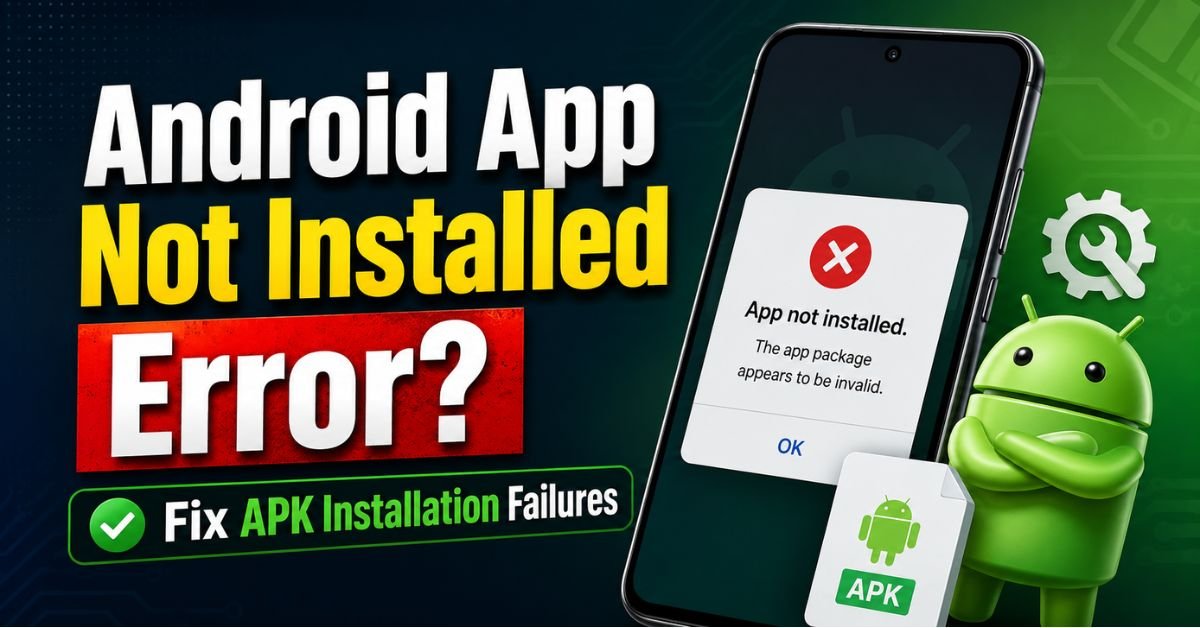
Fix ‘App Not Installed’ Error: 7 Ways to Resolve APK Failures.I’ve been there. You just downloaded that specific version of an app you need—maybe it’s an older version of Instagram that doesn’t have the latest annoying UI change, or perhaps a niche open-source tool from GitHub. You tap the APK, the progress bar crawls for a second, and then… thud. “App Not Installed”. No code, no explanation, just a digital door slammed in your face.
In my five years of mobile software testing and sideloading everything from custom launchers to leaked beta builds, I’ve realized this error is the “Check Engine” light of the Android Operating System. It tells you something is wrong but leaves you to play detective.

Why does this happen? Is the file corrupt? Is your phone just being stubborn? Usually, it’s a conflict between what the Package Installer wants and what your APK is providing. Let’s get under the hood and fix this.
Why Android Rejects Your APK
When you try to install an APK (Android Package Kit), the system doesn’t just copy files. It runs a series of checks: Does the Digital Signature match? Is the Manifest File valid? Is there enough space in the Dalvik Cache (or ART nowadays) to compile the code?
There is a subtle difference between “App Not Installed” and “Package Appears to be Corrupt.” The latter usually means the download itself was interrupted, leaving you with a half-baked file. The former, “App Not Installed,” is more frustrating because it usually means the file is fine, but your phone has a specific reason for blocking the handshake.
Common culprits include:
- Signature Mismatches: Trying to install an update signed with a different key than the existing app.
- API Level Incompatibility: Trying to run an app meant for Android 14 on an Android 10 device.
- Architecture Mismatches: An ARM64 app won’t run on an old 32-bit processor.
Step 1: Overcoming Security and Permission Barriers
Android has become a fortress lately. Back in the Android 6 days, you just toggled one “Unknown Sources” switch. Now, it’s a per-app permission.
The ‘Install Unknown Apps’ Maze
If you’re using Chrome or a file manager like Solid Explorer to open the APK, you must grant that specific app the right to install others. Go to Settings > Apps > Special App Access > Install Unknown Apps.

Bypassing Google Play Protect
This is the big one. Google Play Protect isn’t just scanning the Play Store; it’s a real-time gatekeeper on your device. Sometimes it flags niche apps as “Unsafe” simply because they haven’t been seen by Google’s “reputation” engine yet.
When the “Unsafe App Blocked” pop-up appears, don’t just hit “OK”—that cancels the install. You have to tap “More Details” and then “Install Anyway.” On Android 13 and 14, this is even more aggressive, sometimes requiring you to go into the Play Store app settings to temporarily disable Play Protect entirely just to get a specialized tool through.
From the Workbench: Last month, I was testing a custom battery-calibration tool. Play Protect kept killing the installation silently. I had to disable “Scan apps with Play Protect” in the Play Store settings. I forgot to turn it back on and realized three days later—don’t be like me. Always re-enable your security once the APK is successfully landed.
Step 2: Resolving Package Conflicts and Version Mismatches
The most common reason for failure is trying to install an app that’s already there—but differently.
The ‘Existing Package’ Problem
You cannot “downgrade” an app by simply running an older APK over a newer version. Android’s security model prevents this to stop “rollback attacks” where a hacker might try to replace a secure app with an older, vulnerable version.
If you want an older version, you must uninstall the current version first. But here’s the kicker: sometimes uninstalled apps leave “Ghost” files behind.
Clearing ‘Ghost’ Data
If you’ve uninstalled an app but the APK still won’t install, check if you have multiple user profiles (like a Work Profile or a Guest account). If the app is still installed for “Work,” the system-wide package name (e.g., com.spotify.music) is still claimed. You have to “Uninstall for all users.”

Using ADB to Force the Issue
If the UI is failing you, the Android Debug Bridge (ADB) is your best friend. I’ve used this hundreds of times when the phone refuses to give me a clear error.
Connect your phone to a PC and try: adb install -r -d your_app_name.apk
The -r tells it to replace existing data, and -d tells it to allow a version code downgrade. If it fails here, ADB will actually give you a specific error code like INSTALL_FAILED_UPDATE_INCOMPATIBLE. This is pure gold for troubleshooting.
Step 3: Storage and System Optimization Fixes
“Low Disk Space” is a lie. Well, not a lie, but a simplification.
The 2x Rule
If your APK is 100MB, you don’t need 100MB of free space. You need about 500MB. Why? The system needs to download the file, extract the contents, and then create the optimized .dex files in the system partition. If your storage is at 98% capacity, the Package Installer will often just give up and throw the “Not Installed” error.
Clearing the Package Installer Cache
The Package Installer is itself an app. Sometimes its own cache gets corrupted.
- Go to Settings > Apps.
- Enable “Show System Apps.”
- Find Package Installer.
- Clear its Cache and Data. This won’t delete your apps; it just resets the “brain” that handles installations.
Expert Insight: The SD Card Trap If you have your SD card formatted as “Internal Storage” (Adoptable Storage), Android gets very picky. If the SD card is slow or slightly unmounted, APK installations will fail 100% of the time. I always recommend unmounting the SD card or moving the install location back to internal memory before sideloading.
Advanced Troubleshooting: Architecture and Signatures
Now we’re getting into the “Pro” territory. This is where most casual guides stop.
Architecture Mismatches (ARM64 vs. ARMv7)
Modern phones use ARM64 (AArch64). Older ones use ARMv7. If you download an APK specifically compiled for ARMv7 and try to put it on a modern Tensor or Snapdragon chip, it might work (via emulation), but the reverse—putting an ARM64 app on an old tablet—will fail instantly. Use an app like DevCheck to see what architecture your CPU actually supports.
Dealing with ‘Split APKs’ (App Bundles)
This is a huge pain point. Google now encourages developers to use “App Bundles” (.aab). When you download these from third-party sites, they often come as a .apks or .xapk file.
The standard Android installer cannot handle these. You need a specialized tool like SAI (Split APKs Installer).
- Real-world case: I tried to sideload a heavy game that was split into a base APK and four “config” APKs (for language and screen density). Double-clicking the base APK resulted in “App Not Installed” because the code was missing the mandatory resource splits. Using SAI to select all the files together solved it in seconds.
The Digital Signature Conflict
Every APK is signed by the developer. If you’re trying to install a “Modded” APK over an official one, the signatures won’t match. Android will see that the com.developer.app already exists with “Signature A” and your new file has “Signature B.” It will block the install to protect you from a hijacked app. You must uninstall the original first.
Common Pitfalls to Avoid During the Fix Process
- Not Rebooting: It sounds cliché, but I’ve seen the Dalvik Cache get hung up on a failed install. A reboot clears those temporary staging files.
- Corrupt Downloads: Always check the file size. If the website says 50MB and your file is 48MB, it’s a dud.
- Target SDK Version: If a developer set the
targetSdkVersionto 34 (Android 14) and used features not back-ported to Android 10, the installation will fail because the manifest is asking for things your OS doesn’t have. - Ignoring File Hashes: If you’re downloading high-risk APKs, check the SHA-256 hash. A mismatched hash doesn’t just mean the app won’t install; it means someone might have tampered with it.
Frequently Asked Questions
Q1: Why does it say “App Not Installed” even though I have 1GB of space?
A: Android reserves a portion of storage for system operations and “critical” updates. If you fall below a certain threshold (usually 500MB to 1GB depending on the manufacturer), the system will prevent new app installations to ensure the OS doesn’t crash. Try clearing your Google Photos cache or deleting large videos and try again.
Q2: Is it safe to disable Play Protect to install an APK?
A: It depends on the source. If you’re getting the APK from a reputable source like APKMirror or F-Droid, it’s generally safe. However, Play Protect is your last line of defense against malware. If you disable it, do so only for the duration of the install and then turn it back on.
Q3: Can I fix the “Package appears to be corrupt” error?
A: Usually, no. This almost always means the file itself is broken. This happens if your Wi-Fi cut out during the download or if the server-side file is malformed. Delete it and redownload it, preferably using a different browser.
Q4: What if I can’t uninstall the original app because it’s “System” software?
A: This is a classic conflict. If you’re trying to update a system app (like YouTube or the Gallery) with a sideloaded APK and it fails, you should first go to the app’s settings and select “Uninstall Updates.” This rolls it back to the factory version, which might allow your new APK to overwrite it.
Q5: What is a “Manifest File” and why does it break my install?
A: Think of the Manifest as the APK’s resume. It tells Android “I need these permissions” and “I only work on these versions.” If the Manifest says the app requires a camera but your device doesn’t have one, or if it claims to be a version of an app that’s actually older than what’s installed, the Package Installer will reject it.
The Bottom Line
Fixing the “App Not Installed” error is all about patience and narrowing down the variables. Start with permissions, move to storage, and then look at version conflicts. If you’re still stuck, use ADB to get the “hidden” error message.
Installing apps outside the Play Store is one of the best things about Android—it’s your device, after all. Just make sure you’re keeping the gates guarded while you’re letting new guests in. Happy sideloading!










