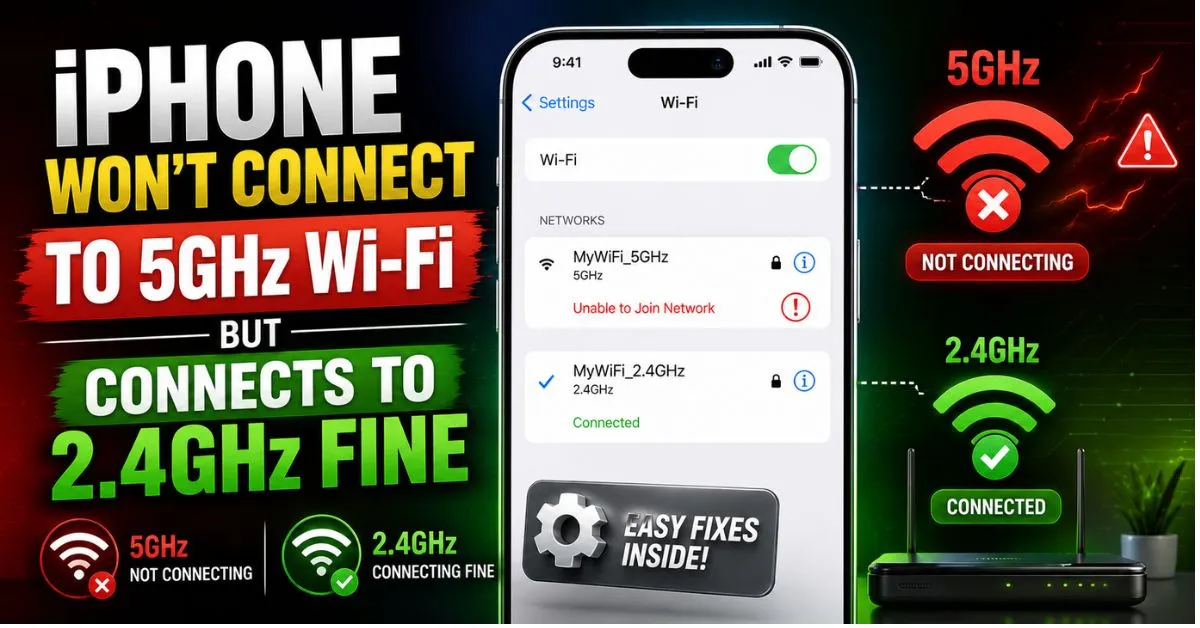
Last Tuesday, I found myself sitting three feet away from my Asus RT-AX88U router, staring at my iPhone 15 Pro in utter disbelief. My MacBook was pulling a glorious 800 Mbps on the 5GHz band. My iPad? Rock solid. But my iPhone—the device I actually use for 90% of my quick tasks—flat out refused to see the 5GHz SSID. It was happily chugging away on the 2.4GHz band at a measly 40 Mbps, struggling to load a simple high-res video.
If you’ve ever been stuck in this “Wi-Fi purgatory,” you know how maddening it is. Your hardware supports the latest IEEE 802.11ac (and Wi-Fi 6/6E) standards, yet you’re relegated to the slow lane. I’ve spent the better part of a decade troubleshooting iOS networking quirks, from the iPhone 12 launch to the current titanium models, and I can tell you: this isn’t usually a hardware failure. It’s a communication breakdown between iOS’s aggressive power-saving features and your router’s broadcast settings.

Real-World Scenarios: When 5GHz Fails on iOS
Usually, this problem manifests in one of three ways. First, there’s the “Invisible Network” syndrome. You open your Wi-Fi settings, and the 5GHz version of your home network simply isn’t there, even though your neighbor’s 5GHz network is screaming at full bars.
Then there’s the “Incorrect Password” loop. You know the password is correct—you just typed it into your laptop—but the iPhone insists you’re wrong. This is rarely a password issue and almost always a handshake failure involving WPA3 Security or a timed-out DHCP Lease.
Finally, there’s the “Self-Downgrade.” Your iPhone connects to 5GHz for five minutes, then silently hops back to 2.4GHz. This happens because iOS perceives the 5GHz signal as “unstable” and prioritizes a steady connection over a fast one, even if that steady connection is glacial.
Understanding the 2.4GHz vs 5GHz Technical Gap
Why is 5GHz so finicky? It comes down to physics. Signal Attenuation is much more aggressive at higher frequencies. While 2.4GHz waves are long and can easily pass through walls and furniture, 5GHz waves are shorter and much more “brittle.”
In my own apartment, a single brick wall between the living room and the office drops my 5GHz signal by nearly 15dBm. This is where MIMO Technology (Multiple-Input Multiple-Output) is supposed to help by using multiple antennas to bounce signals around, but if the initial handshake fails, those extra antennas won’t do a thing.
The 2.4GHz band is also a crowded mess. Everything from your microwave to your neighbor’s old baby monitor causes Radio Frequency Interference. The only reason your iPhone stays on 2.4GHz is because the signal reaches it, whereas the 5GHz signal might be getting blocked by that oversized mahogany bookshelf you just bought.

Router-Level Tweaks That Actually Solve the Problem
Most “tech gurus” tell you to restart your router. We’re going deeper than that. If your iPhone connects to 2.4GHz but ignores 5GHz, the culprit is likely your router’s channel selection.
The DFS Channel Trap
This is the single most common reason iPhones ignore 5GHz networks. DFS Channels (Dynamic Frequency Selection) are frequencies shared with radar systems (like weather or military radar). If your router is set to “Auto” and picks a DFS channel (like 52-144), your iPhone might refuse to connect to stay compliant with local regulations, or it might take minutes to “scan” the channel before showing it in the list.
The Fix: Log into your router’s admin panel. Manually set your 5GHz channel to a “non-DFS” channel. I’ve found that 36, 40, 44, or 48 are the most compatible with iOS devices across the board. Every time I’ve moved an iPhone 13 or 14 to channel 36, the 5GHz network magically reappears.
Band Steering: Friend or Foe?
Many modern routers (like Eero or Google Nest) use Band Steering, which gives both 2.4GHz and 5GHz the exact same SSID (name). The router then decides which band your phone should use. iOS is notorious for being “sticky”—it grabs the 2.4GHz signal first because it’s stronger at long range and refuses to let go.
The Fix: If your router allows it, disable Band Steering and give your 5GHz network a unique name (e.g., “Home_WiFi_5G”). This forces the iPhone to acknowledge the faster band as a distinct entity.
WPA3 vs. WPA2 Mixed Mode
If you have an iPhone 11 or newer, it supports WPA3. However, many routers have a “Mixed Mode” (WPA2/WPA3) that can confuse the iOS security handshake. I’ve seen countless “Incorrect Password” errors fixed simply by switching the router back to “WPA2-AES Only.” It’s slightly less secure than the latest standard, but it’s the difference between a working connection and no connection at all.
Pro Tip: The 160MHz Myth High-end routers boast about 160MHz channel width. While this allows for insane speeds, it also increases noise and reduces range. Most iPhones operate most stably at 80MHz. If you’re having dropouts, go into your router’s wireless settings and force the channel width to 80MHz for the 5GHz band.

Step-by-Step iPhone Troubleshooting Guide
Once your router is broadcasting a clear, non-DFS signal on a fixed channel, it’s time to fix the iPhone’s internal “memory.”
1. The Deep Network Forget
Don’t just toggle Wi-Fi off and on. Go to Settings > Wi-Fi, tap the ‘i’ next to your 2.4GHz network, and select Forget This Network. Do the same for the 5GHz one if it appears. This clears the DHCP Lease and any corrupted DNS Settings that might be lingering.
2. Disable Private Wi-Fi Address
Apple introduced MAC Address Randomization (Private Wi-Fi Address) to prevent tracking. It’s great for privacy in Starbucks, but it can wreck your home connection if your router has any form of MAC filtering or if the address changes unexpectedly.
- Go to Settings > Wi-Fi.
- Tap the ‘i’ next to your network.
- Toggle off Private Wi-Fi Address.
- Reconnect.
3. Networking & Wireless System Services
This is a niche fix I discovered after a frustrating week with an iPhone 12 Pro. iOS has a system-level toggle for “Networking & Wireless” that uses location data to optimize your Wi-Fi connection based on your region’s regulations. Sometimes this service gets “stuck.”
- Go to Settings > Privacy & Security > Location Services.
- Scroll to the bottom and tap System Services.
- Toggle Networking & Wireless off, then back on.
Common Pitfalls: What Most Users Get Wrong
I often see people rushing to perform a “Reset All Settings” on their iPhone. Please, don’t do that. It wipes your Apple Pay cards, wallpaper, and alarm clocks, and it’s rarely necessary. A Reset Network Settings is much more surgical and effective.
Another mistake is ignoring router firmware. I once spent two days troubleshooting a client’s iPhone 14 Pro only to realize their TP-Link router was running firmware from 2019. Apple frequently updates the Wi-Fi stack in iOS, and if your router doesn’t “speak” the same updated language, you’re going to have issues with the IEEE 802.11ac handshake.
Finally, check your case! I know it sounds primitive, but I’ve tested “rugged” metallic cases that acted as a Faraday cage, specifically killing the 5GHz signal while letting the more robust 2.4GHz signal through. If you’re struggling, take the case off and try again.
Frequently Asked Questions
Why does my iPhone see 2.4GHz but not 5GHz when they are both on the same router?
This usually happens because the 5GHz signal is on a DFS channel that your iPhone is currently ignoring, or the 5GHz signal is too weak to be picked up due to Signal Attenuation. Your iPhone is essentially saying, “I see the 2.4GHz signal perfectly, so I’m not even going to bother listing the weak 5GHz one.”
Will using 5GHz drain my iPhone battery faster?
Technically, no. While the 5GHz radio might use slightly more power during active transmission, it finishes tasks much faster (e.g., loading a webpage), allowing the radio to enter a low-power “sleep” state sooner. In the long run, it’s actually more efficient.
Does “Reset Network Settings” delete my photos?
Not at all. It only clears saved Wi-Fi passwords, Bluetooth pairings, and VPN configurations. It’s the “nuclear option” for connectivity issues, but it won’t touch your personal data or media.
Why does my iPad connect to 5GHz fine, but my iPhone won’t?
iPhones and iPads often use different Wi-Fi chipsets and antenna configurations. The iPhone, being a smaller device, has less room for antenna separation. Additionally, iPhones often have more aggressive power management settings that might favor the 2.4GHz band to save battery compared to the larger battery capacity of an iPad.
Can a VPN prevent me from connecting to 5GHz?
A VPN won’t usually prevent the initial connection to the Wi-Fi band, but it can cause the iPhone to drop the connection if it detects a “leak” or a protocol conflict. If you’re having trouble, disable any VPN profiles in Settings > General > VPN & Device Management to rule it out.
After tweaking my Asus router to use channel 44 and disabling the “Private Wi-Fi Address” on my home network, my iPhone hasn’t dropped the 5GHz connection once. It’s a bit of a dance between hardware and software, but once you understand the “why” behind the failure, the fix is usually just a few taps away.










