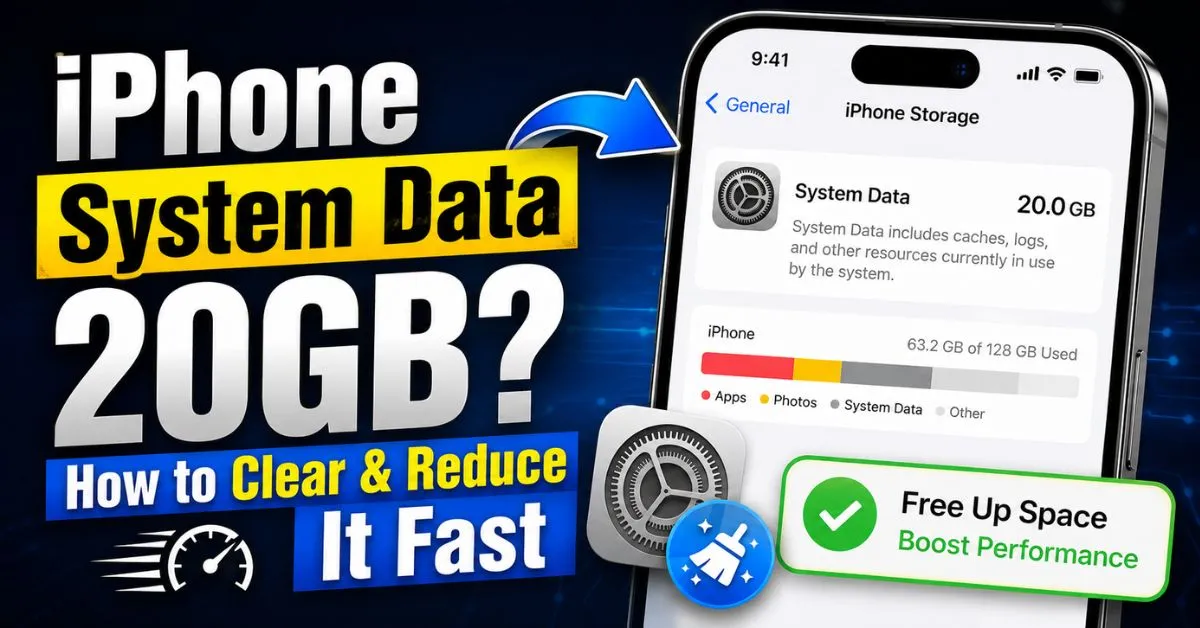
iPhone System Data 20GB? How to Clear & Reduce It Fast.I remember waking up last Tuesday to that dreaded notification: “Storage Almost Full.” I checked my settings, expecting to see a mountain of 4K videos from my weekend trip. Instead, I found a grey bar labeled “System Data” eating up a staggering 24.5GB. I’d just deleted my entire “Recently Deleted” folder and cleared out old apps, yet this phantom bloat refused to budge. If you are staring at a 20GB+ System Data block right now, I know exactly how infuriating it feels. You feel like a tenant in your own house, paying for 128GB of space but being told you can only use 100GB because the “landlord” (iOS) has locked several rooms for “storage.”
System Data is the modern iteration of what we used to call “Other.” It’s a catch-all category for things that don’t fit neatly into Photos, Apps, or Media. But when it crosses that 20GB threshold, it’s no longer just “necessary background files.” It’s a performance bottleneck that can cause your iPhone to lag, apps to crash, and—worst of all—prevent you from taking that one perfect photo because your shutter is locked.

The Mystery of the 20GB System Data Block
What exactly is inside that grey bar? I spent 48 hours monitoring my iPhone 15 Pro, watching the System Data fluctuate like a living organism. It’s a mix of Kernel logs, NVRAM variables, Metadata, and Firmware updates that haven’t quite finished their cleanup routine.
When your iPhone operates, it creates temporary files. These are supposed to be “evictable.” In theory, if you need space for a new app, iOS should automatically purge these caches. In reality? The File System often gets stubborn. If you hit that 20GB mark, you’ve likely entered the “Storage Almost Full” loop. This is where the phone is so full it doesn’t even have the “scratch space” it needs to perform the cleanup tasks that would free up more space. It’s a digital Catch-22.
I’ve noticed that System Data often swells during heavy indexing periods—like right after an iOS update or when you’ve recently moved thousands of photos to iCloud. The system creates tiny thumbnails and database entries (metadata) for everything, and these files often get stuck in a temporary directory instead of being flushed.
Real-World Scenarios: Where the Bloat Comes From
Through my troubleshooting, I’ve identified three primary culprits that lead to a 20GB+ System Data headache.
Scenario 1: The Heavy Streaming Addict
If you use Netflix, Disney+, or Spotify, you might think “I haven’t downloaded anything for offline use.” But here’s the kicker: every time you stream a movie, your iPhone caches Streaming Assets. It stores bits of the video ahead of time to prevent buffering. If you’ve been binge-watching a 4K series on the train, those chunks of data often fail to delete themselves immediately. I once found 4GB of “ghost” data just from a weekend of YouTube streaming.
Scenario 2: The ‘Never-Deleted’ iMessage Threads
We all have that group chat that’s been running since 2018. Even if you don’t “save” the photos to your library, iMessage keeps them in its own internal Cache. Worse, if you send a lot of “Memories” or high-res stickers, those assets are indexed and stored in System Data.

Scenario 3: The Safari ‘Reading List’ and History Bloat
Safari History isn’t just a list of URLs. It includes site icons, CSS files, and “Preload” data. If you have “Automatically Save Offline” toggled for your Reading List, iOS will download every article you’ve ever saved, burying it deep within the system partition where standard “Clear History” buttons sometimes fail to reach.
Hands-On Tips: The Immediate Reduction Strategy
Before you go for the “nuclear option,” there are three things I do every month to keep my System Data under 10GB.
- The Safari Deep Clean: Don’t just clear history. Go to Settings > Safari > Advanced > Website Data and hit “Remove All Website Data.” This targets the granular files that a standard “Clear History and Website Data” occasionally misses.
- App Offloading vs. Deleting: This is a nuance many miss. When you Offload an app (Settings > General > iPhone Storage > [App Name] > Offload App), it keeps the documents and data but removes the binary. This is great for apps you use rarely. However, if an app like TikTok has a 2GB cache, offloading won’t fix it. You need to delete the app entirely and reinstall it to flush the File System of its temporary junk.
- The ‘Manual Flush’ Trick: I’ve found that if you open the TV app, go to your Library, and start playing a large movie you own (don’t download it, just stream), iOS realizes it needs more cache space and often triggers a background purge of older System Data logs to make room. It’s a weird “trick,” but I’ve seen it shave 2GB off my System Data in minutes.
Expert Insight: Most people think a “Restart” fixes everything. For System Data, you actually need a “Force Restart” (Volume Up, Volume Down, then hold the Power button until the Apple logo appears). This clears the Kernel cache and resets the NVRAM, which can often release stuck log files that a normal shutdown won’t touch.
Deep Cleaning: Recovering Space from Hidden Caches
If the basics didn’t work, we need to go deeper into the iOS settings.
Managing iMessage Auto-Delete: Go to Settings > Messages > Keep Messages. If this is set to “Forever,” your System Data will grow indefinitely. Change it to “1 Year.” You’d be surprised how many gigabytes of forgotten video memes from three years ago are still eating your storage.
The Spotlight Re-indexing Hack: Sometimes System Data is high because the search index is corrupted. I found this out the hard way. To fix it, go to Settings > Siri & Search, turn off all the “Show in…” options for a few heavy apps, restart your phone, and then turn them back on. This forces the iPhone to rebuild the index, often deleting bulky, corrupted index files in the process.
Trimming ‘Recently Deleted’: This sounds obvious, but it’s not just about Photos. Check the “Files” app. The “Recently Deleted” location in the Files app is a separate entity from your Photos trash. If you’ve been moving large zip files around, they might be sitting there taking up space that the system counts under “System Data” until the 30-day window expires.

Common Pitfalls and What to Avoid
I’ve seen a lot of “advice” on Reddit and YouTube that actually makes things worse.
- Avoid ‘Storage Cleaner’ Apps: I cannot stress this enough. Any app in the App Store claiming to “Clean your RAM” or “Deep Clean System Data” is largely a scam. Apple does not give third-party apps the “Root” access required to touch the system partition. These apps often just collect your data or show you ads while doing nothing more than what you can do in Settings.
- Don’t Delete Dictionaries or Fonts: If you go hunting in General > Software Update or Languages, don’t delete things you don’t recognize. Deleting system-critical Metadata can lead to weird UI bugs where text doesn’t render correctly.
- The ‘Reset All Settings’ Trap: People often suggest “Reset All Settings” to fix storage. While it can work, it’s a massive pain. You lose your Wi-Fi passwords, Bluetooth pairings, and Apple Pay cards. Only do this as a penultimate step.
The Final Fix: The Backup and Restore Method
If you are still stuck with 20GB+ of System Data and your phone is crawling, it’s time for the “Nuclear Option.” This is the only 100% guaranteed way to shrink System Data to its absolute minimum (usually around 6-8GB).
- Backup to iCloud or a Mac: Ensure your backup is current. I prefer a Mac/PC backup (encrypted) because it captures more NVRAM and local settings than a standard iCloud backup.
- Erase All Content and Settings: Go to Settings > General > Transfer or Reset iPhone > Erase All Content and Settings.
- The Restore: Set up the phone and choose “Restore from Backup.”
Why does this work? When you restore from a backup, iOS only brings back your essential data and app “Documents & Data.” It does not bring back the fragmented Cache files, old Logs, or corrupted Metadata. It essentially defragments your File System and starts fresh.
Verification: Don’t check the storage immediately after restoring. Your iPhone will be hot and the battery will drain fast for the first 24 hours as it re-indexes everything. Check the System Data bar after a full 48-hour observation period. You will likely see it has dropped from 20GB to a much more manageable 7GB.
Frequently Asked Questions
Q: Is it normal for System Data to fluctuate? Yes. I’ve seen my System Data jump from 8GB to 12GB just by browsing Instagram for an hour. It’s a “workspace.” The problem only exists if that “workspace” never gets cleaned up and stays consistently above 15-20GB.
Q: Does clearing my Safari cache delete my passwords? No. Your passwords are stored in the iCloud Keychain, which is separate from your “Website Data.” Clearing cache deletes cookies and login sessions (you’ll have to log back into websites), but your saved passwords remain safe.
Q: Why does my System Data increase right after I delete photos? This is a classic iOS quirk. When you delete a large amount of data, the system has to work harder to update the File System databases and iCloud sync logs. This temporarily increases System Data. Give it 24 hours to settle.
Q: Can a low-quality charging cable increase System Data? Surprisingly, yes—sort of. If a cable is faulty and causes the phone to constantly connect and disconnect from a computer, it can generate massive amounts of “Error Logs” in the background. These logs are stored in System Data.
Q: Will upgrading to a higher iCloud tier reduce System Data? Not directly. However, it allows you to use “Optimize iPhone Storage” for your photos. This moves the high-res files to the cloud, reducing the local Metadata load on your device, which can indirectly help keep the system cleaner.










