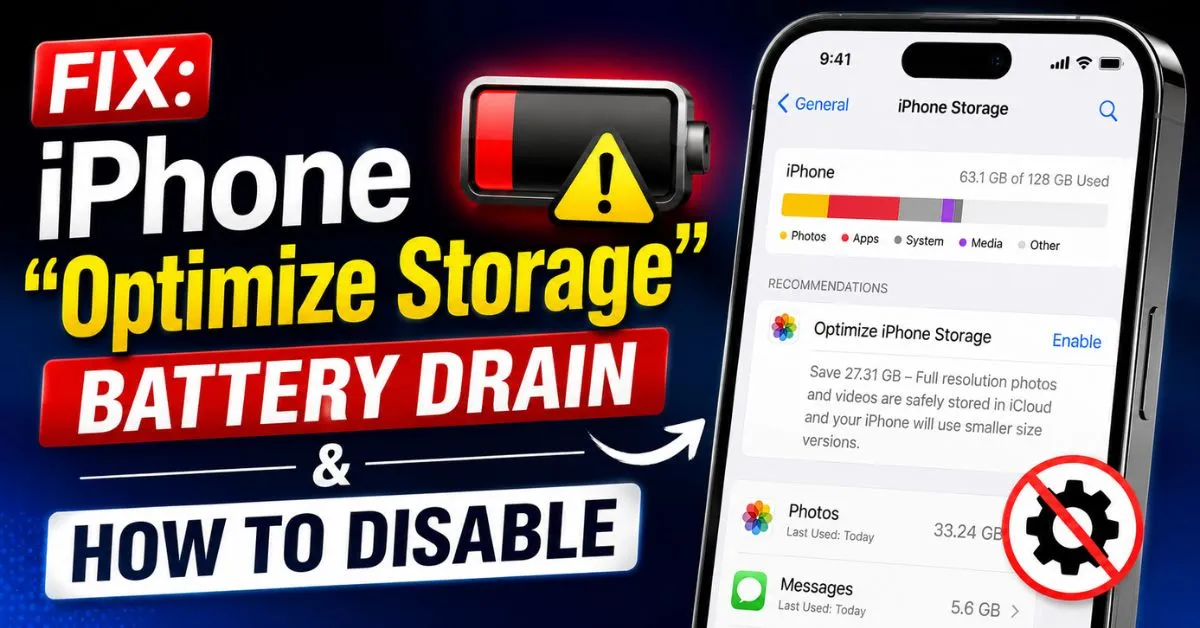
Fix: iPhone ‘Optimize Storage’ Battery Drain & How to Disable.I was sitting in a quiet corner of a local coffee shop last Tuesday, trying to get some writing done, when I felt a familiar, uncomfortable sensation in my right thigh. It wasn’t a notification vibration; it was heat. My iPhone 15 Pro, which had been sitting idle in my pocket, was suddenly acting like a pocket warmer.
When I pulled it out, the lock screen was sluggish, and a quick glance at the battery icon showed I’d dropped from 82% to 64% in what felt like a blink. No apps were open. No GPS was running. But there it was, buried in the settings—that persistent, nagging prompt: “Optimise iPhone Storage.”

Most people see that prompt and think, “Great, Apple is helping me save space.” I see it as a warning sign. After years of tinkering with iOS 16 and 17, and monitoring device logs more than any sane person should, I’ve realized that the “Optimise Storage” feature is often the hidden vampire behind “spontaneous” battery drain.
The Real-World Scenario: When Storage Optimization Becomes a Problem
The “Warm Pocket” syndrome isn’t just a quirk of my specific device. It’s a widespread technical byproduct of how Apple handles the iCloud Photo Library. Usually, this prompt appears when your local NAND Flash Storage starts hitting a certain threshold—often around 80% to 90% capacity.
The iPhone gets nervous. It sees your 4K videos and high-resolution photos and decides it’s time to start “offloading” the full-resolution versions to the cloud, replacing them with tiny, low-resolution thumbnails. On paper, it’s brilliant. In practice, the transition period is a resource-intensive nightmare.
I’ve noticed that this prompt often appears even when users think they have 10GB or 15GB of space left. Why? Because the APFS File System (Apple File System) requires a significant “buffer” to perform basic system tasks and updates. When you hit that wall, your iPhone kicks into a high-gear background maintenance mode. You’ll see your battery percentage drop while your phone is just sitting on a desk. This is because the device is frantically communicating with Apple’s servers, trying to reconcile your local database with your iCloud account.
Technical Breakdown: Why ‘Optimize Storage’ Drains Battery
To understand why this drains your juice, we have to look under the hood at the processes most users never see.
The MediaAnalysisD Daemon
When you enable storage optimization, a background process called MediaAnalysisD goes into overdrive. This is the iOS Indexing engine. It’s responsible for scanning your photos for faces, objects, and scenes (so you can search for “dog” in your gallery). When the phone starts offloading photos to save space, it often has to re-index or verify the Metadata Sync for those files. This consumes massive amounts of CPU cycles.

HEIF to JPEG Transcoding
Most of us use the HEIF Image Format (High-Efficiency Image File) because it saves space. However, when the “Optimize” task is active, the iPhone often has to generate different versions of these images to ensure they are ready for various cloud-sharing scenarios. This “offloading” process isn’t just a file transfer; it’s a computational task.
Data Transmission Stress
Constant Wi-Fi or 5G data transmission is one of the most power-hungry things an iPhone can do. If you have 50GB of photos being swapped out for thumbnails, your cellular modem or Wi-Fi chip is stuck in a high-power state for hours. This leads to Thermal Throttling, where the iPhone gets so hot that it intentionally slows down the processor to protect the hardware. This creates a vicious cycle: the task takes longer because the phone is slow, and the phone stays hot because the task won’t finish.
Expert Insight: The Telemetry Don’t Lie If you go to Settings > Battery and see a long blue bar for “Background Activity” even when you haven’t touched the phone, and you see “Photos” listed as the culprit, that’s your smoking gun. This is the device performing the “storage dance” in the background.
Step-by-Step: How to Disable Optimize iPhone Storage Safely
If you’re tired of your phone feeling like a hot potato, you might want to disable this feature. But be warned: you need a plan.
1. The Pathway Navigate to Settings > Photos. You will see two options: “Optimize iPhone Storage” and “Download and Keep Originals.”
2. Choosing “Download and Keep Originals” When you select this, your iPhone will attempt to pull every full-resolution photo from iCloud back onto your device.
- The Catch: If you don’t have enough physical NAND Flash Storage to hold everything, the phone will simply refuse to switch, or worse, it will get stuck in a “Downloading” loop that drains even more battery.
3. The Storage Pre-Check Before you flip that switch, check your total iCloud Photo library size. Go to Settings > [Your Name] > iCloud > Manage Account Storage > Photos. If your library is 100GB and your phone only has 20GB free, do not disable optimization yet. You need to clear space first (I’ll show you how in the next section).

Hands-on Tips: Managing Storage Without Sacrificing Battery
You don’t have to let Apple’s automation ruin your Battery Health Maximum Capacity. Here is how I manage my storage manually while keeping my phone cool and efficient.
Manually Offload Large Apps
Instead of letting the phone mess with your photos, go to Settings > General > iPhone Storage. Look at your apps. I guarantee there’s a game or a social media app taking up 4GB that you haven’t opened in a month. Tap the app and select “Offload App.” This keeps your data and documents but deletes the heavy application file. It’s a surgical strike versus the “Optimize Storage” carpet-bombing approach.
The “System Data” Cleanup
Have you ever seen that grey bar in your storage titled “System Data” (formerly “Other”)? It can sometimes grow to 20GB+. This is often just cached junk from Safari, TikTok, or Instagram. I’ve found that a simple “Force Restart” (Volume Up, Volume Down, then hold the Side Button until the Apple logo appears) can often trigger the APFS File System to purge these temporary files, giving you enough breathing room to keep optimization off.
Third-Party Cloud Services (The Manual Way)
I personally use Google Photos or OneDrive, but I disable their “Background App Refresh” and “Automatic Sync.” Once a week, I open the app, let it upload my new photos, and then manually delete the photos from my iPhone’s local storage. This way, I decide when the battery drain happens (usually when I’m plugged into a charger), not the iOS background daemons.
Common Pitfalls and Mistakes to Avoid
In my testing, I’ve seen users make a few critical errors that turn a minor storage issue into a bricked phone.
- The “Zero Space” Trap: Do not wait until you have 0 KB of space left to disable optimization. If the iPhone runs out of space completely while trying to “Download and Keep Originals,” it can enter a boot loop. Always leave at least 5GB of “breathing room” for the OS.
- Ignoring Low Power Mode: If you’re in the middle of a storage optimization cycle and your battery is dying, turn on Low Power Mode. This will pause most background indexing and Metadata Sync, giving you a chance to get to a charger.
- Blaming the Battery Too Soon: Before you go to the Apple Store for a battery replacement, look at the storage prompts. A perfectly healthy battery with 100% capacity will still drain in 3 hours if the CPU is pegged at 90% trying to transcode HEIF Image Formats.
FAQs: Solving the “Optimize Storage” Battery Mystery
Q1: Why does my iPhone stay warm even after I’ve plugged it in? When your iPhone is connected to power and Wi-Fi, iOS sees this as the “green light” to perform heavy maintenance. This includes photo indexing, facial recognition, and storage optimization. It’s normal for the phone to be warm while charging if it’s doing these tasks, but if it stays hot for hours after reaching 100%, something is stuck in the background.
Q2: Will disabling ‘Optimize Storage’ delete my photos from iCloud? No. It only changes how the photos are stored locally on your iPhone. Your photos remain safe in the cloud. However, if you delete a photo locally after disabling optimization, it will still delete from iCloud unless you’ve signed out of iCloud Photos entirely.
Q3: How much ‘System Data’ is normal for iOS 17? Typically, anywhere from 5GB to 12GB is considered standard. If you see it spiking to 30GB or more while the “Optimise Storage” prompt is active, it’s likely that the phone is creating temporary caches to facilitate the moving of files. A restart usually clears this.
Q4: Does ‘Background App Refresh’ affect this? Yes and no. While turning off “Background App Refresh” helps battery life in general, the core “Optimize Storage” task is a system-level process that ignores this setting. To truly stop it, you have to address the Photos settings or free up enough local space so the OS stops feeling “cramped.”
Q5: Is there a way to see exactly what ‘MediaAnalysisD’ is doing? Not easily for the average user, but if you have a Mac, you can plug your iPhone in and use the “Console” app to watch the real-time logs. You’ll see thousands of lines of code flying by related to “photo analysis” and “cloud sync.” It’s proof that your phone is working much harder than it needs to.
Final Thoughts from the Field
Managing an iPhone shouldn’t feel like a part-time job, but the “set it and forget it” mentality Apple pushes often comes at the cost of battery longevity. I’ve found that the most stable iPhones are the ones where the user keeps at least 20% of the total storage capacity empty.
If you see that “Optimise iPhone Storage” prompt, don’t just click “OK.” Take it as a cue to do a little digital house cleaning. Delete the old screen recordings, offload the apps you don’t use, and try to switch back to “Download and Keep Originals.” Your battery—and your pocket—will thank you for the lack of heat.










