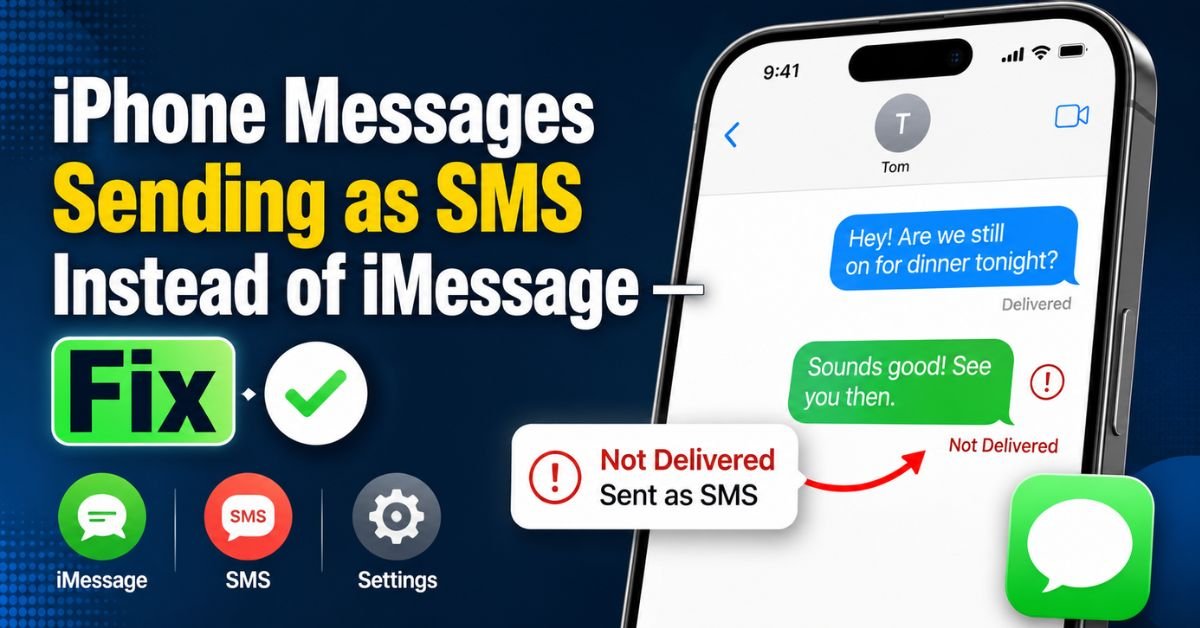
There I was, sitting in a crowded airport terminal, trying to send a quick “I’m boarding now” text to my wife. I watched the progress bar at the top of my screen crawl to 90%, stall, and then—bam—the blue bubble turned a sickly shade of green. My heart sank a little. If you’re an iPhone user, you know that feeling. It’s not just about the color; it’s about losing the high-res photos, the typing indicators, and the end-to-end encryption.
As someone who has spent the last decade deconstructing iOS connectivity issues for both frantic clients and my own sanity, I’ve seen this “blue-to-green” flip more times than I can count. Usually, it happens right when you need iMessage the most.

Whether you’re on the latest iOS 18 beta or clinging to an older model, the frustration is the same. Why is your iPhone suddenly acting like a flip phone from 2005? Let’s dive into the guts of your settings and get those blue bubbles back.
Understanding Why iMessage Reverts to SMS
Before we start toggling switches, we need to understand the “logic” your iPhone uses. Think of iMessage as a premium toll road and SMS as the bumpy backroad. Your iPhone always prefers the toll road because it’s faster and has better scenery (features).
Blue Bubbles represent iMessage. This travels over the internet—either Wi-Fi or Cellular Data—and routes through Apple’s servers using your Apple ID or your phone number.
Green Bubbles represent SMS (Short Message Service) or MMS (Multimedia Messaging Service). This travels over your carrier’s cellular voice network. It’s the fallback.
Your phone switches to green for a few specific reasons:
- Internet Failure: If your Wi-Fi is spotty or your cellular data is throttled, the iPhone gives up on the internet and sends the message via the carrier.
- Server Hangs: Sometimes Apple’s iMessage servers are having a bad day.
- Registration Errors: Your phone number might have “unlinked” from your Apple ID.
- Recipient Issues: If you’re messaging an Android user, it will always be green (until RCS is fully integrated and even then, bubbles may remain green, but that’s a story for another day).
Quick Wins: Basic Settings Check
I always tell my clients to start with the “low-hanging fruit.” Don’t go factory resetting your phone just yet.

The “Send as SMS” Toggle
This is the most common culprit. Go to Settings > Messages. See that toggle that says Send as SMS? If this is ON, your iPhone will automatically convert your message to a standard text if iMessage is unavailable for even a second.
Personal observation: I usually keep this OFF. Why? Because I’d rather my phone tell me a message failed to send so I can try again when I have better signal, rather than it sending as a green bubble and ruining my group chat features.
Refresh Your Radios
Sometimes the iPhone’s internal antenna gets “stuck” between cell towers. Swipe down from the top right to open Control Center. Tap the Airplane Mode icon (the little orange plane), wait five seconds, and tap it again. This forces your device to re-handshake with both your Wi-Fi router and the nearest 5G or LTE tower.
Check Your Data Toggles
It sounds silly, but I’ve seen people accidentally toggle off Cellular Data in the Control Center. If you aren’t on Wi-Fi and that green antenna icon isn’t lit up, iMessage is dead in the water.
Real-World Scenarios and Troubleshooting
Not all “green bubble” issues are created equal. Let’s look at some specific headaches I’ve diagnosed in the field.
When Only One Contact is Green
If your messages to your mom are blue, but your messages to your best friend are suddenly green, the problem probably isn’t you—it’s them.
- Did they switch to Android?
- Did they turn off iMessage on their end?
- Is their phone out of battery or in a dead zone?
Pro Tip: If you know they have an iPhone, try tapping their name at the top of the conversation thread, then tap “info.” Ensure you are sending to their registered iMessage email or phone number, not a secondary “Work” number that isn’t linked to iCloud.

The “Waiting for Activation” Loop
This is the boss fight of iMessage errors. You go to Settings > Messages and see a spinning wheel or a message saying “Waiting for activation.”
In my experience, this is often a carrier provisioning issue. Apple needs to send a hidden, background SMS to their servers to verify your number. If you have no credit on a prepaid SIM or if your carrier has blocked international SMS, activation will fail. I once spent three hours on the phone with a carrier only to realize the user’s date and time were set manually to the wrong time zone (more on that later).
Hands-on Technical Fixes
If the basics didn’t work, it’s time to get a bit more technical. These steps are what I call the “I’ve tried everything” protocol.
The iMessage Power Cycle
Don’t just restart your phone; restart the service.
- Go to Settings > Messages.
- Toggle iMessage to OFF.
- Go to Settings > FaceTime and toggle that OFF too (they are linked in the backend).
- Restart your iPhone.
- Go back and toggle them both ON.
This forces your Apple ID to re-authenticate with the iMessage database. You’ll see a “Your carrier may charge for SMS messages used to activate iMessage” popup. Hit OK.
Sign Out of iCloud
This is a bit of a pain because it can temporarily mess with your Apple Wallet and photos, but it works.
- Go to Settings > [Your Name].
- Scroll to the bottom and hit Sign Out.
- Wait a minute, then sign back in.
This refreshes your Apple ID tokens. Often, a “stale” token is what prevents your phone from proving to Apple’s servers that you are, in fact, an authorized iMessage user.
Update to the Latest iOS
I’ve tested this on iOS 17 and the iOS 18 developer betas. Apple frequently pushes “Carrier Settings Updates” bundled with iOS updates. If you’re running a version of iOS that’s two years old, your phone might be using an outdated handshake protocol that the carrier no longer supports efficiently.
Advanced Solutions for Persistent Issues
If you’re still seeing green, we need to bring out the heavy hitters.
Reset Network Settings
This is my least favorite fix because it’s annoying, but it’s effective. Go to Settings > General > Transfer or Reset iPhone > Reset > Reset Network Settings.
Warning: This will wipe your saved Wi-Fi passwords and Bluetooth pairings. You will have to re-enter your home Wi-Fi password. However, it also flushes the DNS cache and resets the cellular radio’s configuration files, which fixes about 90% of routing issues.
The Apple System Status Page
Before you get too mad at your phone, check if the problem is at Apple’s headquarters. Go to the Apple System Status page. I’ve seen people spend hours troubleshooting their hardware when iMessage was actually down for millions of people. Look for the green dot next to iMessage. If it’s yellow or red, go grab a coffee and wait.
Inspect Your SIM Card
In the age of eSIM, this is becoming less common, but if you have a physical SIM Card, pop it out with a paperclip. Is it dusty? Is it scratched? A faulty SIM can cause your cellular data to drop intermittently, forcing the iPhone to fall back to SMS. If you have an older iPhone, consider asking your carrier to migrate you to an eSIM for a more stable connection.
Common Pitfalls to Avoid
Through my years of tech support, I’ve noticed users often make things worse by trying “hacks” they found on TikTok. Here are a few things to avoid:
- Don’t Delete Your Threads: Unless a specific conversation is corrupted, deleting your entire message history rarely fixes a connection issue. It just makes you lose your memories.
- The Date & Time Trap: This is the “Information Gain” tip I promised. iMessage relies on SSL certificates that have strict timestamps. If your iPhone’s date is set manually and is off by even a few minutes, the security “handshake” will fail, and iMessage will deactivate. Always ensure Settings > General > Date & Time > Set Automatically is toggled ON.
- MMS Settings: If you can send text-only iMessages but they turn green the moment you attach a photo, your MMS settings are likely broken. Ensure MMS Messaging is enabled in Settings > Messages.
Expert Insight: With the rollout of RCS (Rich Communication Services) in iOS 18, the “green bubble” experience is getting better when talking to Android users. You’ll get typing indicators and better photos, but the bubbles will still be green. Don’t confuse “Green RCS” with “Green SMS.” One is a modern protocol; the other is ancient tech.
Real-Time FAQs
1. Why are my messages blue to some people and green to others?
This usually means the “green” recipients aren’t using iPhones, or they have iMessage disabled. If you know they have an iPhone, it’s possible their phone isn’t connected to the internet, or your phone is trying to reach them via an old email address instead of their current phone number. Check their contact card and make sure you’ve selected their “iPhone” label for the number.
2. Can I force a message to stay blue even with a bad connection?
Not exactly. However, you can prevent it from turning green by turning off “Send as SMS” in your Messages settings. If the connection is too poor for iMessage, the message will simply show a “Not Delivered” alert with a red exclamation point. You can then tap it to “Try Again” once you have better Wi-Fi.
3. Does iMessage use my cellular data plan?
Yes. Unlike SMS, which uses your carrier’s voice/text “minutes,” iMessage uses data. If you have a very limited data plan and you aren’t on Wi-Fi, sending large videos through iMessage will eat into your monthly allowance. If you run out of data, your iPhone will likely revert to SMS (green bubbles).
4. I just switched from Android and my messages are a mess. Help!
This is a classic “deregistration” issue. If you previously had an Android and used Google’s RCS, you might need to turn that off. Conversely, if you are switching away from iPhone, you MUST turn off iMessage before you switch, or your friends’ iPhones will keep trying to send you blue bubbles that you’ll never receive.
5. Why is there a “Waiting for Activation” error for over 24 hours?
Apple states that iMessage activation can take up to 24 hours. If it exceeds that, it’s usually because your carrier is blocking the “verification SMS” Apple sends in the background. Contact your carrier and ask if there are any “shortcode blocks” on your account or if your SMS plan is active.
Fixing the “green bubble” plague is usually just a matter of patience and toggling the right switches. Nine times out of ten, it’s a simple handshake error that a quick restart or a “Network Settings Reset” will clear right up. Just remember: stay calm, check your Wi-Fi, and keep those bubbles blue!










