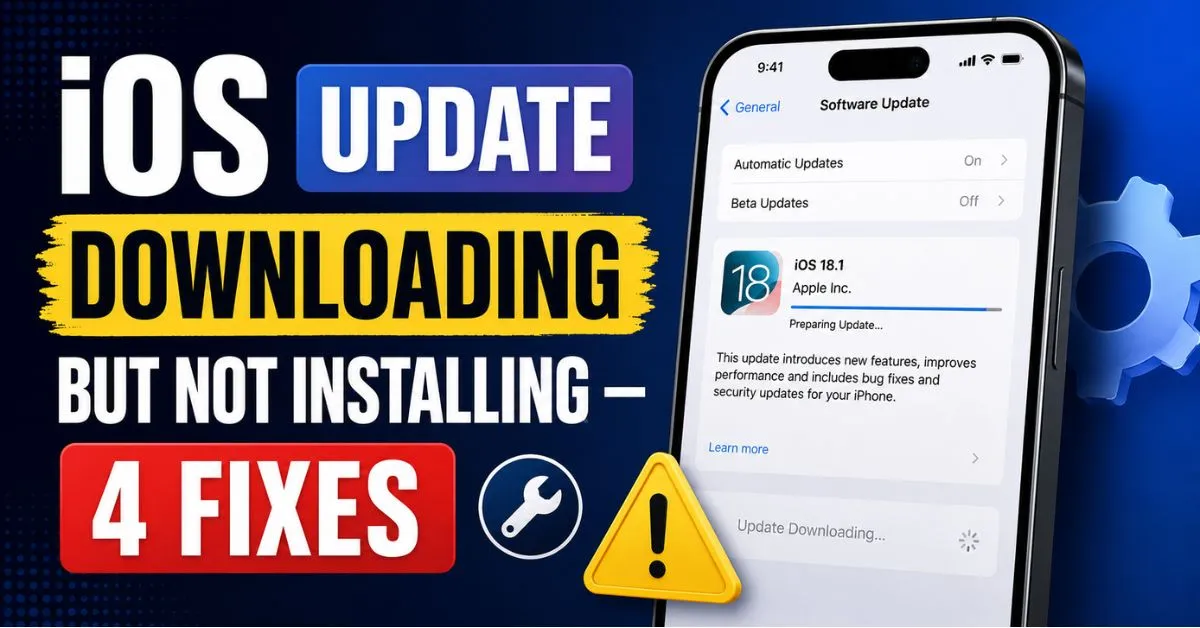
I’ve been there. It’s 1:00 AM, a new iOS version just dropped, and I’m staring at my iPhone screen like it’s a ticking time bomb. The progress bar for the download finished twenty minutes ago. The “Install Now” button is sitting there, blue and inviting, but every time I tap it, nothing happens. Or worse, it’s greyed out, mocking me with a “Preparing Update…” message that seems to last longer than a DMV queue.
As someone who has spent years troubleshooting iPhones—from the early jailbreak days to the modern-day “walled garden” era—I can tell you that a stuck iOS update is rarely a sign of a broken phone. Usually, it’s just a software bottleneck or a security handshake that failed.

The frustration is real. You want those new emojis, the security patches, or that one bug fix that’s supposed to save your battery life. Instead, you’re stuck in digital purgatory. Before we dive into the guts of the fixes, do me a favor: Check your iCloud Backup. If your phone decides to throw a tantrum during a forced installation, you’ll want your photos and messages safe. Head to Settings > [Your Name] > iCloud > iCloud Backup and hit “Back Up Now.”
Ready? Let’s get that update moving.
The Stuck Update Loop: What You Are Seeing
When your iPhone says it’s “Downloading” but never moves to “Installing,” or it gets stuck on “Preparing Update,” your device is essentially trying to unpack a giant, compressed suitcase (the Firmware) into a very crowded closet (your iPhone Storage).
The “Preparing Update” phase is actually the most intensive part. This is where the iOS package decompressions happen and where the system verifies the file’s integrity with Apple Servers. If the Wi-Fi blips for even a millisecond or if your System Data is hogging too much temporary RAM, the process just… stops. No error message. No explanation. Just a spinning wheel of silence.
Fix 1: The Decompression Space Trick
Here is a hard truth I learned the hard way: if an iOS update is 5GB, you need at least 10GB to 12GB of free space to actually install it.
Most users look at their storage and think, “I have 6GB free, I’m good!” Nope. The iPhone has to download the 5GB file, then it has to decompress it (which takes up more space), and then it keeps the old OS running while it prepares the new one. It’s a space-hogging nightmare.

Check Your “System Data”
Go to Settings > General > iPhone Storage. Scroll all the way to the bottom. See that “System Data” (formerly called “Other”)? Sometimes it swells to 20GB for no reason. This bloat prevents the update from having the “breathing room” it needs to unpack the firmware.
The “Offload” Workaround
If you’re tight on space, don’t start deleting your precious photos yet. Instead, find heavy apps like Instagram, TikTok, or YouTube in your storage list and tap “Offload App.” This removes the app itself but keeps all your logins and data. Once the iOS update is finished, you just tap the app icon to redownload it. It’s the fastest way to clear 5GB of space in under a minute.
Expert Insight: I’ve noticed that iPhones with less than 10% total storage capacity remaining often fail to verify updates because they can’t create the temporary cache files required for the “handshake” with Apple’s verification servers. Always aim for a “double the update size” buffer.
Fix 2: The ‘Purge and Redownload’ Method
Sometimes the download itself is the problem. If your Wi-Fi Network flickered or you switched from LTE to Wi-Fi mid-stream, the update file might be corrupted. A corrupted file will never pass the “Verification” stage.
Your iPhone won’t tell you the file is bad; it will just sit there on “Install Now” and ignore your taps.
How to kill the corrupted file:
- Open Settings.
- Go to General > iPhone Storage.
- Scroll through the list of apps until you find the iOS Update (it usually has the gear icon).
- Tap it and select Delete Update.
Now, go back to Settings > General > Software Update and start over. I know, it’s annoying to wait for the download again, but 9 times out of 10, a fresh, clean download solves the “Verification Error” or the unresponsive install button.

Fix 3: Power and Verification Check
Apple is incredibly strict about Battery Health and power levels during an update. If your phone dies mid-install, it can “brick” the device, turning your $1,000 iPhone into a glass paperweight.
The 50 Percent Rule
Your iPhone will often refuse to start an installation if you are below 50% battery, even if you are plugged into a charger. It’s a safety mechanism. If your battery is old and the capacity is degraded, the system is even more cautious. Plug it into a wall outlet (not a weak laptop USB port) and let it charge up to 80% before hitting install.
Network Glitches
If the “Install Now” button brings up an “Unable to Verify Update” pop-up, it’s likely a network issue. Apple’s servers need to “sign” the update on your specific device.
- Avoid Public Wi-Fi: Coffee shop Wi-Fi often has firewalls that block Apple’s verification servers.
- Reset Network Settings: If you’re on home Wi-Fi and it’s still failing, go to Settings > General > Transfer or Reset iPhone > Reset > Reset Network Settings. (Note: You’ll have to re-enter your Wi-Fi passwords).
Fix 4: The Force Restart (The ‘Hardware’ Kickstart)
A standard “turn it off and on again” usually isn’t enough when the Settings App is hung up on a background process. You need to perform a Force Restart. This doesn’t delete your data; it just cuts power to the logic board and clears the hardware cache.
I’ve seen this fix “Preparing Update” loops when nothing else worked. It’s like shaking a frozen watch.
For iPhone 8, X, XS, 11, 12, 13, 14, and 15:
- Press and quickly release the Volume Up button.
- Press and quickly release the Volume Down button.
- Press and hold the Side (Power) button until the Apple logo appears. Ignore the “Slide to Power Off” slider—keep holding that button until you see the logo.
Once the phone reboots, go straight back to the Software Update menu. You’ll often find the “Install Now” button is suddenly responsive.
Advanced Troubleshooting & Final Steps
If you’ve tried all of the above and you’re still staring at a screen that won’t update, it’s time to bring out the big guns: a computer.
Using a Mac or PC
Connecting your iPhone to a Mac (via Finder) or a PC (via iTunes/Apple Devices app) bypasses the “On-Device” decompression issues. The computer handles the heavy lifting—it downloads the firmware, unzips it, and then pushes the finished product to your iPhone.
This is also the best way to fix an iPhone that is stuck on the Apple logo during an update. Just put the phone in Recovery Mode and hit “Update” (not Restore, unless you want to wipe your data).
When to Call Apple Support
If you get a specific error code like Error 4013 or Error 9, you might be looking at a hardware failure, specifically with the NAND flash storage or the logic board. At that point, no amount of button-mashing will help. Use the Apple Support app to book a Genius Bar appointment.
Updating your iOS shouldn’t feel like a high-stakes gamble, but with the size of modern updates, things happen. Usually, it’s just a matter of clearing some space or forcing a fresh “handshake” with the servers.
Frequently Asked Questions
Why does my iPhone say “Estimating Time Remaining” for an hour?
This usually means your iPhone is struggling to connect to Apple’s TSS (Tatsu Signing Server). When a new iOS version is released, millions of people hit those servers at once. If you’re stuck here, toggle your Airplane Mode on and off, or simply wait a few hours until the server load drops.
Does deleting the update file delete my photos?
Not at all. When you go to iPhone Storage and delete the iOS Update file, you are only removing the temporary installation package. Your photos, apps, and messages remain completely untouched. You’ll just have to redownload the update file again when you’re ready.
Can I update iOS using Cellular Data if Wi-Fi isn’t working?
Yes, on iPhone 12 and newer (5G models), Apple allows updates over cellular, provided you have “Allow More Data on 5G” enabled in your Cellular Data options. However, I don’t recommend it. If the signal drops for a second, you’re back to square one with a corrupted download.
Why is the “Install Now” button greyed out?
This is almost always due to one of three things: you’re below 50% battery, you aren’t connected to Wi-Fi, or the update is still in the “Preparing” phase. Check your battery percentage first. If it’s 100% and still greyed out, perform the Force Restart mentioned in Fix 4.
My iPhone is hot while downloading the update. Is that normal?
A little heat is normal because the processor is working overtime to decompress the firmware. However, if the phone gets too hot, iOS will pause the installation to protect the battery. Take off your phone case and set it on a cool surface (not a bed or couch) to help it dissipate heat faster.










