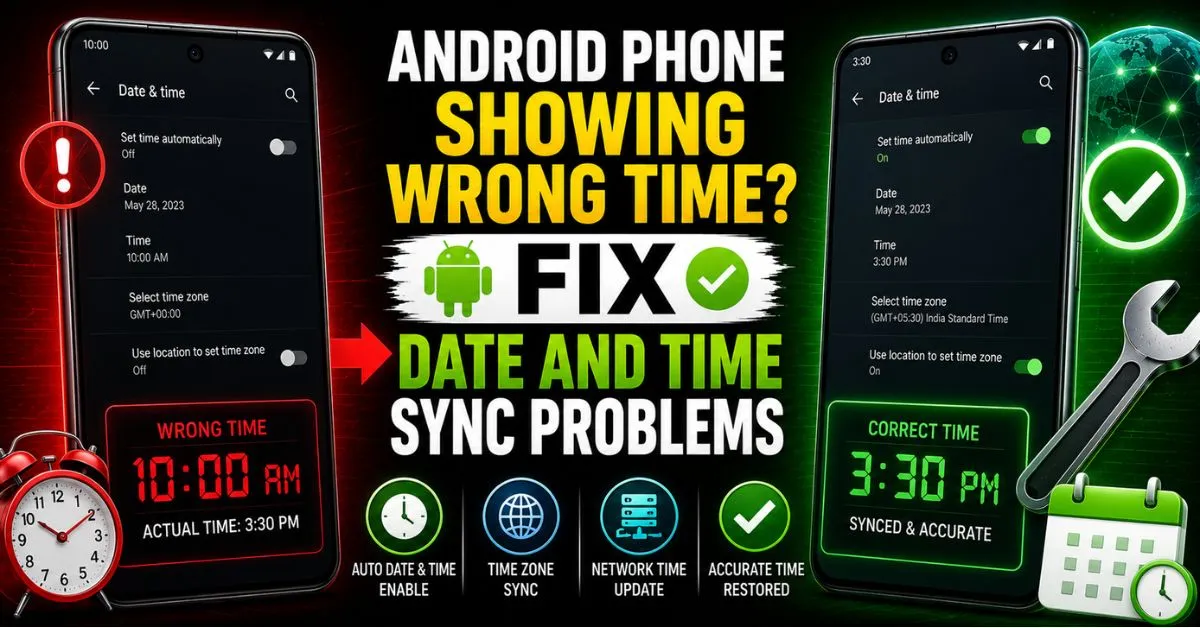
I’ll never forget the morning I woke up in a panic in a hotel room in El Paso, Texas. My phone screen said 7:30 AM. I had an 8:00 AM meeting across the border. But when I looked out the window, the sun was way too high. I checked my laptop—8:30 AM. My Android phone had decided to stick to the time zone from two cities ago, ignoring the local cellular tower entirely. I was officially late because of a “ghost” time zone glitch.
After a decade of tearing apart the Android Operating System—from the early days of Gingerbread to the polished curves of Android 15—I’ve learned that time sync isn’t as simple as it looks. Your phone is constantly juggling signals from the Network Time Protocol (NTP), GPS satellites, and your Carrier Network. When one of those gears jams, you end up in the past. Or the future. Neither is great for your schedule.

Common Real-World Scenarios Where Time Goes Wrong
We often assume technology is infallible, but time synchronization is a fragile dance. Over the years, I’ve diagnosed three main scenarios where things fall apart.
Also Reade : Complete Android Fix Guide: Every Android Problem Solved (2026)
Scenario: The ‘Ghost’ Time Zone
This usually happens when you’re traveling near borders or across states that don’t observe Daylight Savings (looking at you, Arizona). Your phone might latch onto a signal from a Cellular Tower twenty miles away in a different zone. Because the Android OS tries to be smart, it sometimes caches that location too aggressively. I once had a OnePlus 11 that refused to leave Mountain Standard Time for three days after I returned to the East Coast. It was a classic case of the system “sticking” to a stale Coordinated Universal Time (UTC) offset.
Scenario: The ‘Dead Battery’ Drift
This is a nightmare for users with older hardware. Inside every computer is a tiny component called a crystal oscillator. On older devices, or phones that have been sitting in a drawer with a dead battery for months, that hardware clock can literally “drift.” Without a fresh data connection to pull from an NTP server, the phone has no idea what year it is. If you’ve ever seen your phone say it’s January 1st, 1970, you’ve met the “Epoch” date—the default starting point for Unix-based systems when the internal clock resets.
Scenario: The ‘Network Lag’
Carriers aren’t perfect. Sometimes, a specific Access Point Name (APN) configuration or a glitchy tower update sends out the wrong NITZ (Network Identity and Time Zone) information. Your phone receives this metadata and trusts it blindly. If the carrier’s local node is out of sync, your phone will be too.
The First Line of Defense: Automatic Settings
Before we start digging into the system cache or resetting network protocols, we have to check the basics. Even as a tech specialist, I still find that 50% of problems are solved right here.

Navigating to the Source
On most modern devices (Samsung, Pixel, Motorola), the path is generally Settings > System > Date & time. On Samsung’s One UI, it’s often tucked under General Management.
Look for the toggle: “Set time automatically.”
The ‘Toggle Trick’: Why it Works
If it’s already on, turn it off. Wait ten seconds. Turn it back on. This isn’t just a “did you try turning it off and on” cliché. Toggling this setting forces the Android Operating System to drop its current listener and initiate a fresh “handshake” with the nearest Cellular Tower and the Google NTP pool. It’s like hitting the refresh button on a frozen webpage.
Hands-on Tip: Use Location for Precise Time
There’s a second toggle often overlooked: “Set time zone automatically.” Underneath that, modern Android versions have an option for “Use location.”
I highly recommend enabling this. Instead of relying solely on the carrier’s metadata (which can be wrong near borders), the phone uses a quick GPS burst to confirm exactly where you are on the map. It then matches your coordinates against a global time zone database. I found this particularly helpful when traveling through the “Time Zone Hill” in Kentucky, where the line between Central and Eastern is notoriously blurry for cell towers.
Software Glitches: When the System Clock Stalls
If the automatic toggles don’t fix it, the problem is likely deeper in the software stack. Android isn’t just one big block of code; it’s a collection of services working together.
Clearing the ‘Clock’ App Cache and Data
It sounds weird, right? Why would the Clock app affect the system time? Well, on many Android skins, the Clock app handles the alarms and the UI updates for the system tray. If the app’s cache is corrupted, it might fail to display the updated time provided by the system.

- Go to Settings > Apps.
- Find Clock.
- Tap Storage & cache and hit Clear Cache. Note: Do not clear “Data” unless you want to lose all your saved alarms!
Updating Google Play Services
This is the hidden engine of your phone. Google Play Services handles the background synchronization for almost everything, including location-based time updates. If this service is outdated or “hanging,” your time sync will fail. Go to Settings > Security & Privacy > Updates > Google Play system update. If there’s a pending update, grab it. It’s the primary way Google pushes fixes for background sync issues without requiring a full Firmware update.
The ‘Battery Optimization’ Interference
I’ve seen this on “aggressive” Android skins like those from Xiaomi or older Huawei devices. The system tries so hard to save battery that it puts the background sync processes to sleep. If your time only updates when you unlock the screen, search for “Battery Optimization” in settings, find Google Play Services, and set it to “Don’t optimize.” This ensures the clock stays “awake” even when the screen is off.
Expert Insight: The NTP vs. NITZ Conflict Your phone actually gets time from two places: the internet (NTP) and the cell tower (NITZ). Usually, NITZ takes priority because it’s “local.” However, if you’re on a weak 2G or 3G signal, NITZ can be incredibly laggy. Switching to Wi-Fi often bypasses the carrier glitch and lets the phone poll a high-precision atomic clock via the Network Time Protocol.
Network-Related Fixes for Time Sync
When the software is fine but the signal is “dirty,” we have to look at how your phone talks to the world.
Resetting APN Settings
Your Access Point Name (APN) is the gateway between your phone and your carrier’s data network. If the APN settings are slightly off, your phone might get data but fail to receive the time-sync packets correctly.
- Go to Settings > Network & internet > SIMs > [Your Carrier] > Access Point Names.
- Tap the three dots in the corner and select “Reset to default.” This won’t delete your photos or texts, but it will refresh your connection to the Carrier Network.
The Airplane Mode Cycle
This is my “field fix.” If I’m in a new country and the clock hasn’t flipped, I toggle Airplane Mode for 30 seconds. This forces the SIM Card to re-provision itself on the local network. It forces a new “Location Update” request to the Cellular Tower, which usually includes the local timestamp.
SIM Card Provisioning Errors
Occasionally, the SIM Card itself is the culprit. If the SIM is old (5+ years), it may struggle with the newer 5G standalone protocols that handle time metadata differently. If you’ve tried everything and the time is still wrong—especially after a factory reset—it might be time to visit your carrier for a fresh SIM.
Common Pitfalls and What to Avoid
In my decade of troubleshooting, I’ve seen people make things worse by trying “hacks” they found on old forums.
Pitfall: Relying on 2G/3G Towers
In 2024, many carriers are sunsetting 2G and 3G. These older towers often have neglected hardware. If your phone is stuck on an “E” (Edge) or “3G” signal, the time data it receives might be wildly inaccurate. Always try to find a LTE or 5G signal, or hop on Wi-Fi, to verify the time.
Pitfall: Using ‘Task Killer’ Apps
Please, stop using these. “Ram Boosters” or “Task Killers” often kill the system’s “AlarmManager” service. This service is responsible for waking up the phone to sync the clock. If you kill it, your clock will “freeze” in the background, and your morning alarm might never go off.
Pitfall: Incorrect ‘Regional’ Settings
Sometimes the time is correct, but the format is wrong. If your phone says it’s 13:00 instead of 1:00 PM, or if the date format is DD/MM instead of MM/DD, check Settings > System > Languages & input > Regional preferences. It’s easy to accidentally set your region to “United Kingdom” instead of “United States,” which shifts how the date and time are displayed even if the clock is technically synced.
Real-Time FAQs: Expert Answers
Q: My phone shows the correct time, but my text messages are arriving with the wrong timestamp. Why?
A: This is almost always a server-side sync issue with your messaging app (like WhatsApp or Google Messages). Even if your system clock is right, the app might be using a different UTC offset. Try clearing the cache of the specific messaging app and ensure “Automatic Date and Time” is enabled in the system settings. If it persists, it’s likely a lag on your carrier’s SMS gateway.
Q: Can a VPN cause my Android phone to show the wrong time?
A: Indirectly, yes. While a VPN doesn’t usually change your system clock, it can confuse apps that use your IP address to determine your time zone. If “Set time zone automatically” is turned on and your VPN is set to London while you’re in New York, some apps might get “location whiplash.” However, the main system clock usually relies on GPS and Cellular data, which bypass the VPN.
Q: Why is my clock always a few minutes fast or slow, even on “Automatic”?
A: This usually indicates a problem with the NTP server your phone is pinging. Some manufacturers hardcode their own NTP servers instead of using Google’s. If that server is under heavy load or poorly maintained, you get “latency” in your sync. Try connecting to a strong Wi-Fi network and toggling the “Automatic” setting to force a poll from a different source.
Q: I did a factory reset and the time is still wrong. Is my phone broken?
A: If a factory reset doesn’t fix it, you’re likely looking at a hardware issue with the motherboard’s internal clock crystal or a deep-seated Firmware bug. Before giving up, try manually flashing the latest factory image (if you’re tech-savvy) or take it to a professional to check for hardware clock drift.
Q: Does “Battery Saver” mode affect time accuracy?
A: Yes, it can. Most Battery Saver modes reduce the frequency of background data syncs. This means your phone might not poll the NTP server for several hours. While the internal clock will keep running, it won’t be “corrected” for drift as often as it would be in normal power mode.










