DNS_PROBE_FINISHED_NXDOMAIN Error — What It Is and How to Fix.It is 3:00 PM on a Tuesday. Your Slack notifications are chiming, you are in the middle of a remote-work sprint for your East Coast client, and you try to open a critical internal tool. Instead of your dashboard, Google Chrome throws a cold, gray screen with a cryptic error code: DNS_PROBE_FINISHED_NXDOMAIN.
As an IT helpdesk systems engineer, I have seen this exact screen hundreds of times in support tickets. Users panic. They assume their internet is down or, worse, that their computer is infected.

In reality, this is just a classic breakdown in how your machine talks to the local network infrastructure. It is incredibly common, highly frustrating, and thankfully, very easy to fix once you know which levers to pull. Let’s demystify this error and walk through the exact, battle-tested command-line inputs and configuration tweaks I use to get my users back online.
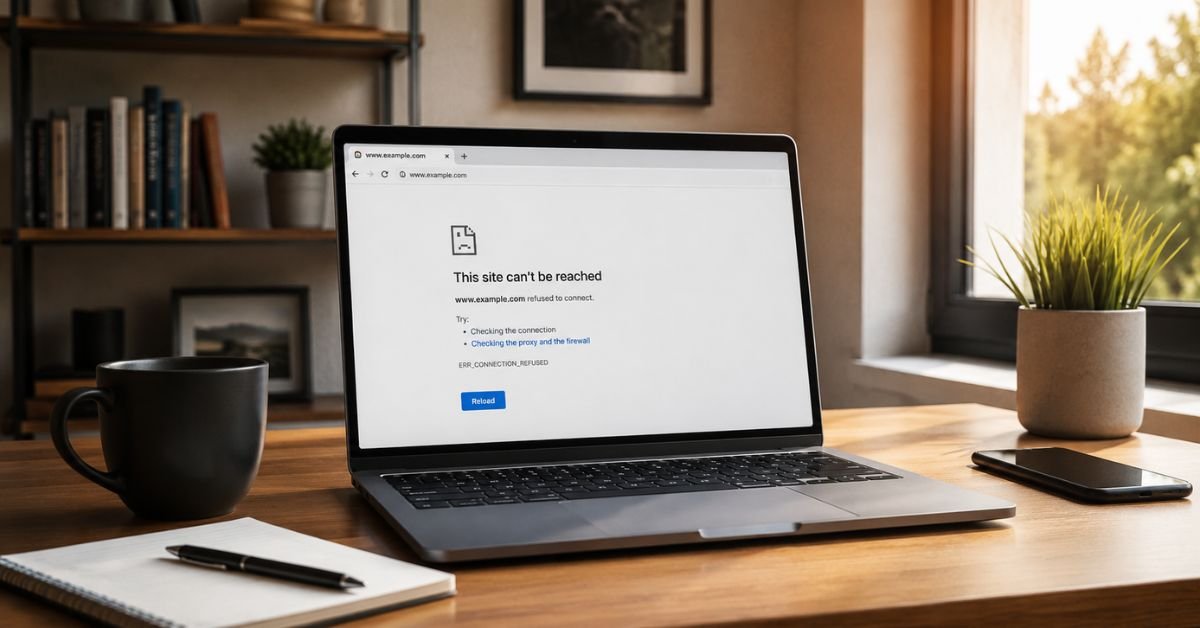
1. What is the DNS_PROBE_FINISHED_NXDOMAIN Error?
To understand how to resolve this, we have to look under the hood of your web browser.
The internet does not run on letters; it runs on numbers. When you type a human-friendly URL into Google Chrome or Microsoft Edge, your system relies on the Domain Name System (DNS) to translate that text into a machine-readable IP Address.
So, what does nxdomain mean?
NXDOMAIN stands for Non-Existent Domain.

When your computer queries a DNS server to find the IP address of a site, the server search fails. The browser attempts a local “probe” of your network configuration. When that probe finishes and reports that the domain simply cannot be resolved to any active IP address, Chrome displays DNS_PROBE_FINISHED_NXDOMAIN.
This is not a general “no internet connection” message. It is a highly specific communication failure. Your computer is saying: “I can talk to the network, but the map I am using says this destination doesn’t exist.”
Sometimes, there is a direct correlation between local resolver timeouts (when your router or local system takes too long to respond) and the “Non-Existent Domain” state. Your web client times out, assumes the domain is completely gone, and throws up the error page.
2. Real-World Scenarios: When and Why You Encounter This Error
Over my years handling network infrastructure, I have noticed this error pops up in highly predictable environments.
The US Corporate Remote-Work Nightmare
If you work remotely for a US-based firm, you likely use an enterprise VPN client like Cisco AnyConnect, Zscaler, or Palo Alto GlobalProtect. These programs are notorious for hijacking your system’s network adapters. They force all traffic through corporate tunnels and overwrite your local DNS settings. When you disconnect from the VPN—or if the VPN client experiences a silent handshake failure—your system can get stuck with stale DNS parameters, leading directly to a connection block.
ISP DNS Server Failures During Peak Hours
Many households in the United States rely on major Internet Service Providers (ISPs) like Comcast Xfinity, Charter Spectrum, AT&T Fiber, or Verizon Fios. During peak evening hours—roughly between 7:00 PM and 11:00 PM local time—millions of devices in suburban routing nodes flood these ISPs with traffic.
Standard ISP DNS servers are notoriously under-optimized. Under high-traffic loads, they experience routing lags and query drops. This is why you might suddenly experience dns probe finished nxdomain spectrum errors out of nowhere while your physical fiber line is completely fine.

[Your Computer] ──(Query)──> [Spectrum/Comcast DNS Server (Overloaded)] ──(No Response/Timeout)──> NXDOMAIN Error
Website Migration Delays
If you just bought a new domain or moved your site to a different hosting provider, your updated DNS records need time to copy across global name servers. This is called DNS propagation. Until this process is complete, your computer might retrieve old, invalid records, causing an NXDOMAIN state.
3. Immediate Quick Fixes for Non-Techies
Before we open terminals and start typing code, let’s try the low-hanging fruit. These simple steps frequently act as a direct dns_probe_finished_nxdomain bypass by clearing minor local conflicts.
- Toggle Your Wi-Fi Off and On: This forces your computer’s wireless card to request a fresh DHCP lease from your local router, which often pulls a clean set of DNS server addresses.
- Power Cycle Your Gateway/Router: Do not just press the power button. Unplug the power cable from your Xfinity or Spectrum gateway, wait a full 30 seconds to let the capacitors drain, plug it back in, and wait for the lights to go solid.
- Temporarily Disconnect Corporate VPNs: If you are running Cisco AnyConnect or Zscaler, disconnect from the session, close the client completely from your taskbar or menu bar, and try reloading the page.
- Clear Your Web Browser Cache: In Google Chrome, paste
chrome://settings/clearBrowserDatainto your address bar, set the time range to “All time”, check “Cached images and files”, and hit “Clear data”. - Disable Aggressive Third-Party Firewalls: Software like McAfee or Norton often deploys aggressive web-shielding modules that block DNS queries if they suspect a false-positive security threat. Turn them off temporarily to isolate the issue.
4. Step-by-Step Advanced Troubleshooting: Flush and Renew DNS
If the quick fixes did not work, it is time to use system utility tools. Over time, your operating system caches DNS results locally to speed up browsing. If a record changes, or if the cache corrupts, you will get persistent NXDOMAIN errors.
Here is how to clear that cache on both major platforms.
Resolving DNS Issues on Windows (Windows 10 & 11)
To run these commands, you must run the Command Prompt as an administrator.
Mistake Warning: If you simply search for “cmd” and hit Enter, the commands will fail with an “Access Denied” or “Elevation Required” error. Always right-click and choose “Run as administrator”.
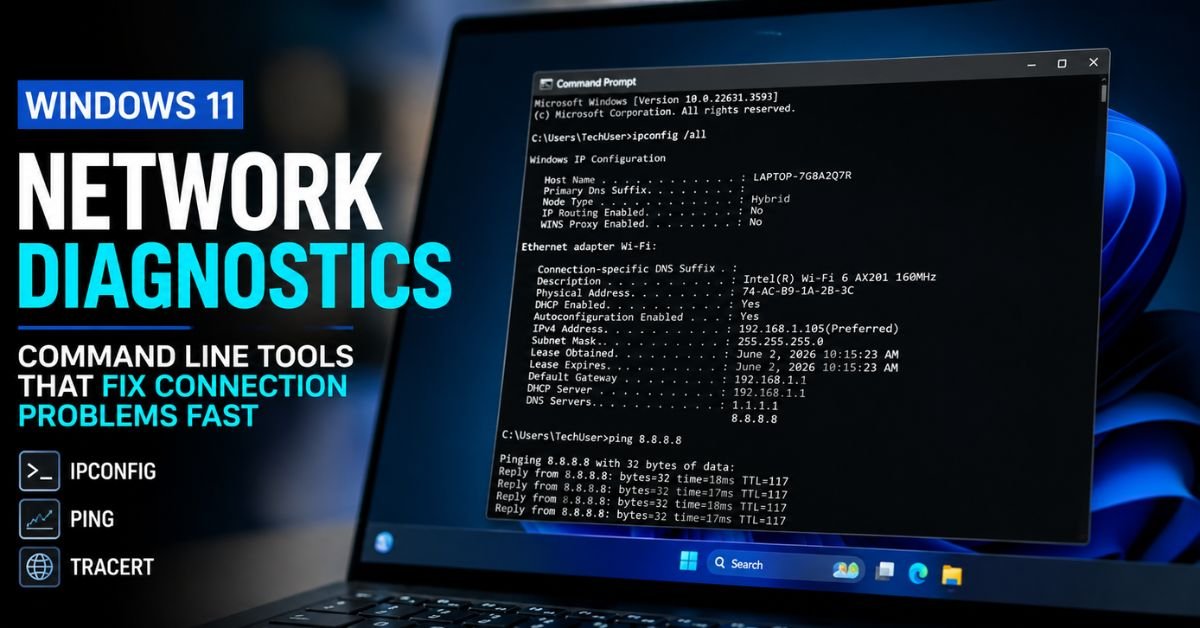
Here is the exact sequential protocol I execute on user workstations to resolve dns_probe_finished_nxdomain windows 11:
- Click your Start menu, type
cmd, right-click on Command Prompt, and select Run as administrator. - Type the following command to release your current IP address configuration and press Enter (watch your spelling; typing
ipcomfigis a common slip-up):ipconfig /release - Now, empty your system’s DNS cache. This is the core command:
ipconfig /flushdnsYou should see a message confirming: “Successfully flushed the DNS Resolver Cache.”
- Renew your lease to get a fresh IP address from your router:
ipconfig /renew - Finally, force your Windows machine to re-register its network settings with your local DNS server:
ipconfig /registerdns
Resolving DNS Issues on macOS
If you are trying to resolve dns_probe_finished_nxdomain mac, you will use the macOS Terminal to clean up the network cache.
- Press
Cmd + Spaceto open Spotlight search, typeTerminal, and press Enter. - Paste the following command into your terminal window:
sudo dscacheutil -flushcache; sudo killall -HUP mDNSResponder - Press Enter. Terminal will prompt you for your Mac’s admin password. (Note: The password characters will not show on the screen as you type them—this is normal security behavior). Type it out and hit Enter.
By running this, you are purging both the directory services cache and restarting the native multicast DNS daemon on macOS, forcing a complete reload of your network paths.
5. How to Change Your Local DNS Servers
If flushing your cache did not do the trick, the problem lies with your ISP’s DNS servers. When Comcast or Spectrum experience localized routing bottlenecks, the easiest bypass is to configure your system to use free, secure public DNS resolvers managed by Google or Cloudflare.
These public resolvers are highly optimized, globally distributed, and significantly faster than standard ISP servers.
| Provider | Primary IPv4 | Secondary IPv4 | | :— | :— | :— | | Google Public DNS | 8.8.8.8 | 8.8.4.4 | | Cloudflare DNS | 1.1.1.1 | 1.0.0.1 |
How to Change DNS Settings on Windows 11
- Open Settings (
Win + I), navigate to Network & internet, and select your active connection type (Wi-Fi or Ethernet). - Click on Hardware properties.
- Next to DNS server assignment, click Edit.
- Change the dropdown menu from Automatic (DHCP) to Manual, and toggle the IPv4 switch to On.
- Enter the addresses as follows:
- Preferred DNS:
1.1.1.1 - Alternate DNS:
1.0.0.1
- Preferred DNS:
- Click Save.
[Settings] ──> [Network & Internet] ──> [IPv4 Manual Settings] ──> Set to 1.1.1.1 / 1.0.0.1
How to Change DNS Settings on macOS
- Click the Apple icon in the top-left corner and open System Settings.
- Click on Network in the sidebar, select your active connection (Wi-Fi or Ethernet), and click Details….
- In the left panel of the settings window, click DNS.
- In the “DNS Servers” box, click the + (plus) button and add:
8.8.8.88.8.4.4
- Click OK and then Apply.
Once you apply these changes, your computer will bypass your ISP’s sluggish resolver nodes entirely, which resolves the dns probe finished nxdomain chrome loop in most cases.
6. Inspecting the Local Hosts File
Every operating system has a tiny, legacy text file called the Hosts File. Long before global DNS servers existed, this file mapped domain names manually to specific IP addresses.
Your computer still reads this file before it queries any external DNS server. If there is an old, incorrect mapping in your hosts file for the site you are trying to visit, your system will attempt to load a dead page, resulting in an NXDOMAIN error.
Cleaning Up the Hosts File on Windows
- Open your Start menu, search for Notepad, right-click it, and choose Run as administrator.
- Click File > Open.
- Navigate to the following directory path:
C:\Windows\System32\drivers\etc - Change the file type filter in the bottom-right corner of the open window from “Text Documents (.txt)” to **All Files (.*)**.
- Select the file named
hosts(it will not have an extension) and click Open.
Look through the lines. If you see your target domain listed next to a random IP address (like 127.0.0.1 or some old server IP), highlight that entire line and delete it. Save the file and close Notepad.

Cleaning Up the Hosts File on macOS
- Open your Mac Terminal.
- Run this command to open the hosts file using the built-in Nano editor:
sudo nano /etc/hosts - Type your password when prompted.
- Use your keyboard’s arrow keys to scroll down. Look for any manual site entries. If you find one, delete the line.
- Press
Ctrl + Oto write the changes, press Enter to confirm, andCtrl + Xto exit the nano editor.
7. For Website Owners: How to Fix NXDOMAIN on Your Own Site
If users are reporting the NXDOMAIN error on a site you own or manage, the problem is not on their computers. The error is pointing to an issue with your domain registration or global DNS records.
Here is your verification checklist:
- Check Your WHOIS Status: If you bought a new domain and forgot to verify your email address within 14 days, ICANN (the global domain registry authority) will automatically suspend your domain. This puts the domain into a “ClientHold” status, causing a global NXDOMAIN error. Use a free WHOIS checker tool to verify your registration status is listed as “Active.”
- Validate Your A Records: Your domain name must have an “A Record” in your DNS settings mapping your root domain (
example.com) to your web host’s IP address. Open your registrar dashboard (GoDaddy, Namecheap, Cloudflare) and verify your DNS records are correctly pointed. - Track DNS Propagation: If you recently updated your DNS, use a free utility like dnschecker.org to check if your new IP settings have populated across the globe. Some locations can take up to 48 hours to update.
- Check SSL Certificates: Sometimes, a misconfigured or expired SSL certificate can cause backend proxy routing to fail, resulting in an NXDOMAIN or connection timeout error on Edge or Chrome.
8. Common Pitfalls and Troubleshooting Mistakes to Avoid
In my support work, I often see users get frustrated and start making changes that degrade their security posture. Keep these safety tips in mind:
- Don’t Turn Off Your Firewall Completely: Out of sheer desperation, some online tutorials suggest disabling your Windows Defender or macOS security settings entirely. Do not do this. Disabling your core firewall leaves your machine open to attacks, and it rarely resolves a pure DNS configuration error anyway.
- Avoid Unofficial DNS Providers: Always use reputable, vetted public DNS servers. Avoid using unknown DNS IPs suggested on random forums. Rogue DNS servers can perform “DNS hijacking”—routing you to fake clone sites of your bank or email provider to steal credentials. Stick to Google, Cloudflare, or Quad9 (
9.9.9.9). - Avoid Typing CLI Commands Without Spaces: Syntax is everything. Commands like
ipconfig/flushdns(without the space before the slash) will output error messages. Pay close attention to spacing.
Real-Time FAQs
Why does this error only happen in Google Chrome?
It doesn’t! While dns probe finished nxdomain chrome is the most commonly searched query, this is simply because Chrome is the most popular browser. Safari will show “Safari Can’t Find the Server,” and Edge will display “Can’t reach this page.” The underlying network failure is exactly the same across all of them.
Can an expired domain cause this error?
Yes. If your domain registration expires, your registrar will instantly remove its name server records. Anyone trying to visit your site will receive a DNS_PROBE_FINISHED_NXDOMAIN error because the domain effectively no longer exists on the active web.
Will resetting my network settings delete my personal files?
No. Using options like “Network Reset” in Windows 11 will only clear and reinstall your network adapter drivers, reset your Wi-Fi connections, and wipe your VPN configurations. Your personal files, photos, and apps will remain completely safe.
Why does my VPN keep triggering the NXDOMAIN error?
This happens when a VPN’s security feature, often called a “Kill Switch,” malfunctions. If your VPN connection drops, the kill switch intentionally blocks all internet traffic (including DNS lookups) to prevent your real IP address from leaking. Re-establishing or reinstalling your VPN client software usually fixes this.










