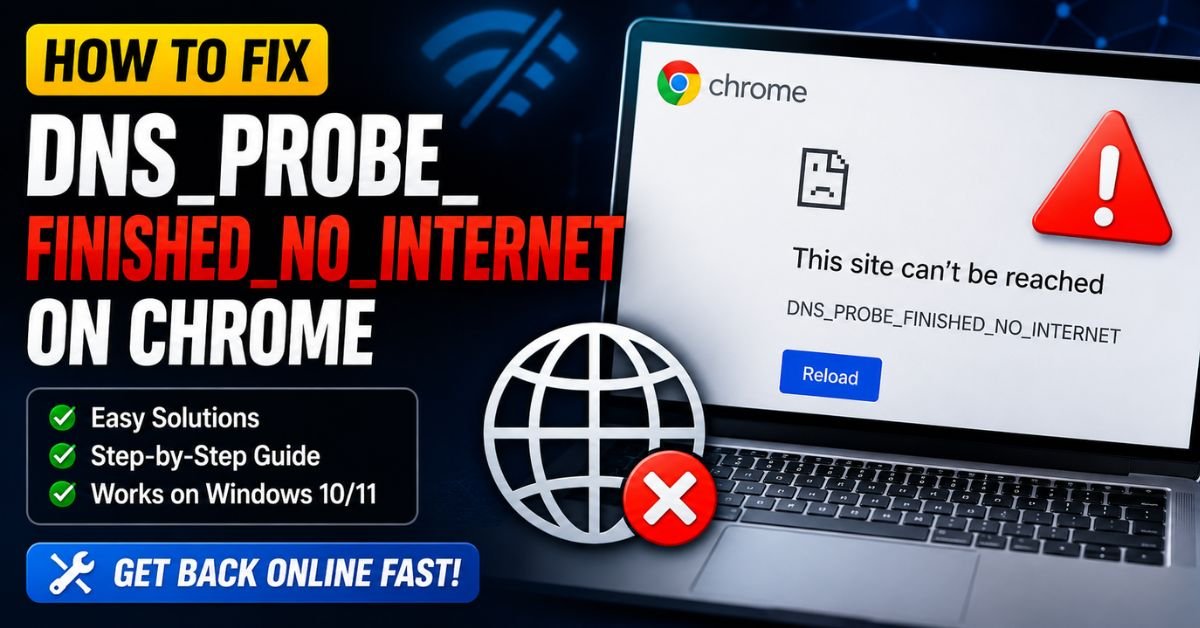
How to Fix DNS_PROBE_FINISHED_NO_INTERNET on Chrome.I was in the middle of a critical deployment meeting on Zoom last Tuesday when my screen frozen, and Slack went dead silent. Rolling my eyes, I fired up Google Chrome to search for my team’s cloud status dashboard only to be greeted by that classic, aggravating gray screen: DNS_PROBE_FINISHED_NO_INTERNET.
As a systems engineer who has spent over 15 years keeping enterprise infrastructures and home offices humming, I know how disruptive this exact moment is. You have a solid physical connection to your router, but your browser is suddenly acting like it’s lost in a digital desert. Fortunately, this is not a permanent death sentence for your network adapter. It is almost always a minor breakdown in communication between your local machine, your router, and your ISP’s Domain Name System (DNS) servers. Let’s dive into how to diagnose, tackle, and permanently resolve this issue.
Understanding the DNS_PROBE_FINISHED_NO_INTERNET Error in Chrome
To troubleshoot this cleanly, you have to understand what’s failing behind the scenes. The Domain Name System (DNS) acts as the phonebook of the internet. When you type an easy-to-remember address like google.com into your browser, DNS translates that friendly name into a machine-readable numeric IP Address (like 142.250.190.46).
When Chrome hits you with the DNS_PROBE_FINISHED_NO_INTERNET status, it means the browser successfully queried your local network stack, but the lookup probe failed to reach the wider web. Essentially, your computer is shouting out into the dark, but no DNS server is answering back. The local connection between your device and your wireless Router is intact, but the pathway leading out to the public internet is broken.
Real-World Scenarios: When Does This Error Typically Strike?
In my experience, this error does not strike randomly; it usually follows specific system events or environmental changes:
- Sudden Wi-Fi Dropouts during Remote Work: You are working from home on a busy afternoon, sending Slack updates and running video calls. Suddenly, your local bandwidth bottlenecks, causing your ISP gateway to temporarily drop packet routing.
- Post-OS Updates (Windows 11 or macOS Sonoma/Sequoia): Network stack bindings frequently get corrupted right after a major system update. The OS changes how it interfaces with your physical Network Adapter, leaving the TCP/IP settings misconfigured.
- Local ISP Infrastructure Outages: Sometimes, major US carriers like Comcast Xfinity, Charter Spectrum, AT&T Internet, or Verizon Fios experience localized routing node failures. Your optical fiber or coaxial link is up, but their default nameservers are completely unresponsive.
The Fast Fixes Checklist (Try These First)
Before we start typing commands into a terminal, let’s rule out the simple hardware glitches. As a rule of thumb, start with the easiest variable first to save yourself time.
- Power Cycle the Router and Modem: Unplug the power cables from your home gateway and modem. Wait a full 30 seconds to allow the capacitors to drain completely. Plug the modem back in first, wait for the lights to settle, then power on your router. This is the ultimate fix for dns probe finished no internet spectrum wifi drops.
- Toggle Airplane Mode: Turn on Airplane Mode on your device, wait 10 seconds, and turn it off. This forces your local network card to request a fresh local lease from the DHCP server.
- Try a Hard Refresh: In Google Chrome, press
Ctrl + F5(Windows) orCmd + Shift + R(macOS) to bypass the browser’s local cache and force a complete reload of the site.
Step-by-Step Hands-On Troubleshooting Guide
If the basic power cycle did not bring your connection back, we need to dig into the system layer. We will flush the DNS cache, reset the network configurations, and switch to highly reliable public DNS servers.

1. Flush the DNS Cache and Reset the TCP/IP Stack (Windows)
If you are dealing with dns_probe_finished_no_internet windows 10 chrome or a newer Windows 11 machine, your best friend is the Command Prompt or Windows Powershell. We are going to reset your network settings back to a clean slate.
Open your Windows search bar, type cmd, right-click on Command Prompt, and choose Run as administrator.
:: Release your current IP address configuration
ipconfig /release

:: Flush the Domain Name System resolver cache
ipconfig /flushdns

:: Renew your IP address configuration
ipconfig /renew

:: Reset the network socket catalog back to defaults
netsh winsock reset

:: Reset the TCP/IP stack configuration
netsh int ip reset
Once you execute these command prompt commands to fix dns probe on chrome, you should see a confirmation line stating: “Windows IP Configuration. Successfully flushed the DNS Resolver Cache.” Restart your computer to let the socket resets take full effect.
Microsoft Windows [Version 10.0.22631]
(c) Microsoft Corporation. All rights reserved.

C:\Windows\System32>ipconfig /flushdns

Windows IP Configuration

Successfully flushed the DNS Resolver Cache.
2. Flush the DNS Cache on macOS
If you are trying to figure out how to fix dns probe finished no internet on macbook, you need to clear the local directory services cache.
Open your macOS Terminal (press Cmd + Space, type Terminal, and press Enter). Copy and paste the following command, then hit Enter:
sudo dscacheutil -flushcache; sudo killall -HUP mDNSResponder
Note: You will need to enter your macOS administrator password. No characters will show on the screen as you type it—this is standard Unix security behavior. Just type it out and hit Enter.
3. Change DNS to Public Servers (Windows & Mac)
By default, your device uses the DNS servers assigned by your ISP (such as Comcast or Spectrum). If their servers drop, your internet drops. We can bypass this by pointing your network adapter directly to Google Public DNS or Cloudflare DNS.

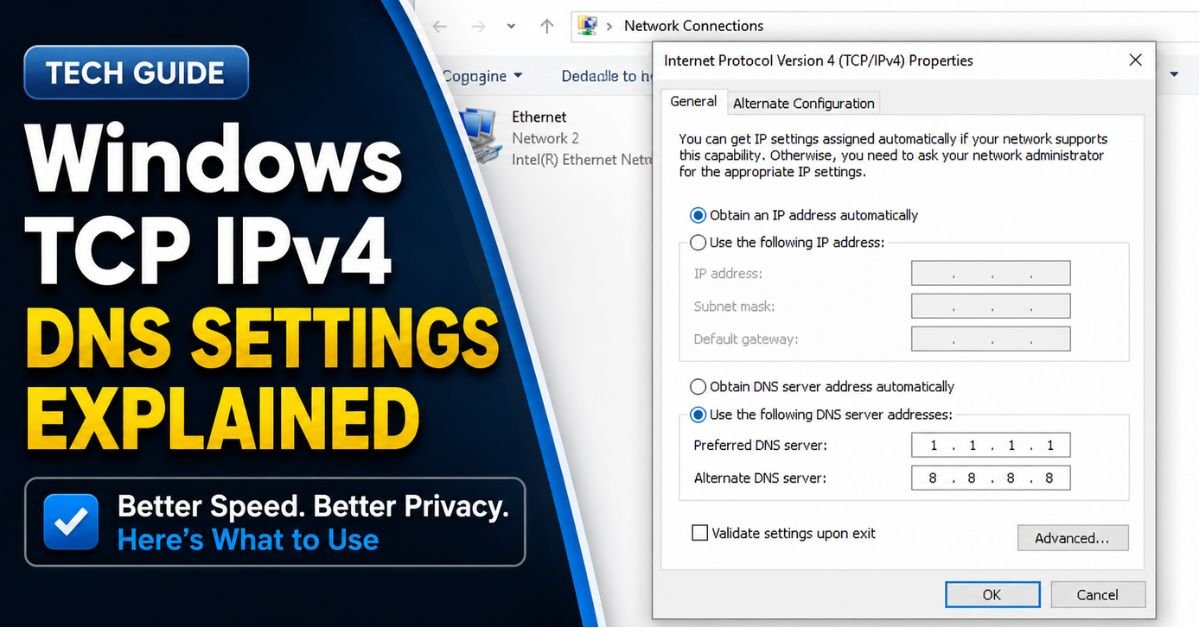
Change DNS to 8.8.8.8 Windows 10 Step by Step:
- Press
Windows Key + R, typencpa.cpl, and click OK to open your Network Connections. - Right-click your active internet adapter (either Wi-Fi or Ethernet) and select Properties.
- Locate Internet Protocol Version 4 (TCP/IPv4) in the list, click it once, and then click the Properties button.
- Select the radio button: Use the following DNS server addresses.
- Input the following values:
- Preferred DNS server:
8.8.8.8(Google DNS) - Alternate DNS server:
1.1.1.1(Cloudflare DNS)
- Preferred DNS server:
- Check the box for Validate settings upon exit and click OK.
+--------------------------------------------------------+
| Internet Protocol Version 4 (TCP/IPv4) Properties      |
+--------------------------------------------------------+
|                                                        |
|  (o) Use the following DNS server addresses:           |
|                                                        |
|      Preferred DNS server:  [  8 .  8 .  8 .  8 ]      |
|      Alternate DNS server:  [  1 .  1 .  1 .  1 ]      |
|                                                        |
+--------------------------------------------------------+
Applying this configuration on a dns probe finished no internet windows 11 xfinity gateway setup bypasses the unstable default Comcast name resolution routing entirely, often restoring your speed and connectivity instantly.
Advanced Resolution: Chrome Cache and Software Conflicts
If your machine is back online but Google Chrome still refuses to load pages, the issue is isolated to Chrome’s internal caching engines.
How to Clear DNS Cache in Google Chrome Browser
Chrome maintains its own independent DNS resolver cache to speed up load times. Occasionally, this cache gets poisoned with outdated IP mappings.
- Open Google Chrome.
- In the URL address bar, copy and paste:
chrome://net-internals/#dns - Click the clear button labeled Clear host cache.
- Next, navigate to:
chrome://net-internals/#sockets - Click Flush socket pools. This terminates active, hung socket connections that are stuck waiting for dead DNS resolutions.
Disabling DNS Prefetching
Chrome uses a feature called “Preload pages” to lookup domain IPs before you click a link. When your network is recovering from a drop, this preloading feature can overwhelm your network adapter.
To turn this off, go to Settings > Privacy and security > Performance, and toggle off Preload pages (or speed up browsing).
Managing Third-Party Antivirus and VPN Interference
If you use a corporate VPN like Cisco AnyConnect or a security suite like Bitdefender, they install custom network filters directly onto your TCP/IP stack. During automated security updates, these filters can freeze up, blocking all outgoing DNS traffic.
If you suspect this, temporarily disable your VPN or antivirus firewall. Check if Chrome loads your favorite websites. If it does, you may need to reinstall your VPN software or update your local antivirus security definitions.
Common Pitfalls to Avoid While Troubleshooting
Over my years of system administration, I’ve seen people make a few common mistakes that make things worse:
- Blindly Running Network Resets: Executing command lines without understanding them can wipe out custom static IP settings or break local developer environments (like Docker containers or VirtualBox bridges). Always document your existing settings before performing a full network card reset.
- Using Sketchy Public DNS Providers: Stick to household names. Google (
8.8.8.8), Cloudflare (1.1.1.1), and Quad9 (9.9.9.9) are highly secure, fast, and encrypted. Using obscure DNS servers can expose your browsing data to malicious middleman attacks. - Ignoring Driver Updates: Relying on default Windows generic network drivers is a bad habit. If you have an Intel or Realtek network card, always head directly to the manufacturer’s website to grab the latest official driver package.
Frequently Asked Questions
Why does my phone work on Wi-Fi, but my laptop shows DNS_PROBE_FINISHED_NO_INTERNET?
Smartphones and PCs handle DNS caching differently. Your smartphone might have automatically switched over to cellular data in the background (using Wi-Fi Assist), or it may be utilizing hardcoded DNS parameters built directly into its mobile OS, bypassing your router’s broken ISP settings.
How do I fix this DNS probe error on Xfinity or Spectrum routers?
Log into your router’s admin portal (typically by entering 192.168.0.1 or 192.168.1.1 in your browser). Navigate to the WAN/Internet settings menu and manually switch the DNS assignments from “Automatic” or “ISP Default” to Google Public DNS (8.8.8.8 and 8.8.4.4). This solves the problem for all devices connected to your home network at once.
Can a VPN cause the DNS_PROBE_FINISHED_NO_INTERNET error?
Yes, absolutely. When a VPN client disconnects unexpectedly, its virtual network adapter might fail to restore your original DNS settings. This leaves your system attempting to route all DNS requests through a closed virtual tunnel. Disconnecting and reconnecting the VPN client, or restarting your computer, usually fixes this routing lock.
Is DNS_PROBE_FINISHED_NO_INTERNET the same as DNS_PROBE_FINISHED_BAD_CONFIG?
Not quite. BAD_CONFIG typically indicates a local syntax mistake on your machine—like typing an incorrect gateway IP or pointing to a non-existent DNS server. NO_INTERNET means your configuration might be clean, but your computer has run out of options to find an active pathway to the external web.
Keeping Your Connection Stable
Resolving network issues is all about isolating variables. By methodically clearing your local DNS caches, ensuring your browser isn’t holding onto old socket pipelines, and pointing your device toward stable public resolvers like Cloudflare or Google, you can bypass the vast majority of local connection drops. Keep these quick terminal commands bookmarked for the next time your remote workday gets interrupted by a silent network drop!










