How to Fix DNS Server Not Responding on Windows 11.I was right in the middle of a critical Microsoft Teams call with our engineering lead in Chicago last Tuesday when my screen froze. A second later, the dreaded yellow warning triangle popped up on my taskbar. My browser spit out the familiar, frustrating diagnostic: dns_probe_finished_no_internet windows 11.
My Wi-Fi signal was completely full. My phone, sitting right next to my keyboard, was loading sites perfectly fine.

As a systems administrator, I troubleshoot these anomalies daily. When your system displays the DNS Server Not Responding error, your Windows 11 computer has lost its ability to translate human-friendly web addresses (like google.com) into numerical IP addresses (like 142.250.190.46). It is essentially trying to make a phone call without access to an address book.
If you are currently staring at an offline browser window on your Windows 11 machine, do not panic. Let us roll up our sleeves and fix this.
Quick Diagnostic Checklist: Real-World Scenarios to Try First
Before rewriting system configurations or messing with your IP Address settings, let’s rule out the obvious physical and external culprits.
1. The Multi-Device Isolation Test
Pick up your phone or tablet. Connect it to the same Wi-Fi network. Can you load a new website?
- If yes: The issue is isolated to your Windows 11 PC (often a local software stack glitch, a bad driver, or corrupted DNS cache).
- If no: Your router or your Internet Service Provider (ISP)—such as Comcast Xfinity, AT&T, Spectrum, or Verizon Fios—is experiencing a localized routing outage.
2. The Golden Rule of IT: Power Cycle
Do not just press the power button on your modem/router. Unplug its power cable directly from the wall. Wait a full 30 seconds to let the capacitors completely drain. Plug it back in, wait for the lights to turn solid green, and see if your PC automatically reconnects.

3. Run the Windows 11 Network Diagnostics
Microsoft updated its network troubleshooting layout in Windows 11.
- Go to Settings > System > Troubleshoot > Other troubleshooters.
- Locate Network and Internet (previously listed as the Network Adapter troubleshooter) and click Run.
- Let the system run its automated scripts. If you are lucky, it might automatically reset your default gateway and solve the problem right here.
Step-by-Step Methods to Fix DNS Issues on Windows 11
If the quick diagnostic checks did not get you back online, we need to apply manual fixes. Let us start with the most common and effective solutions.
Method 1: Flush the DNS Cache and Renew Your IP Address
Windows 11 keeps a local directory of recently visited websites to speed up loading times. If an ISP routing pathway changes, this local cache becomes outdated, causing the windows 11 dns server not responding wifi error. We can purge this database using the Command Prompt.
- Press the Windows Key, type cmd, and right-click on Command Prompt. Select Run as administrator.
- Type the following command to execute how to flush dns windows 11:
ipconfig /flushdnsPress Enter. You should see a message confirming the DNS Resolver Cache was successfully flushed.
- Next, release your current IP lease by typing:
ipconfig /releasePress Enter. (Your internet will briefly disconnect completely if it was partially working).
- Request a fresh IP lease from your router’s DHCP server by typing:
ipconfig /renewPress Enter. Wait a few seconds for the terminal to display your new IP configuration.
- Finally, register your DNS settings:
ipconfig /registerdns
Now, open your web browser and test your connection.
+-------------------------------------------------------------+
|                     PRO TIP / EXPERT INSIGHT                |
+-------------------------------------------------------------+
| The modern Windows 11 Settings app sometimes fails to save |
| manual DNS changes because of a known profile synchronization|
| bug. If your changes don't stick, use the legacy Control    |
| Panel instead. Type 'ncpa.cpl' in the Run dialog (Win + R),  |
| right-click your network card, go to Properties, and edit  |
| your TCP/IPv4 properties directly from there. It works      |
| every single time.                                          |
+-------------------------------------------------------------+
Method 2: Change DNS Manually to High-Reliability Public Servers
By default, your Windows 11 PC uses the DNS servers assigned by your ISP. Providers like Spectrum, Comcast, and AT&T occasionally suffer local DNS routing bottlenecks. We can bypass these shaky servers by switching to ultra-fast public DNS services located at major North American internet exchange points.
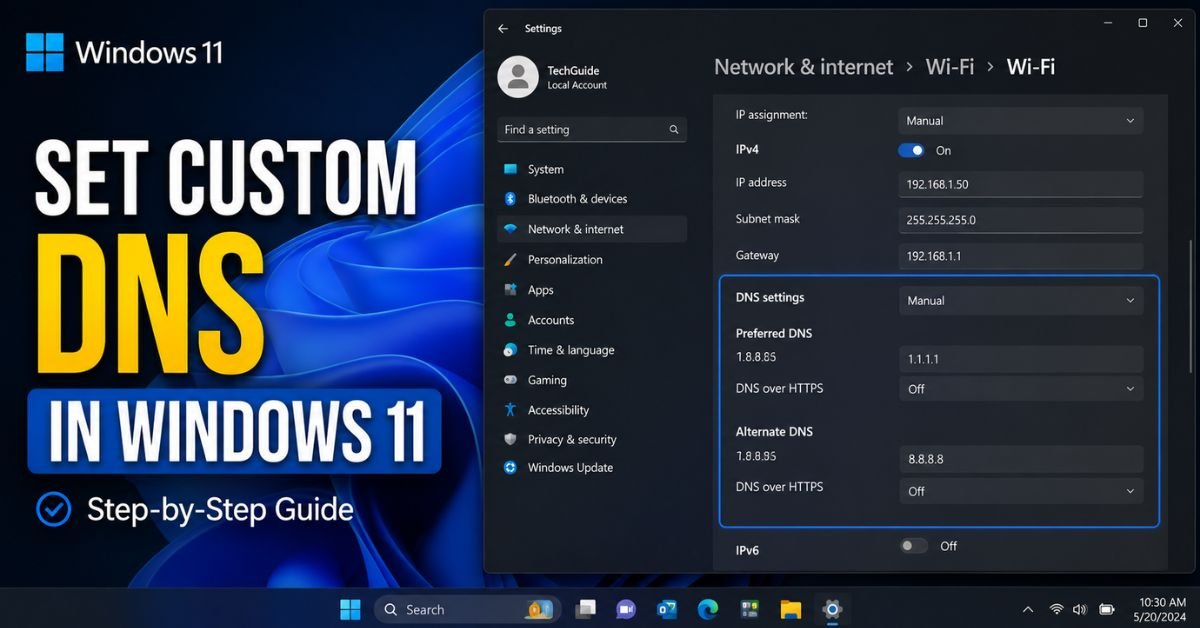
To change dns to 8.8.8.8 windows 11 or Cloudflare’s ultra-low latency server, follow these steps:
- Open Settings (Win + I) and navigate to Network & internet.
- Click on Wi-Fi or Ethernet (depending on how your device is connected).
- Select your active network connection properties.
- Locate DNS server assignment and click Edit.
- Switch the dropdown from Automatic (DHCP) to Manual.
- Toggle IPv4 to On.
- Enter the following IP addresses for maximum speed and security:
- Preferred DNS (Cloudflare):
1.1.1.1 - Alternate DNS (Google):
8.8.8.8
- Preferred DNS (Cloudflare):
- Toggle IPv6 to On (if your ISP uses it) and enter:
- Preferred DNS:
2606:4700:4700::1111 - Alternate DNS:
2001:4860:4860::8888
- Preferred DNS:
- Click Save.

 .”
.”Method 3: Rollback or Reinstall Network Adapter Drivers
If you started seeing a dns server not responding after windows 11 update, a generic Microsoft driver may have overridden your proprietary Intel, Killer, or Realtek network adapter drivers.
- Right-click the Start Menu and select Device Manager.
- Expand the Network adapters section.
- Right-click your primary wireless card (e.g., Intel Wi-Fi 6E AX211) or your wired controller and select Properties.
- Go to the Driver tab.
- If the option is available, click Roll Back Driver to revert to the previous working version.
- If rolling back is grayed out, click Uninstall Device. Leave the “Attempt to remove the driver for this device” box unchecked to avoid losing the driver files entirely, and click Uninstall.
- Restart your PC. Windows 11 will automatically detect the hardware and reinstall a clean copy of the driver.
Advanced Command-Line Fixes for Stubborn Connectivity Issues
When basic resets fail, the culprit is often a corrupted network socket catalog or an unstable TCP/IP stack. We can perform a deep cleanup of your system’s communication protocols using a couple of powerful netsh commands.
To run a netsh winsock reset windows 11 fix:
- Open Command Prompt as Administrator.
- Reset the Windows Sockets (Winsock) directory back to default defaults:
netsh winsock resetPress Enter.
- Next, rebuild your entire TCP/IP internet protocol stack:
netsh int ip resetPress Enter.
- Restart your computer. This step is mandatory because Windows needs to load the clean sockets database during the boot sequence.
If you are dealing with a stubborn ethernet dns server not responding windows 11 issue on a wired desktop, running these commands resolves physical port communication hangs roughly 90% of the time.
Disabling IPv6 and Checking Third-Party Software Interference
Modern networks use both IPv4 and IPv6 protocols. However, some US fiber and cable providers have incomplete IPv6 configurations on local nodes. This inconsistency causes Windows 11 to hang while waiting for an IPv6 DNS resolution that never arrives.
How to Temporarily Disable IPv6
- Press Win + R, type ncpa.cpl, and press Enter to open Classic Network Connections.
- Right-click your active adapter and select Properties.
- Scroll down and uncheck the box next to Internet Protocol Version 6 (TCP/IPv6).
- Click OK and restart your computer to test the connection.
       [ Windows 11 PC ]
               |
        (IPv6 Enabled?)
          /         \
       [ YES ]     [ NO ] ---> (Force stable IPv4 path)
          |                       |
   (ISP Nodes Hanging?)           v
    /            \         [ Instant DNS Resolution ]
[TIMEOUT]     [DELAY]
    |            |
  (DNS Server Not Responding Error)
Checking Antivirus and VPN Conflicts
Third-party security suites (like McAfee, Avast, or Webroot) sometimes block DNS resolution pathways. Their built-in “Secure DNS” or “Real-Time Web Shield” features can conflict with your local system.
Similarly, outdated or uninstalled VPN clients (like NordVPN, ExpressVPN, or Cisco AnyConnect) often leave behind residual virtual network adapters that do not clean up after themselves. If these virtual adapters remain active, your computer will keep sending all of its queries down a dead VPN tunnel, leading to the dns_probe_finished_no_internet windows 11 error.
Disable your VPN completely and temporarily turn off your third-party antivirus to see if your connection returns to normal.
Common Pitfalls: What NOT to Do When Troubleshooting DNS
When your internet goes down, it is easy to get desperate and try every tip on the web. However, certain actions can make a simple network issue much worse:
- Avoid Unverified Public DNS Servers: Only use trusted, verified public DNS services like Google, Cloudflare, Quad9 (
9.9.9.9), or OpenDNS (208.67.222.222). Rogue public servers can redirect your traffic to phishing websites. - Do Not Edit the Registry Without a Backup: Many tutorials suggest deleting registry keys under
HKLM\System\CurrentControlSet\Services\Tcpip. Unless you are an experienced administrator, messing with these keys can corrupt your operating system’s network stack beyond repair, forcing a full Windows reinstallation. - Do Not Download “Network Booster” Software: These applications are almost always adware or malware in disguise. Windows 11 contains all the tools you need to optimize your network settings natively.
Frequently Asked Questions
Why does my ethernet show “DNS Server Not Responding” but my Wi-Fi works?
This issue typically points to a hardware or configuration difference between your adapters. Your Ethernet port and Wi-Fi card have unique MAC addresses and pull separate DHCP leases from your router. The Ethernet card might have a static, invalid DNS server manually assigned to it, while the Wi-Fi card is set to pull properties automatically. Checking the network adapter properties via ncpa.cpl will help you locate this discrepancy.
Is Cloudflare’s 1.1.1.1 DNS server better than Google’s 8.8.8.8?
Both are excellent options, but they have slightly different strengths. Cloudflare prioritizes privacy (they wipe their query logs every 24 hours) and boasts slightly faster response times across North America. Google has a massive, highly redundant global infrastructure that offers outstanding uptime and reliability.
Will running netsh winsock reset erase my saved Wi-Fi passwords?
No, resetting Winsock and TCP/IP will not delete your saved Wi-Fi networks or passwords. It only clears the temporary network binding catalogs and protocol configurations. However, it will disconnect any active VPN sessions and may require you to re-enable certain custom adapter sharing settings afterward.
Why did this DNS issue start immediately after a cumulative Windows 11 update?
During major quality updates, Windows 11 occasionally overwrites local network registry pathways or replaces stable, vendor-specific network drivers with generic Microsoft versions. Running the driver rollback steps outlined above or performing a quick network reset will resolve these update-induced glitches.










