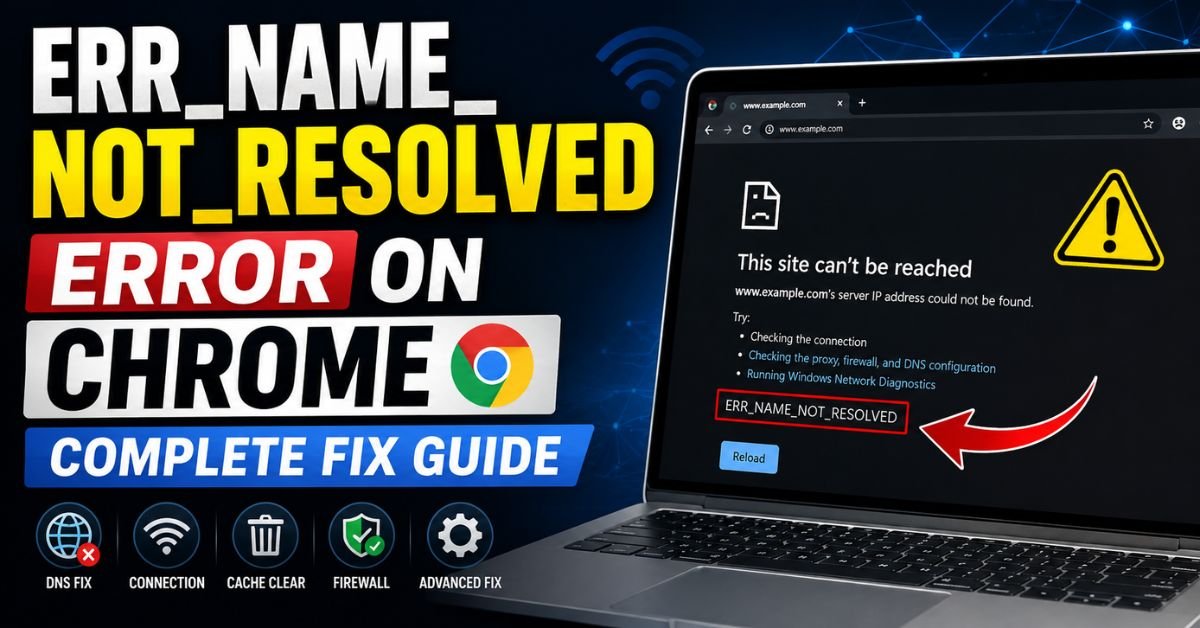
ERR_NAME_NOT_RESOLVED Error on Chrome — Complete Fix Guide.It is 8:15 AM on a Tuesday. You sit down with a fresh mug of coffee, log into your computer, and try to pull up your company’s internal portal or your favorite news site. Instead of the page loading, you are greeted by a bleak, stark white screen and a block of text that feels like a punch in the gut: This site can’t be reached. ERR_NAME_NOT_RESOLVED.
If you are working from home in the US, perhaps on a Comcast Xfinity or Spectrum connection, this error can instantly bring your productivity to a grinding halt.

As a network infrastructure specialist who has spent over a decade diagnosing enterprise routing loops, local DNS hijacking, and weird browser quirks, I can tell you that this error is incredibly common. But more importantly, it is highly fixable.
At its core, this message means your browser failed to map a human-readable domain name (like google.com) to its correct numerical IP Address. It is a classic failure of the Domain Name System (DNS) resolution process. Let us roll up our sleeves and get your connection back online.
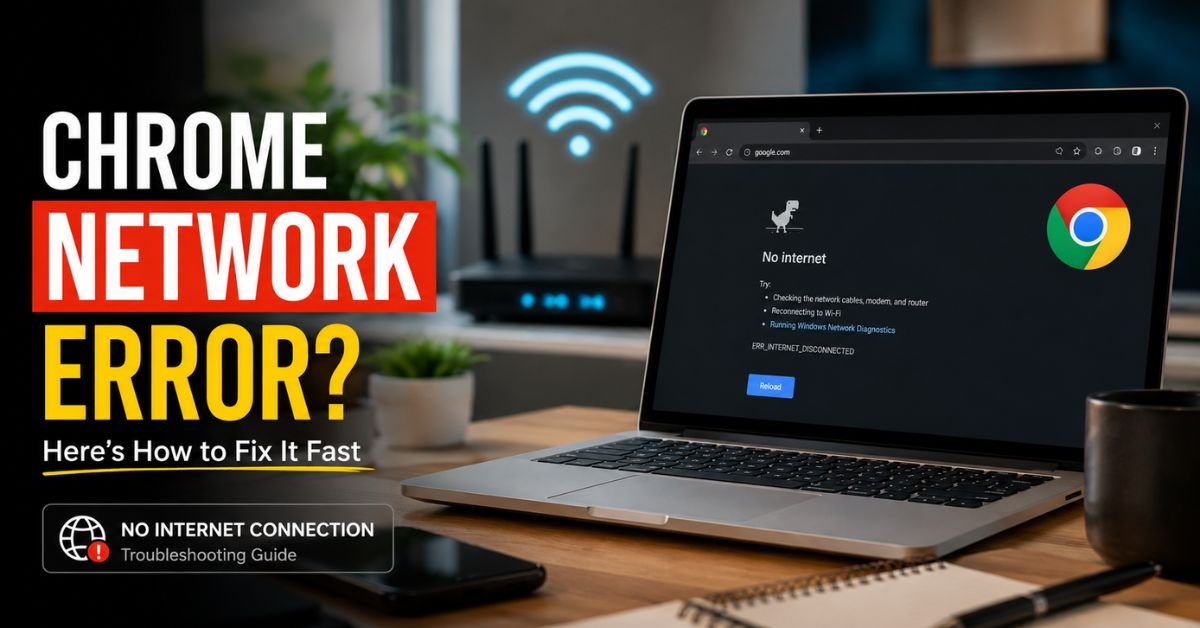
1. What is the ERR_NAME_NOT_RESOLVED Error?
To understand why this happens, we need to look at how Google Chrome behaves compared to other browsers on Windows 10, Windows 11, and macOS.
When you type a URL into your browser, your system has to translate that text into a machine-readable IP Address. This job belongs to your DNS resolver. However, Chrome does not just sit around waiting for your operating system’s default network settings to do all the heavy lifting. To speed up your browsing experience, Google Chrome employs aggressive DNS prefetching and its own internal DNS Cache.
Because of this independent design, Chrome will often throw the ERR_NAME_NOT_RESOLVED error first, while other browsers on the same machine might temporarily load pages via fallback protocols or cached resources.

If your browser cannot resolve the IP address, it cannot establish a connection over TCP/IP. Whether the underlying breakdown is inside Chrome’s memory, your local operating system’s DNS Cache, or a physical issue on your home Router, the result is the same: you are locked out of the web.
2. Real-World Scenarios and Primary Causes
Having handled thousands of helpdesk tickets, I have noticed that this issue usually boils down to a few specific, real-world culprits across US-based networks:
- ISP-Side Outages: Major US broadband providers like Comcast (Xfinity), Spectrum, AT&T, and Verizon FiOS occasionally experience localized or regional DNS outages. Your physical lines are fine, but their recursive resolvers are dead in the water.
- VPN Disconnect Glitches: If you work remotely, you have likely run into the dreaded
err_name_not_resolved vpn disconnectedscenario. When a corporate VPN (like Cisco AnyConnect or GlobalProtect) abruptly drops, it often leaves your network adapter bound to corporate DNS servers that are no longer reachable from your public home IP. - The Ethernet vs. Wi-Fi Split: Have you ever noticed a situation where
err_name_not_resolved wifi works but not ethernet? This usually points to static DNS settings mapped exclusively to your wired Network Adapter, or a bad DHCP lease reservation on your local router. - Stale DNS TTL (Time to Live) Values: Website owners migrate servers all the time. If their DNS record changes but your local system keeps an old record in cache, Chrome will keep knocking on the wrong IP address until the cache is cleared.
3. Instant Quick Fixes (The 2-Minute Actions)
Before diving into complex command-line diagnostics, let us start with the quickest fixes. These resolve about 70% of all occurrences.
Action 1: Clear Chrome’s Internal Host Cache
Chrome maintains its own hidden vault of DNS records. If this vault becomes corrupted, your system’s network settings won’t matter.
To clear this, open a new tab in Chrome, copy and paste the following internal URL into your address bar, and hit Enter:
You will see a diagnostic screen. Click the clear host cache button:

[ Host resolver cache ]
Capacity: 1000
Active entries: 42
[ Clear host cache ]  <-- Click This Button!
After clicking, restart Google Chrome and try reloading your page. This uses the exact chrome net internals clear host cache command pathway built into the Chromium engine.
Action 2: Power Cycle Your Home Router or Mesh System
Do not just click the reboot button in your software app. Walk over to your physical gateway (whether it is an Xfinity advanced gateway, a Spectrum modem, or a Google Nest Wi-Fi point).
- Unplug the power cable from the back of the device.
- Wait a full 30 seconds (this allows the capacitors to drain completely, clearing out corrupt system state tables and old DHCP leases).
- Plug it back in and wait for the status lights to turn solid green or blue.
4. Step-by-Step Advanced Network Troubleshooting
If those quick steps did not work, we need to dig into your operating system’s network stack.
Step A: Flush the System DNS Cache via Command Prompt or Terminal
A corrupted OS-level cache will block resolution even if your router is working perfectly.
On Windows 11 and Windows 10:
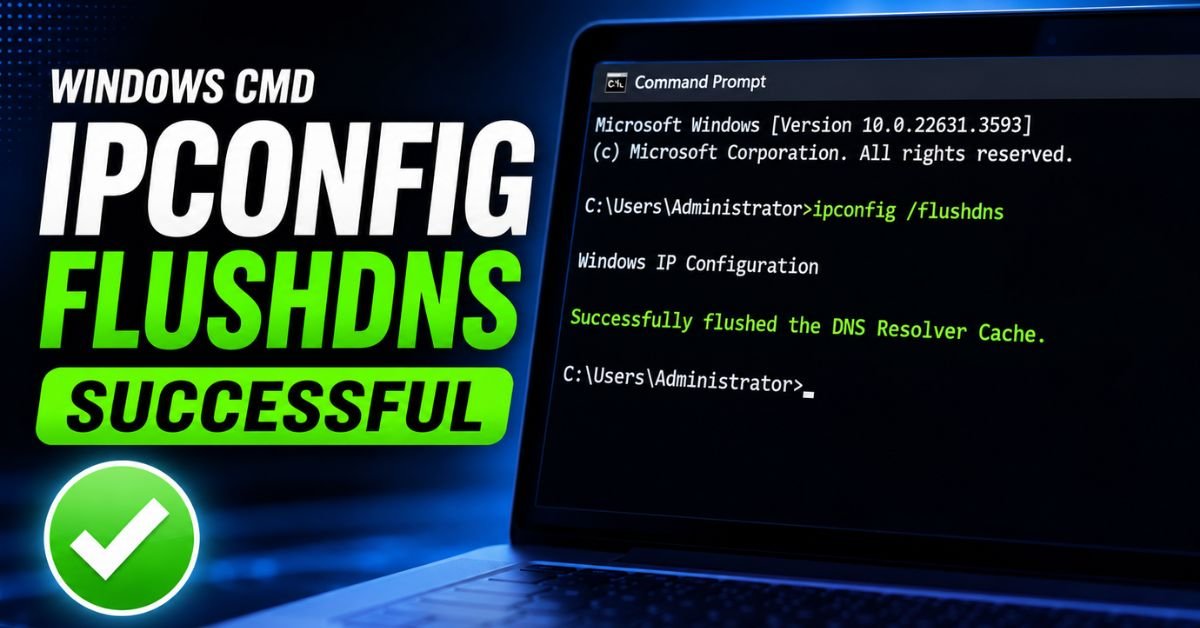
Search for “Command Prompt” or “cmd” in your Start menu, right-click it, and select Run as Administrator. To execute a full TCP/IP and DNS reset, run these commands in order, pressing Enter after each one:
ipconfig /flushdns
ipconfig /registerdns
ipconfig /release
ipconfig /renew
netsh int ip reset
The flush dns cmd windows 11 workflow completely wipes stale records, resets your network adapter interface, and requests a fresh configuration from your local gateway.
On macOS:
If you are running a MacBook or iMac, open Terminal (via Spotlight Search) and run the following command to flush the cache and restart the Multicast DNS daemon:
sudo dscacheutil -flushcache; sudo killall -HUP mDNSResponder
(Note: You will need to type your admin password to authorize this action).
Step B: Switch to Google Public DNS or Cloudflare DNS
If your local ISP is having a bad day, you may see a “dns server not responding chrome spectrum” or Comcast warning. By bypassing your ISP’s default servers and switching to lightning-fast public DNS networks in North America, you bypass their outages.
Here is how to fix err_name_not_resolved chrome windows 10 and 11 by manually overriding your DNS:
- Press
Windows Key + R, typencpa.cpl, and press Enter to open your Network Connections window. - Right-click your active connection (Wi-Fi or Ethernet) and select Properties.
- Double-click Internet Protocol Version 4 (TCP/IPv4).
- Select the radio button: Use the following DNS server addresses.
- Input these high-performing, secure public DNS IPs:
- Preferred DNS Server:
8.8.8.8(Google Public DNS) - Alternate DNS Server:
1.1.1.1(Cloudflare DNS)
- Preferred DNS Server:
- Check the box to “Validate settings upon exit” and click OK.
+--------------------------------------------------------+
| IPv4 DNS Settings                                      |
+--------------------------------------------------------+
| [X] Use the following DNS server addresses:            |
|                                                        |
|     Preferred DNS server:  [  8 .  8 .  8 .  8  ]        |
|     Alternate DNS server:  [  1 .  1 .  1 .  1  ]        |
+--------------------------------------------------------+
If you also have IPv6 enabled on your network adapter, perform the same steps for Internet Protocol Version 6 (TCP/IPv6), using these addresses:
- Google IPv6:
2001:4860:4860::8888and2001:4860:4860::8844 - Cloudflare IPv6:
2606:4700:4700::1111and2606:4700:4700::1001
To verify these changes worked, search for change dns to 8.8.8.8 windows configurations in your command prompt by typing nslookup google.com to confirm that the responding server is indeed 8.8.8.8.
5. Common Pitfalls to Avoid
As a systems administrator, I often see users take drastic, unnecessary measures when they encounter internet connectivity problems. Let us avoid making things worse.
Pro Tip: Avoid the “Nuclear” Option Do not completely disable your Windows Defender Firewall or uninstall your antivirus software. The
ERR_NAME_NOT_RESOLVEDerror is almost never caused by a firewall block, and disabling these utilities leaves your PC completely exposed to malicious web traffic. If you suspect your security suite is the cause, temporarily pause “web protection” or “malicious site filtering” settings within the app dashboard instead of disabling the entire firewall.
Another classic trap is modifying your system’s Hosts File without understanding the consequences.
The hosts file is a local plaintext file that overrides global DNS records. Back in the day, developers loved mapping local hosts loopback settings (127.0.0.1) manually here. If you or an automated software tool added a static entry for a domain in your hosts file years ago, that domain will throw an error the second the target server’s real-world IP address changes.
On Windows, check C:\Windows\System32\drivers\etc\hosts to ensure it is clean of outdated mappings.
6. Resolving the Issue on Mobile Devices
Our phones are just as susceptible to DNS issues, especially when switching between home Wi-Fi mesh systems and cellular towers (like Verizon Wireless, T-Mobile, or AT&T).
On Android:
- Go to Settings > Network & Internet > Private DNS.
- If it is set to “Automatic” or a custom provider that is currently offline, try switching it to Off temporarily to see if your connection recovers.
- To clear Chrome’s mobile cache, open Chrome on Android, tap the three dots in the top right, go to Settings > Privacy and security > Clear browsing data, select Cached images and files, and tap Clear data.
On iOS (iPhone/iPad):
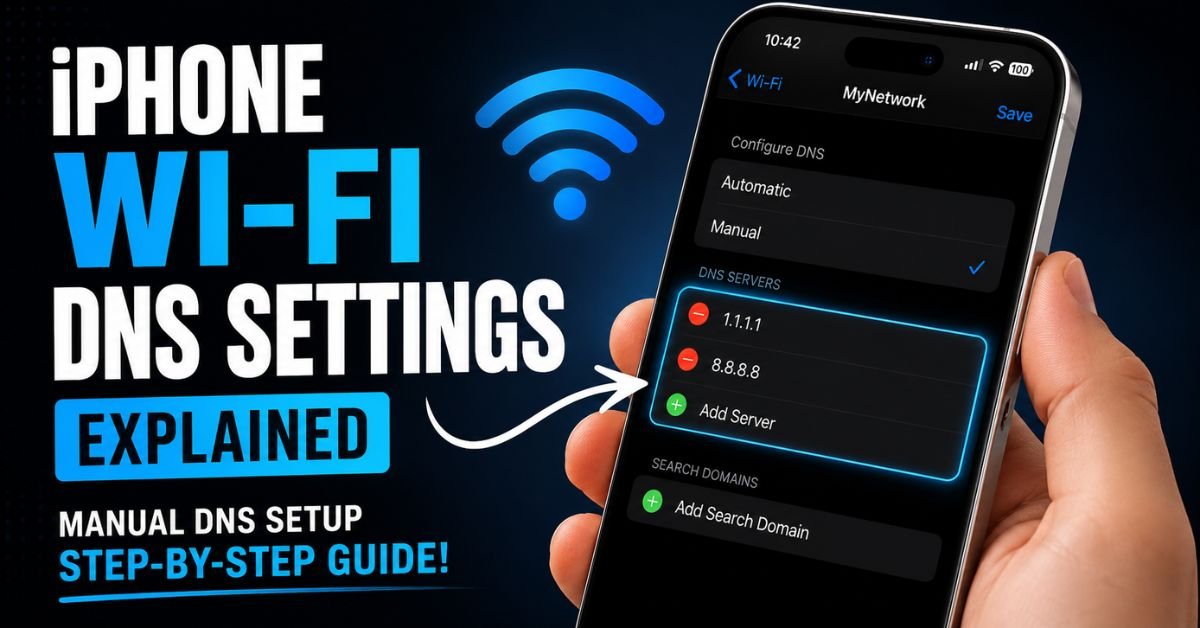
- Go to Settings > Wi-Fi and tap the “i” icon next to your connected network.
- Scroll down and tap Configure DNS.
- Switch from Automatic to Manual.
- Remove your existing ISP DNS servers and add
8.8.8.8and1.1.1.1. Tap Save.
Frequently Asked Questions
Why does this error only happen on Chrome while Edge or Firefox works fine?
This usually occurs because Chrome has its own isolated host resolver cache (chrome://net-internals/#dns) that can become corrupt independently of the operating system’s main cache. Edge and Firefox rely on different caching rules and sometimes read the system’s hosts file or OS resolver cache differently.
What is the difference between ERR_NAME_NOT_RESOLVED and DNS_PROBE_FINISHED_NXDOMAIN?
While both errors indicate a DNS issue, ERR_NAME_NOT_RESOLVED is triggered directly by the browser’s failure to resolve a host name to an IP. DNS_PROBE_FINISHED_NXDOMAIN indicates that the DNS lookup succeeded in querying the root servers, but returned an explicit answer that the domain simply does not exist anywhere on the internet.
I changed my DNS server but I’m still getting this error. What should I do next?
If public DNS (like Google or Cloudflare) does not solve the issue, check your active VPN. If you are not on a VPN, check your network adapter properties to ensure that “Obtain an IP address automatically” is checked. Finally, try a different network (like your phone’s mobile hotspot) to isolate whether the issue is unique to your home ISP line.
Can a corrupt hosts file on Windows cause ERR_NAME_NOT_RESOLVED?
Yes. If your Windows hosts file contains a static, incorrect mapping for a website you are trying to visit, Windows will bypass the internet DNS servers entirely and try to load the broken IP address listed in your hosts file, resulting in this error.
Why does this error occur specifically when my corporate VPN disconnects?
When a corporate VPN client disconnects abruptly, it can fail to restore your original network adapter DNS settings. It leaves your system configured to look for corporate DNS servers that are unreachable without an active tunnel. Flushing your DNS via Command Prompt or rebooting your machine typically restores your normal home connection.










