New Router Setup Not Working — Step by Step Beginner Fix.I’ve spent the last decade crawling under dust-caked desks from New Jersey to California, troubleshooting everything from massive corporate networks to my neighbor’s wonky Wi-Fi. There is nothing—and I mean nothing—more frustrating than dropping $200 on a top-tier Wi-Fi 6E router, unboxing that “new tech” smell, and then staring at a blinking orange light for three hours. You did everything the little pamphlet said, yet your phone still says “Connected, no internet.” It’s enough to make you want to go back to dial-up.
If your new router setup is failing, don’t box it back up for a return just yet. Most of the time, the issue isn’t a “dud” unit; it’s a handshake problem between your new hardware and your Internet Service Provider (ISP). Whether you’re dealing with the specific quirks of an Xfinity gateway or trying to figure out why your Netgear router setup page is not loading, I’ve got you. Let’s get you online.
The Initial Hurdle: Why New Routers Fail Out-of-the-Box
Most people assume that “Plug and Play” is a universal truth in 2024. Unfortunately, for US households using Spectrum, Cox, or Xfinity, it’s often “Plug and Pray.” The biggest reason a new router setup failed is that your modem is still “married” to your old router.
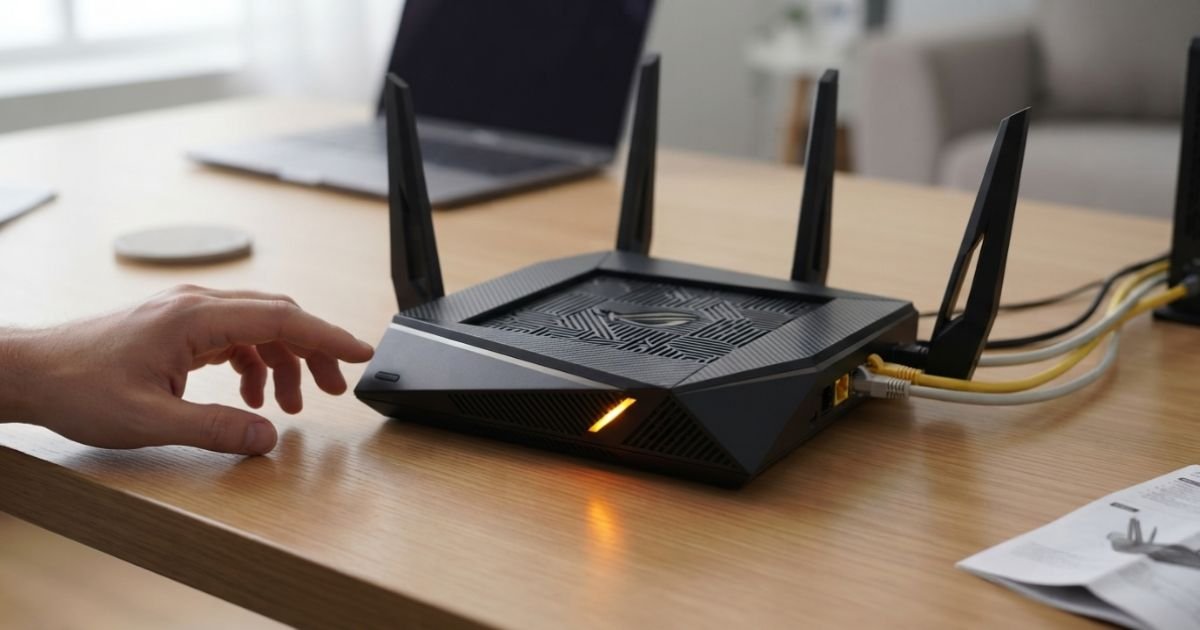
Modems (and the “Gateways” provided by ISPs) are a bit possessive. They remember the MAC Address of the last device they talked to. When you swap in a new TP-Link or Asus beast, the modem sees a “stranger” and refuses to hand over an IP Address. This is why the Power Cycle sequence is the holy grail of networking. You can’t just restart them together; you have to be methodical.
The “Pro” Power Cycle Sequence
- Unplug the power from both your modem and your new router.
- Disconnect the Ethernet cable connecting them.
- Wait a full 60 seconds (actually time it; don’t guess).
- Plug the modem back in and wait—usually 2 to 5 minutes—until the “Online” or “Internet” light is solid.
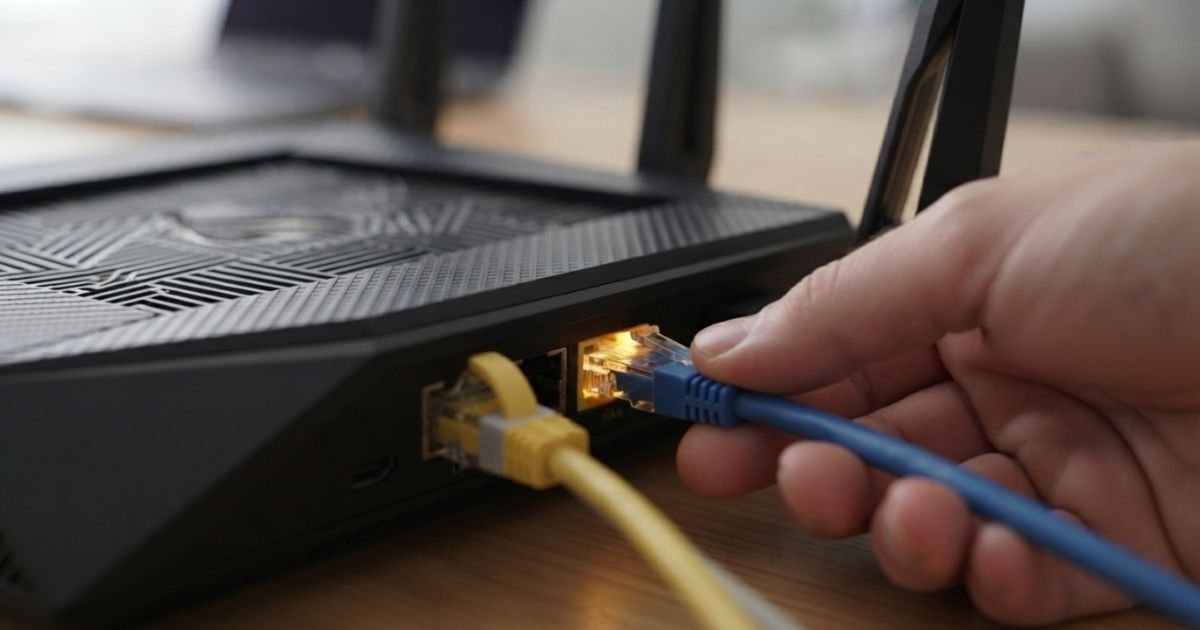
- Plug the Ethernet cable into the WAN Port (the one that’s usually a different color) of your router.
- Plug the router’s power in and wait.
Addressing the US “Gateway” Headache (Bridge Mode)
If you are an AT&T Fiber or Xfinity customer, you likely have a “Gateway”—a single box that is both a modem and a router. If you just plug a second router into that box, you’re creating a “Double NAT” (Network Address Translation) nightmare. This is a common reason why a new router is connected but has no internet access.
You essentially have two “brains” trying to assign IP addresses to your devices via DHCP. To fix this, you must log into your ISP’s gateway and enable Bridge Mode. This effectively turns off the ISP’s Wi-Fi and routing functions, turning the box into a “dumb” modem that passes the internet signal directly to your new, better router. If you’re on Xfinity, you can often do this through the Xfinity app under “Advanced Settings,” or by navigating to 10.0.0.1 in your browser.
Cables Matter: WAN vs. LAN
It sounds insulting, I know, but I’ve seen seasoned engineers make this mistake. Your router has several ports. One is labeled WAN (Wide Area Network) or “Internet,” and the others are LAN (Local Area Network).

Your modem must connect to the WAN port. On many modern Netgear or TP-Link units, the WAN port is colored yellow or blue. If you plug the modem into LAN Port 1, your router will never get a Default Gateway assignment, and you’ll be stuck wondering why is my new TP link router not connecting to internet.
ISP Activation Portals: The Hidden Gatekeeper
In the US, Spectrum and Xfinity require you to “activate” new hardware. Even if you’re using your own router, if you also replaced the modem, the system won’t recognize it until you go through their digital velvet rope.
For Spectrum internet new router setup not working issues, I usually recommend going to activate.spectrum.net from a mobile device using your data plan. For Xfinity, the Xfinity activate new router bypass usually involves using their smartphone app to “Swap Equipment.” If the ISP doesn’t know the new hardware is there, they won’t send the signal—period.
“I Can’t Log In!” Troubleshooting the Setup Page
If you’re sitting there typing 192.168.1.1 or 192.168.0.1 and getting a “Page Not Found” error, you’re not alone. This is the “Netgear router setup page not loading” syndrome.
The Fix:
- Disconnect from VPNs: If your work laptop has a VPN active, you will never see your local router page. Turn it off.
- Check your IP: Open a command prompt (type
cmdin Windows search) and typeipconfig. Look for “Default Gateway.” Whatever numbers are there, that’s your router’s address. - Try the App: Most brands (Asus, Eero, TP-Link) now prefer you use their app. However, if the app fails to find the router wifi signal after setup, connect a physical Ethernet cable from a laptop to a LAN port on the router. Hardwiring eliminates the Wi-Fi variable entirely.
Expert Insight: The MAC Clone Trick Some ISPs (especially smaller local fiber providers) “lock” the internet connection to the MAC address of the first device connected to the modem. In your router settings, look for a “MAC Clone” button. This makes your new router “pretend” to be your old computer or old router, tricking the ISP into sending data.
Configuring for 2024: SSID and Security
Once you’re in, the first thing I do is Update Firmware. Manufacturers often ship units that have been sitting in a warehouse for six months. Outdated firmware is the leading cause of “ghost” reboots and dropped signals on Wi-Fi 6/6E setups.
When setting your SSID (the network name), I suggest keeping it different from your old one if you want a “clean slate,” or exactly the same (with the same password) if you want all your smart bulbs and TVs to reconnect automatically.
A Note on WPA3 Encryption: While WPA3 Encryption is the new standard, some older devices (like that 2017 printer or cheap smart plugs) can’t handle it. If your devices see the network but can’t join, drop the security setting back to WPA2/WPA3 Mixed Mode.
When to Call the ISP (and When to Return It)
How do you know if the hardware is just broken? If you’ve done the power cycle, checked the WAN port, and still see no “Internet” light even when plugged directly into the modem with a brand-new cable, the router’s WAN port might be defective.
However, before you drive back to Best Buy or hit “Return” on Amazon, try this: plug your laptop directly into the modem. If the laptop gets internet, the problem is your router. If the laptop doesn’t get internet, the problem is your modem or your ISP (Comcast, AT&T, or Cox). At that point, it’s time to give them a call and tell them your modem isn’t “provisioning.”
Frequently Asked Questions
Why does my phone say “Connected” but there’s no internet?
This usually means your phone has successfully connected to the router’s Wi-Fi (the local network), but the router itself isn’t getting a signal from the modem. Check the physical Ethernet connection between the modem’s port and the router’s WAN port. Also, ensure your ISP account is active and the modem is fully “synced” with the provider.
How do I log into my router for the first time if I lost the manual?
Most routers use a default IP address like 192.168.1.1 or 192.168.0.1. You can also look at the sticker on the bottom or back of the device; it usually lists a web address (like routerlogin.net for Netgear) and the default admin username/password. Remember, this is different from your Wi-Fi password!
My new router setup failed using the app. What now?
Smartphone apps rely on Bluetooth or a temporary Wi-Fi signal to “find” the new router. If it fails, your phone might be jumping back to your cellular data. Try putting your phone in Airplane Mode, then turn on only Wi-Fi and try the app again. If all else fails, use a computer and a web browser via an Ethernet cable.
Should I use the 2.4GHz or 5GHz band?
For a Dual-Band router, most modern units use “Smart Connect” to merge them into one name. 5GHz is much faster but has a shorter range and struggles with walls. 2.4GHz is slower but reaches the far corners of your house. For gaming or streaming 4K in the same room as the router, 5GHz is a must.
Does it matter if I use an old Ethernet cable?
Yes! If you use an old Cat5 cable (not Cat5e), you’ll be capped at 100 Mbps, even if you pay for Gigabit fiber. Look for “Cat5e” or “Cat6” printed on the side of the cable. Most new routers come with a decent Cat6 cable in the box—use it!
Summary Checklist for Success
- Modem Power Cycle: 60 seconds off, let it boot fully before touching the router.
- WAN Port Check: Ensure the cable is in the “Internet” port, not “LAN 1.”
- Bridge Mode: Enabled if you have an ISP-provided Gateway combo.
- Firmware Update: Do this first to avoid bugs.
- MAC Cloning: Use it if your ISP is stubborn about recognizing new hardware.
Setting up a new router shouldn’t feel like a part-time job, but with US ISP quirks, it often is. Take a breath, follow the sequence, and you’ll have that 5GHz/6GHz signal screaming through your house in no time. Happy surfing!