How to Reset Router Without Losing WiFi Password.Nothing kills the vibe faster than the “spinning wheel of death” during a Sunday night Netflix binge or a high-stakes Call of Duty match. When your internet starts acting like it’s stuck in 2004, your first instinct is probably to “reset” the thing. But there is a massive, terrifying catch that most people realize too late: hitting that tiny recessed button on the back of your Xfinity or Spectrum gateway usually wipes everything. I’m talking about your custom WiFi name (SSID), that complex WPA2 encryption password you finally memorized, and your specific port forwarding rules.

The good news? You can absolutely refresh your home network and fix connectivity glitches without nuking your settings. In the tech world, we often use the words “reset” and “restart” interchangeably, but they are worlds apart in practice. If you’ve been wondering, “Can I reset my router without changing the password?” the answer is a resounding yes—provided you use the right method. Let’s dig into how you can give your hardware a fresh start without the headache of reconfiguring twenty different smart home devices.
The Critical Difference: Reset vs. Restart (Reboot/Soft Reset/Hard Reset Explained)
Before we touch any hardware, we have to clear up the terminology. This is where most folks get into trouble.
A Restart (or Reboot/Soft Reset) is like giving your router a quick nap. It shuts down the software, clears the temporary memory (RAM) and cache, and restarts the operating system. Your WiFi password, SSID, and ISP settings stay exactly where they are. This is what you want 99% of the time when your router keeps dropping signal but you don’t want to lose settings.
A Factory Reset (or Hard Reset) is the “nuclear option.” This returns the device to the exact state it was in when it left the factory in a box. It wipes every single custom configuration. You’ll be back to that gibberish default password printed on the sticker (the one you probably can’t reach because the router is tucked behind a heavy entertainment center).
I once had a buddy who held down the reset button on his Netgear router for thirty seconds because he thought it would “clean the signal.” He spent the next three hours trying to remember his PPPoE credentials and reconnecting every smart light bulb in his house. Don’t be that guy.
Method 1: The Standard Power Cycle (The 30-Second Rule)
This is the most “analog” way to handle a glitchy connection, and honestly, it’s the most effective. It’s a literal power cycle. In the US, our routers usually plug into a standard 120V outlet via a bulky power brick.

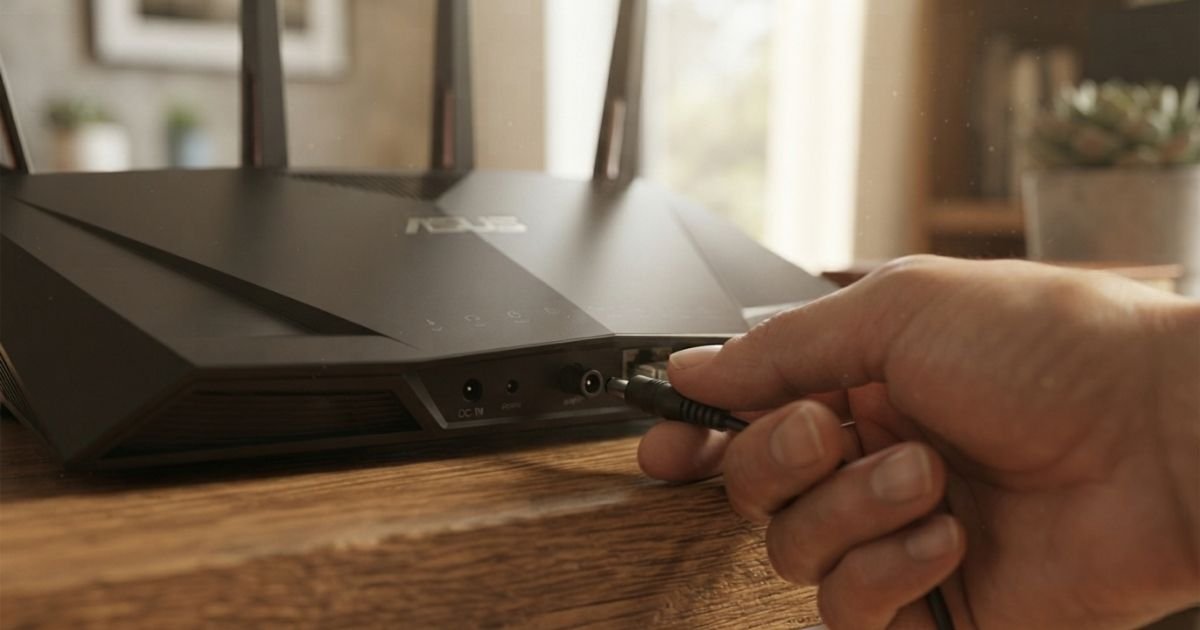
- Unplug the Power: Physically pull the power cable out of the back of the router (or pull the adapter from the wall outlet).
- Wait for 30 Seconds: This isn’t just an arbitrary number. Capacitors inside the router hold a tiny bit of electricity; waiting 30 seconds ensures the memory is completely drained.
- Plug it Back In: Reconnect the power.
- The Wait Period: Give it about 3 to 5 minutes. The “Online” and “WiFi” lights on your Xfinity or Spectrum gear will blink like crazy while the device pulls a fresh IP address from the ISP via DHCP.
This method is the gold standard for how to refresh my home wifi connection without touching a single software setting.
Method 2: Using the Router’s Web Interface or Admin Dashboard
If your router is buried in a closet or you’re just feeling lazy (we’ve all been there), you can perform a restart through the software. This is essentially how to restart router from computer without moving from your desk.
Every router has a “Gateway” IP address. For many US ISP-provided units (like those from Comcast/Xfinity), the address is typically 10.0.0.1. For retail brands like Netgear, Linksys, or TP-Link, it’s usually 192.168.1.1 or 192.168.0.1.
- Open a browser and type that IP address into the URL bar.
- Log in with your admin credentials. (Note: This is different from your WiFi password! If you never changed it, the default is often just “admin” and “password”).
- Navigate to System Tools or Advanced Settings.
- Look for a button labeled Reboot or Restart.
- Click it, and the router will cycle itself.
Expert Insight: While you’re in here, look at the “Firmware Update” section. Sometimes a “reset” isn’t what you need—a firmware patch might fix the underlying bug causing your drops in the first place. But a word of caution: never interrupt a firmware update. If the power goes out or you unplug it midway, you could “brick” the device, turning a $200 router into a plastic paperweight.
Method 3: Resetting via Mobile Apps (Spectrum, Xfinity, Eero)
We’ve seen a massive shift in the US toward “App-First” networking. If you use a mesh system like Eero or Google Nest WiFi, or if you have a modern gateway from an ISP, you likely manage it via an app on your iPhone or Android.
For example, if you’re wondering how to reboot Spectrum router app, you just open the “My Spectrum” app, go to the “Services” tab, select “Internet,” and tap “Restart Equipment.” It’s incredibly convenient because you can do it while sitting on your porch or even when you’re at work (if the router is still somewhat online).

This method is the safest way to answer the question: how to reset wifi router password without factory reset. Most apps actually allow you to change the password directly without wiping the whole system. If you just forgot your password, don’t hit the physical reset button; just go into the app and update the WPA2 settings there.
Real-World Scenarios: When You Must Perform a Factory Reset
I know this article is about avoiding a factory reset, but as a tech blogger, I have to be honest: sometimes you don’t have a choice.
- Forgotten Admin Credentials: If you can’t get into the 192.168.1.1 dashboard because you changed the admin password years ago and forgot it, you’re locked out. The only way back in is the factory reset button.
- Persistent Malware: If your router has been hijacked (yes, it happens), a simple reboot won’t clear the malicious code.
- Major Firmware Corruptions: Sometimes after a failed update, the router’s “behavior” becomes erratic, and a fresh start is the only fix.
If you find yourself in this spot, look for the tiny hole on the back. It’s usually near the Ethernet ports. Where is the reset button on Xfinity router? Usually on the back, labeled “Reset.” You’ll need a paperclip. But before you push it, read the next section.
Hands-on Tips: Backing Up Your Configuration File
This is my secret weapon. Most people don’t know that routers allow you to “Export” your settings. Think of it like a save-point in a video game.
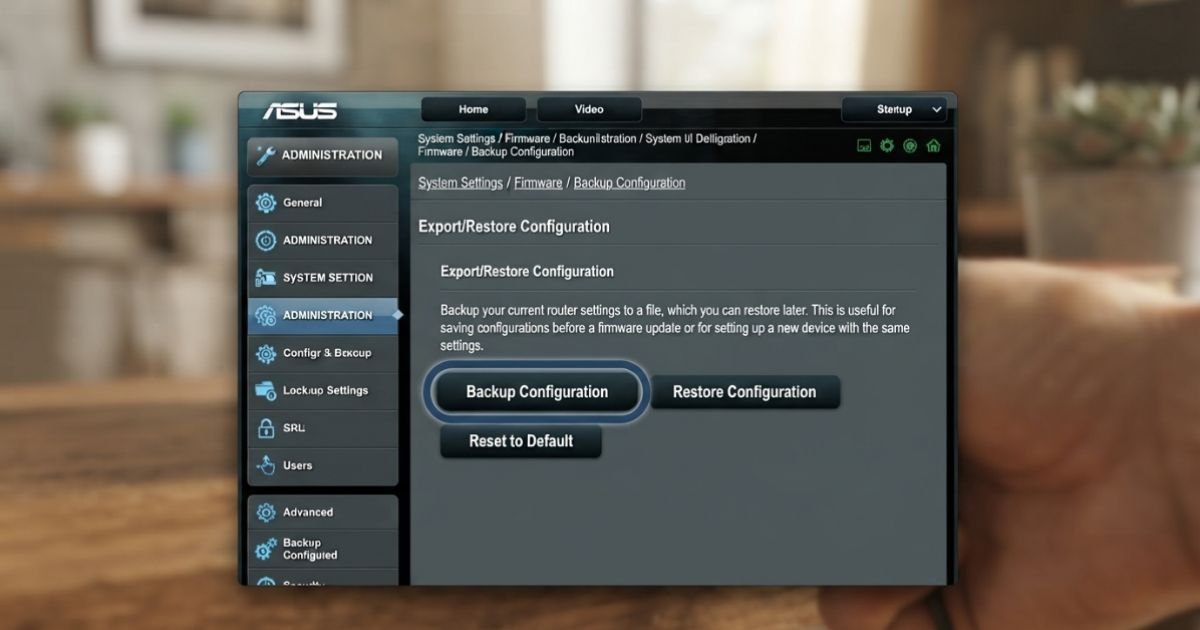
Before you do anything technical, log into your Router Admin Dashboard. Look for “Backup Settings” or “Configuration Backup.” Download that small file (usually a .config or .bin file) to your laptop.
If you ever do have to perform a factory reset, you can simply log back in, go to “Restore Settings,” and upload that file. Boom—your WiFi password, SSID, and all your custom rules are back in thirty seconds. It’s the ultimate insurance policy for your home network.
Common Pitfalls to Avoid
I’ve seen a lot of “oops” moments in my time. One of the most common is the 30-30-30 Reset confusion. This was a trick used for old Linksys routers years ago where you held the button for 30 seconds while on, 30 while off, and 30 while on again. On modern US hardware like an AT&T Fiber gateway or a WiFi 6 router, doing this can actually put the device into a “recovery mode” that is a nightmare to get out of.
Another pitfall is confusing the WPS button with the Reset button. Many modern routers have a physical button for “WiFi Protected Setup.” If you press that thinking you’re rebooting, you’re actually opening a 2-minute window for devices to join your network without a password. Always look for the tiny pinhole if you intend to reset, but remember—rebooting is almost always the better first step.
Frequently Asked Questions
1. Does unplugging the router for 10 seconds reset the password?
No. Unplugging the power (rebooting) only clears the temporary memory. Your WiFi password and settings are stored in “non-volatile” memory (like a hard drive), which doesn’t need power to keep data. Your password will be exactly the same when it boots back up.
2. Difference between reset and reboot router Netgear?
On a Netgear router, “Reboot” (via the app or power cord) simply restarts the system. A “Reset” (pressing the pinhole button for 7-10 seconds until the lights flash amber) wipes all your settings and returns the router to its factory defaults, meaning you’ll have to set it up as if it were brand new.
3. How can I refresh my home WiFi connection if only one device is slow?
If only your iPhone or laptop is slow, the issue probably isn’t the router. Try “Forgetting” the network on that specific device and reconnecting. If the whole house is slow, then use Method 1 (the 30-second power cycle) mentioned above.
4. What happens if I hold the reset button for too long?
Most modern routers require you to hold the button for about 10 to 15 seconds to trigger a factory reset. If you hold it for a full minute, you might trigger a “TFTP” or “Emergency Recovery” mode, which expects you to upload new firmware via a wired connection. It won’t break the router permanently, but it’s a hassle to fix.
5. Can I restart my router from my computer if the internet is completely out?
Yes, as long as you are connected to the router via an Ethernet cable or the local WiFi signal is still “broadcasting” (even if there’s no internet behind it). You can still access 192.168.1.1 as long as the local network is alive.