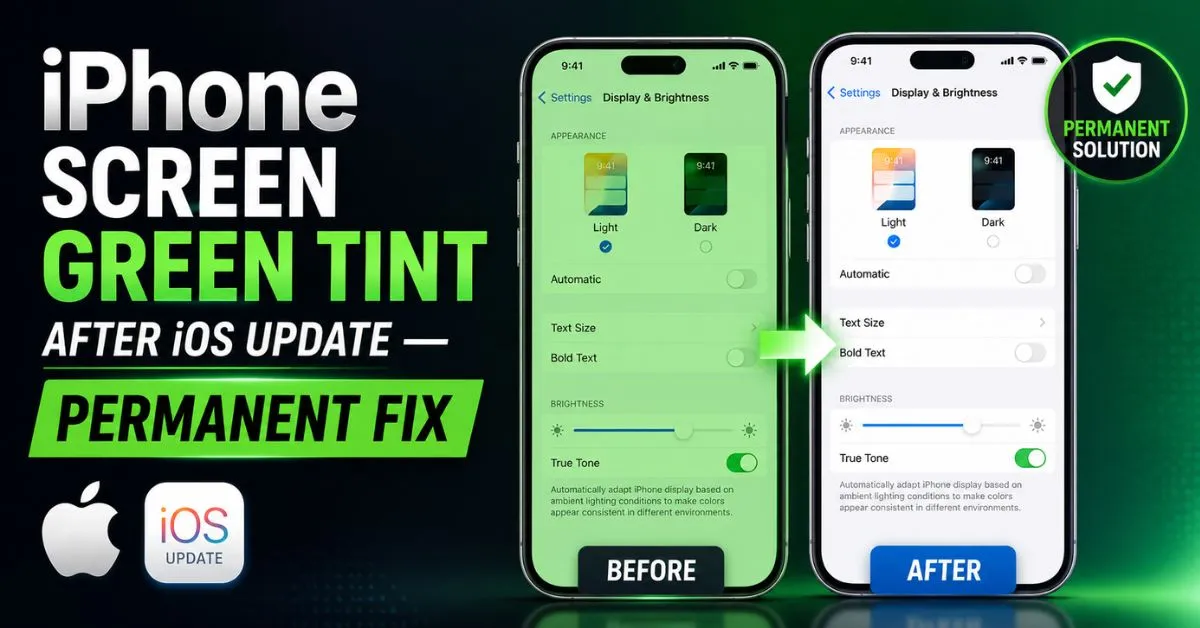
I remember the first time I saw the “glow.” It was late Tuesday night, roughly twenty minutes after I’d finished installing a fresh iOS beta on my iPhone 13 Pro Max. The progress bar finished its crawl, the Apple logo flickered, and as the lock screen appeared, my heart sank. The deep, inky blacks that make an OLED Display so expensive had been replaced by a sickly, radioactive lime-green haze.
If you’re reading this, you’re likely staring at that same eerie tint. Maybe it only happens when your brightness is low, or perhaps your screen looks like a scene from The Matrix gone wrong. It’s a gut punch. You pay a premium for a “Pro” device, and a software update—something meant to improve your phone—seemingly breaks the hardware.

As someone who has spent years behind a repair bench and managed dozens of fleet devices, I can tell you: this isn’t always a “dead” screen. But it isn’t always a simple bug, either. Let’s look at why this happens and how we actually fix it without necessarily spending $300 at the Genius Bar.
The Post-Update Green Tint: What Is Actually Happening?
The “Green Glow” is a peculiar beast. In my experience, it usually manifests in one of two ways. The first is a subtle, uniform tint that only shows up when your Brightness Levels are below 20%. You’ll notice it most in a dark room while scrolling through a menu with a dark background. The “blacks” just don’t turn off.
Then there is the “Green Screen of Death.” This is more aggressive—flickering lines, a bright neon wash, and sometimes a complete loss of touch sensitivity. This version usually indicates that the Digitizer or the display’s internal Voltage Regulation has completely lost its mind.
The moment users typically notice this is right after that final reboot. Why? Because the boot sequence forces the display to initialize its driver at full power before settling into your saved settings. If the update corrupted the display’s handshake with the Firmware, the results are immediately visible. It’s not just a “hue”; it’s a communication breakdown between the logic board and the panel.
Software Glitch or Hardware Failure? Identifying the Cause
This is where things get technical, and where most “top 10” Google results get it wrong. People blame the OLED Display hardware immediately, but the reality is more nuanced.
Every OLED panel uses something called Pulse Width Modulation (PWM) to control brightness. Instead of actually dimming the LEDs, the screen flickers on and off so fast your eye can’t see it. iOS updates contain the instructions for how the Display IC (Integrated Circuit) should handle this power cycling.

If an update sends the wrong voltage instructions to the controller, the pixels don’t “fire” correctly. This is why the iPhone 12 and 13 series are so notorious for this—their panels are particularly sensitive to these voltage fluctuations. I’ve seen cases where a “hardware failure” was actually just a botched Voltage Regulation profile in the software.
However, if you dropped your phone recently (even without cracking the glass), that update might have been the final straw. The heat generated during a major iOS install can expand internal components just enough to turn a micro-crack in the display ribbon into a full-blown green tint.
Immediate Software Workarounds and Recalibrations
Before you start looking for your local repair shop, we need to try some “masking” techniques. These won’t “fix” a broken capacitor, but they can recalibrate the software’s output to the screen. I’ve used these to make several “unusable” phones perfectly readable again.
Toggling ‘Reduce White Point’
This is my favorite “quick fix.” Go to Settings > Accessibility > Display & Text Size > Reduce White Point. Turn it on and slide the intensity to about 80%. Why this works: It forces the OLED Display to reduce the intensity of bright colors at a software level, which can sometimes stabilize the power draw to the pixels and eliminate the flickering green haze.
Color Filters: The DIY Recalibration
If your screen has a slight green hue, you can counter it using the opposite side of the color wheel (magenta/purple).
- Go to Settings > Accessibility > Display & Text Size > Color Filters.
- Turn it on and select Color Tint.
- Move the “Intensity” slider to the left (low) and the “Hue” slider to a purple/pinkish spot. This is a band-aid, but for many, it makes the screen look “normal” again for daily use.
True Tone and Night Shift
I’ve noticed that True Tone and Night Shift can sometimes exacerbate the tint. True Tone uses sensors to change the display’s “warmth” based on ambient light. If the update bugged the sensor-to-display pipeline, turning these off can sometimes clear the tint immediately.
Expert Insight: I’ve found that the green tint is often tied to the “Minimum Brightness” floor. If you use an app like “OLED Saver” (or the built-in White Point trick), you can keep your hardware brightness high while dimming the pixels via software. This prevents the PWM from hitting the frequency where the green glow occurs.

The Deep Dive Fix: DFU Mode and Clean iOS Installation
If the settings tweaks didn’t work, we have to go deeper. A standard “Erase All Content and Settings” or a basic iTunes Restore often isn’t enough. Why? Because those methods don’t always rewrite the low-level Firmware that controls the display driver.
You need to perform a DFU (Device Firmware Update) Restore. This is the deepest type of restore possible. It puts the iPhone into a state where it can communicate with a computer without loading the OS or the bootloader.
The Step-by-Step DFU Process (iPhone 8 and Later):
- Connect your iPhone to a Mac or PC.
- Quickly press and release Volume Up.
- Quickly press and release Volume Down.
- Press and hold the Side Button until the screen goes black.
- While still holding the Side Button, press and hold Volume Down for 5 seconds.
- Release the Side Button but keep holding Volume Down for another 10 seconds.
- If the screen stays black, you’re in DFU mode. Your computer will say it has “detected an iPhone in recovery mode.”
Warning: This will wipe every single byte of data. Back up to iCloud or a local drive first. By doing this, you are forcing a clean copy of the display driver to be written to the Display IC. If the green tint persists after a DFU restore, you are officially dealing with a hardware issue.
When Hardware Repair is Unavoidable: Pitfalls to Avoid
If you’ve reached this point and the green tint is still staring back at you, it’s time to talk hardware. But be careful—the repair world is a minefield.
The Third-Party Screen Trap
I see this every week. A customer gets a cheap screen replacement at a mall kiosk. Two months later, an iOS update drops, and the screen goes green or loses touch entirely. Most cheap screens use Liquid Crystal Display (LCD) technology instead of OLED to save money, or they use inferior IC chips that don’t play well with Apple’s Voltage Regulation updates.
Losing Face ID
Apple serializes the screen to the logic board. If you replace the screen yourself or use a shop that doesn’t transfer the original Display IC or use Apple’s “System Configuration” tool, you will lose Face ID and True Tone. It’s a security feature (or a repair hurdle, depending on who you ask).
Check for Recall Programs
Before spending a dime, check the Apple Service Programs page. While there isn’t a “universal” green tint recall, specific batches of the iPhone 11 (Display Module Replacement Program) and certain iPhone 12 models have had quiet “quality programs” for similar issues. Even if your model isn’t listed, if your phone is in pristine condition (no cracks), Apple Support sometimes offers “CS Code” repairs (Customer Satisfaction) if you are persistent and professional with the technician.
Conclusion: Restoring Your iPhone’s Visual Integrity
Dealing with a green tint after an update feels like a betrayal of the “it just works” philosophy. However, by understanding that it’s often a conflict between Firmware and the OLED Display‘s power management, you can take control.
Start with the “Reduce White Point” trick. It’s the highest success-rate “zero-cost” fix I know. If that fails, commit to the DFU restore—it’s the only way to be 100% sure the software isn’t the culprit.
If you ultimately have to go the hardware route, please, for the love of your device, avoid the $60 “budget” screens. Your iPhone’s Digitizer and Face ID sensors deserve better. Sometimes, the most “permanent” fix is simply admitting that a component has reached its voltage limit and needs a professional replacement.
Frequently Asked Questions
1. Can a software update really “break” my physical screen?
Not exactly “break” it in the sense of cracking it, but yes, it can push it past its limits. Software controls the voltage sent to the OLED pixels. If an update changes those voltage parameters and your specific panel has a slight manufacturing deviation, it can cause the pixels to behave erratically, resulting in the green tint.
2. Why does the green tint only appear on low brightness?
This is due to Pulse Width Modulation (PWM). At high brightness, the pixels are “on” most of the time. At low brightness, they cycle on and off rapidly. If the timing or voltage of that cycle is off (due to a software bug or a failing Display IC), the “off” state never truly reaches pure black, leaving a green residual glow.
3. Will the green tint go away in the next iOS update?
Sometimes. If the issue is widespread and caused by a poorly optimized display driver in the current firmware, Apple often releases a “point” update (like 17.0.1) to recalibrate the voltage. It’s always worth waiting a week for a secondary update before paying for a hardware repair.
4. My iPhone is out of warranty; am I stuck with the repair bill?
Not necessarily. If you can prove the tint appeared immediately after an update and the device has no signs of physical or liquid damage, you can sometimes negotiate a “depot repair” or a discounted rate with Apple Support. Mentioning that the device is “not fit for purpose” due to a software-induced failure can occasionally trigger a manager’s override.
5. Is the “Green Screen of Death” the same as the “Green Tint”?
They are cousins. The “tint” is usually a software/calibration issue that can be lived with or fixed with settings. The “Green Screen of Death” (where the screen is a solid, bright green) is almost always a catastrophic hardware failure of the flex cable or the Display IC and requires a full screen replacement.










