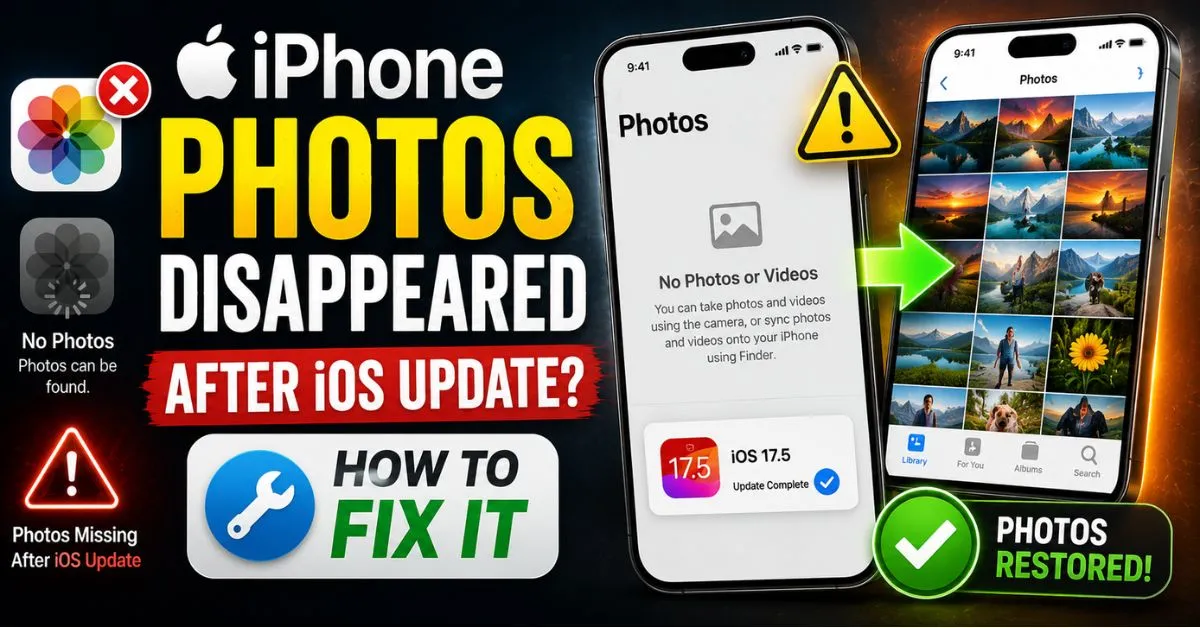
iPhone Photos Disappeared After iOS Update? How to Fix It.I still remember the cold sweat I broke into after updating my iPhone 13 Pro to a major iOS developer beta last year. I tapped the Photos app, expecting to see my weekend trip highlights, but instead, I was greeted by a chilling message: “No Photos or Videos.” My heart skipped. Over 12,000 memories—gone. Or so it seemed.
If you’ve just finished an iOS update and your Camera Roll looks like a ghost town, take a deep breath. You aren’t alone. Having spent years troubleshooting iOS for both myself and my readers, I can tell you that in 95% of these cases, your photos haven’t actually been deleted. They are caught in a technical limbo between file system re-indexing, iCloud sync timeouts, or simple database glitches.

Before you go hunting for expensive “data recovery” software that makes lofty promises, let’s walk through the exact steps I use to get those thumbnails back where they belong.
Introduction: The Post-Update Photo Disappearance Phenomenon
Why does this happen? When Apple pushes a major iOS update, it isn’t just changing the UI colors. It often changes how the underlying NAND Flash Storage communicates with the HEIC format image database.
During the first few hours after an update, your iPhone is doing a massive amount of “housekeeping.” It’s rebuilding the search index, re-categorizing faces, and verifying the integrity of your Camera Roll. This process consumes a lot of CPU power, which is why your phone gets hot and your gallery might look empty.
The “Empty Gallery” shock is usually one of two things: a temporary indexing delay or a settings reset that happened during the firmware overwrite. My “Safe Recovery First” methodology dictates that we check the easiest, non-destructive paths before we even think about a full system restore.
Phase 1: Checking the Obvious Storage Locations
It sounds silly, but you’d be surprised how often a “disappeared” photo is just sitting in a different folder because of a metadata tweak during the update.
Checking the ‘Recently Deleted’ Folder
Sometimes, a sync conflict during the update can trigger a mass “deletion” move. I’ve seen updates accidentally flag items for deletion if the file header was corrupted during the transfer.

- Open Photos.
- Tap Albums.
- Scroll all the way down to Recently Deleted.
- Use FaceID or TouchID to unlock it. If you see your photos here, select them and hit Recover.
Unlocking the ‘Hidden’ Album
In recent iOS versions, Apple has tightened security on the Hidden Album. It now requires biometric authentication by default. I once thought I lost an entire folder of work screenshots, only to realize they had been moved to “Hidden” because I had accidentally toggled a “Hide” command right before the update.
- Check Albums > Hidden (under Utilities). Ensure the toggle in Settings > Photos > Show Hidden Album is actually on.
Verifying the Apple ID
Updates can occasionally “bounce” your login session. If you are logged into a secondary Apple ID (maybe an old work account), your iCloud Photos library will simply vanish from the device.
- Go to Settings and tap your name at the top. Ensure the email address matches the one where your photos live. I’ve seen users freak out only to realize their phone defaulted to a family member’s ID after a botched setup screen.
Expert Insight: If you see the “Other” or “System Data” bar in your iPhone Storage settings taking up massive space right after an update, that’s actually a good sign. It often means your photos are still on the disk in a raw format, but the Thumbnails haven’t been generated yet.
Phase 2: iCloud Sync and Connectivity Troubleshooting
Most photo “losses” are actually just sync interruptions. Your iPhone and the iCloud servers need to shake hands after a software jump, and sometimes the connection gets sweaty.
Toggling ‘iCloud Photos’
This is the classic “reboot the cloud” trick. If your photos aren’t showing up, the link might be stale.
- Go to Settings > Photos.
- Toggle iCloud Photos OFF.
- Choose “Remove from iPhone” (don’t worry, they are safe in the cloud).
- Restart your phone.
- Go back and toggle iCloud Photos ON. This forces the iPhone to re-download the database map from Apple’s servers.
The ‘Optimize iPhone Storage’ Effect
If you have Optimize iPhone Storage enabled, your phone only keeps low-resolution Thumbnails locally. After an update, the phone may prioritize system files over these thumbnails. If you have a slow Wi-Fi connection, it might take hours—or even a full day—for those thumbnails to reappear.
My Lesson Learned: I once sat at a coffee shop for three hours wondering why my photos wouldn’t load. The moment I got home to my high-speed Fiber Wi-Fi and plugged the phone into a charger, the library started populating at a rate of 100 photos per minute.

Phase 3: Understanding Library Re-indexing and Database Rebuilds
This is the most technical part of the recovery process. Your iPhone uses a complex database (SQL-based) to track where every HEIC and JPEG file is located on the NAND Flash.
When the OS updates, it often has to migrate this database to a newer version. If you have 50,000 photos, that migration is a heavy lift.
- The 24-Hour Rule: I never declare a photo “lost” until the phone has been on a charger and connected to Wi-Fi for at least 24 hours post-update.
- Indexing Crashes: Sometimes the indexing process crashes. You can tell if this is happening if the Photos app feels laggy or if the phone remains hot to the touch long after the update is finished. A simple hard reset (Volume Up, Volume Down, then hold Power) can often kickstart a stalled index.
Phase 4: Advanced Recovery from iTunes/Finder Backups
If you’ve checked iCloud.com (always check the web version first!) and the photos aren’t there, we have to look at local backups.
Using ‘Restore’ vs. Third-Party ‘Data Extractors’
If you have a backup on your Mac (via Finder) or PC (via iTunes), you can restore the entire device. However, I usually recommend using a “backup extractor” first.
- The Risk of Scamware: Search results are flooded with “Phone Recovery” tools that charge $60 and do nothing. Be wary. I prefer manual extraction or using well-vetted tools like iMazing, which let you browse the backup files without wiping your current phone.
- The Nuclear Option: If you know for a fact your photos were there yesterday, and you have a backup from yesterday, a full Restore from Backup is the most reliable way to fix a corrupted file system.
Prevention and Best Practices for Future Updates
We’ve all heard it a million times: “Back up your data.” But how many of us actually do it right before hitting that “Install Now” button?
- Manual Backup is King: iCloud is a sync service, not a true archival backup. If a photo is deleted on your phone, it’s deleted in the cloud. Before every update, plug your phone into a computer and do a full, encrypted local backup.
- The iCloud.com Check: If your photos disappear, the very first thing you should do is log into iCloud.com from a browser. If the photos are there, your data is safe; it’s just a display issue on your iPhone.
- Two-Factor Authentication (2FA): Ensure your 2FA is up to date. I’ve seen syncs fail because a user didn’t see the “Approve this device” prompt hidden in the Settings menu.
- Free Up Space: iOS updates need “breathing room” to move files around. If you update with only 500MB of free space, you are significantly increasing the risk of a database corruption. Always aim for at least 5-10GB of free space before an update.
Frequently Asked Questions
1. How long should I wait for my photos to reappear?
Depending on the size of your library and your Wi-Fi speed, it can take anywhere from 1 to 24 hours. The phone needs to be plugged into power and connected to Wi-Fi for the background indexing to run at full speed. If you are on cellular data, the process may pause entirely to save your data plan.
2. Why did only my recent photos disappear?
This often points to a Two-Factor Authentication or sync lag. Recent photos are often still in the “uploading” phase when an update starts. If the update interrupts that upload, they might be stuck in the “Outbox” of your device’s memory. Check the bottom of your “All Photos” tab for a status bar that says “Syncing with iCloud” or “Paused.”
3. Can a physical storage failure cause this?
It’s rare, but yes. NAND Flash Storage can develop “bad blocks.” If an update tries to write system files to a block where your photos were stored, and that block fails, data loss can occur. This is why local backups are non-negotiable. However, this usually results in a “boot loop” or a bricked phone, not just missing photos.
4. Is it safe to use third-party “iOS Recovery” apps?
Most “recovery” apps you find on Google are just glorified interfaces for the iTunes backup you already have. They cannot “reach into” the iPhone’s deleted file space like a forensic lab because of Apple’s file-level encryption. If the photo isn’t in a backup or in the “Recently Deleted” folder, these apps are unlikely to find it.
5. My “People & Places” album is empty too. Is that related?
Yes. This is the clearest sign that your phone is Re-indexing. The AI chips in your iPhone (the Neural Engine) have to scan every single photo to recognize faces and locations. This process is paused when the phone is in use or not on a charger. Give it a night on the nightstand, and it should populate by morning.
Final Thought: I’ve been through the “missing photo” panic more times than I care to admit. Every time, the solution was either patience or a simple toggle of the iCloud settings. Your memories are precious, and while technology can be finicky, Apple’s file system is remarkably resilient. Stay calm, stay off the “scammy” software, and let the indexer do its job.










