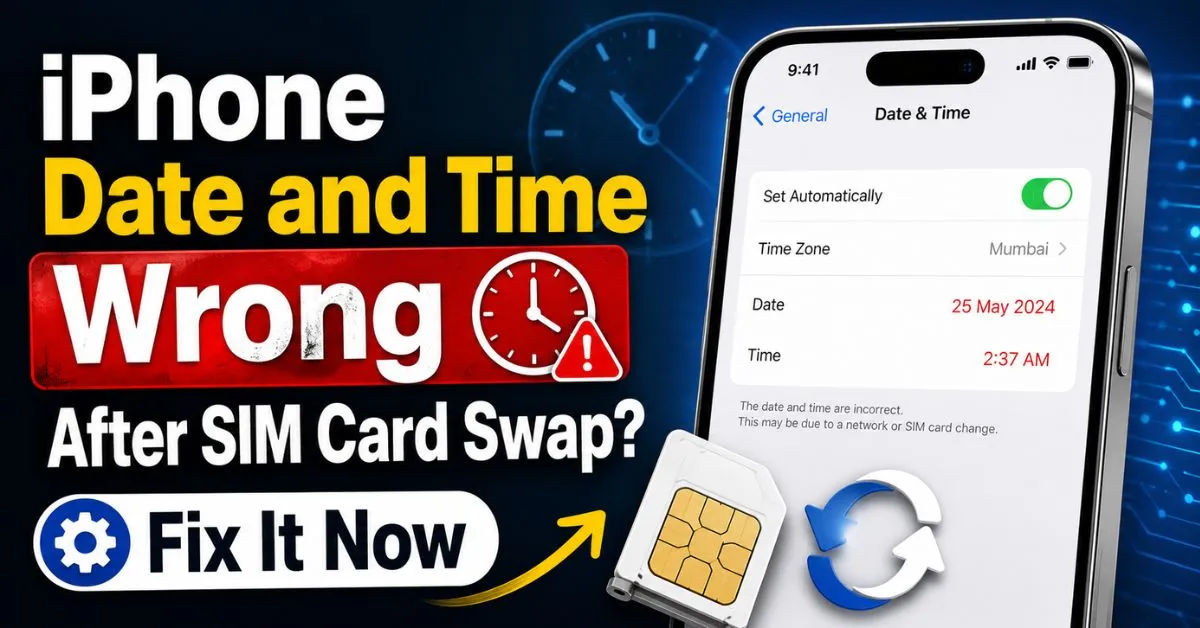
iPhone Date and Time Wrong After SIM Card Swap? Fix It Now. I’ve spent over a decade behind a repair bench, cracking open everything from the original iPhone to the latest titanium-clad 15 Pro. If there’s one thing I’ve learned, it’s that iPhones are remarkably smart until they aren’t. Last Tuesday, a regular client of mine, Sarah, walked in looking frantic. She’d just landed back in New York from a trip to Tokyo, swapped her local Japanese SIM back for her Verizon card, and her iPhone 14 insisted it was still 3:00 AM in Shinjuku.
The consequence? She couldn’t call an Uber, her iMessage was throwing “Activation Unsuccessful” errors, and Safari refused to load a single webpage, citing “expired certificates.” All because the clock was wrong.

If you’ve just swapped a SIM card and your iPhone’s date and time are behaving like a broken TARDIS, you aren’t alone. It’s a classic synchronization glitch between your SIM Card, the Cellular Network, and iOS’s internal clock management. Let’s get into why this happens and, more importantly, how we fix it.
Introduction: Why SIM Swaps Mess with Your Clock
When you slide a new SIM into that tiny tray, you aren’t just changing your phone number or data plan. You’re introducing a new ICCID (Integrated Circuit Card Identifier) to the iOS ecosystem. This ID tells your iPhone which Cellular Network it should be talking to.
Normally, iPhones use something called NITZ (Network Identity and Time Zone). This is a mechanism where the local cell tower broadcasts the current time and date directly to your device. Simultaneously, your iPhone tries to verify this against an NTP Server (Network Time Protocol) via the internet.
The “Time Jump” phenomenon happens when there’s a handshake failure between the NITZ data from your new carrier and the cached location data from your old one. Your iPhone gets confused. It sees the new network but clings to the old time zone settings like a stubborn ghost. The result? A broken clock that breaks your security certificates, making the internet virtually unusable.
Real-World Scenarios: When the Glitch Happens
In my experience, this isn’t a random bug. It usually follows one of three very specific paths:
Scenario A: The International Traveler
You swap a local SIM (like Orange or Vodafone) back to your home SIM (T-Mobile or AT&T). Your iPhone is still looking for the European NTP server packets while your physical hardware is connected to a tower in Chicago.

Scenario B: The Carrier Switcher
You’ve ported your number from Verizon to T-Mobile. You put the new SIM in, and the Carrier Settings haven’t fully updated yet. The phone defaults to a generic time zone because it doesn’t recognize the tower’s NITZ signature yet.
Scenario C: The “Zombie” Tower
You’re in a rural area. You swap SIMs, and the local tower you’re hitting has poor synchronization. I’ve seen this in remote parts of the Pacific Northwest where towers are poorly maintained; they broadcast the wrong time, and the iPhone trusts the tower over the internet.
Step-by-Step Fixes for Wrong Date and Time
Don’t panic and don’t go restoring your phone just yet. Try these in order. I’ve found that 90% of the cases I see are solved by the first three steps.
Fix 1: The “Airplane Mode” Triple-Toggle
This is my favorite “hand-held” trick. Don’t just toggle it once.
- Swipe down to your Control Center.
- Turn on Airplane Mode.
- Wait 10 seconds. Turn it off.
- Repeat this three times. Why it works: This forces the Cellular Network modem to completely drop its hold on the local tower and re-initiate the NITZ handshake from scratch. It’s like a cold shower for your phone’s radio.
Fix 2: Force a Carrier Settings Update
Sometimes the iPhone doesn’t “know” how to talk to the new SIM properly.
- Go to Settings > General > About.
- Stay on this screen for about 30 seconds.
- If an update is available, a pop-up will appear saying “Carrier Settings Update.” Tap Update. This updates the configuration files that handle how your phone interprets time data from the carrier.
Fix 3: The Location Services “Deep Sync”
Your iPhone uses Location Services to verify the time zone. If this is stuck, the clock won’t move.
- Go to Settings > Privacy & Security > Location Services.
- Scroll all the way to the bottom and tap System Services.
- Ensure Setting Time Zone is toggled ON. Expert Tip: If it’s already on, toggle it OFF and then back ON. This forces the GPS to ping your location and cross-reference it with the local Time Zone database.
Fix 4: The Manual/Automatic Toggle
- Go to Settings > General > Date & Time.
- Toggle Set Automatically to OFF.
- Wait 5 seconds.
- Toggle it back to ON. If the spinning wheel next to the time zone doesn’t stop, your phone is having trouble reaching the NTP Server.
💡 Pro Tip: The “iMessage” Warning
If your time is wrong, your Apple ID security handshake will fail. Do NOT try to sign out and sign back into iCloud until the time is fixed. If you sign out while the clock is wrong, Apple’s servers might flag your account for suspicious activity because the security tokens won’t match the timestamp. Fix the clock first, then worry about your apps.

The Network Reset: Solving Deep-Rooted Sync Issues
If you’ve tried the toggles and the time is still wonky, it’s time for the “nuclear option”—but don’t worry, you won’t lose your photos.
How to perform a ‘Reset Network Settings’
- Go to Settings > General > Transfer or Reset iPhone.
- Tap Reset.
- Select Reset Network Settings. (Do NOT select Reset All Settings).
- Enter your passcode and confirm.
What this actually does: It wipes out your saved Wi-Fi passwords, Bluetooth pairings, and—most importantly—the cache of your cellular environment. It clears the ICCID‘s temporary data and forces the iOS to rebuild the connection to the Cellular Network from a blank slate.
I’ve seen this fix the “wrong time” issue on dozens of iPhone 12 and 13 models where the NITZ data was “stuck” in the NVRAM (Non-Volatile RAM). After the reboot, the phone should grab the correct time within 60 seconds of seeing a signal.
Common Pitfalls and Troubleshooting Mistakes
When troubleshooting this for clients, I see the same three mistakes over and over:
- The Screen Time Trap: Many people forget they have “Content & Privacy Restrictions” turned on in Screen Time. If “Location Services” is set to “Don’t Allow Changes,” your phone literally cannot update its time zone, even if you swap SIMs. Check Settings > Screen Time > Content & Privacy Restrictions before you pull your hair out.
- Blaming the Hardware: I’ve had people demand a new battery because they thought the “internal clock battery” was dead. Modern iPhones don’t work like 90s PCs. If the time is wrong after a SIM swap, it is 99.9% a software or carrier-sync issue.
- Find My Interference: Occasionally, the “Find My” network tries to preserve the last known location for security purposes. If you’re in a new country and your phone hasn’t “checked in” with a local Wi-Fi, it might hold the old time zone to keep its security tether active. Connecting to a stable Wi-Fi network for 5 minutes usually solves this.
Conclusion and Final Checklist
Dealing with a time-warped iPhone is frustrating because it feels so basic, yet it breaks almost everything. The fix is usually a matter of forcing the software to catch up with the hardware change.
Your Quick Action Checklist:
- [ ] Toggle Airplane Mode 3 times.
- [ ] Check for Carrier Settings in the “About” menu.
- [ ] Ensure Setting Time Zone is active in System Services.
- [ ] Perform a Reset Network Settings if all else fails.
If you’ve done all of this and your phone is still showing the wrong time, it’s time to call your carrier. Tell them you need to “Refresh the Subscriber Settings on the Switch.” It’s a technical phrase that tells them to reset your SIM’s connection on their end.
Frequently Asked Questions
Why does my iPhone say “Activation Required” after a SIM swap?
This usually happens because the date and time are so far off that the iPhone can’t verify its activation ticket with Apple’s servers. Connect to a strong Wi-Fi network and manually set the date/time to “Automatic” to let the phone re-authenticate.
Does a SIM card store the time?
No, a SIM card doesn’t have a clock. However, it contains the ICCID and carrier profiles that tell your iPhone which network to trust for time data (NITZ). The “wrong time” is usually the iPhone failing to read the data from the new SIM’s network.
Can a faulty SIM card cause the wrong time?
Yes, though it’s rare. If the SIM card is damaged or outdated (an old 3G/4G SIM in a 5G iPhone), it might fail to pass the NITZ data to the iOS. If you’ve tried all the fixes above, try the SIM in another phone. If the time breaks there too, you need a new SIM.
Why is my Time Zone greyed out in settings?
This is almost always due to Screen Time restrictions. Go to Settings > Screen Time > Content & Privacy Restrictions > Location Services and make sure it is set to “Allow Changes.” Also, check if you have a corporate MDM profile installed on your phone, as some employers restrict time zone changes.
Will the wrong time affect my alarms?
Absolutely. Your iPhone’s clock is the master reference for the “Clock” app. If your phone thinks it’s 2:00 PM when it’s actually 7:00 AM, your “morning” alarm won’t go off for another several hours. Always verify the clock after a SIM swap before going to sleep!










