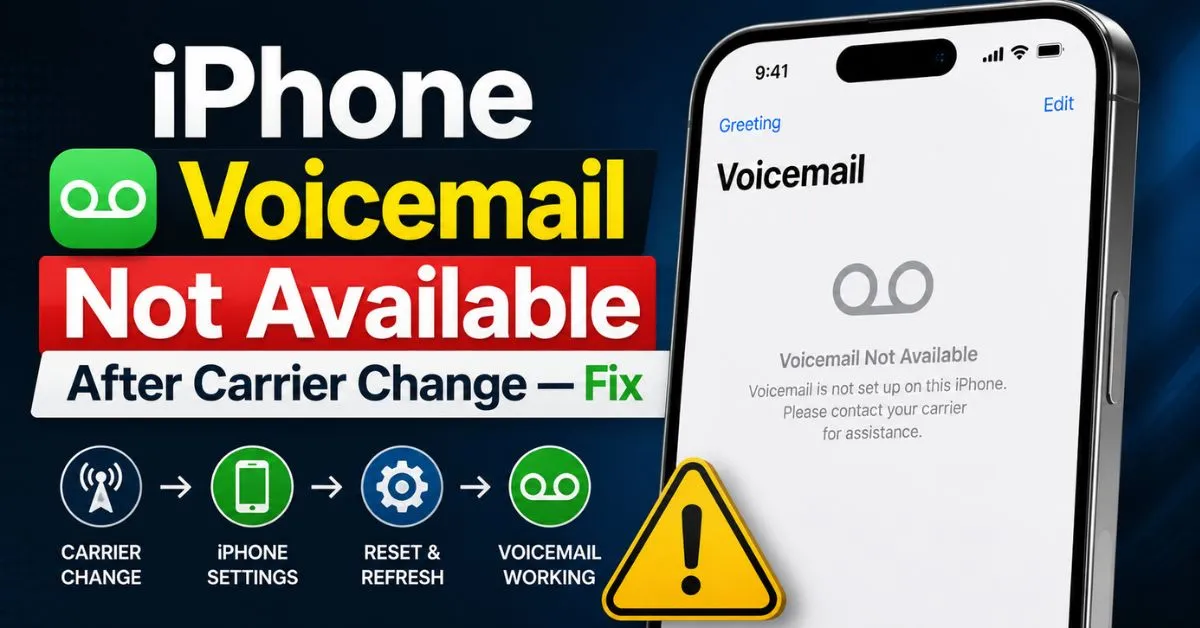
I’ve been there. You just snagged a killer deal on a new cellular plan, porting your number from Verizon to T-Mobile or perhaps switching over to an eSIM-only setup on a new iPhone 15 or 16. The data works, the texts are flying through, but then you tap that little “Voicemail” tab in the Phone app.
Instead of your usual list of messages, you’re greeted with the dreaded “Voicemail is currently unavailable” or a blank screen that refuses to load. I recently went through this exact headache when moving a family line to a smaller MVNO. It’s frustrating because it feels like you’re half-connected—a digital purgatory where your callers think you’re ignoring them, but you’re actually just blind to their messages.

The good news? Your iPhone isn’t broken. It’s likely a “handshake” issue. Your phone is still trying to talk to your old carrier’s voicemail server using an outdated “token,” and the new carrier hasn’t quite kicked the door down yet to introduce itself.
The Science of the Switch: Why Voicemail Breaks
When you swap a SIM card or activate a new eSIM, a complex dance happens in the background called Provisioning. This isn’t just about getting bars; it’s about your iPhone downloading a specific Carrier Bundle. Think of this bundle as a specialized instruction manual that tells iOS exactly how to handle Visual Voicemail, MMS, and APN settings.
The Network Handshake
Visual Voicemail is a proprietary Apple feature that requires a specific “handshake” between the carrier’s server and your iPhone’s dialer app. When you change carriers, that handshake is broken. If the new carrier doesn’t push the correct “provisioning” file to your device immediately, the iPhone sits there looking for a voice mailbox that no longer exists (at least not at the old address).
Physical SIM vs. eSIM: Does the transition type matter?
In my experience testing different setups, eSIMs are actually more prone to this specific glitch. Why? Because with a physical SIM, the hardware change forces the phone to re-index its network settings. With an eSIM, the “switch” is purely software-based. Sometimes, the iPhone’s “Internal Network Identity” (the IMEI linked to the account) gets stuck in a cache, leading to the “Invisible SIM” problem where the phone thinks it’s on the new network for data but the old network for voicemail.
The First Move: Checking for Carrier Settings Updates
Before you start resetting everything and losing your saved Wi-Fi passwords, try the “Soft Force.” Apple and carriers frequently push updates that aren’t tied to an iOS version update. These are specifically designed to fix provisioning bugs.
- Navigate to Settings > General > About.
- Wait for 30 seconds. Don’t tap anything. Just sit there.
- If an update is available, a pop-up will appear saying “Carrier Settings Update: New settings are available. Would you like to update them now?”
- Tap Update.
I’ve seen this solve the issue for about 40% of people immediately. If you ignore this pop-up (which many do, thinking it’s just more bloatware), your Visual Voicemail will likely stay broken indefinitely.

Real-World Fix: The Reset Network Settings Method
If the carrier update didn’t pop up, it’s time to be a bit more aggressive. This is the “Clean Slate” method. I used to be hesitant to recommend this because it wipes your saved Wi-Fi passwords, but it is the single most effective way to fix a voicemail-carrier mismatch.
Why this works
Moving from a CDMA-heavy network (like legacy Verizon) to a GSM network (like T-Mobile) requires the iPhone to change how it “packets” data. Sometimes, the old APN settings linger in the cache. By performing a Network Settings Reset, you are forcing the iPhone to reach out to the nearest cell tower and ask for a brand-new Carrier Bundle.
How to do it safely:
- Go to Settings > General > Transfer or Reset iPhone.
- Tap Reset.
- Select Reset Network Settings.
- Enter your passcode and confirm.
Your phone will reboot. When it comes back on, give it a few minutes to re-establish the Network Handshake. Don’t be surprised if your voicemail still isn’t there—this step just clears the path for the next part.
Expert Insight: I’ve noticed that if you are using a “Dual SIM” setup (one physical, one eSIM), a network reset can sometimes toggle the “Default Voice Line” back to the wrong SIM. Always double-check your Cellular settings after a reset to ensure your primary data line is correctly selected.
Hands-On Tips: Manual Initialization Tricks
Often, Visual Voicemail won’t “activate” until the traditional Voice Mailbox has been initialized the old-school way. We’ve become so reliant on the visual interface that we forget the underlying system is just a phone-in computer.
The “Call Yourself” Trick
I found that calling my own number from the dialer (or holding down the “1” key) forces the iPhone to bypass the Visual Voicemail interface and connect directly to the carrier’s server.

- Set up a new PIN: Even if you use the same PIN as before, the new carrier needs to register it.
- Record a greeting: Even a generic one. This “initializes” the mailbox on the carrier’s side.
- The Airplane Mode “Tickle”: Once you hang up, toggle Airplane Mode on for 10 seconds and then off. This forces the phone to re-register with the tower, often “tickling” the Visual Voicemail service to finally download your messages.
Troubleshooting Hidden Roadblocks
Sometimes the problem isn’t the carrier or the phone—it’s your settings.
The Cellular Data Requirement
Here is a mistake I see all the time: trying to fix voicemail while connected to home Wi-Fi. Visual Voicemail requires a cellular data connection to activate. It uses a specific type of data packet (often tied to MMS protocols) that many Wi-Fi networks block or don’t prioritize.
- Turn off Wi-Fi.
- Ensure you see “5G” or “LTE” at the top.
- Try to access your voicemail now. If it works on 5G but fails on Wi-Fi, you have a configuration issue with your carrier’s “Wi-Fi Calling” handoff.
The “Provisioning” Request
If you’ve tried all the above and it’s still not working, the issue is likely at the carrier’s “Switch.” When you call their tech support, don’t just say “my voicemail is broken.” They will tell you to restart your phone. Instead, use the technical term: “I need you to re-provision my Visual Voicemail on my IMEI.”
This tells the agent that you know the “SOC code” (the feature flag on your account) might be stuck. Sometimes the carrier has you listed as having a “Basic Voicemail” instead of a “Visual Voicemail” plan. This is incredibly common with “Bring Your Own Device” (BYOD) switches.
Final Steps: When Professional Intervention is Needed
There is a rare scenario where the iOS dialer app itself becomes corrupted during the carrier bundle swap. If you see the dialer app crashing when you tap the voicemail tab, it’s time to contact Apple Support.
However, before you do that, check your MMS settings. Go to Settings > Messages and ensure MMS Messaging is toggled ON. Because Visual Voicemail messages are essentially delivered as small data files, if MMS is disabled at the system level, it can occasionally block the “arrival” notification of a new voicemail.
Real-Time FAQs
Q: Will I lose my old voicemails if I change carriers?
A: Yes, in 99% of cases. Voicemails are stored on the carrier’s servers, not your physical iPhone. When you leave Verizon for AT&T, those messages stay on Verizon’s server. I always recommend using the “Share” icon on important voicemails to save them to your Files app or Voice Memos before you swap SIM cards.
Q: Why does my iPhone say “Voicemail Unavailable” only when I’m at home?
A: This is usually due to a weak cellular signal and a conflict with Wi-Fi Calling. Your iPhone is trying to “check in” with the voicemail server via cellular, but if your home Wi-Fi is strong and your cellular is weak, the handshake times out. Try turning off Wi-Fi Calling temporarily to see if the messages pop in.
Q: I switched to a “Value” carrier (MVNO) and Visual Voicemail disappeared entirely. Why?
A: Some budget carriers (like certain international roaming SIMs or very low-cost local providers) simply do not support Apple’s Visual Voicemail protocol. They only support “Basic Voicemail” where you have to call in. Check your carrier’s FAQ to ensure Visual Voicemail is actually an included feature of your plan.
Q: Can a VPN interfere with Visual Voicemail activation?
A: Absolutely. I’ve seen NordVPN and ExpressVPN interfere with the “handshake” because they mask your IP address. The carrier’s server wants to see that the request is coming from an authorized device on their specific network. If you’re struggling with a new carrier setup, disable your VPN until the voicemail is fully activated.
Q: Is there a difference between “Reset All Settings” and “Reset Network Settings”?
A: Huge difference! Reset Network Settings only clears Wi-Fi, Bluetooth, and cellular configurations. Reset All Settings reverts your wallpaper, alarms, Apple Pay cards, and layout. Only use Reset Network Settings for voicemail issues. Don’t create more work for yourself by wiping your entire configuration.










