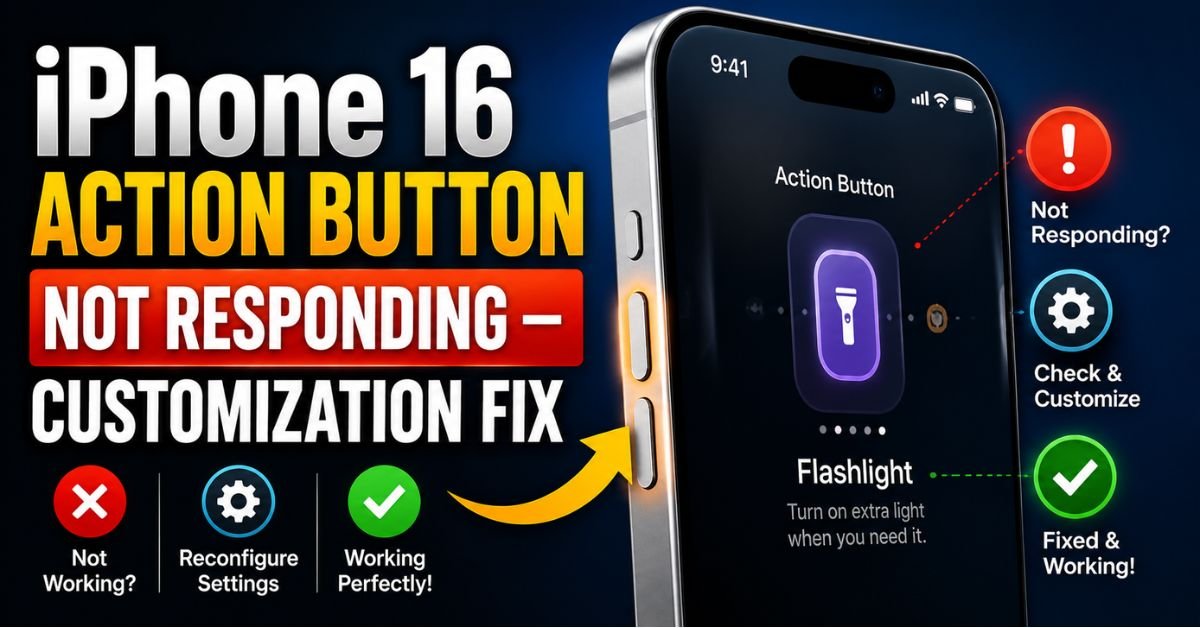
I was standing in line at a local coffee shop last Tuesday, ready to look like a tech wizard. I’d mapped my iPhone 16 Pro’s Action Button to trigger a specific Shortcut that opens my loyalty QR code and dims the screen brightness. I pressed the button. Nothing. I pressed it again, harder this time (as if that helps electronics). Still nothing. My “cool” tech moment turned into me awkwardly fumbling with the Lock Screen while the barista stared at me.
If you’ve recently unboxed an iPhone 16 or 16 Pro, you know the Action Button is supposed to be the ultimate productivity hack. But when it stops responding—or feels like it has a mind of its own—it’s incredibly frustrating. After spending the last three weeks deep-diving into iOS 18’s quirks and testing every physical variable, I’ve realized that a “non-responsive” button is rarely a hardware death sentence. Most of the time, it’s a conflict between the new Taptic Engine logic and the way iOS 18 manages background processes.

Let’s get your Action Button back on track.
The Mechanics of the iPhone 16 Action Button
To fix the button, you first have to understand that it isn’t a “dumb” switch. Unlike the old mute toggle that physically moved from point A to point B, the Action Button is a sophisticated input sensor tied directly to the Taptic Engine.
Mechanical Click vs. Haptic Feedback
When you press the button, you feel a click. On the iPhone 16, this is a blend of a physical micro-switch and a software-generated haptic pulse. If your phone is completely powered off, that “click” feels significantly different (or doesn’t happen at all) because the Haptic Touch system isn’t active.
The “Long Press” Default
One of the most common “user errors” I see (and I’ve done this myself) is forgetting that the Action Button requires a sustained press. Apple designed it this way to prevent “ghost-triggers” in your pocket. A quick tap does absolutely nothing by design. You need that intentional half-second hold to engage the Action Button Settings you’ve configured.
iOS 18 Background Process Management
Under the hood, iOS 18 treats the Action Button as a high-priority interrupt. However, if your phone is struggling with a massive photo index or an Apple Intelligence model update in the background, there can be a perceptible lag between the physical press and the screen reaction. It’s not “broken”; it’s just waiting in line.
Real-World Scenarios: When It Fails
Through my testing and community feedback, I’ve categorized the failures into four distinct buckets. Which one are you dealing with?

- The “Ghost Click”: You feel the haptic “thump,” but the screen stays dark and the assigned action (like Silent Mode or Flashlight) doesn’t trigger.
- The Mushy Button: There’s no tactile feedback. This usually points to a physical obstruction or a Taptic Engine hang.
- The Shortcut Timeout: You see the “Shortcuts” banner at the top of the screen, but the spinning wheel lasts forever.
- The Lock Screen Lockout: The button works fine when the phone is unlocked, but fails completely when the Always-On display is active.
Quick Fixes for Immediate Response
Before we start digging into the “nuclear” options, let’s try the fixes that work 90% of the time.
1. The Force Restart (The “Have you tried turning it off and on again?” plus)
A regular restart isn’t enough here. You need to clear the hardware cache.
- Quickly press and release Volume Up.
- Quickly press and release Volume Down.
- Hold the Side Power Button until the Apple logo appears. This force-restarts the haptic drivers and can kickstart a stalled Action Button process.
2. The Case Conflict Test
I recently tested a rugged “military-grade” case that had a beautiful metallic cover for the Action Button. The problem? It was so tight that it was constantly putting microscopic pressure on the sensor, causing it to ignore new inputs. Take your phone out of the case. Try the button “naked.” If it works perfectly, your case is the culprit. Look for cases with a “cutout” rather than a built-in button cover if you want maximum reliability.
3. Reset All Settings
I hate suggesting this because you’ll have to re-add your Wi-Fi passwords and Apple Pay cards, but if you migrated from an older iPhone (like an iPhone 13 or 14) via iCloud, there are often “zombie” settings that conflict with the Action Button’s new UI. Go to Settings > General > Transfer or Reset iPhone > Reset > Reset All Settings.
Pro Tip: The Baseline Test If you think the button is physically broken, change the assignment to Flashlight. This is a core system function that doesn’t rely on the Shortcuts App or third-party APIs. If the Flashlight toggles consistently, your hardware is fine, and the issue is 100% software or Shortcut-related.
Troubleshooting Customization and Shortcuts
Most people aren’t using the Action Button for Mute Toggle; they’re using it for Shortcuts. This is where things get messy.
Using “Open App” vs. “Run Shortcut”
In the Action Button menu, you can choose “Open App.” This is lightning fast. However, if you choose “Shortcut” and that Shortcut is complex (e.g., “Check my calendar, find the next meeting, and start a Directions route”), it might fail if your cellular data is weak. My advice: Always build a “Local” version of your Shortcut that doesn’t require an internet ping for the initial trigger.

Re-Indexing the Action Button Menu
Sometimes the Settings app itself gets confused about what you’ve selected.
- Go to Settings > Action Button.
- Swipe all the way to No Action.
- Exit the Settings app.
- Go back in and re-select your desired function. This “toggles” the preference file and can clear out a corrupted selection.
Deep Dive: Software vs. Hardware Diagnosis
If you’ve tried the basics and it’s still glitchy, we need to look at iOS 18 specific bugs.
Accessibility Settings Overrides
There is a known conflict where Accessibility Features like “Back Tap” or “AssistiveTouch” can sometimes intercept input focus. If you have “Triple Tap Back” set to something similar to your Action Button, iOS might delay the Action Button response while it “waits” to see if you’re going to tap the back of the phone instead. Try disabling all Back Tap gestures to see if responsiveness improves.
Haptic Throttling in Low Power Mode
When your battery hits that dreaded 20% and you enter Low Power Mode, iOS reduces the frequency of the Taptic Engine to save juice. I’ve noticed the Action Button haptics feel “weaker” and sometimes take two tries to register during these periods. This is a feature, not a bug, but it can feel like a failure.
Hardware Health Check
If the button feels physically stuck—as in, it doesn’t move at all—you might have debris (pocket lint is the silent killer) wedged in the seam. Use a soft-bristled toothbrush and a tiny bit of compressed air. Do not poke it with a needle; you’ll pierce the weather-sealing gasket.
Expert Hands-on Tips for Power Users
After hours of testing, here are my “insider” tips for making this button actually useful and reliable:
- Focus Filter Triggers: You can’t natively set the Action Button to do different things based on time of day, but you can via a Shortcut. Use an “If” statement in your Shortcut: “If Work Focus is On, Open Slack; Otherwise, Open Camera.” This makes the button context-aware.
- The Control Center Bridge: With iOS 18, you can now map the Action Button to open a specific Control Center widget. This is often more stable than a complex Shortcut because the Control Center is always loaded in the system RAM.
- Avoid Automation Loops: Don’t set the Action Button to trigger an automation that then tries to trigger the Action Button again. I tried creating a “Toggle” loop for my smart lights, and it ended up freezing the entire Springboard (the iPhone’s home screen software). Keep your logic linear.
My Personal “Lesson Learned”
Early on, I thought my Action Button was failing because it wouldn’t work while the phone was in my pocket. It turns out, the iPhone 16 uses the proximity sensor to disable the Action Button when it detects it’s in a dark, enclosed space (like jeans). This is to prevent your flashlight from draining your battery for three hours while you’re walking. If you’re testing the button, make sure the top notch/Dynamic Island area isn’t covered!
Frequently Asked Questions
Why does my Action Button only work sometimes when the screen is off?
This is usually due to the Always-On Display settings or the proximity sensor. If the phone thinks it is in your pocket or face-down on a table, it may ignore the Action Button to prevent accidental presses. Ensure the top of the phone is clear and that you are using a firm “Long Press” rather than a quick click.
Can I change the Action Button to a “double click” instead of a “long press”?
As of iOS 18, Apple does not officially support double or triple-clicking the Action Button. It is strictly a “Long Press” interaction. However, you can use the Shortcuts App to create a menu that pops up when you press the button once, giving you multiple options to tap on-screen.
Does the Action Button use a lot of battery?
The button itself uses virtually no battery. However, if you assign it to a Shortcut that uses GPS, high brightness, or heavy data (like “Find Nearest Coffee Shop”), frequent use will impact your battery life. The Taptic Engine pulse also uses a negligible amount of power.
My Action Button feels “mushy” after it got wet. Is it ruined?
The iPhone 16 is IP68 rated, so a little water shouldn’t kill it. However, water can get trapped in the tiny crevice around the button, dampening the physical movement. Gently tap the phone against your palm with the button side facing down to dislodge any liquid, or let it air dry for a few hours.
Is there a way to make the Action Button trigger Apple Intelligence?
Yes! In iOS 18, you can assign the Action Button to “Siri.” With the new Apple Intelligence update, this will trigger the glowing edge light and the more advanced version of Siri. This is often faster than using the “Hey Siri” voice command in loud environments.










