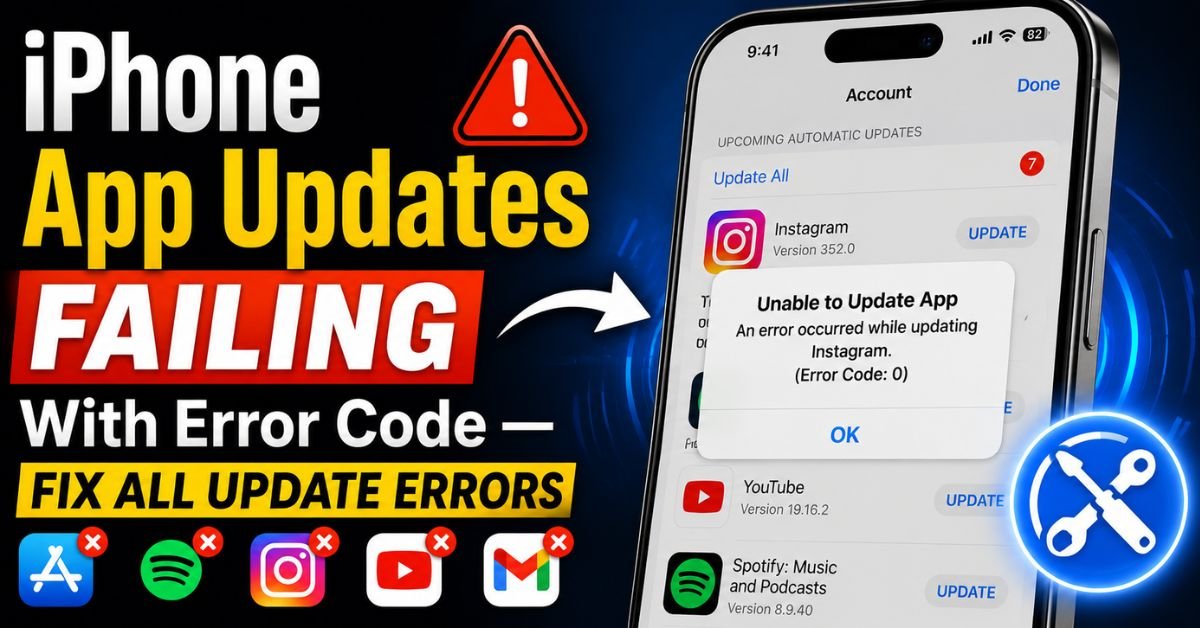
Last week, I was standing in a terminal at JFK, desperately trying to update my airline app because the gate had changed and the old version refused to refresh the boarding pass. I watched that little blue circle spin. And spin. Then, the dreaded “Unable to Update” pop-up appeared. Despite having a solid 5G connection and a brand-new iPhone 15 Pro, I was stuck.
If you’ve spent any time in the iOS ecosystem (I’ve been troubleshooting these devices since the iPhone 3GS), you know this feeling. It’s not just an inconvenience; it’s a digital roadblock. Whether it’s a specific error code like “Account Not in This Store” or a generic “Unable to Download App,” the frustration is real.

In this guide, I’m pulling from my ten years of technical support experience to show you exactly how to kickstart those stalled updates. We aren’t just going to “turn it off and on again”—though that helps—we’re going deep into the App Store cache, Network Settings, and Apple ID authentication layers.
Introduction: Why Your iPhone Apps Are Stuck
The psychology of the “Spinning Circle” is fascinating. It’s a tiny bit of UI that promises progress but often delivers nothing. On an iPhone, an update failure usually falls into three buckets: Waiting, Loading, or the hard stop of an Error Message.
“Waiting” usually means your phone is overwhelmed. It’s either waiting for another app to finish or your processor is throttled by a low battery. “Loading” is almost always a bandwidth or handshake issue. But when you get a specific error code? That’s the system telling you exactly what’s broken, even if the language it uses is cryptic.
Sometimes, the fault isn’t yours at all. I always tell my clients to check the Apple Server Status first. If the App Store servers are undergoing maintenance or seeing a massive spike (like on a major iOS release day), no amount of tapping is going to help.
The ‘Quick Wins’ Checklist
Before we start messing with your iCloud settings, let’s rule out the “obvious” stuff that trips up even the pros.
Checking the Apple System Status
I can’t tell you how many times I’ve spent thirty minutes debugging a device only to realize Apple’s “App Store” or “Apple ID” services were yellow on their status page. Open your browser and check the Official Apple System Status. If there’s a green dot next to App Store, the problem is local to your device.

The ‘Storage Space’ Lie
This is a big one. Your iPhone might say you have 1GB of free space. You try to download a 200MB update. It fails. Why? Because iOS requires a “buffer” for the installation process. The app doesn’t just swap files; it downloads the new package, uncompresses it, and then replaces the old files. My Rule of Thumb: Always maintain at least 5GB of free Storage Capacity. If you’re riding the edge, the App Store will often time out during the “Installing” phase without telling you why.
Wi-Fi vs. Cellular: The 200MB Barrier
If you’re on the go, check your “App Downloads” settings. In the past, Apple had a hard cap on cellular downloads. While that’s mostly gone now, you still have to give the phone permission to use data for large files. Go to Settings > App Store > App Downloads and make sure “Always Allow” is selected if you have an unlimited data plan.
Deep Dive into Apple ID and Authentication Errors
This is where things get “wonky.” Most update errors are actually hidden security or billing hurdles.
Handling the ‘Account Not in This Store’ Error
I recently encountered this on an iPad I bought while working in London. I had apps downloaded with a UK Apple ID, but my primary account is US-based. When those UK apps need an update, the App Store gets confused. If you see this error, it means the app was originally purchased or downloaded under a different ID or a different regional store. You’ll need to sign out of the App Store and sign back in with the correct credentials, or—better yet—delete the app and redownload it with your current primary account.
Refreshing ‘Media & Purchases’
Sometimes your login “session” just expires or gets corrupted. You don’t need to sign out of iCloud entirely (which is a pain because it removes your Apple Wallet cards). Instead:
- Open Settings.
- Tap your name at the top.
- Tap Media & Purchases.
- Select Sign Out.
- Wait ten seconds and sign back in. This forces a fresh handshake with the Apple Server, often clearing the “Verification Required” loop.
The Payment Method Trap
Even for free apps, Apple requires a valid Payment Method on file if you have any active subscriptions or an outstanding balance. If your credit card expired, the App Store might block all updates. Check your billing info under your Apple ID settings to ensure everything is green.
Expert Insight: If you use Two-Factor Authentication (2FA) and you’re in a low-signal area, the 2FA request might time out in the background, causing the App Store update to hang indefinitely. Always try to be on a stable connection when performing account-level refreshes.

Advanced Technical Fixes for Persistent Failures
If the basics didn’t work, it’s time to get a bit more “techy.” These are the steps I take when a device is being particularly stubborn.
The ‘Date & Time’ Trick (Crucial)
This sounds like an old wives’ tale, but it’s pure logic. The App Store uses SSL Certificates to secure the connection. These certificates have strict start and end dates. If your iPhone’s date or time is manually set and off by just a few minutes, the SSL handshake will fail because the certificate appears “invalid” to the device. Go to Settings > General > Date & Time and toggle Set Automatically to ON. If it’s already on, toggle it off and back on again to force a sync with the NTP servers.
Resetting Network Settings
When your Wi-Fi is connected but the App Store says “No Connection,” your network cache might be the culprit. Go to Settings > General > Transfer or Reset iPhone > Reset > Reset Network Settings. Fair Warning: This will wipe your saved Wi-Fi passwords and VPN configurations. Use this as a last resort, but it is incredibly effective for clearing out “sticky” DNS issues that prevent the App Store from reaching its download mirrors.
Offloading vs. Deleting
If one specific app (like Instagram or YouTube) won’t update, don’t just delete it. Deleting wipes your local data. Instead, use the Offload App feature. Go to Settings > General > iPhone Storage > [App Name] > Offload App. This removes the app’s binary (the “engine”) but keeps your “Documents & Data.” Once offloaded, tap Reinstall App. This forces the App Store to fetch the absolute latest Firmware version of the app without you losing your settings or logged-in accounts.
Real-World Scenarios and Common Pitfalls
I’ve seen a lot of weird edge cases in my decade of doing this. Here are the ones that usually catch people off guard.
The VPN Trap
If you use a VPN, your iPhone might think you are in a country where that specific app version isn’t authorized. I’ve had many “Aha!” moments where disabling NordVPN or ExpressVPN instantly fixed a stalled download. Some VPNs also mess with the local DNS, which prevents the App Store from verifying the update package.
Beta Software Blues
Are you running an iOS Beta? I love testing new features on my iPhone 13, but betas are notorious for breaking the App Store’s connection to the production servers. If you’re on a beta and updates are failing, you might just have to wait for the next beta patch or revert to a stable build (which requires a computer and a full restore).
Hardware Limitations
Sometimes, it’s not a bug—it’s just gravity. If you’re holding an iPhone 7 or 8, certain apps now require the A12 Bionic chip or higher to run their latest builds. The App Store should tell you that your device isn’t compatible, but sometimes it just fails silently with a generic error code.
Preventative Maintenance for a Smooth Experience
To avoid that airport panic I had at JFK, I recommend a few proactive habits:
- Enable Automatic Updates (Correctly): Toggle on “App Updates” under Settings > App Store. However, check your phone every few days manually. Auto-updates often wait until the phone is plugged in and on Wi-Fi overnight.
- iCloud Hygiene: Keep your iCloud storage from hitting its limit. When iCloud is full, your device has a harder time managing the temporary files needed for system updates.
- Regular Reboots: I restart my iPhone 15 Pro at least once a week. It clears the system Cache and forces the OS to re-index files, which keeps the App Store snappy.
Frequently Asked Questions
Q: Why does the App Store ask for my password every time I update a free app?
A: This is usually due to your “Password Settings” under Media & Purchases. You can change this to “Don’t Require Password” for free downloads, but if you have a pending billing issue or “Verification Required” message, Apple will override this and force a password entry to ensure the account owner is present.
Q: Can I update apps without Wi-Fi?
A: Yes. Since iOS 13, Apple has allowed users to download large apps over cellular. Just make sure you haven’t hit your data cap, and go to Settings > App Store > App Downloads to disable the “Ask if Over 200 MB” prompt.
Q: What do I do if an app says “Waiting” and I can’t delete it?
A: This is a “ghost” install. The best fix is to go to the App Store, find the app page, and see if the “Stop” (the square inside a circle) icon is there. Tap it. If that doesn’t work, a Force Restart (Volume Up, Volume Down, then hold the Power button until the Apple logo appears) usually clears the ghost icon.
Q: Does clearing the App Store cache still work?
A: In older versions of iOS, you could tap the bottom navigation icons (like “Today”) ten times to clear the cache. In modern iOS, this is less reliable. The better way to “clear cache” now is to sign out of Media & Purchases and restart the device.
Q: Why do my apps update only when I open the App Store?
A: This is related to “Background App Refresh” and “Low Power Mode.” If Low Power Mode is on, background updates are disabled to save battery. Ensure Low Power Mode is off and Background App Refresh is enabled in your General settings for a truly automatic experience.










