If your android phone won’t connect to PC, you know exactly how high the blood pressure spikes in that moment. It’s one of those tech glitches that feels like it should have been solved in 2012, yet here we are in 2024, still fighting with USB not recognized errors.
Over the years, I’ve fixed hundreds of these connectivity issues—from broken Samsung phone not recognized by PC cases to Xiaomi phone not connecting to pc because of a weird software handshake. Most of the time, the fix is hidden in a setting you’d never think to touch. Let’s get your device showing up again.

There I was, twenty minutes before a deadline, trying to grab a 4GB screen recording off my Pixel 7. I plugged the cable in, heard that familiar Windows “ba-ding” sound, and… nothing. No pop-up. No folder in File Explorer. Just a phone sitting there, slowly charging, mocking me.
also reade : Android Battery Draining Too Fast, Android Apps Keep Crashing, Android Mobile Data Not Working, Android Do Not Disturb Not Working
Android Microphone Not Working
The ‘Basics’ Checklist: Eliminating Hardware Failures First
I’ve seen people spend three hours reinstalling Windows when the culprit was literally a piece of pocket lint. Before we dive into the Universal Serial Bus drivers, let’s rule out the physical stuff.
1. The “Charging-Only” Cable Trap
This is the #1 reason for android phone usb connection problem. Not all cables are created equal. Many cheap cables—especially those “bulk” ones from gas stations or the ones that come with rechargeable fans—only have two wires inside for power. They lack the data pins. The Fix: Always try to use the OEM USB cable (the one that came with your phone). If you’re using a third-party one, make sure it’s rated for “Sync and Charge.”
2. Inspecting the Port for Debris
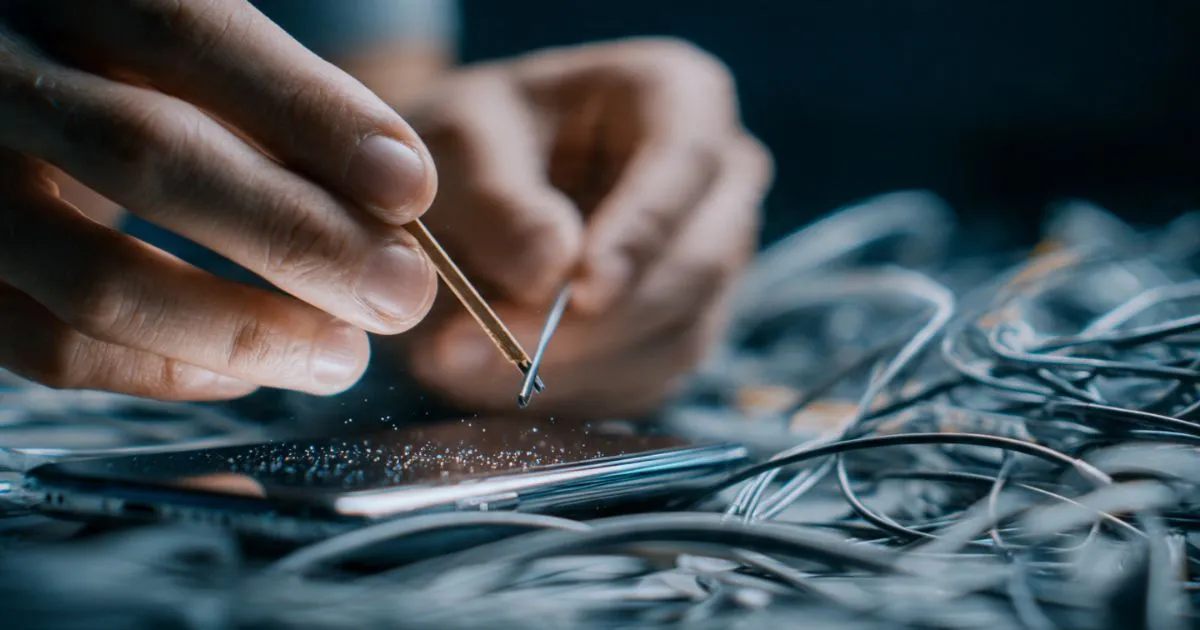
If you carry your phone in your pocket, your USB-C port is a vacuum for lint. If the cable doesn’t sit “flush” against the phone frame, data transfer will fail even if it’s charging. The Fix: Take a wooden toothpick or a plastic dental pick (never metal!) and gently scrape the inside of the port. You’d be surprised at the “felt” you’ll pull out.

3. USB 2.0 vs. USB 3.0 Ports
Strangely, some older Android devices (and even some newer budget ones like Redmi phone not detected by computer issues) struggle with the power delivery of USB 3.0 or 3.1 ports (the blue ones). The Fix: If you’re on a desktop, plug the cable into the ports directly on the motherboard (at the back) rather than a port hub or the front panel.
Software Handshake: Changing Android Connection Preferences
When you plug your phone in, Windows and Android have to agree on what they’re doing. By default, many phones are set to “No Data Transfer” for security.
Also Reade : Complete Android Fix Guide: Every Android Problem Solved (2026)
How to Change USB Mode Android
- Plug the phone into the PC.
- Swipe down from the top of your screen to see your notifications.
- Look for a notification that says “Charging this device via USB” or “USB for file transfer.”
- Tap it and select File Transfer / Android Auto.
If that notification doesn’t appear, your phone isn’t even seeing the PC. This is where we look at the Media Transfer Protocol (MTP) settings.
Hands-on Tip: Setting Default USB Configuration
If you find yourself constantly having to toggle this, you can force it in the Developer Options.
- Go to Settings > About Phone.
- Tap Build Number seven times (Yes, really).
- Go back to System > Developer Options.
- Search for Default USB Configuration and set it to File Transfer.
Author’s Note: I once spent an hour troubleshooting a OnePlus phone not connecting to pc only to realize the user hadn’t unlocked their screen. If your phone is locked with a PIN or fingerprint, Windows will often see an empty folder. Unlock your phone first!
Windows Device Manager Deep-Dive: Fixing Driver Conflicts
If the hardware is fine but you’re still seeing usb device not recognized android phone or an unknown device usb android windows error, the problem is likely your driver software.

Finding the ‘Yellow Triangle’
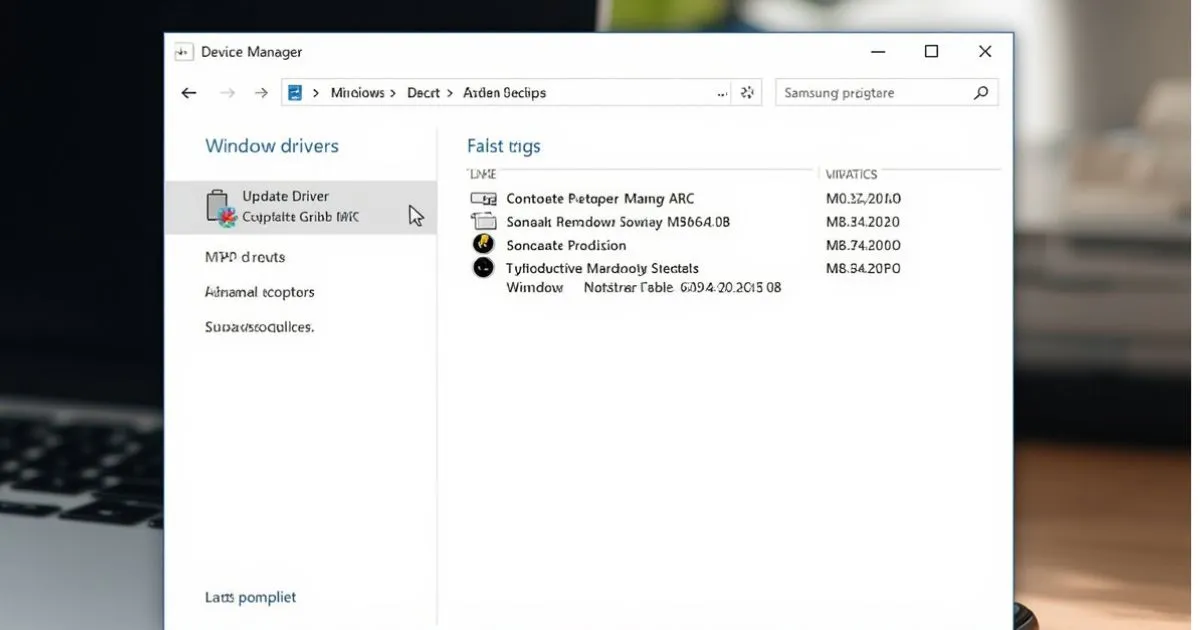
Right-click your Start button and open Device Manager. Look for:
- “Other Devices”
- “Portable Devices”
- An entry with a yellow exclamation mark.
Step-by-Step: Updating the MTP USB Device Driver
This is the “magic” fix that works for 90% of android file transfer not working windows 10 and windows 11 cases:
- In Device Manager, right-click the “Unknown Device” or the name of your phone.
- Select Update driver > Browse my computer for drivers.
- Choose Let me pick from a list of available drivers on my computer.
- Look for MTP USB Device and select it. Click Next.
- Windows will force-install the Media Transfer Protocol driver, and your phone should immediately pop up in File Explorer.
Sometimes, the standard MTP mode not working android situation requires a “backdoor.” This is where USB Debugging comes in. Usually meant for developers, it forces a more robust connection.
How to Enable USB Debugging Android
- Enable Developer Options (as mentioned above).
- Toggle USB Debugging to ON.
- A prompt will appear on your phone: “Allow USB debugging?”.
- Check “Always allow from this computer” and hit OK.
Once enabled, your PC will recognize the ADB Interface. This is often the only way to fix an android adb not detecting device error when you’re trying to use specialized backup software or the Android File Transfer app not working on Mac.
Security Warning: Don’t leave this on forever. It makes your phone slightly more vulnerable if someone steals it and plugs it into their own PC. Turn it off once you’ve finished your transfer.
Why Certain Brands Act Up (Samsung, Xiaomi, Pixel)
Different manufacturers have their own quirks.
- Samsung Phone Not Recognized by PC: Samsung uses a specific driver set. If the standard Windows update doesn’t work, download the Samsung USB Driver for Mobile Phones directly from their site. Also, check if Samsung Smart Switch is running; sometimes it “hogs” the connection, preventing Windows Explorer from seeing the files.
- Xiaomi / Redmi Phone Not Detected: These devices are notorious for being picky about the cable. They also sometimes require you to enable “Install via USB” in Developer Options before they’ll talk to a PC properly.
- Motorola Phone Not Showing in PC: Motorola often requires the “Motorola Device Manager” software to be installed to provide the correct Universal Serial Bus handshake.
Common Pitfalls and Troubleshooting Anomalies
1. The ‘Restart Everything’ Rule
It sounds cliché, but it works. A hung process in the Android System or a glitched Universal Serial Bus controller in Windows can block everything. Soft reset android (hold power and volume down) and restart your PC. I’d say this fixes 20% of my “unfixable” cases.
2. Third-Party Sync Software Conflicts
If you have Android File Transfer (on Mac), SideSync, or Huawei HiSuite installed, they might be fighting over the device. The Fix: Close these apps completely (check the system tray) and try the native File Explorer again.
3. ADB Server Issues
If you’re a dev and adb device not found fix is what you’re after, try the classic: adb kill-server adb start-server This restarts the background daemon that handles the communication.
4. Android File Transfer Not Working Mac
If you’re on a Mac, remember that macOS does not natively support MTP. You must use an app. If the official Google Android File Transfer app is failing, try OpenMTP. It’s open-source, much more stable, and handles large video files way better than the Google version.
Expert Insight: The “Power Surge” Mystery
I once encountered a laptop not detecting android phone issue that baffled me for days. It turned out the laptop’s USB port was “suspended” by Windows Power Management to save battery. Pro Tip: Go to Device Manager > Universal Serial Bus controllers, right-click each USB Root Hub, go to Power Management, and uncheck “Allow the computer to turn off this device to save power.” This is a game-changer for android phone usb connection keeps disconnecting problems.
Summary of the Best Fixes for 2024
To wrap this up, if your android phone won’t show up on pc, follow this path:
- Switch the cable to an OEM or high-quality data cable.
- Clean the port (the “lint” factor).
- Unlock the phone and change the USB mode to File Transfer.
- Manual Driver Update: Use Device Manager to force the MTP USB Device driver.
- Enable USB Debugging if all else fails.
Getting your files shouldn’t be this hard, but with the right android phone usb troubleshoot, you can usually get it sorted in under five minutes. If you’ve tried everything and it still only shows “charging,” it might be a hardware failure on the phone’s internal daughterboard—but let’s hope it’s just a bit of pocket fluff!










