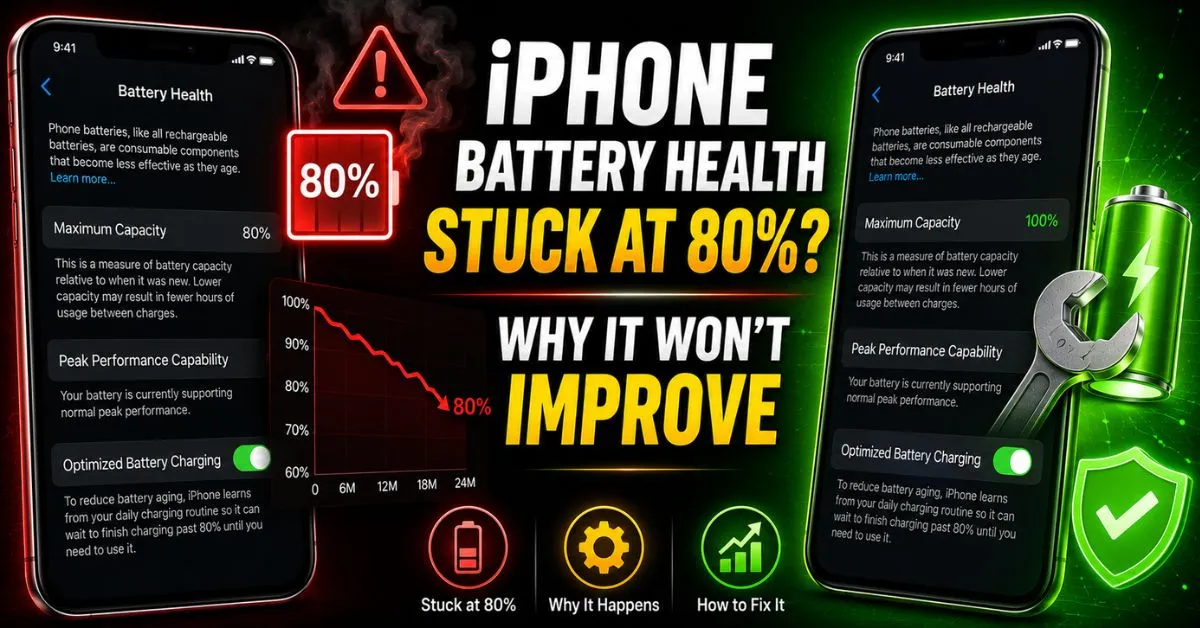
iPhone Battery Health Stuck at 80%? Why It Won’t Improve.I remember the exact moment my iPhone 12 Pro hit that dreaded 80% mark. I was sitting in a coffee shop, checking my settings—something I do far too often—and there it was. The number hadn’t budged in four months. I’d been at 81% for what felt like an eternity, and then, the drop. I spent the next three weeks obsessively charging it to exactly 80%, avoiding heat, and babying the “Optimized Battery Charging” feature, hoping that somehow, magically, the number would tick back up to 81 or 82%.
It didn’t. In fact, it never will.

If you’re staring at your iOS Settings and wondering why your Maximum Capacity is glued to 80%, you’re not alone. There’s a mix of chemistry, math, and a little bit of Apple’s software “magic” at play here. Let’s pull back the curtain on why that number is so stubborn and what’s actually happening inside that slab of glass and lithium.
Introduction: The 80% Battery Health Mystery
We’ve become a bit obsessed with the “Health” percentage. It’s the first thing people check when buying a used iPhone and the primary source of “range anxiety” for long-time owners. But here is the hard truth: Battery Health is a one-way street.
There is a fundamental misunderstanding between “Daily Charge Level” (the percentage you see in the top right of your home screen) and “Maximum Capacity” (the health of the chemical cells). While you can charge your phone back to 100% every night, you cannot “charge” the health back up.
When that number hits 80%, it’s not just a random digit. For Apple, 80% is the technical “tipping point.” It is the threshold where a Lithium-ion Battery is officially considered “consumed.” Psychologically, seeing 80% feels like a failing grade, but physically, it’s the result of hundreds of tiny chemical reactions that have finally taken their toll.
The Science of Chemical Aging
To understand why the health won’t improve, we have to look at what’s happening in the “chemical soup” inside your phone. Your iPhone doesn’t have a tiny dipstick to measure battery life. Instead, it relies on the Battery Management System (BMS).
The BMS is a sophisticated gatekeeper. Its job is to monitor the voltage, current, and temperature. As you use your phone, the lithium ions move back and forth between the anode and cathode. Over time, this movement causes physical wear at the microscopic level. This is called Chemical Aging.

The 500 Cycle Benchmark
Apple designs its batteries to retain up to 80% of their original capacity at 500 full charge cycles under normal conditions. A “cycle” isn’t just plugging it in once; it’s a cumulative 100% discharge. If you use 50% today, charge it, and use 50% tomorrow, that’s one cycle.
Once you hit that 500-cycle mark, the internal chemistry is significantly different than it was on day one. The Internal Resistance has increased. Think of it like a water pipe that’s slowly getting clogged with mineral deposits. The water can still flow, but it takes more pressure, and you get less volume out of the other end.
Why Health is an Estimate, Not a Fact
The percentage you see in your settings is an algorithmic estimate. The BMS calculates it by looking at Voltage Sag—how much the voltage drops when the phone is under a heavy load (like launching a 3D game or exporting a 4K video). Because it’s an estimate based on usage patterns, the number can sometimes stay static for months while the software waits for enough “bad data” to justify dropping the percentage again.
Real-World Scenario: The Plateau Phenomenon
Have you ever noticed your battery health stays at 100% for six months, then drops to 97% in a single week? Or, like many people reading this, it gets stuck at 80% for an incredibly long time?
This is what I call the Plateau Phenomenon.
The BMS is programmed to be conservative. It doesn’t want to show you a fluctuating number every day because that would cause panic. Instead, it waits for a trend. I’ve seen devices stay at 80% for half a year, only to suddenly drop to 75% in the span of a few days. This is the “cliff effect.” The battery was actually degrading the whole time, but the software was “clinging” to the 80% mark because the voltage readings hadn’t yet crossed the next major threshold of instability.
Thermal Management also plays a role here. If you live in a cold climate, your battery might report a higher health percentage because it isn’t being stressed by heat. But the moment summer hits and your phone runs hot in the car, the BMS catches up to the reality of the degradation, and that 80% finally breaks.

The 80% Tipping Point: Apple’s Performance Throttling
There is a reason the number 80% is so significant in the Apple ecosystem. Once your iPhone dips below this mark, it triggers a change in your Peak Performance Capability.
When a battery is chemically aged (at or below 80%), it struggles to provide the quick “bursts” of power needed by the CPU. If the CPU asks for power and the battery can’t provide it due to high internal resistance, the phone will simply shut down to protect its internal components.
To prevent these unexpected shutdowns, iOS introduces performance management (commonly called throttling). You might notice:
- Apps taking longer to launch.
- Lower frame rates while scrolling.
- A dimmer backlight.
- Lower speaker volume.
You’ll likely see a message saying: “This iPhone has experienced an unexpected shutdown because the battery was unable to deliver the necessary peak power.” At this point, the battery is no longer a reliable power source, regardless of whether the screen says 80% or 79%.
Pro Tip: The “Cold Start” Test Want to know if your 80% battery is truly failing? Take your phone into a cold environment (around 32°F or 0°C) and try to take a series of photos with the flash on. If the phone hitches or shuts down, your battery’s internal resistance is too high to sustain peak loads, regardless of what the “Maximum Capacity” percentage claims.
Common Pitfalls and Battery Myths
I see the same advice recycled on forums every day, and frankly, most of it is a waste of time. Let’s clear the air.
Myth 1: “Recalibrating” will fix the percentage
Some people suggest draining your iPhone to 0% until it dies, then charging it to 100% to “reset” the battery health. Don’t do this. Modern lithium-ion batteries hate being deep-discharged. While this might occasionally help the BMS “re-learn” the top and bottom of the voltage curve, it won’t actually “heal” the chemical capacity. In fact, the heat generated from a 0-100% charge might actually hurt the battery more than it helps the UI accuracy.
Myth 2: Updating iOS will “fix” the health
Unless Apple specifically notes a bug in their release notes regarding battery reporting (which is rare), updating your software won’t make your battery healthier. It might, however, force the BMS to run a fresh diagnostic, which usually results in the health percentage dropping even further as it realizes how much degradation has actually occurred.
Myth 3: Third-party batteries are just as good
I’ve experimented with “high capacity” third-party batteries from Amazon. Most of them are a headache. Because of Apple’s parts pairing, if you replace the battery yourself or go to a non-authorized shop, you will often lose the “Battery Health” menu entirely. It will simply say “Unknown Part.” Furthermore, these batteries often lack the quality BMS chips found in OEM units, leading to erratic power delivery.
Hands-on Diagnostics: Beyond the iOS Settings App
If you’re like me and you don’t trust the simplified number in the Settings app, there are ways to get the raw data. Apple hides the actual numbers, but third-party tools can pull them directly from the battery’s serial interface.
Using Coconut Battery (Mac)
If you have a Mac, Coconut Battery is the gold standard. Plug your iPhone in via USB, and it will show you:
- Full Charge Capacity (mAh): The actual current capacity in milliampere-hours.
- Design Capacity (mAh): What the battery had when it was new.
- Cycle Count: Exactly how many times the battery has been cycled.
I recently checked an iPhone 13 that was “stuck” at 85% in iOS. Coconut Battery revealed it was actually at 81.2% with 640 cycles. The iOS interface was simply “smoothing” the data to keep the user from worrying.
Using 3uTools (PC)
For Windows users, 3uTools provides a similar deep dive. It can show you the battery’s “birth date” and the manufacturer of the cells. Seeing that your battery has 800 cycles makes that “80%” number make a lot more sense.
When to Stop Worrying and Start Planning
If your phone is at 80%, you have two choices:
- Live with it: Keep a power bank handy. You’ll likely need to charge by 2 PM.
- Replace it: Go to Apple Support or an Authorized Service Provider.
In my experience, a fresh battery is the single best “upgrade” you can give an iPhone that is 2-3 years old. It feels like a brand-new phone—the snappiness returns, the heat issues vanish, and you stop looking at the settings menu every twenty minutes.
Frequently Asked Questions
1. Why did my battery health drop to 80% and then stop moving?
This is usually because the Battery Management System (BMS) has reached a plateau. It often waits until the battery’s performance becomes unstable (causing shutdowns or significant voltage drops) before it updates the percentage again. It’s also the point where Apple’s warranty for battery replacement usually kicks in, so the software is very precise (and sometimes conservative) around this number.
2. Can I use a fast charger to improve my battery health?
No. Fast charging actually generates more heat, which is the primary enemy of lithium-ion longevity. While fast charging won’t “break” your battery, it will certainly accelerate the chemical aging process. If you want to preserve what’s left of your 80% health, use a slower 5W “brick” overnight.
3. Is it safe to use my iPhone if the battery is at 79% or “Service” status?
It is safe in the sense that it won’t explode, but it is unreliable. The phone may shut down during an emergency call or while using GPS in the sun. If you see the “Service” message, the battery has lost its ability to provide consistent voltage, and you should plan a replacement soon.
4. Does “Optimized Battery Charging” help if I’m already at 80%?
It won’t fix the damage already done, but it can help slow down further degradation. By keeping the battery from sitting at 100% for long periods (which causes stress), it preserves the remaining active lithium ions.
5. How much does a genuine Apple battery replacement cost?
Prices typically range from $69 to $99 depending on your model (e.g., an iPhone 15 Pro replacement is more expensive than an iPhone 8). If you have AppleCare+, the replacement is free once the health drops below 80%.
The Bottom Line: Your iPhone battery is a consumable part, like the tires on a car. No amount of software tweaking or “charging tricks” will reverse chemical aging. When you hit 80%, stop trying to “fix” the number and start deciding if you value the convenience of a full day’s charge enough to pay for a fresh cell. Personally? That $89 for a new battery is the best money I spend every three years.










