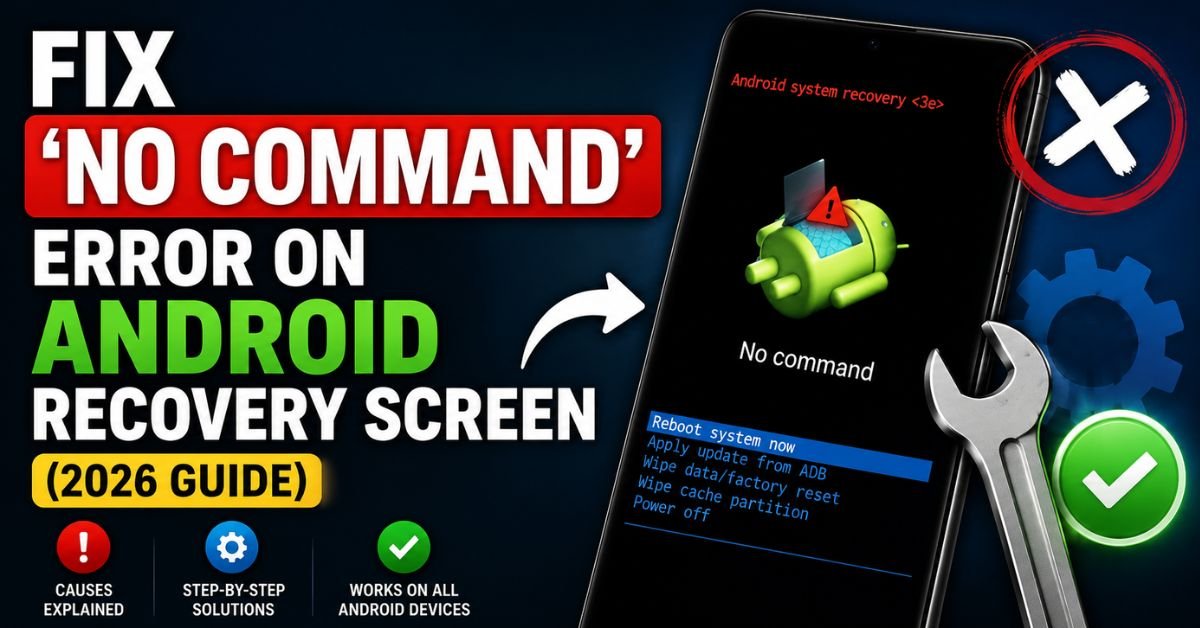
Fix ‘No Command’ Error on Android Recovery Screen (2026 Guide).I remember the first time I saw the “Dead Android” on my screen. It was 11:30 PM, I was halfway through a critical OTA Update on my trusty Google Pixel, and suddenly, the progress bar vanished. In its place was a fallen Android mascot with a red triangle and those two dreaded words: “No Command.” My heart sank. I thought I’d turned a $700 flagship into a very expensive paperweight.
If you’re staring at that same screen right now, take a deep breath. You haven’t broken your phone. In my decade of tinkering with mobile Firmware and troubleshooting everything from Samsung Galaxies to obscure Motorola handsets, I’ve learned that the “No Command” screen is actually a gateway, not a dead end. It’s a safety protocol where the device is waiting for a specific manual input because the automated script hit a snag.

In this guide, I’m going to walk you through the exact steps I use in my workshop to bypass this error and get your device back to life. No fluff, just the technical logic and the “secret” button sequences that actually work.
Understanding the ‘No Command’ Error
What exactly is happening behind that black screen? In the Android ecosystem, your phone has several “rooms.” There’s the main house (the OS you use every day), the basement (the Bootloader), and the panic room (the Android Recovery Mode).
The “No Command” message appears when the phone tries to enter Recovery Mode—usually to install a system update or perform a Hard Reset—but the command script is missing or corrupted. Think of it like a waiter arriving at your table but forgetting what you ordered. He just stands there waiting for you to tell him what to do next.
Software Glitch vs. Hardware Failure
Most of the time, this is a software hiccup. It happens when an update file doesn’t verify correctly or when the System Partition has a minor conflict. However, if your volume buttons are physically stuck or if the internal flash storage is failing, you might get looped back here repeatedly. In my experience, 90% of cases are just a software “handshake” issue between the Kernel and the recovery script.
The Update Loop Scenario
I recently dealt with a OnePlus 11 that was stuck in a “No Command” loop after a failed security patch. Every time the user tried to reboot, the phone would try to finish the update, fail, and drop back to the dead robot. This usually means the User Data is fine, but the instruction to “finish the update” is stuck in a loop. We’re going to break that loop.
The Secret Key Combinations to Access the Recovery Menu
The reason you see “No Command” is that Android is hiding the actual recovery menu to prevent accidental wipes. To see the options (like “Reboot system now” or “Wipe cache”), you need to input a specific sequence.

I’ve tested these on dozens of devices. The timing is the part most people get wrong. You have to be precise—like a fighting game combo.
1. The Standard Sequence (Pixel, Motorola, Nokia, and Most Stock Android)
This is the most common method.
- While on the “No Command” screen, press and hold the Power button.
- While holding Power, press the Volume Up button once.
- Release both buttons immediately.
My Tip: Don’t hold the Volume Up button. It’s a quick “tap” while the Power button is depressed. If you hold it too long, the phone might just reboot and put you right back at the error screen.
2. The Samsung Variation
Samsung is a different beast, especially with the newer models that don’t have a dedicated Power button (it’s a “Side Key”).
- If you have a Home button (old school S7/S8): Press Power + Home + Volume Up.
- Newer S21/S22/S23: Often, you need to be connected to a PC via USB cable for the recovery combo to trigger. Then, hold Power + Volume Up until the logo appears.
3. OnePlus and Oppo
For these, I’ve found that holding Power + Volume Down for about 10-15 seconds usually bypasses the “No Command” and goes straight into their proprietary recovery environment (OxygenOS Recovery).
Expert Insight: If you’re struggling with the timing, try “fanning” the buttons. Hold Power and rapidly tap Volume Up every half-second. Eventually, the menu will “catch” the input and pop up.
Safe Fixes: Navigating the Recovery Menu Like a Pro
Once you’ve successfully entered the menu, you’ll see blue or yellow text on a black background. Note: Your touchscreen won’t work here. You must use Volume Up/Down to navigate and the Power button to select.

Wipe Cache Partition
This is my “Golden Rule” of Android repair. Whenever a phone is acting up after an OTA Update, the Cache Partition is the first suspect. It stores temporary system files. If an old file from the previous version of Android is lingering there, it can cause the “No Command” error.
- Select “Wipe Cache Partition.”
- Confirm “Yes.”
- This does not delete your photos or apps. It’s like clearing your browser history, but for the OS.
Mount /System
If you’re feeling technical, look for the “Mount /System” option. Sometimes the recovery environment can’t “see” the system files it needs to move forward. Manually mounting the partition tells the phone, “Hey, the files are right here, look at them.” After mounting, try a standard reboot.
Run Graphics Test
This sounds like it’s for gamers, but it’s actually a diagnostic tool. In some older versions of Android (like 7.0 through 10.0), running the graphics test forces the system to re-verify the Kernel‘s interaction with the display driver. I’ve seen this “kick” a stuck phone back into a normal boot sequence more than once.
Advanced Recovery Options and Data Safety
If the “Safe Fixes” didn’t work, we have to talk about the “Nuclear Option.”
The Factory Reset (Wipe Data)
Selecting “Wipe Data/Factory Reset” will return your phone to the state it was in when you first took it out of the box. This deletes everything: photos, messages, app data—everything.
The FRP Trap: Before you do this, you must understand Factory Reset Protection (FRP). If you reset the phone through the recovery menu, Google assumes the phone might be stolen. When it turns back on, it will demand the Gmail address and password that were previously synced to the device. If you don’t know them, you will be locked out of the phone permanently. I’ve had many clients come to me with “bricks” because they forgot their password before a hard reset.
Using ADB Commands to Bypass the Screen
If your buttons are flaky, you can use the Android Debug Bridge (ADB).
- Connect your phone to a computer.
- Open a terminal/command prompt in your ADB folder.
- Type
adb reboot recovery. This bypasses the need for the physical button “combo” entirely. If the phone is stuck at “No Command,” sometimes typingadb shellfollowed by a reboot command can force the logic to reset.
What to Do if the Button Combinations Don’t Work
Sometimes, you can’t get past the dead robot no matter how many times you “combo” the buttons.
Check for Mechanical Failure
I once spent two hours trying to flash new Firmware on a Moto G, only to realize a tiny grain of sand was wedged in the Volume Down rocker. The phone thought the button was being held constantly, which messed up the recovery trigger. Use a toothpick or compressed air to clean around your buttons.
Fastboot and Flashing
If you still can’t get in, you may need to use Fastboot. This requires a PC and the factory image for your specific phone. By putting the phone into “Fastboot Mode” (usually Power + Volume Down from a powered-off state), you can use a computer to manually overwrite the corrupted System Partition. This is advanced territory—one wrong file and you could truly brick the device.
When to See a Pro
If the phone won’t respond to ADB, the buttons are clear, and it keeps returning to “No Command” even after a factory reset, you’re likely looking at a failure of the eMMC or UFS storage chip (the physical “hard drive” of your phone). At that point, no amount of software magic will save it; you’ll need a motherboard replacement.
Frequently Asked Questions
Q1: Will I lose my photos if I see the ‘No Command’ screen?
Not necessarily. The screen itself is just an error message. Your data is still sitting on the User Data partition. As long as you don’t select “Wipe Data/Factory Reset” in the recovery menu, your photos and files remain untouched. Try the “Wipe Cache Partition” first, as that is 100% safe for your data.
Q2: My phone goes to ‘No Command’ every time I try to update. Why?
This usually points to a “checksum” error. When your phone downloads an OTA Update, it checks the file to make sure it isn’t corrupted. If your internet connection flickered or if your system partition was modified (like if you tried to root the phone), the update will fail and drop you into the recovery screen. You may need to manually flash the official Firmware using a PC.
Q3: Can a “No Command” error be caused by a virus?
It’s highly unlikely. Most Android “viruses” are actually malicious apps that live in the user space. The recovery environment is separate from the main OS. Usually, this error is caused by a system-level failure, not a piece of malware.
Q4: I can’t even get the recovery menu to show up with the buttons. Is my phone dead?
Try connecting your phone to a charger for 30 minutes, then try the button combinations again. Sometimes, if the battery is critically low, the phone lacks the “juice” to initialize the recovery menu’s graphical interface. Also, ensure you are holding the Power button just before you tap Volume Up.
Q5: What is the difference between a Hard Reset and a Factory Reset?
In the context of the recovery menu, they are essentially the same. They both trigger a script that wipes the /data and /cache partitions. The term “Hard Reset” is often used when you are using physical buttons to force the process because you can’t access the settings menu.
Final Thoughts
The “No Command” error is a rite of passage for Android power users. It’s the phone’s way of saying, “I’m lost, give me a map.” By using the Power + Volume Up combo and sticking to the “Wipe Cache” method, you can usually fix the issue in under five minutes. Just remember: stay away from the “Wipe Data” option unless you have a backup and your Google credentials ready!










