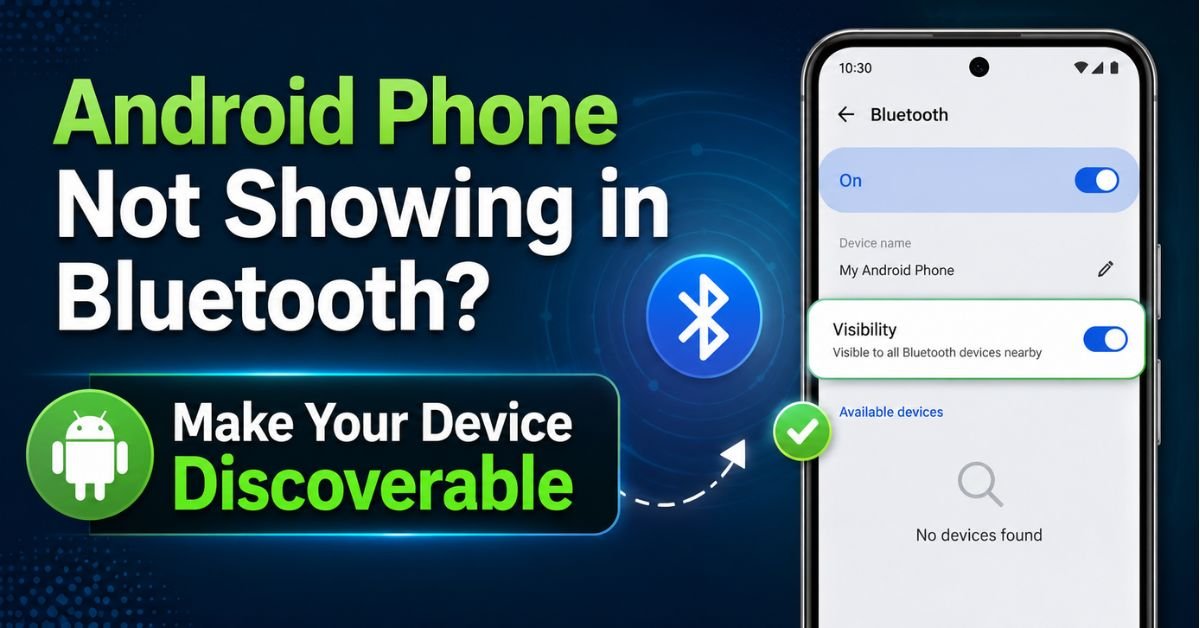
Android Phone Not Showing in Bluetooth? Easy Discovery Fix.I’ve spent the last decade tearing down mobile operating systems, troubleshooting obscure kernel panics, and helping friends connect their phones to everything from smart toasters to vintage BMWs. If there’s one thing that still makes me want to throw a flagship device out a window, it’s Bluetooth.
You’re standing there, your brand-new Sony headphones are pulsing blue, your phone is “scanning,” and… nothing. The list of available devices remains a stubborn blank white space. It’s a digital ghosting that shouldn’t happen in 2024, yet here we are.

Usually, it isn’t a hardware failure. It’s almost always a software “handshake” issue or a hidden security setting that Android (especially Android 13 and 14) has tucked away to protect your privacy. Let’s get your device out of the shadows.
The Invisible Device: Why Your Phone Isn’t Showing Up
Why does Android make this so difficult? In the early days of the Bluetooth SIG (Special Interest Group) standards, phones were much more “promiscuous.” They broadcasted their presence to anyone within 30 feet. Today, that’s a security nightmare.
Modern Android builds prioritize security over instant visibility. If your phone was always discoverable, hackers in a coffee shop could attempt to spoof your MAC Address or send malicious files via BlueBorne-style exploits. Because of this, there is a massive difference between your phone Scanning for others and your phone Being Discoverable.
When you open the Bluetooth menu, your phone begins searching for Bluetooth Low Energy (BLE) beacons and classic Bluetooth signals. However, it does not necessarily start broadcasting its own “I am here” signal to other devices unless you are on a specific screen or have toggled a specific setting.
Step-by-Step: Enabling Bluetooth Discoverability
I’ve noticed that Google and Samsung have diverged slightly in how they handle “Pairing Mode.” Here is the breakdown based on what I’m seeing in my lab on current builds.
The “Stay-on-Screen” Rule (Pixel & Stock Android)
On a Google Pixel running Android 14, discoverability is ephemeral.

- Open Settings > Connected Devices.
- Tap on Pair new device.
- The Secret: Your phone is only discoverable to other devices as long as you stay on this specific screen. The moment you navigate back to your home screen or switch to WhatsApp, the broadcast stops.
Enabling ‘Phone Visibility’ on Samsung Galaxy (One UI)
Samsung does things a bit differently. They have a specific toggle that many people overlook because it’s buried in the Quick Settings.
- Swipe down the notification shade twice to see the full grid.
- Look for Phone Visibility (it might be on the second or third page).
- If it’s not there, tap the Edit (pencil icon) and drag it into your active tiles.
- Toggling this on makes your device visible to other Samsung devices and some car units without needing to stay in the Bluetooth menu.
Hands-On Fixes: Quick Troubleshooting Tips
Before we dive into the “nuclear” options, let’s talk about the low-hanging fruit. I’ve seen these three things fix 80% of connection issues.
- The Airplane Mode Toggle: This is more than just a “soft reset.” It power-cycles the Radio Frequency (RF) chips on your motherboard. Switch it on, wait ten seconds, and switch it off. It forces the Bluetooth stack to reload.
- The Battery Saver Trap: I once spent two hours trying to pair a Garmin watch only to realize the user had “Extreme Battery Saver” on. Most power-saving modes aggressively kill background BLE (Bluetooth Low Energy) scanning to save juice. If you’re under 20% battery, plug in or turn off the saver.
- Pruning the Jungle: If your “Previously Connected Devices” list looks like a history of every car you’ve ever rented, clear it out. Android sometimes struggles with A2DP Profile conflicts when it’s trying to manage dozens of old keys. Delete the fluff.
Expert Insight: The 2.4GHz Crowding If you are in an office with dozens of wireless mice, keyboards, and a microwave running, your Bluetooth signal is fighting for its life. Bluetooth operates on the 2.4GHz ISM band. If your phone won’t show up, try moving five feet away from your laptop or router. I’ve solved “invisible phone” issues just by turning off a cheap unshielded USB 3.0 hub that was leaking noise.
Real-World Scenarios: Car Audio and Computers
Scenario: The Car Head Unit
Older cars (pre-2019) often use older Bluetooth protocols that don’t play nice with the MAC Address Randomization found in Android 13/14. If your car can’t find your phone, go into your phone’s Developer Options (tap Build Number 7 times in ‘About Phone’) and look for “Disable Bluetooth A2DP hardware offload.” Sometimes, forcing the phone to handle the processing instead of the car’s hardware fixes the “invisible” issue.
Scenario: Connecting to PC or Mac
Windows is notoriously bad at “seeing” Android phones. Often, you need to go to the PC’s Bluetooth settings and select “Receive a File” or “Join a Personal Area Network” before the PC even bothers to look for the phone’s broadcast signal.
What Didn’t Work (Learn from My Mistakes)
In my time troubleshooting, I’ve tried things that ended up being a waste of time. Don’t bother with:
- Third-party “Bluetooth Booster” apps: These are almost always scams or just wrappers for the settings menu you already have.
- Updating the phone to a Beta build: If you’re on a Beta, Bluetooth is usually the first thing to break. Stick to stable releases if you want reliable connectivity.
- Wiping your entire phone: You don’t need a factory reset for a Bluetooth bug. We have better tools.
Deep Troubleshooting: Clearing the Bluetooth Stack
If you’ve tried the basics and your phone is still a ghost, we need to go deeper into the system partition. We are going to clear the System Cache for the Bluetooth app itself.

- Go to Settings > Apps.
- Tap “See all apps.”
- Tap the three dots (top right) and select “Show System.”
- Scroll down to Bluetooth (it might be called “Bluetooth Share”).
- Tap Storage & Cache.
- Select Clear Cache, then Clear Data (this will unpair everything, so be ready to re-pair).
- Restart your phone immediately.
The Last Resort: Network Settings Reset
If clearing the app data failed, the Network Reset is the final boss. This resets all Wi-Fi, Mobile Data, and Bluetooth logic to factory defaults without deleting your photos or messages.
- Settings > System > Reset Options > Reset Wi-Fi, mobile & Bluetooth.
Common Pitfalls: Environment and Interference Factors
We often blame the software when the physics is at fault.
- USB 3.0 Cables: High-speed data cables that aren’t properly shielded emit a frequency that directly interferes with 2.4GHz signals. If your phone is plugged into a PC with a cheap cable, Bluetooth visibility will tank.
- Firmware Mismatch: I recently had a pair of Bose headphones that “couldn’t see” any Android 14 device. The fix? I had to connect the headphones to a PC via USB and run a Firmware Update from the manufacturer’s site. The phone wasn’t the problem; the headphones didn’t know how to talk to the new OS.
Frequently Asked Questions
1. Why does my phone stop being discoverable after 2 minutes?
This is a security feature mandated by the Bluetooth SIG. Android 13 and 14 set a “timeout” on discoverability to prevent long-term tracking. On most devices, this is hardcoded, but on some older builds, you can change the timeout to “Never” in the Advanced Bluetooth settings. Generally, you just need to stay on the pairing screen while the other device scans.
2. Can a VPN interfere with Bluetooth visibility?
Indirectly, yes. Some VPNs have “Kill Switch” features or local network blocking that messes with how the Android System Cache handles local handshakes. If you’re having trouble, toggle the VPN off for the initial pairing. Once the device is “Trusted,” the VPN shouldn’t matter.
3. I have Developer Options on. Did I break something?
Possibly. If you’ve messed with the Bluetooth AVRCP Version or the Bluetooth Audio Codec settings in Developer Options, you might have moved your phone to a frequency or protocol that the receiving device doesn’t understand. Reset these to “System Default” and try again.
4. What is the difference between Bluetooth and Bluetooth Low Energy (BLE)?
Classic Bluetooth is for heavy lifting—like streaming high-quality music via the A2DP Profile. BLE is for low-data tasks like heart rate monitors or “Find My Device” beacons. Your phone uses both. If your phone shows up for a fitness tracker but not for a car, your “Classic” Bluetooth stack is likely the culprit.
5. My phone shows up as a “MAC Address” (like 00:1A:2B…) instead of its name. Why?
This is usually a delay in the “Service Discovery Protocol” (SDP). The device sees the signal but hasn’t received the “Friendly Name” packet yet. Wait 30 seconds on the scanning screen, or try renaming your device in Settings > About Phone > Device Name to something short and simple without special characters.
Bluetooth is a fickle beast, but once you understand that it’s a dance of privacy vs. connectivity, it becomes much easier to manage. Keep your screens on, your cache clear, and your interference low. You’ll be connected in no time.










