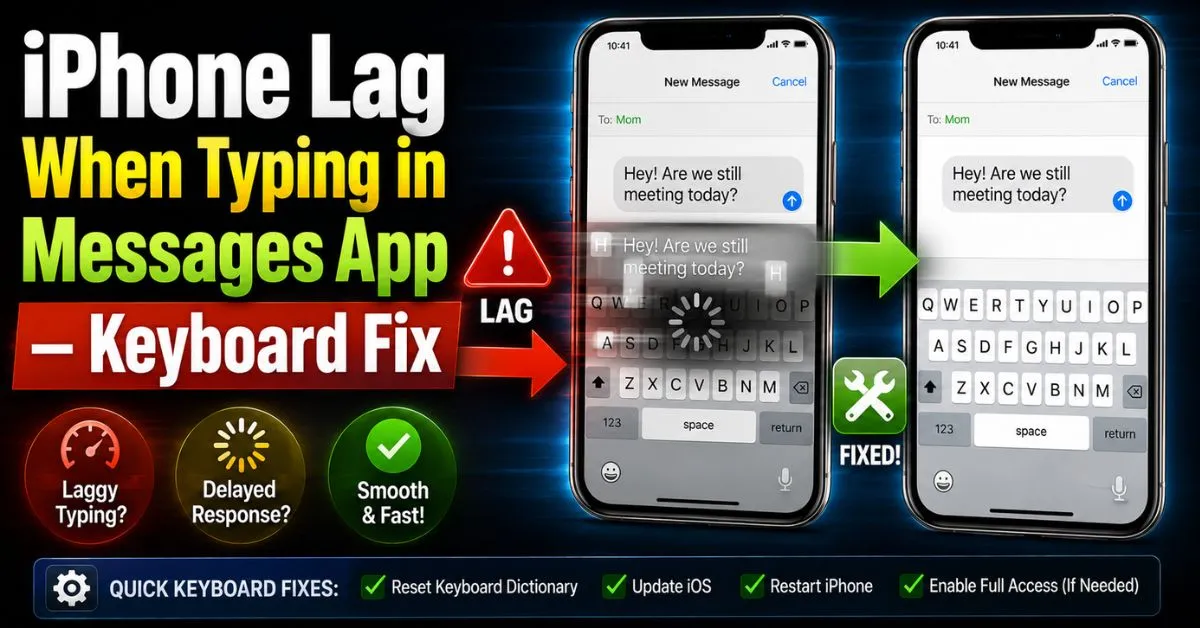
There I was, standing in the middle of a crowded grocery store, trying to text my wife a simple question: “Do we need almond milk?” I tapped the letters. Nothing happened. I tapped them again. Still nothing. Then, about four seconds later, the screen flickered and “Dooooo weeee neeeedddd” exploded onto the display all at once, followed by a frantic vibration of haptic feedback catching up.
It’s maddening. You’ve spent a thousand dollars on a flagship device, yet it struggles with a task an original BlackBerry handled with ease in 2007. If you’re experiencing iPhone lag when typing in the Messages app, you’re not alone, and your phone isn’t necessarily “dying.” Usually, it’s just a software logjam where the keyboard daemon is fighting for its life against system processes.

I’ve spent years troubleshooting iOS quirks, and this specific “input delay” or “ghost typing” is one of the most common complaints I see after a major iOS update. Let’s dive into why this happens and how we can actually fix it without resorting to a factory wipe.
The Reality of iPhone Typing Lag: Real-World Scenarios
When we talk about keyboard lag, we aren’t just talking about a slow phone. It’s a very specific kind of System Latency. You might notice that your apps open fine, your camera is snappy, but the moment you enter the iMessage interface, everything turns to sludge.
Ghost Typing vs. App Freezes
It’s important to differentiate. If your entire screen is frozen and you can’t even swipe home, that’s a RAM Management failure or a kernel panic. But if you can swipe but the letters just won’t appear, that’s a localized hang in the kbd (keyboard) process. I’ve seen this happen most frequently on devices where the user has tens of gigabytes of message history synced via iCloud Sync.
Why the Messages App is the Primary Culprit
The Messages app isn’t just a text box; it’s a massive database. Every time you open a thread, iOS tries to index your photos, links, and stickers while simultaneously trying to predict what you’re about to type. If you have a group chat with 15,000 messages and 4GB of shared memes, the “input delay” is often the processor struggling to juggle that database indexing and the keyboard’s Predictive Text engine at the same time.
Immediate Fixes for Snappy Typing
Before we go deep into the settings, we need to clear the “digital cobwebs.” Most people just lock their phone and unlock it again, but that doesn’t kill the background processes causing the stutter.
The “Secret” Fix: Resetting the Keyboard Dictionary
This is my go-to recommendation. Over time, your iPhone learns your slang, your typos, and your specific vocabulary. This data is stored in the Keyboard Dictionary. Sometimes, this file gets corrupted or simply too bloated for the system to search through in real-time.

- Go to Settings > General.
- Scroll to the bottom and tap Transfer or Reset iPhone.
- Tap Reset.
- Select Reset Keyboard Dictionary.
- Enter your passcode and confirm.
Don’t worry—this won’t delete your photos or texts. It just wipes the “learned” words. You’ll have to teach it your favorite swear words again, but the typing speed will usually return to its “out-of-the-box” snappiness immediately.
The Proper Force Restart (Hard Reset)
A simple “slide to power off” is a soft reset. It saves the current state of the “junk” and reloads it. A Force Restart cuts the power to the logic board and forces a fresh boot of the kernel.
- For iPhone 8 and later: Press and quickly release Volume Up. Press and quickly release Volume Down. Then, press and hold the Side Button until the Apple logo appears. Ignore the power-off slider; keep holding until you see that silver apple.
Clearing Background RAM
Even though iOS is great at managing memory, sometimes an app like Instagram or a mobile game gets “stuck” in a high-memory-usage state. If you use an older iPhone with a Home button, double-click it and swipe everything away. On newer FaceID models, swipe up from the bottom and hold to clear the app switcher. It’s a myth that you should do this all the time, but when you have keyboard lag, it’s a necessary diagnostic step.
Pro Tip: The ‘Dictionary Indexing’ Insight If you just updated your iOS version, your iPhone will spend the next 24-48 hours re-indexing your entire file system, including your Keyboard Dictionary and iMessage database. If your lag started right after an update, sometimes the best “fix” is simply to plug it into a charger overnight and let it finish its background chores.
Optimizing Keyboard Settings for Performance
If the reset didn’t fully solve it, the problem might be that the “smart” features of the iOS keyboard are overtaxing your hardware. This is especially true on older models like the iPhone 11 or 12.
Disabling Predictive Text and Auto-Correction
Every time you type a letter, Auto-Correction runs an algorithm to compare that letter against millions of possibilities. Predictive Text then tries to guess the next word. On a struggling system, these calculations create a bottleneck.
Try turning them off temporarily:

- Settings > General > Keyboard.
- Toggle off Auto-Correction, Predictive, and Check Spelling.
Type a bit in Messages. If the lag is gone, you know the CPU was struggling with the “smart” features. You can try turning them back on one by one to see which one is the dealbreaker.
Haptic Feedback and Keyboard Sounds
In recent versions of iOS, Apple added Haptic Feedback to the keyboard (the little vibrations as you type). While it feels great, it requires the Taptic Engine to fire in perfect synchronization with the screen’s Digitizer. I’ve found that on older batteries, the power draw required for rapid haptics can actually cause slight system stutters. Try turning off “Haptic” under Settings > Sounds & Haptics > Keyboard Feedback.
Software and Storage: The Deeper Issues
Sometimes the keyboard isn’t the problem; the house it lives in is just too full.
The iMessage Storage Trap
If your iPhone storage is nearly full (less than 10% remaining), the system cannot create “swap files.” This leads to massive System Latency. Go to Settings > General > iPhone Storage and look at the Messages section.
If you see “Top Conversations” taking up 20GB, your keyboard is likely lagging because it’s trying to load metadata from those massive threads.
- Expert Advice: Don’t just delete the whole thread. Go into the thread, tap the person’s name at the top, scroll to Photos, and delete the large videos and attachments you don’t need.
The “Other” System Data Bloat
In the storage menu, you might see a grey bar labeled “System Data” (formerly “Other”). If this is over 15-20GB, your iPhone is struggling with cached files. Often, a simple Software Update will clear this out, as the installation process triggers a system cleanup. If you’re behind on updates, get on the latest version of iOS. Apple frequently sneaks keyboard performance patches into these “stability” updates.
Common Pitfalls and Troubleshooting Mistakes
I see people make the same mistakes when trying to fix this.
Mistake #1: Using “Cleaning” Apps. Do not download apps that claim to “Clean RAM” or “Boost Speed.” Apple doesn’t give third-party apps the system-level permissions to do this. These apps are usually just shells for advertisements and can actually make your lag worse by running in the background.
Mistake #2: The “Reset All Settings” Panic. People often jump straight to “Reset All Settings.” While effective, this wipes your Wi-Fi passwords, Bluetooth pairings, and Apple Pay cards. It’s a huge headache. Exhaust the Keyboard Dictionary reset and the storage cleanup first.
Mistake #3: Ignoring the Battery Health. If your battery health is below 80%, iOS will engage “Performance Management” (throttling). This slows down the CPU to prevent the phone from shutting down. A throttled CPU is the #1 cause of typing lag that won’t go away with software fixes. Check yours in Settings > Battery > Battery Health & Charging.
Hardware vs. Software: When it’s Time for Support
If you’ve reset your dictionary, updated your software, and cleared your storage, but the lag persists—or if letters you didn’t touch are appearing—you might have a hardware issue.
The Failing Digitizer
The Digitizer is the layer of your screen that senses touch. If it’s failing, it may “miss” touches or delay the signal to the logic board. A common test is to open the Notes app and try to draw a continuous line across the screen. If the line breaks or lags behind your finger, it’s a hardware problem, not a software one.
Preparing for Apple Support
Before you head to the Apple Store, do a full backup to iCloud or your computer. They will almost certainly ask you to “Restore to Factory Settings” as a first step. If you’ve already done that and the lag remains, you’ve got a much stronger case for a hardware replacement.
Real-Time FAQs
Q: Why does my keyboard only lag in the Messages app and nowhere else? A: This is usually due to the Messages app’s heavy reliance on the iMessage database and iCloud indexing. When you type in Messages, the app is also searching for contact info, link previews, and stickers. If your message history is massive, the “collision” of these tasks causes the lag. Resetting the Keyboard Dictionary usually breaks this cycle.
Q: Can a third-party keyboard like Gboard or SwiftKey fix this? A: Sometimes, but it can also make it worse. Third-party keyboards run as a separate process that iOS can “kill” if it needs RAM. This leads to the keyboard not appearing at all when you tap a text field. If the native iOS keyboard is lagging, Gboard might feel faster because it uses its own prediction engine, but it’s a bandage, not a cure.
Q: I have plenty of storage, but the lag is still there. What gives? A: Check your iCloud Sync status. If your phone is struggling to upload photos or sync messages to the cloud (due to a poor Wi-Fi connection), the background sync process can hog the CPU. Try turning off “Messages” in iCloud settings, restarting, and turning it back on to “force” a clean sync.
Q: Does “Haptic Feedback” actually slow down typing? A: Technically, yes, but marginally. It adds a layer of communication between the software and the Taptic Engine. On newer iPhones, you won’t notice it. But on older devices with degraded batteries, the millisecond of power required to vibrate the motor can occasionally cause a frame-drop in the keyboard animation, creating the perception of lag.
Q: Will a screen protector cause keyboard lag? A: A screen protector won’t cause software lag, but a cheap or thick one can cause “input latency” by making the digitizer less sensitive. If you find yourself having to press harder or if letters are being missed entirely, try removing the protector to see if the “lag” disappears.










