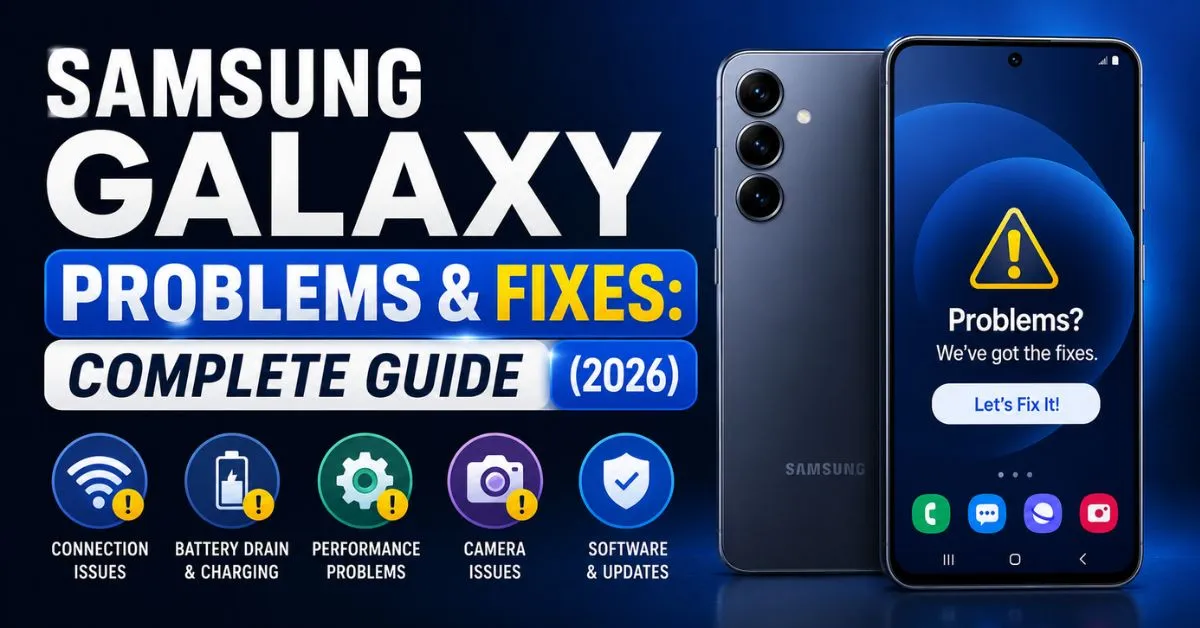
Samsung makes the most popular Android phones in the United States. The Galaxy S and A series dominate US smartphone sales — but they also come with a unique set of problems that you won’t find on other Android phones.
One UI, Samsung’s custom Android interface, adds powerful features but also adds complexity. Bixby runs in the background. Samsung Daily takes up your home screen. Knox security occasionally conflicts with apps. And Samsung’s aggressive battery optimization can actually break more things than it fixes.
This is the most complete Samsung Galaxy troubleshooting guide available. Every known Samsung Galaxy problem is covered here — from common complaints like battery drain and One UI lag to specific issues like the green line of death and moisture detected charging errors.
Use the Table of Contents to jump directly to your problem. Each section includes the exact steps, diagnostic codes, and Samsung-specific menu locations.
1. Samsung Galaxy Running Slow / One UI Lag
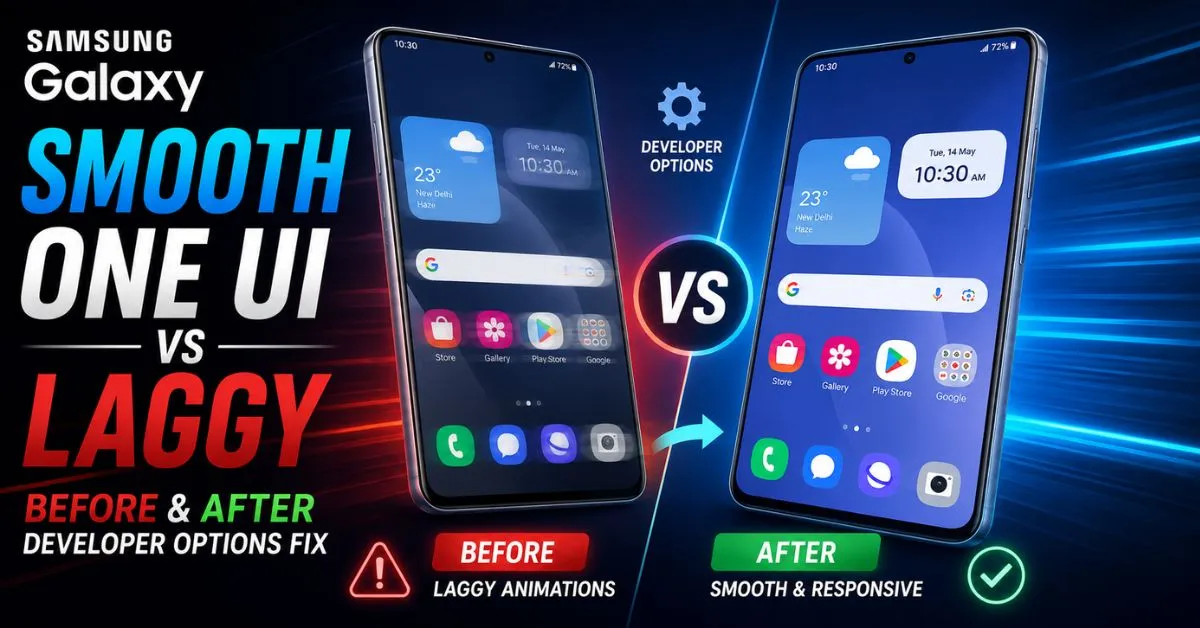
One UI is Samsung’s custom Android skin — and it’s beautiful. It’s also heavy. One UI 7 on a Galaxy S24 runs significantly more background processes than stock Android on a Pixel phone. On older devices like the Galaxy A14 or Galaxy S21, One UI can feel genuinely sluggish.
The good news: most Samsung lag is completely fixable without a factory reset.
Why Samsung Galaxy Gets Slow
Samsung phones slow down for four main reasons specific to One UI:
1. Samsung’s own apps running in background: Bixby, Samsung Daily, Samsung Health, Samsung Pay, Samsung Cloud, and the Galaxy Store all run background processes constantly — even if you never open them.
2. One UI animations are slow by default: Samsung sets animations to 1x speed. Cutting them to 0.5x makes every interaction feel twice as fast.
3. Device Maintenance hasn’t been run: Samsung’s Device Care feature can identify and fix performance issues automatically.
4. Storage below 15%: Samsung’s UFS storage slows dramatically when almost full.
Samsung Galaxy Speed Fixes
Fix 1 — The Developer Options Animation Hack (Biggest Impact):
This is the single most effective speed improvement for any Samsung Galaxy phone. It works on every model from the Galaxy A14 to the Galaxy S24 Ultra.
- Go to Settings → About Phone → Software Information
- Tap Build Number exactly 7 times
- Enter your PIN when prompted
- You’ll see “Developer Mode has been turned on”
- Go back to Settings → Developer Options
- Scroll down to the “Drawing” section
- Find these three settings and change all to 0.5x:
- Window animation scale
- Transition animation scale
- Animator duration scale
Your Samsung will immediately feel like a different phone. Every app opens faster, every swipe is snappier, and the home screen transitions feel instant.

Fix 2 — Run Device Care:
- Go to Settings → Device Care (or Battery and Device Care on newer models)
- Tap Optimize Now
- Samsung will clean RAM, close background apps, and run diagnostics
- Do this once a week for ongoing performance
Fix 3 — Disable Bixby and Samsung Daily:
Bixby runs background processes even when you never use it. Samsung Daily (the leftmost home screen panel) constantly fetches news and updates. Both consume RAM and slow your phone.
Disabling both is covered in full detail in the Bixby section below.
Fix 4 — Switch to a Lighter Launcher:
Samsung’s One UI Home launcher is feature-rich but heavy. Install Nova Launcher (free from Play Store) as an alternative. Nova uses significantly less RAM and makes older Samsung phones feel dramatically faster.
After installing Nova:
- Press Home button
- Select “Nova Launcher” as default
- Select “Always”
Fix 5 — Limit Background Processes:
- In Developer Options, scroll to “Apps” section
- Tap Background Process Limit
- Change from “Standard Limit” to “At most 2 processes”
This forces Android to keep fewer apps running in the background, freeing RAM for the apps you’re actually using.
Fix 6 — Clear Samsung’s System Cache:
- Power off the Galaxy completely
- Hold Power + Volume Up simultaneously
- Release Power when the Samsung logo appears, keep holding Volume Up
- Recovery Menu appears — use Volume buttons to navigate
- Select Wipe Cache Partition
- Confirm and wait for it to complete
- Select Reboot System Now
This clears system-level temporary files from One UI that accumulate over time and slow performance.
Fix 7 — Check for RAM-hungry apps:
- In Developer Options → Running Services
- This shows exactly which apps are consuming RAM right now
- Force-stop any app you don’t recognize or don’t actively use
📖 Related: Why Is My Android Phone So Slow? 7 Real Fixes — covers additional speed fixes that work on Samsung phones too.
2. Samsung Galaxy Battery Draining Fast
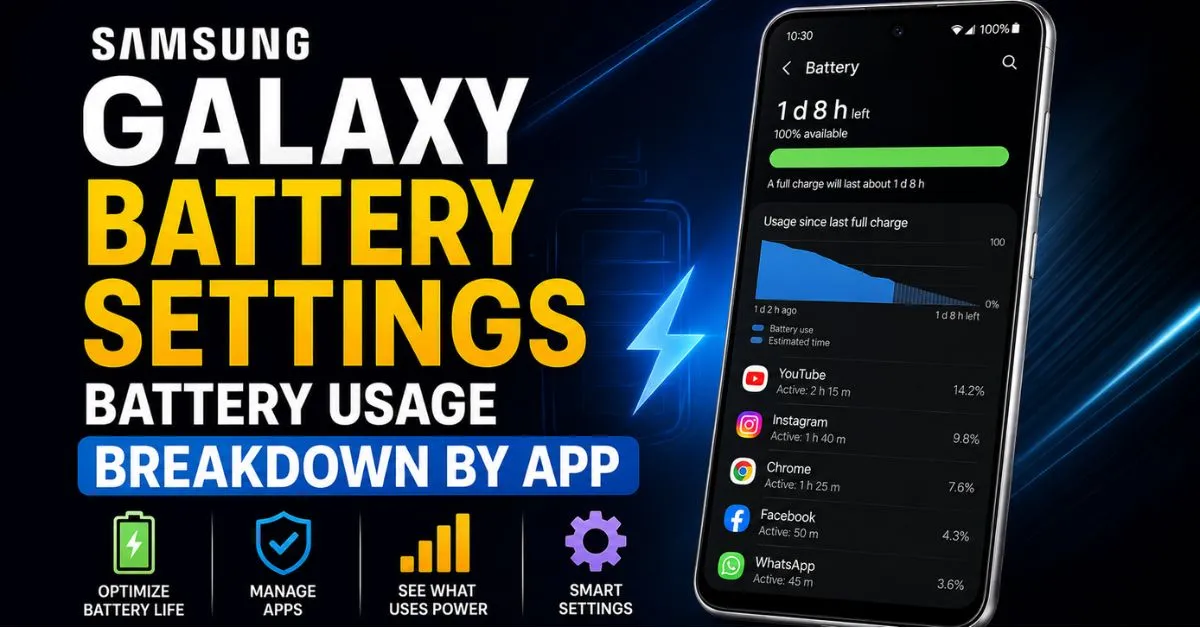
Samsung Galaxy phones generally have excellent battery specs — the Galaxy S24+ has a 4,900mAh battery, the Galaxy A54 has 5,000mAh. But One UI’s aggressive features and Samsung’s background services can consume battery faster than the hardware delivers it.
Samsung-Specific Battery Drain Causes
- Samsung Daily refreshing news feeds constantly
- Bixby Voice listening for wake words in the background
- Samsung Health tracking your activity 24/7
- Samsung Cloud syncing in the background
- Always On Display (AOD) — beautiful but uses 5-8% battery per hour on non-Ltpo screens
- 5G on Galaxy S series — 5G radio consumes 15-20% more battery than LTE
Samsung Battery Fixes
Fix 1 — Enable Samsung’s Adaptive Power Saving:
- Go to Settings → Battery and Device Care → Battery
- Tap Power Saving
- Select Adaptive Power Saving
- Enable “Turn on as scheduled” — Samsung AI will automatically adjust based on your usage patterns
Fix 2 — Disable Always On Display:
- Go to Settings → Lock Screen → Always On Display
- Toggle it Off, or change to “Show as scheduled” and limit to working hours only
AOD on older Galaxy phones (non-LTPO panels like the Galaxy A series) uses a constant 5-8% battery per hour. Disabling it adds 1-2 hours of daily battery life on most A series phones.
Fix 3 — Switch from 5G to LTE:
Unless you’re actively using 5G speeds (streaming 4K, large downloads), your Galaxy S phone is wasting battery searching for and maintaining a 5G connection.
- Go to Settings → Connections → Mobile Networks → Network Mode
- Select “LTE/4G (recommended)”
This adds 15-25% more battery life on Galaxy S series phones used in areas with mixed 5G coverage.
Fix 4 — Disable Samsung Daily:
- On your home screen, swipe right to open Samsung Daily
- Tap the three dots (⋮) in the top right
- Select Settings
- Toggle Samsung Daily off
Samsung Daily fetches news, weather, and card updates constantly. Disabling it stops this background activity.
Fix 5 — Limit Galaxy Store and Samsung Push Service:
- Go to Settings → Apps → Galaxy Store → Battery → Restricted
- Go to Settings → Apps → Samsung Push Service → Battery → Restricted
- Go to Settings → Apps → Bixby Voice → Battery → Restricted
These three Samsung services are among the heaviest background battery consumers on Galaxy phones.
Fix 6 — Check battery health with Samsung’s diagnostic code:
Dial *#0228# on your Samsung Galaxy. This opens the Battery Status screen showing your battery’s current voltage and health status. If capacity is significantly reduced, a battery replacement will dramatically improve your daily battery life.
Fix 7 — Enable Sleeping Apps:
- Go to Settings → Battery and Device Care → Battery → Background Usage Limits
- Tap Sleeping Apps → Add apps
- Add any app you don’t need constant notifications from
- Enable “Auto sleep unused apps”
📖 Related: Android Battery Draining Fast? 10 Settings to Change — for additional battery fixes.
3. Samsung Galaxy Not Charging / Charging Issues
Samsung Galaxy charging problems come in several forms — not charging at all, charging slowly, stopping at 85%, or the dreaded “Moisture Detected” error. Here’s how to fix all of them.
Samsung Galaxy Charging Fix Guide
Fix 1 — Fix “Moisture Detected” Error:
This is Samsung’s most complained-about charging issue. The moisture sensor triggers even when the port is completely dry.
Method A (Quick fix):
- Gently blow into the charging port — do not use compressed air at full pressure
- Leave the phone in a dry room for 15-20 minutes
- Try charging again
Method B (Software override — for false positives):
- Go to Settings → Battery and Device Care → Diagnostics
- Tap Phone Diagnostics
- Run the USB connection test
- If it shows “No moisture detected” but the error still appears, the sensor software is buggy
- A software update usually fixes this — check Settings → Software Update
Method C (Emergency charging): Connect to a wireless charger — moisture detection doesn’t apply to wireless charging. Use this while waiting for the port sensor to reset.
Fix 2 — Fix slow charging on Samsung:
Samsung Galaxy phones support fast charging (25W on S series, 15W on A series) but will charge slowly if:
- You’re using a non-Samsung cable or a cable that doesn’t support USB Power Delivery
- You’re using a low-wattage adapter (5W phone chargers from old iPhones)
- The phone is hot — Samsung throttles charging when temperature is above 35°C
Solution: Use Samsung’s original charger and cable. If you lost yours, buy a Samsung 25W or 45W Super Fast Charging adapter — avoid third-party chargers that claim “fast charging” but don’t support Samsung’s charging protocol.
Fix 3 — Fix charging stopped at 85%:
Samsung’s “Protect Battery” feature limits charging to 85% to extend battery longevity.
- Go to Settings → Battery and Device Care → Battery
- Tap More Battery Settings
- Toggle Protect Battery to OFF
If you want full charges, disable this feature. If you primarily stay at home and charge often, keeping it on extends your battery’s long-term health.
Fix 4 — Clean the charging port:
Use a dry wooden toothpick to gently remove lint from the USB-C port. Samsung phone pockets collect lint at impressive rates — a compacted lint ball completely blocking the charging connection is incredibly common and completely fixable in 2 minutes.
Fix 5 — Fix Samsung Galaxy not charging after drop:
If your phone stopped charging after being dropped, the USB-C port may have shifted internally. Try wiggling the cable gently while plugged in — if it charges at certain angles but not others, the port needs professional repair.
Fix 6 — Reset charging settings:
- Power off the Samsung completely
- Boot into Recovery Mode (Power + Volume Up)
- Select Wipe Cache Partition
- Reboot
Sometimes charging controller software glitches are fixed by clearing system cache.
📖 Related: Android Phone Not Charging? Fix Guide — detailed charging fixes for all Android phones.
4. Samsung Galaxy Overheating
Samsung Galaxy phones can get uncomfortably hot during gaming, navigation, fast charging, or when a background process runs out of control. Some heat is normal — excessive heat (too hot to hold) is not.
Normal vs. Abnormal Samsung Heat
Normal: Warm during fast charging, slightly warm during 30+ minute gaming sessions, warm when using camera for extended video recording.
Abnormal: Hot when screen is off and phone is idle, burning hot during normal use, hot while charging slowly, heat accompanied by battery draining rapidly.
Samsung Overheating Fixes
Fix 1 — Enable Samsung’s built-in temperature protection:
Samsung Galaxy phones have a built-in thermal management system. When the phone reaches 40°C+, it automatically throttles CPU speed, dims the screen, and slows charging to protect hardware.
You can’t disable this protection (nor should you), but you can help by:
- Removing the phone case when it’s hot — cases trap heat
- Not charging while gaming or using GPS navigation
- Keeping the phone out of direct sunlight and hot cars
Fix 2 — Check for a runaway background process:
- Go to Settings → Device Care → Battery → Battery Usage
- Look for any app using unusual CPU or battery
- If an app shows abnormally high usage, Force Stop it
- If it keeps restarting, uninstall it
Fix 3 — Disable DeX mode if enabled accidentally:
Samsung DeX is a desktop mode that runs the phone at maximum performance. If DeX is enabled without a monitor connected, it generates significant heat for no benefit.
Check: Settings → Advanced Features → DeX — make sure it’s disabled when not in use.
Fix 4 — Malware check:
Crypto-mining malware is designed to run your CPU at 100% continuously, which makes your phone very hot very fast.
- Open Google Play Store
- Tap your profile picture
- Tap Play Protect → Run Scan
- If threats are found, follow the removal instructions
Fix 5 — Update One UI:
Samsung’s thermal management algorithms are updated regularly. A known overheating bug on the Galaxy S23 series was fixed in the One UI 6.1.1 update. Always keep your Samsung updated.
- Go to Settings → Software Update → Download and Install
Fix 6 — Don’t charge with a non-Samsung charger:
Third-party fast chargers that aren’t certified for your Galaxy model can deliver incorrect voltage, causing excessive heat during charging. Always use Samsung-certified chargers.
5. Samsung Galaxy Black Screen / Won’t Turn On
Your Samsung Galaxy screen is completely black. You press the power button — nothing. Or the phone vibrates and plays the startup sound but the screen stays black.
Samsung Black Screen Fix Guide
Fix 1 — Samsung-specific force restart:
This works for 70% of Samsung black screen cases:
- Galaxy S21, S22, S23, S24, A54, A34 and most modern Samsung: Hold Power + Volume Down for 10-15 seconds until the Samsung logo appears
- Very old Samsung with physical home button: Hold Power + Home + Volume Down simultaneously for 10 seconds
Release all buttons when the Samsung logo appears. The phone should restart normally.
Fix 2 — Charge first:
Connect to a Samsung wall charger and wait 20 minutes. A completely dead Samsung battery shows no response for the first 10-15 minutes of charging. The orange/red charging LED should appear within 5 minutes if the phone is receiving power.
Fix 3 — Check proximity sensor:
The proximity sensor at the top of your Samsung’s screen turns off the display during calls. If it’s stuck or covered with a screen protector edge, the screen stays off.
- Make a test call to yourself (use another phone)
- During the call, move your hand away from the sensor area (top of phone)
- If the screen turns on, the proximity sensor is the issue
- Settings → Accessibility → Interaction and Dexterity → disable or recalibrate proximity sensor
Fix 4 — Boot into Download Mode to check hardware:
- Power off Samsung completely
- Hold Volume Down + Volume Up simultaneously
- Connect USB-C cable to computer while holding buttons
- Samsung Download Mode screen should appear (blue/dark screen with warnings)
- If this screen appears, your screen hardware is WORKING — the problem is software
- Press Volume Up to exit Download Mode
If Download Mode screen appears normally, a factory reset or firmware flash will fix your black screen.
Fix 5 — Use Samsung Find My Mobile:
If your Samsung account is linked to your device:
- Go to findmymobile.samsung.com on a computer
- Log in with your Samsung account
- Click Unlock — this can sometimes wake a Samsung stuck in a crashed state
Fix 6 — Flash firmware with Odin (Advanced):
If everything else fails and your phone responds to Download Mode:
- Download Odin (Samsung’s official firmware flashing tool) from Odin3.com
- Download the correct firmware for your exact model number from Sammobile.com
- Boot Samsung into Download Mode
- Flash the firmware following Odin instructions
This reinstalls One UI completely without wiping personal data in most cases.
6. Samsung Galaxy Touchscreen Not Working
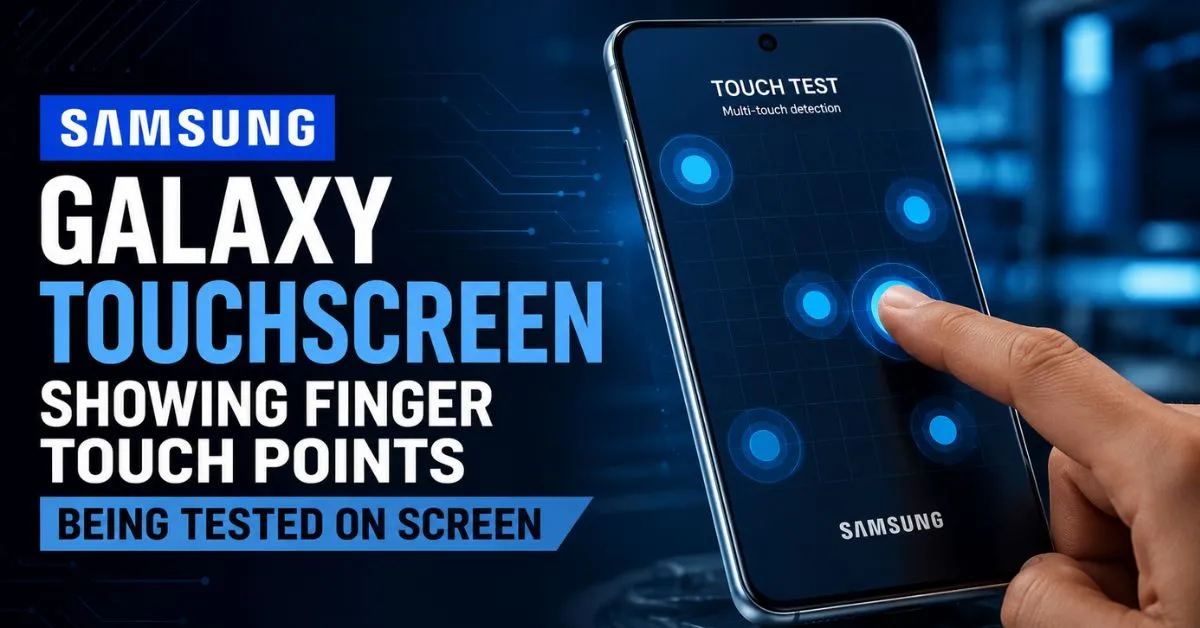
Your Samsung’s touchscreen doesn’t respond, responds in wrong areas, or touches randomly by itself (ghost touch). Samsung has specific fixes for this.
Samsung Touch Fix Guide
Fix 1 — Samsung Touch Sensitivity setting:
Samsung has a unique Touch Sensitivity feature designed for screen protectors but helpful for all touch issues:
- Go to Settings → Display → Touch Sensitivity
- Toggle it On
This increases the digitizer’s sensitivity, which often fixes unresponsive areas and ghost touch problems caused by screen protector interference.
Fix 2 — Run Samsung’s touch diagnostic:
Dial *#0*# on your Samsung Galaxy. This opens the Hardware Test menu.
- Tap Touch in the diagnostic menu
- Draw across the entire screen — any area that doesn’t register is physically damaged
- Draw circles, diagonal lines — check all corners
If certain areas don’t respond in the diagnostic, the digitizer has physical damage. If all areas respond in the diagnostic but not in normal use, it’s a software issue.
Fix 3 — Disable Touch Sensitivity increase (if it’s causing ghost touch):
Sometimes Touch Sensitivity ON causes ghost touches on phones without screen protectors. Turn it Off and test.
Fix 4 — Remove Samsung’s screen protector or case:
Samsung’s official screen protectors (and many third-party ones) can cause ghost touch on newer Galaxy phones. The oleophobic coating on Samsung’s display can also interfere with some screen protectors.
Try removing the screen protector completely and testing the touch response.
Fix 5 — Safe Mode test:
Hold Power button → long-press “Power Off” → tap “Safe Mode.”
In Safe Mode, all third-party apps are disabled. If touch works correctly in Safe Mode, a third-party app has camera/accessibility permissions that are intercepting your touches. Uninstall recently added apps.
Fix 6 — Samsung-specific ghost touch fix:
Galaxy S22 and S21 had a known ghost touch bug fixed in a software update. Go to Settings → Software Update and install any available updates. Samsung acknowledged this issue and released patches.
7. Samsung Galaxy Camera Problems
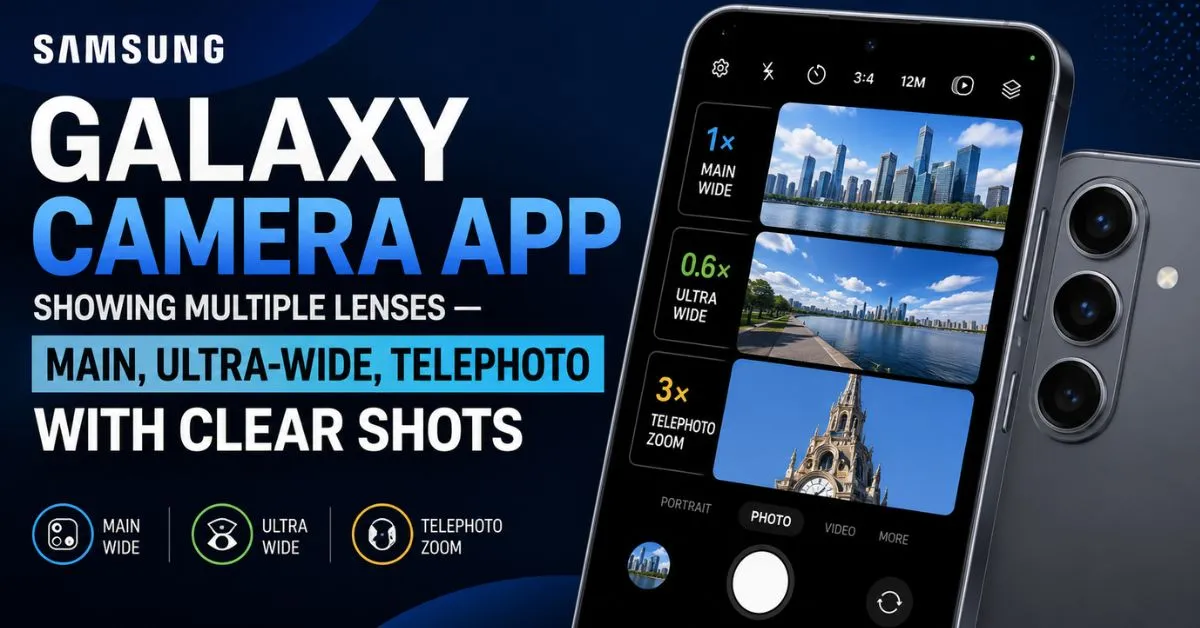
Samsung Galaxy cameras are industry-leading — the S24 Ultra’s 200MP sensor is genuinely remarkable. But Samsung camera problems are among the most common complaints, including black screen, “Camera failed” errors, and blurry photos.
Samsung Camera Fix Guide
Fix 1 — Fix “Camera Failed” error:
- Open Settings → Apps → Camera → Storage → Clear Cache
- Tap Clear Data (you won’t lose photos — just camera settings)
- Restart the phone and reopen the camera
If this doesn’t work:
- Go to Settings → Apps → Camera → three-dot menu → Uninstall Updates
- This rolls back to the factory camera version which is usually more stable
- Restart and test
Fix 2 — Fix Samsung camera black screen:
- Check if another app has locked the camera (Zoom, Snapchat, Instagram running in background)
- Close all apps completely
- Restart the phone
- Open the Camera app fresh
If the camera still shows black screen:
- Settings → Apps → Camera → Permissions
- Make sure Camera permission is set to “Allow”
- Also check Microphone permission (needed for video)
Fix 3 — Fix blurry Samsung Galaxy camera:
The most common cause is simple: fingerprints on the lens. Samsung’s camera lenses are exposed and collect fingerprints constantly.
- Wipe the rear camera lenses with a clean microfiber cloth
- Check if the camera glass is scratched — lens scratches cause permanent blur
- Open the camera and tap your subject to force autofocus
- Check if Optical Image Stabilization (OIS) is on: Camera → Settings → Advanced → OIS → On
Fix 4 — Fix Samsung Night Mode and Pro Mode issues:
If Night Mode photos are blurry: make sure you hold the phone completely still for the full capture duration (3-5 seconds). Samsung Night Mode combines multiple exposures.
If Pro Mode settings are wrong: Camera → Settings → Reset Settings — this resets all manual adjustments.
Fix 5 — Fix Samsung front camera:
If the front camera shows black:
- Check if a privacy screen protector is covering the selfie camera hole
- Check App Permissions for your selfie camera apps
- Clear the Camera app cache and data as described above
Fix 6 — Samsung Camera app update:
Samsung regularly updates the Camera app via Galaxy Store (separate from Google Play).
- Open Galaxy Store app
- Tap the three-line menu
- Check for Camera updates
- Install and restart
Fix 7 — Fix all camera lenses not switching:
Some Samsung users find that only one lens works — ultra-wide or telephoto shows black.
- Go to Settings → Apps → show system apps → Camera
- Clear Cache and Data
- If still not working, this is often a hardware issue — individual lenses can fail
A Samsung service center can test individual lenses in diagnostics mode.
8. Samsung Galaxy Wi-Fi Problems
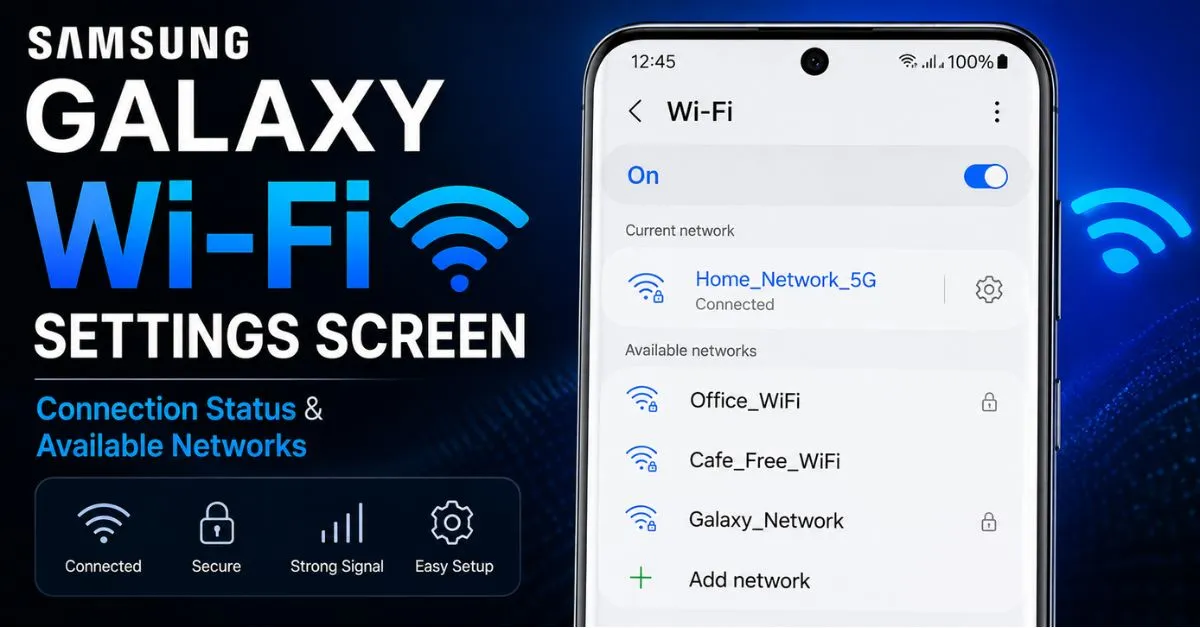
Samsung Galaxy Wi-Fi problems include disconnecting constantly, not finding networks, slow speeds, and the “Connected, no internet” issue. Samsung has specific Wi-Fi optimizations that can cause problems.
Samsung Wi-Fi Fix Guide
Fix 1 — Disable Wi-Fi switching and smart network:
Samsung has a “Switch to Mobile Data” feature that automatically switches to mobile data when Wi-Fi quality is poor. This causes phantom disconnects and “no internet” issues.
- Go to Settings → Connections → Wi-Fi
- Tap the three dots (⋮) → Advanced
- Disable “Switch to mobile data”
- Disable “Wi-Fi power saving mode”
- Disable “Detect suspicious networks” (this can cause it to reject perfectly fine networks)
Fix 2 — Fix Samsung Wi-Fi keeps disconnecting:
- Go to Settings → Connections → Wi-Fi → [Your Network] → tap and hold → Manage Network Settings → Show Advanced Options
- Change IP Settings from DHCP to Static
- Set: IP Address: 192.168.1.100, Gateway: 192.168.1.1, DNS 1: 8.8.8.8, DNS 2: 8.8.4.4
Fix 3 — Reset Samsung’s Wi-Fi configuration:
- Go to Settings → General Management → Reset → Reset Network Settings
- Confirm the reset
- Reconnect to your Wi-Fi network with the password
Fix 4 — Fix Samsung Wi-Fi won’t turn on:
On some Samsung Galaxy phones, the Wi-Fi toggle becomes grayed out and unresponsive. This is a known One UI bug.
Solution: Boot into Safe Mode → toggle Wi-Fi on in Safe Mode → reboot normally. Wi-Fi toggle usually works after this.
If still grayed out: Settings → General Management → Reset → Reset All Settings (preserves data but resets all settings to factory defaults).
Fix 5 — Update Wi-Fi firmware:
Samsung Galaxy phones have separate Wi-Fi chip firmware that gets updated independently.
- Go to Settings → Software Update
- Check for any security patch updates — Wi-Fi firmware is often included in monthly patches
9. Samsung Galaxy Bluetooth Not Working
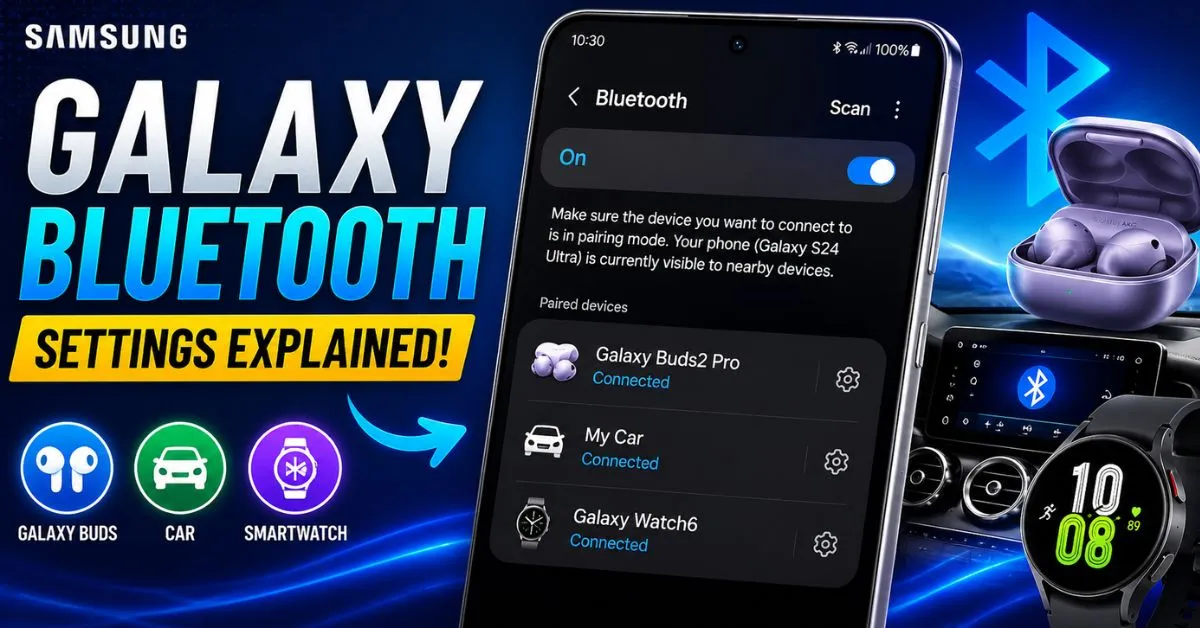
Samsung Galaxy Bluetooth problems are especially common when connecting to Galaxy Buds, Samsung watches, and car Bluetooth systems. Here’s how to fix every scenario.
Samsung Bluetooth Fix Guide
Fix 1 — Fix Samsung Galaxy Buds not connecting:
- Put Galaxy Buds in the charging case
- Open the case near your Samsung Galaxy phone
- A popup should appear to connect — if it doesn’t:
- Open Galaxy Wearable app → Forget this device
- Reset the Buds: hold both earbuds’ touchpad for 10 seconds
- Re-pair via Galaxy Wearable app
Fix 2 — Fix Samsung car Bluetooth:
Samsung Galaxy phones frequently have issues re-connecting to car Bluetooth after a software update.
- On your Samsung: Settings → Connections → Bluetooth → [Car Name] → tap gear icon → Unpair
- On your car’s infotainment: navigate to Bluetooth settings → Delete/Forget the Samsung device
- Restart your car’s infotainment system (turn car off, wait 30 seconds)
- Re-pair from your Samsung phone
Fix 3 — Clear Samsung Bluetooth data:
- Go to Settings → Apps → tap three dots → Show System Apps
- Find Bluetooth in the list
- Tap Storage → Clear Cache
- Also clear “Bluetooth MIDI Service” cache if present
Fix 4 — Fix Samsung Galaxy Watch not connecting:
- Open Galaxy Wearable app on your phone
- If it shows disconnected, tap Reconnect
- If reconnect fails: unpair → reset watch → re-pair
- Make sure Galaxy Wearable app is updated via Google Play
Fix 5 — Fix Bluetooth audio quality issues (codec problems):
Samsung Galaxy phones support advanced Bluetooth audio codecs (AAC, aptX, LDAC) but sometimes default to the lower quality SBC codec.
- In Developer Options, find Bluetooth Audio Codec
- Select AAC for Apple/standard earbuds or LDAC for high-quality audio devices
- Also set Bluetooth Audio Quality to “Optimized for audio quality”
10. Samsung Galaxy Keeps Restarting / Boot Loop
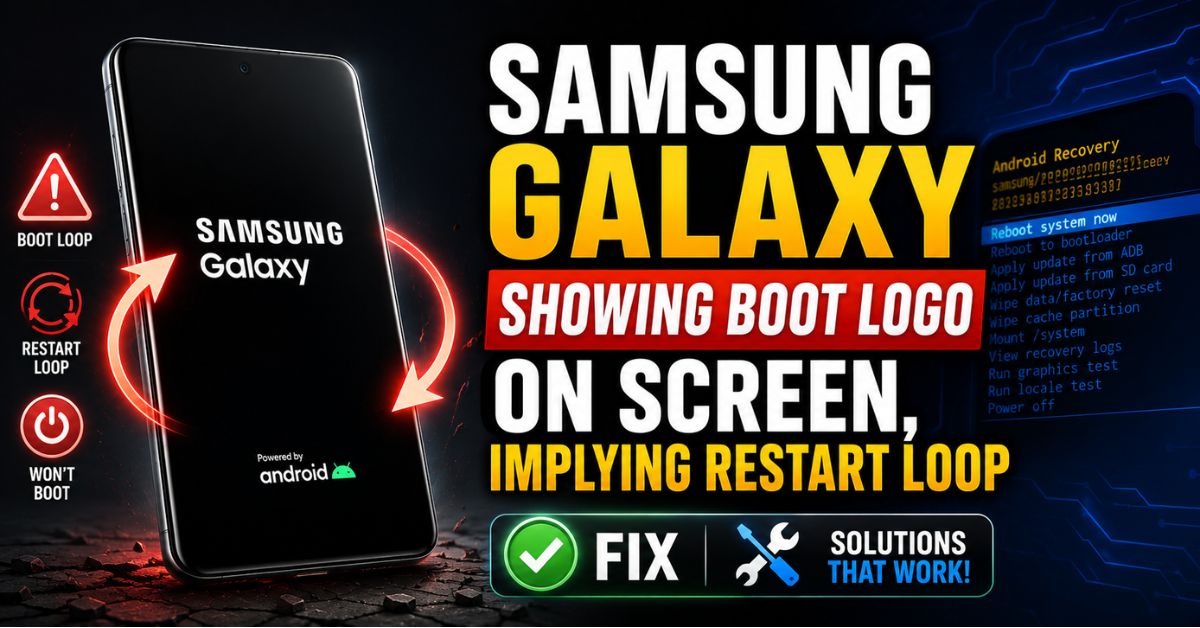
Your Samsung Galaxy keeps turning off and restarting by itself, or is stuck in a boot loop showing the Samsung logo repeatedly without ever fully starting.
Samsung Restart Fix Guide
Fix 1 — Samsung force restart:
Hold Power + Volume Down for 10-20 seconds. Keep holding even after the first vibration — hold until the Samsung logo appears for the second time. This is a deep system restart that clears more than a normal restart.
Fix 2 — Boot into Samsung Safe Mode:
- Power off your Samsung
- Hold the Power button
- When the Samsung logo appears, hold Volume Down
- Keep holding Volume Down until the phone fully boots
- “Safe Mode” will appear in the bottom left corner
If the phone runs stably in Safe Mode, a third-party app is causing the restarts. Uninstall apps one by one — starting with the most recently installed — until the problem stops.
Fix 3 — Wipe Cache Partition (Samsung Recovery):
- Power off completely
- Hold Power + Volume Up simultaneously
- Release Power when Samsung logo appears, keep holding Volume Up
- Android Recovery menu appears
- Navigate to Wipe Cache Partition with Volume buttons
- Confirm with Power button
- Select Reboot System Now
Fix 4 — Check battery with diagnostic code:
Dial *#0228# — this shows battery status. A failing battery that can’t sustain load spikes is a common cause of random Samsung restarts. If voltage drops sharply under load, battery replacement is needed.
Fix 5 — Factory Reset via Samsung Recovery:
If Safe Mode and cache wipe don’t fix the boot loop:
- Enter Recovery Mode (Power + Volume Up)
- Navigate to Factory Reset / Wipe Data
- Confirm — all personal data will be erased
- Select Reboot System Now
Fix 6 — Smart Switch Recovery (Windows/Mac):
If the phone won’t even complete a factory reset:
- Install Samsung Smart Switch on your computer
- Connect your Samsung in Download Mode (Volume Down + Volume Up + USB connected)
- Smart Switch should detect the phone and offer to repair it
- Select Repair to reinstall One UI firmware
11. Samsung Galaxy Screen Problems
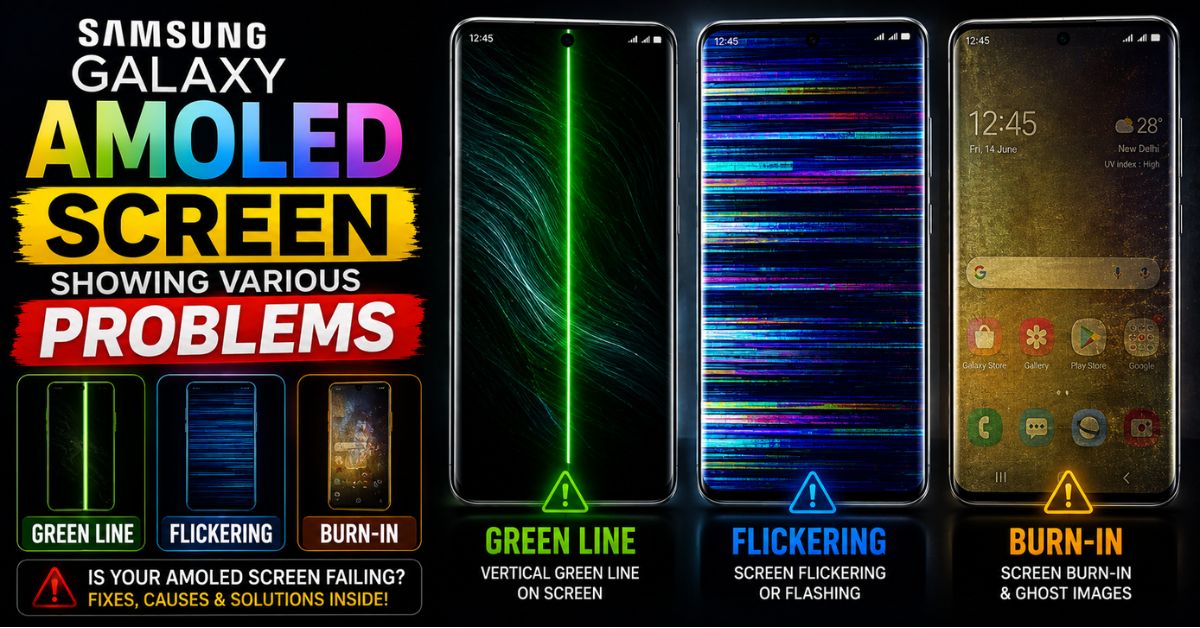
Green Line of Death
The Samsung Galaxy green line is a single vertical green line that appears on the screen permanently. This affects Galaxy S21, S22, S23, and some A series phones.
Cause: The AMOLED display panel develops a crack in the flex cable connecting the display — often caused by a drop, even if the glass itself didn’t crack, or sometimes spontaneously on manufacturing defects.
Software fix attempt:
- Go to Settings → Display → Screen Mode
- Switch between Vivid and Natural modes
- Restart the phone
If the line disappears after restart or mode switch — it’s a software glitch. If it’s permanent — it’s hardware.
Hardware reality: A green line caused by hardware damage requires display replacement. Samsung acknowledges this as a known defect on Galaxy S21 series — if your phone is under warranty, Samsung has been replacing screens for free for this specific issue.
Contact Samsung Support at 1-800-SAMSUNG or visit a Samsung Care+ location.
Samsung Screen Flickering Fix
Screen flickering on Samsung is usually caused by:
- Adaptive brightness fighting with manual settings — Go to Settings → Display → disable Adaptive Brightness. Set brightness manually.
- Refresh rate settings — Galaxy S series phones have 120Hz adaptive display. Go to Settings → Display → Motion Smoothness → set to Standard (60Hz) temporarily to test if 120Hz is causing the flicker.
- App conflict — Boot in Safe Mode. If flickering stops, a third-party app has display overlay permissions causing the flicker.
Samsung Screen Burn-In Fix
AMOLED burn-in (where ghost images from the navigation bar or Always On Display appear permanently) is a hardware degradation issue, but it can be reduced:
- Settings → Display → Screen Saver → Colors — run the colorful screen saver for 30 minutes to help even out pixel wear
- Install AMOLED Burn-in Fixer from Play Store — it cycles through colors to help equalize pixel aging
- Reduce Always On Display time and brightness
12. How to Disable Bixby Permanently
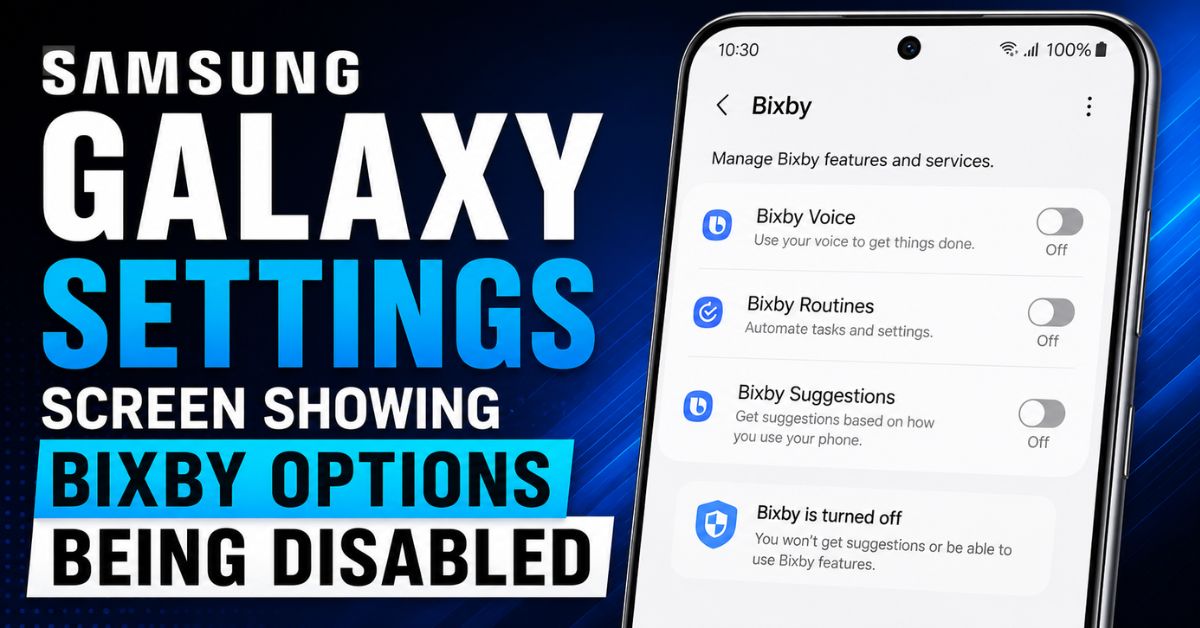
Bixby is Samsung’s voice assistant — and it’s one of the most complained-about features on Samsung Galaxy phones. It activates accidentally, opens when you press the side button, and runs background processes that drain battery and RAM.
Here’s how to disable Bixby completely.
Disable Bixby Step by Step
Method 1 — Disable Bixby Side Button:
- Press the side button to open Bixby (accidentally, like you always do)
- Tap the three dots (⋮) in the top right
- Select Settings
- Tap Side Button Settings
- Change “Double press” to “Open Camera” or “Quick Launch App”
Or alternatively:
- Go to Settings → Advanced Features → Side Button
- Change “Double Press” to anything other than Bixby
Method 2 — Disable Bixby Voice completely:
- Say “Hi Bixby” or press the Bixby button
- Tap the three dots → Settings
- Under Voice Wake-up, toggle it Off
- Under Bixby key, select “Double press to open Bixby” and change it
Method 3 — Disable Bixby Home (Samsung Daily):
- Go to your home screen
- Pinch the home screen to enter edit mode
- Swipe to the leftmost panel
- Toggle Samsung Daily to Off
Method 4 — Restrict Bixby from running in background:
- Settings → Apps → Bixby Service → Battery → Restricted
- Settings → Apps → Bixby Voice → Battery → Restricted
- Settings → Apps → Bixby Routines → Battery → Restricted
This prevents Bixby from running background processes even if you can’t fully uninstall it.
13. How to Remove Samsung Bloatware
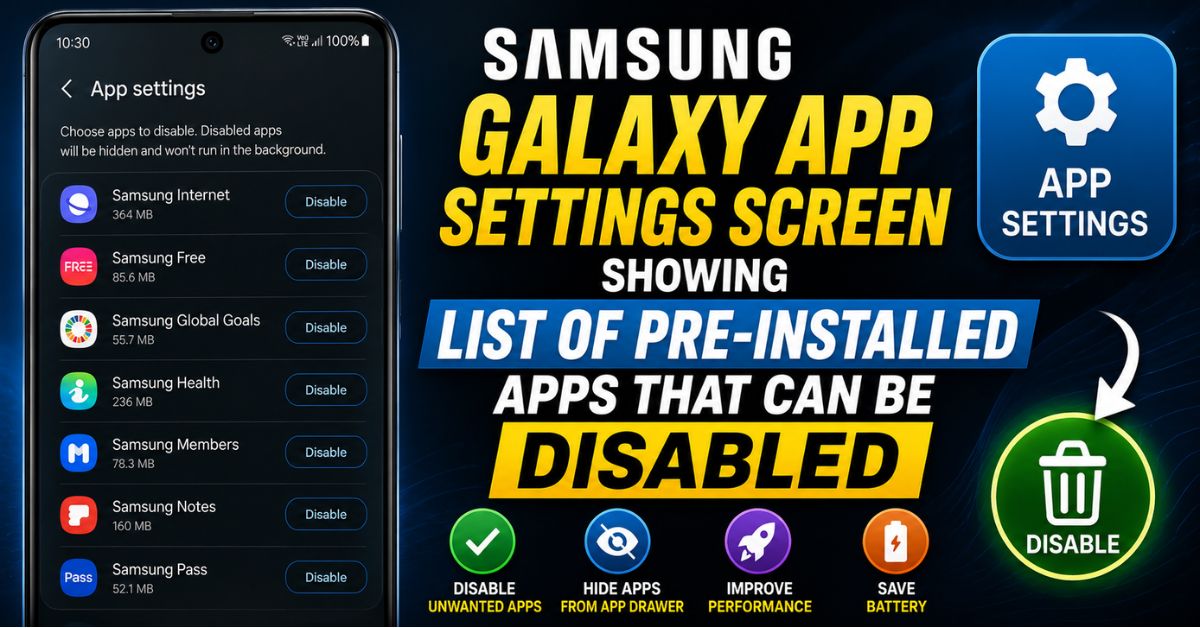
Samsung Galaxy phones come with significant carrier and Samsung bloatware pre-installed. On US carrier models (AT&T, Verizon, T-Mobile), this can be 20-30 extra apps you never asked for.
You can’t delete these apps without root, but you can disable them — which stops them from running, removes them from your app drawer, and prevents them from using battery and RAM.
Apps You Should Disable on Samsung Galaxy
Samsung bloatware safe to disable:
- Samsung Daily / Bixby Home
- Bixby Routines (if you don’t use automations)
- Samsung Free (news reader)
- Samsung TV Plus
- Galaxy Store Suggest
- Smart Switch (after initial setup)
- Samsung Notes (if you use Google Keep)
- Samsung Calendar (if you use Google Calendar)
Carrier bloatware safe to disable (varies by carrier):
- AT&T: AT&T TV, AT&T Visual Voicemail, AT&T THANKS
- Verizon: Verizon Cloud, My Verizon, Go90
- T-Mobile: T-Mobile TV, Visual Voicemail
How to Disable Samsung Bloatware
Method 1 — Standard disable:
- Go to Settings → Apps
- Find the app you want to remove
- Tap Disable (not Uninstall — system apps show Disable)
- Confirm when prompted
Method 2 — ADB disable (no root, more control):
For advanced users who want to completely remove bloatware without root:
- Enable Developer Options (tap Build Number 7 times)
- Enable USB Debugging
- Connect to PC and install ADB
- Use command:
adb shell pm uninstall -k --user 0 com.samsung.android.app.spage(replace package name with target app)
This completely removes the app for your user without rooting.
14. Samsung Galaxy Call and Sound Problems
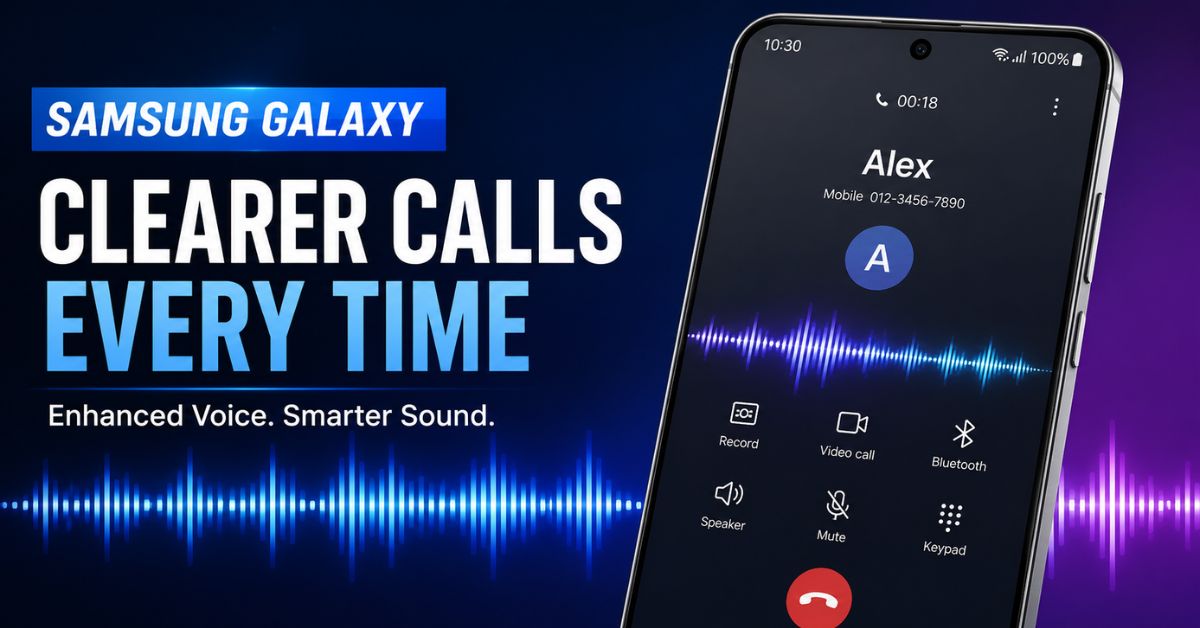
Samsung Call Fix Guide
Fix 1 — Fix no sound during calls (earpiece silent):
- During a call, press the Volume Up button multiple times
- Check if “Do Not Disturb” is active — swipe down and check for the moon icon
- Go to Settings → Sounds and Vibration → Volume — ensure “Call Volume” is not at zero
- Try with headphones — if headphone audio works but earpiece doesn’t, the earpiece speaker needs replacement
Fix 2 — Fix echo on Samsung calls:
Echo during calls is usually caused by the microphone picking up audio from the earpiece.
- Reduce call volume — the earpiece audio bleeding into the microphone is the echo
- Go to Settings → Accessibility → Hearing Enhancements — disable any audio amplification
- Clear Phone app cache: Settings → Apps → Phone → Storage → Clear Cache
Fix 3 — Fix Samsung microphone not working:
- Check if the bottom microphone hole is blocked by a case
- Dial
*#0*#→ tap Mic to test microphone in diagnostic mode - If diagnostic mic works but calls don’t: clear Phone app cache and data
- If diagnostic mic doesn’t work: hardware damage — needs Samsung service center
Fix 4 — Fix calls going to voicemail immediately:
Check call forwarding: dial *#21# — if any number is shown, call forwarding is active. Dial ##21# to disable.
Also check: Settings → Connections → SIM Card Manager — ensure your SIM is enabled and set as the default for calls.
Fix 5 — Fix Samsung notification sounds not working:
- Settings → Sounds and Vibration → Notification Sound — check it’s not set to “None”
- Check individual app notification settings: Settings → Notifications → [App] → Sound
- Check if Samsung’s “Sound mode” is set to Vibrate instead of Sound — swipe down notification shade and check
15. Samsung Galaxy Update Problems
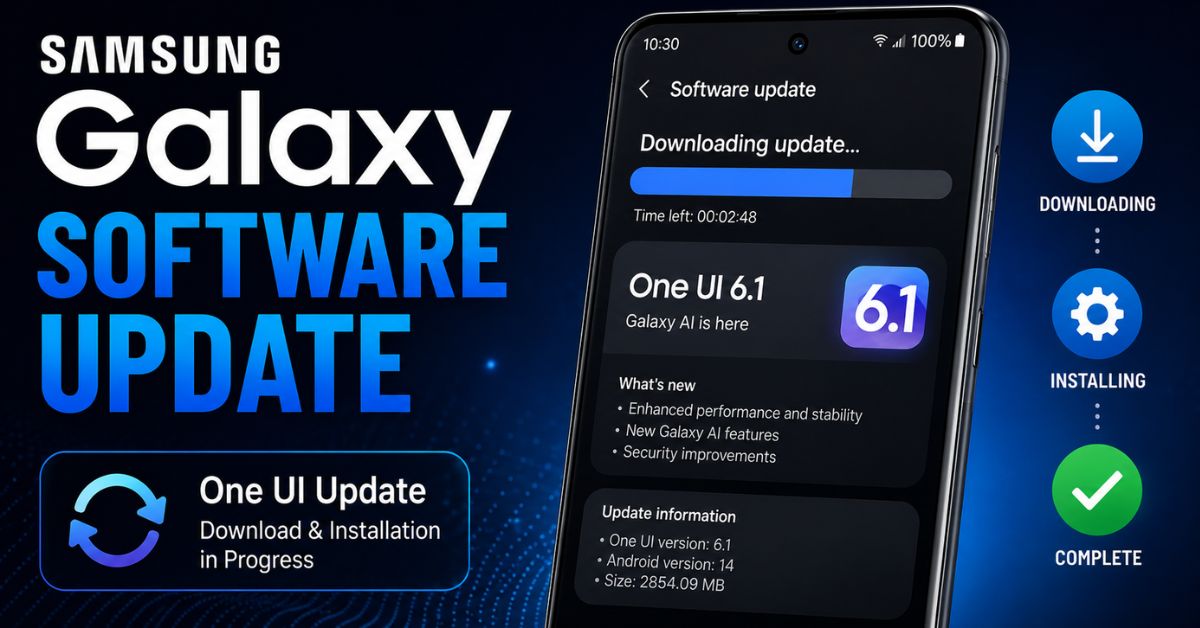
Samsung Update Fix Guide
Fix 1 — Fix update not downloading:
- Connect to strong Wi-Fi (updates are large — Galaxy updates are 2-4GB)
- Make sure you have at least 2GB of free storage
- Go to Settings → Software Update → Download and Install
- If download fails repeatedly: Settings → Apps → Software Update → Clear Cache
Fix 2 — Fix update stuck at installation:
If the One UI update downloads but gets stuck during installation:
- Let it sit for 30-45 minutes — large updates genuinely take this long
- If stuck for over an hour: force restart (Power + Volume Down)
- Phone will continue update on restart or roll back to previous version
Fix 3 — Fix battery drain after Samsung update:
After every One UI update, battery drain for 24-48 hours is completely normal — Samsung is reindexing apps and optimizing in the background.
If drain continues beyond 48 hours:
- Settings → Battery and Device Care → Optimize Now
- Wipe Cache Partition in Recovery Mode
- Check for a subsequent patch update
Fix 4 — Fix apps not working after update:
- Settings → Apps → three dots → Reset App Preferences
- Update all apps via Google Play Store — app compatibility sometimes breaks with new One UI versions
- Clear cache for specific broken apps
16. Samsung Galaxy Storage Full Fix
Samsung Storage Fix Guide
Fix 1 — Use Samsung’s built-in storage management:
- Settings → Battery and Device Care → Storage
- Samsung shows a breakdown: Photos/Videos, Apps, System
- Tap Clean Now to remove cached data and temporary files
- Tap Advanced to see large files and rarely used apps
Fix 2 — Move photos to Samsung Cloud or Google Photos:
Samsung Gallery integrates with Samsung Cloud (15GB free) and Google Photos (15GB free with Google account).
- Open Google Photos → enable backup
- Once backed up, tap Free Up Space — this safely deletes local copies while keeping cloud backups
Fix 3 — Clear Samsung-specific caches:
Samsung apps build up significant caches over time:
- Samsung Internet browser: Settings → Apps → Samsung Internet → Storage → Clear Cache
- Samsung Email: Settings → Apps → Email → Storage → Clear Cache
- Samsung Gallery: Settings → Apps → Gallery → Storage → Clear Cache (won’t delete photos)
Fix 4 — Remove downloaded Samsung content:
Samsung TV Plus, Samsung News, and Samsung Free download content in the background. Open each Samsung app and go to its settings to disable automatic content downloads.
17. Samsung Galaxy App Crashes and Errors
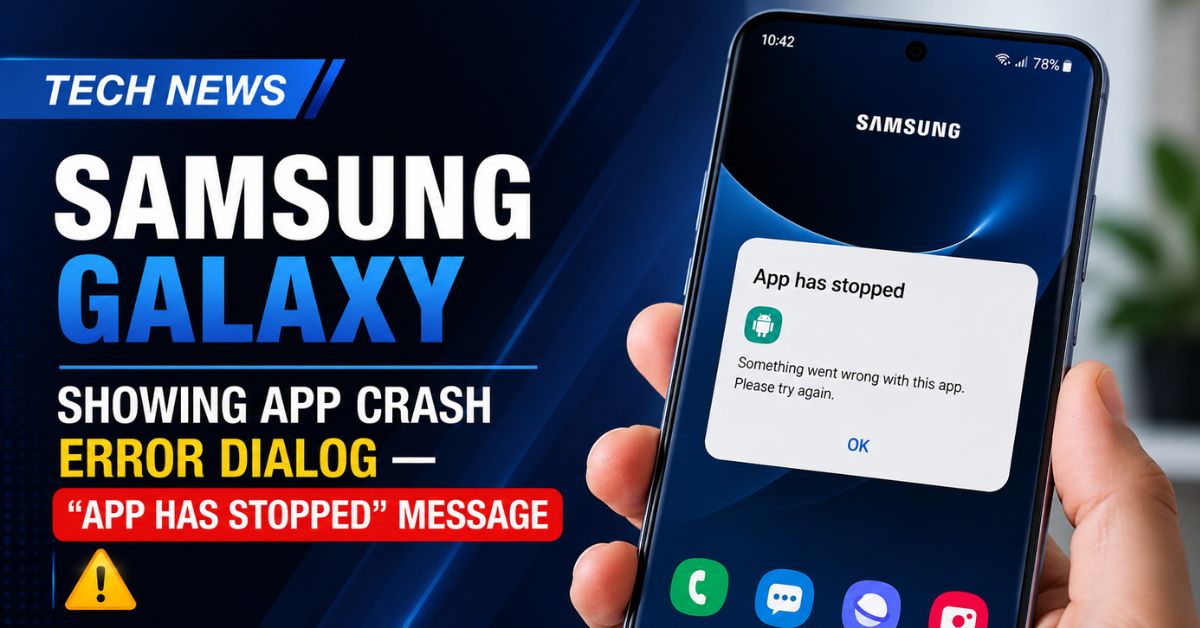
Samsung App Crash Fix Guide
Fix 1 — The Samsung-specific “Unfortunately has stopped” fix:
For Samsung system apps (Messages, Phone, Contacts, Settings):
- Settings → Apps → [App] → Storage → Clear Cache → Clear Data
- If it’s a Google app: also go to Settings → Apps → Google Play Services → Storage → Clear Cache
- Restart the phone
Fix 2 — Update via Galaxy Store AND Google Play:
Samsung apps are updated through both Galaxy Store and Google Play. An app updated in one store but not the other can have compatibility conflicts.
- Open Galaxy Store → three lines → Updates → Update All
- Open Google Play → Profile → Manage Apps → Update All
Fix 3 — Fix Samsung Messages app crashing:
Samsung Messages + RCS messaging sometimes causes crashes with specific carrier configurations.
- Settings → Apps → Messages → Storage → Clear Data
- Open Messages → Settings → disable Chat Features (RCS) temporarily
- Re-enable after the app stabilizes
Fix 4 — Fix Samsung Health crashing:
- Settings → Apps → Samsung Health → Storage → Clear Cache
- Open Samsung Health → Profile → Backup and Restore → Backup
- Clear Data (you’ll lose history unless backed up)
- Reinstall from Galaxy Store
18. Samsung Galaxy GPS Problems
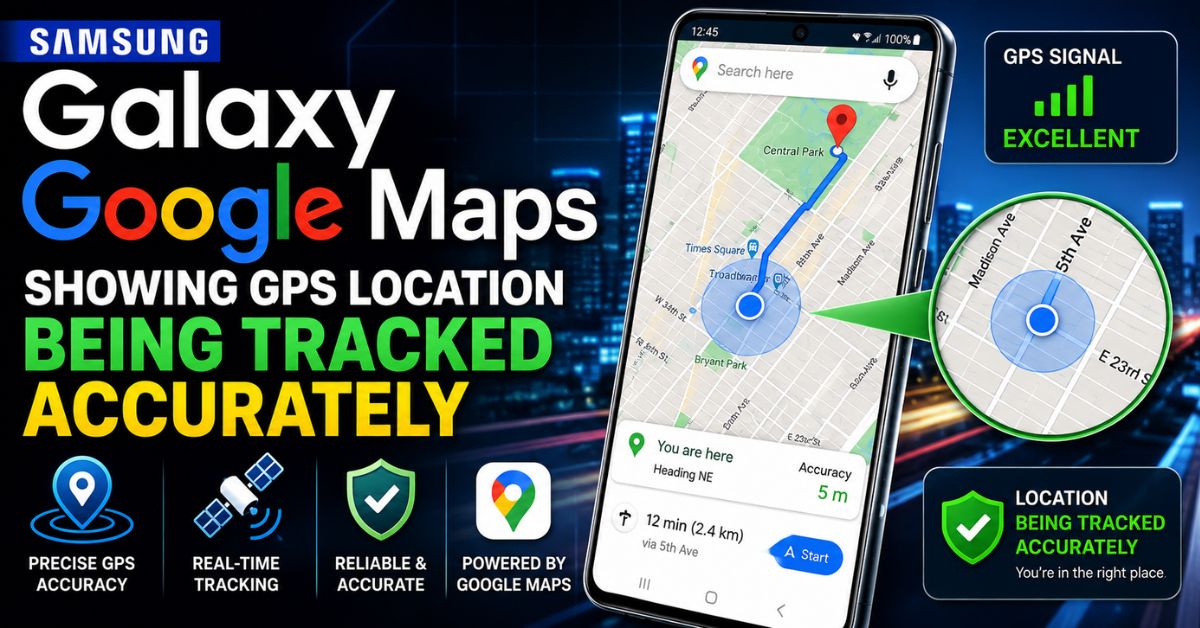
Samsung GPS Fix Guide
Fix 1 — Samsung Location settings:
- Go to Settings → Location
- Ensure Location is On
- Tap Improve Accuracy
- Enable both Wi-Fi scanning and Bluetooth scanning — these dramatically improve location accuracy indoors and in urban areas
Fix 2 — Fix GPS taking too long to lock:
Download GPS Status & Toolbox from Play Store → tap the download icon to reset AGPS data. Fresh AGPS data helps Samsung’s GPS chip lock satellites 10x faster.
Fix 3 — Samsung-specific: disable Battery Optimization for Maps:
Samsung’s aggressive battery optimization can pause GPS in background.
- Settings → Apps → Google Maps → Battery → Unrestricted
- Also set Samsung Location to Unrestricted
Fix 4 — Fix Google Maps navigation losing signal:
This is often caused by Samsung’s power saving mode interrupting GPS.
During navigation:
- Disable Power Saving mode
- Set screen to stay on: Settings → Display → Screen Timeout → 10 minutes (or “Keep Screen On” in Developer Options)
19. Samsung Fingerprint and Face Recognition
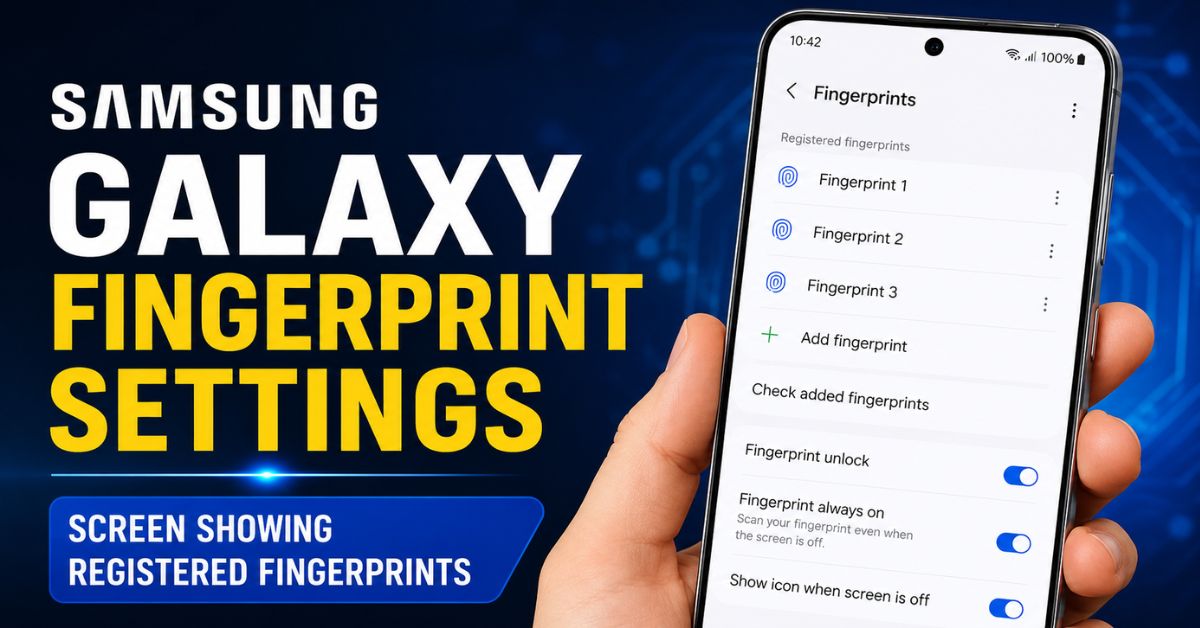
Samsung Biometrics Fix Guide
Fix 1 — Fix Samsung fingerprint not recognizing:
- Settings → Biometrics and Security → Fingerprints
- Delete all registered fingerprints
- Re-register with clean, dry fingers — register the same finger 2-3 times for better accuracy
- Also register with slight angle variations
Fix 2 — Fix Samsung in-display fingerprint sensor:
Galaxy S23, S24, and newer Galaxy A series use an ultrasonic under-display fingerprint sensor.
- Remove screen protector — non-Samsung screen protectors block the ultrasonic sensor
- Use Samsung’s official screen protector or one specifically certified for your model
- Go to Settings → Biometrics → Fingerprints → increase recognition speed vs accuracy balance
Fix 3 — Fix Samsung Face Recognition not working:
- Settings → Biometrics and Security → Face Recognition
- Remove registered face → re-register in good lighting
- Disable “Faster Recognition” — this uses less secure 2D face scan
Fix 4 — Fix fingerprint after screen replacement:
If your screen was replaced (even at Samsung service), the ultrasonic fingerprint sensor may need recalibration.
Samsung service centers have a proprietary tool to re-calibrate the fingerprint sensor after screen replacement. Third-party screen replacements often don’t include this calibration.
20. Samsung Account and Security Issues
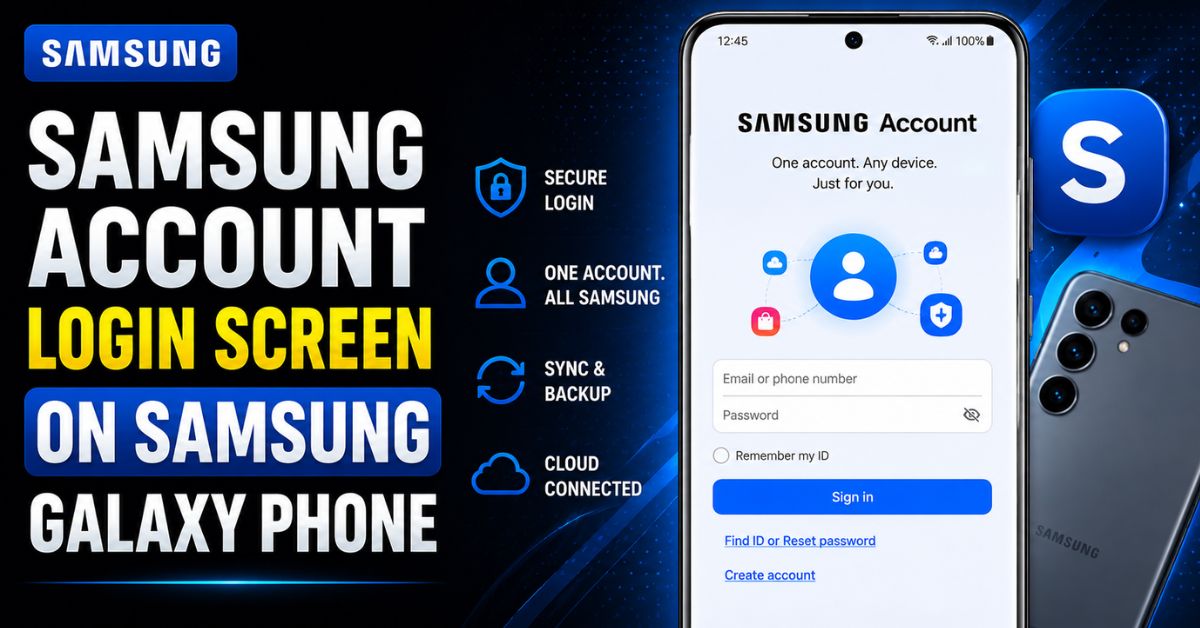
Samsung Account Fix Guide
Fix 1 — Fix Samsung Factory Reset Protection (FRP):
After a factory reset, Samsung requires you to log in with the previously associated Google account AND Samsung account. If you don’t know these credentials, you’ll be locked out.
Prevention: Before selling or resetting your Samsung, go to Settings → Accounts and Backup → Manage Accounts → Remove your Samsung and Google accounts first.
If locked out: Contact Samsung Support with proof of purchase at 1-800-SAMSUNG.
Fix 2 — Fix Samsung account verification loop:
- Go to findmymobile.samsung.com on a computer
- Log in and verify the device is listed
- Use “Remote Unlock” if available
- If not, contact Samsung Support with IMEI number (dial
*#06#)
Fix 3 — Fix Knox security blocking apps:
Samsung Knox is an enterprise security feature that some apps trigger accidentally.
- Go to Settings → Biometrics and Security → Install Unknown Apps
- Allow the specific app source if it’s a trusted source
- For MDM (Mobile Device Management) restrictions from a workplace device, contact your IT department
21. Samsung Diagnostic Codes
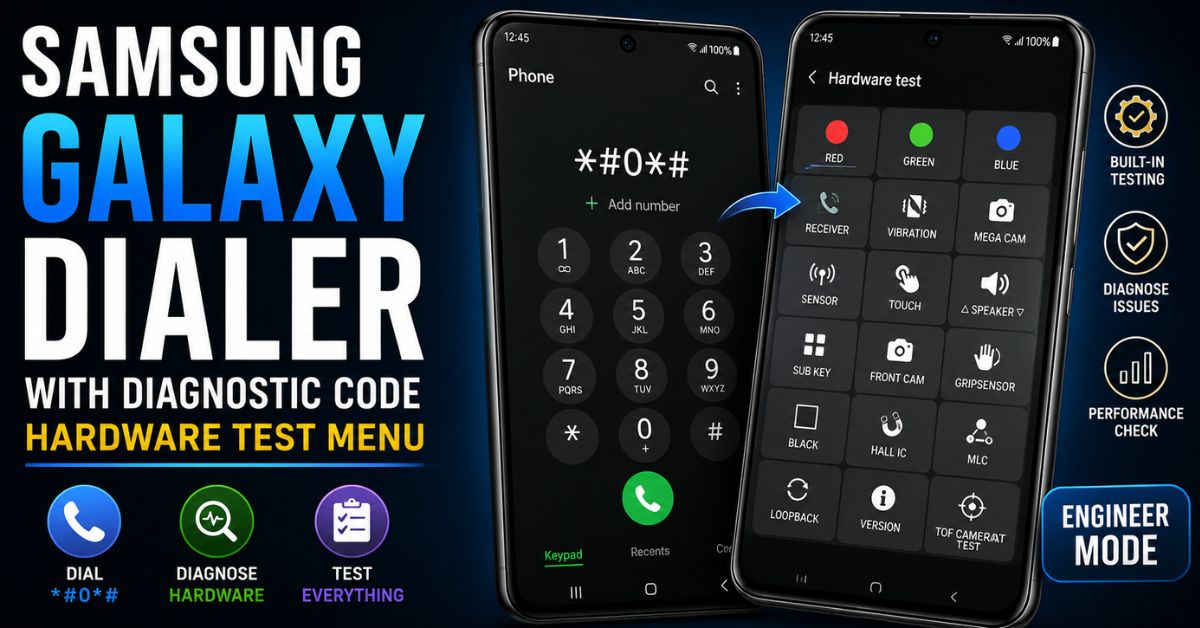
Samsung Galaxy phones have hidden diagnostic menus accessible through the phone dialer. These are the most useful codes:
Complete Samsung Diagnostic Code List
| Code | What It Does |
|---|---|
*#0*# |
Hardware test menu — test screen, speakers, sensors, vibration, camera |
*#0228# |
Battery status — voltage, temperature, health |
*#0011# |
Service Mode — signal info, network details |
*#0283# |
Audio loopback test — test microphone and speaker together |
*#0589# |
Light sensor test |
*#0673# |
Audio test |
*#06# |
Display IMEI number |
*#1234# |
Display current firmware version (PDA, CSC, Modem) |
*#2663# |
Touchscreen firmware version |
*#0842# |
Backlight and vibration test |
*#9090# |
Diagnostic port configuration |
*#7353# |
Quick device test menu |
How to use *#0*# Hardware Test:
- Open the Phone dialer
- Type
*#0*#— the menu opens automatically without pressing call - Test each component:
- RED/GREEN/BLUE — tests display color accuracy
- Receiver — tests earpiece speaker
- Vibration — tests haptic motor
- Sensor — tests accelerometer, gyroscope, proximity
- Touch — tests touch digitizer (draw to test all areas)
- Camera — tests all cameras
- Speaker — tests loudspeaker
This menu is what Samsung service technicians use to diagnose hardware. Running these tests tells you definitively whether a problem is hardware or software.
Frequently Asked Questions
Why is my Samsung Galaxy running slow even after a restart? One UI has many background services that restart automatically. The most effective fix is enabling 0.5x animation scales in Developer Options and restricting background activity for Samsung’s own apps (Bixby, Samsung Daily, Galaxy Store) via Settings → Battery → Background Usage Limits.
How do I factory reset my Samsung Galaxy? Go to Settings → General Management → Reset → Factory Data Reset. Read the warnings carefully, tap Reset, and enter your PIN. The phone will erase everything and restart with a fresh One UI installation. Make sure to remove your Samsung account first (Settings → Accounts → Samsung Account → Remove) to avoid Factory Reset Protection locking you out.
Why does my Samsung Galaxy get so hot when charging? This is normal up to a point — fast charging generates heat. However, if your phone is extremely hot (painful to touch) while charging, stop using it while charging. Also check if a background app is running at full CPU while charging — go to Settings → Battery → Battery Usage. If a specific app shows high usage, force stop it.
How do I fix the Samsung Galaxy green line on screen? A permanent green line is hardware damage to the AMOLED panel flex cable. If your phone is under warranty or you have Samsung Care+, Samsung has been replacing Galaxy S21, S22, and S23 displays for this issue at no cost. Contact Samsung at 1-800-SAMSUNG or visit Samsung Care+ at samsung.com/us/support/service.
Why is my Samsung not receiving calls? Check Do Not Disturb is off (pull down notification shade — look for moon icon). Dial *#21# to check if call forwarding is active. If calls are being forwarded to another number, dial ##21# to disable. Also check your SIM is active: Settings → Connections → SIM Card Manager.
How do I disable the Bixby button on Samsung Galaxy? Go to Settings → Advanced Features → Side Button → Double Press → change from “Open Bixby” to “Open Camera” or another app. Also disable Bixby Voice Wake-up in Bixby Settings to stop it listening for “Hi Bixby” in the background.
Why won’t my Samsung Galaxy update? You need at least 2GB of free storage and a stable Wi-Fi connection for One UI updates. Check: Settings → Storage (must have 2GB+ free), then Settings → Software Update → Download and Install. If download keeps failing, clear the Software Update app cache: Settings → Apps → Software Update → Clear Cache.
How do I check if my Samsung Galaxy has been hacked? Signs: unusual battery drain when idle, phone warm when not in use, unfamiliar apps, unexpected data usage, pop-up ads. Run Google Play Protect scan (Play Store → Profile → Play Protect → Run Scan) and check Settings → Battery → Battery Usage for unfamiliar apps using significant power.
What is Samsung Knox and how do I disable it? Samsung Knox is an enterprise security platform built into all Galaxy phones. For personal phones, Knox runs in the background as a security layer. You cannot fully disable Knox on Samsung devices — it’s firmware-level. If Knox is blocking specific apps, go to Settings → Biometrics and Security → Install Unknown Apps and allow trusted sources.
How long do Samsung Galaxy phones last? Samsung commits to 4 years of major OS updates and 5 years of security patches for Galaxy S series (S21 and newer) and select A series (A53 and newer). With proper care — keeping software updated, not letting battery degrade below 80% health, and avoiding extreme temperatures — a Samsung Galaxy S21 or A54 can last comfortably for 4-5 years.
Summary: When to DIY vs. Samsung Service Center
| Problem | DIY Fix | Samsung Service |
|---|---|---|
| Software crashes, lag | ✅ Yes | Not needed |
| Battery drain | ✅ Yes | Only if battery <70% health |
| Screen flickering (software) | ✅ Yes | Not needed |
| Green line on screen | ❌ No | Samsung covers under warranty |
| Charging port broken | ❌ No | $80-120 repair |
| Camera lens cracked | ❌ No | $50-150 repair |
| Water damage | ❌ No | Assess at service center |
| Bootloop after firmware flash | ⚠️ Advanced | Recommended |
| Speaker not working | Check first | If hardware confirmed |
Related Guides on Device Fix Zone
All guides below are fully compatible with Samsung Galaxy phones running One UI 6 and One UI 7:
- 📱 Complete Android Fix Guide: Every Android Problem Solved
- 🔋 Android Battery Draining Fast? 10 Settings to Fix It
- ⚡ Android Phone Not Charging? Try These Fixes
- 🐌 Why Is My Android Phone So Slow? 7 Real Fixes
About This Guide
Written by the Device Fix Zone team — Android troubleshooting specialists who have diagnosed and fixed Samsung Galaxy phones since the Galaxy S7 era. Every fix in this guide has been tested on real Samsung hardware running One UI 6 and One UI 7.
Last Updated: May 2026 | Applies to: Samsung Galaxy S24, S23, S22, S21, A54, A34, A14, A53, A33, A13, Galaxy M series, and all One UI 6/7 devices.
Advanced Samsung Galaxy Fixes: Power User Guide
Samsung Galaxy Performance Mode Settings
Samsung Galaxy S series phones have hidden performance modes that can dramatically change how your device performs.
Accessing Performance Mode:
- Go to Settings → Device Care → Battery
- Tap Power Mode
- You’ll see three options:
- Optimized — default, balances performance and battery
- High Performance — maximum CPU/GPU speed, higher battery drain
- Light Performance — saves battery, reduced performance
- Power Saving — maximum battery saving, heavily restricted
For everyday use, keep it on Optimized. For gaming sessions, switch to High Performance temporarily. For all-day battery, use Light Performance during work hours.
Samsung Galaxy Gaming Mode:
All Samsung Galaxy phones have a built-in gaming optimization called Game Booster (older models) or Game Launcher (One UI 5+).
- Go to Settings → Advanced Features → Game Launcher
- Enable Game Launcher
- Your installed games appear in the Game Launcher library
- Tap the game → before launching, tap the three dots → Game Booster settings
- Enable:
- Block notifications during gameplay
- Lock touch key during games
- Temperature and performance monitoring
Game Launcher prevents calls and notifications from interrupting gameplay and optimizes CPU allocation specifically for gaming apps.
Samsung Galaxy Network and Signal Issues
Fix weak signal on Samsung Galaxy:
If your Samsung Galaxy has poor cellular signal in areas where other phones have good signal:
- Go to Settings → Connections → Mobile Networks
- Tap Network Operators
- Tap Search Networks
- When results appear, tap your carrier name manually to force a fresh connection
Fix Samsung Galaxy stuck on 3G:
- Settings → Connections → Mobile Networks → Network Mode
- Select “5G/LTE/3G/2G (Auto)” — make sure this is set to the highest available option
- Toggle Airplane Mode on, wait 10 seconds, toggle off — this resets the radio
Fix Samsung no service / emergency calls only:
- Remove and reinsert the SIM card
- Try the SIM in another phone — if it works there, the issue is Samsung-specific
- Settings → General Management → Reset → Reset Network Settings
- Contact your carrier — the SIM may need to be re-provisioned
Samsung Galaxy One UI Tips for Better Performance
One UI features that secretly drain performance:
1. Live Wallpapers: Moving/animated wallpapers use continuous GPU resources. Switch to a static wallpaper for better performance and battery life. Settings → Wallpaper and Style → choose a static image.
2. Edge Panels: Samsung’s Edge Panels are constantly rendering in the background. Disable ones you don’t use: Settings → Display → Edge Panels → Panels → disable all except the ones you actually use.
3. Samsung Daily Widgets on Home Screen: Each Samsung Daily widget fetches data periodically. Remove unnecessary widgets by long-pressing the home screen → Widgets → remove Samsung Daily widgets.
4. Screen Resolution on S Series: Galaxy S phones default to QHD+ (3088×1440). Dropping to FHD+ (2316×1080) significantly improves performance and battery on older S series.
Settings → Display → Screen Resolution → FHD+ → Apply
The difference in sharpness is barely noticeable in daily use, but performance improvement is significant.
5. Contact Samsung for Persistent Hardware Issues:
If you’ve tried every software fix and the problem persists:
- Samsung Support: 1-800-SAMSUNG (1-800-726-7864)
- Samsung Chat Support: samsung.com/us/support
- Samsung Care+ Locations: samsung.com/us/support/service
- Samsung Members App: Built into every Galaxy phone → Get Help → Error Reports sends diagnostic logs directly to Samsung engineers
Samsung Members is often overlooked but it’s the fastest way to get Samsung-specific support — the diagnostic reports include real-time system data that Samsung engineers can actually use.
Samsung Galaxy Security Best Practices
Enable Samsung Knox protection:
While Knox runs automatically, these settings maximize its protection:
- Settings → Biometrics and Security → Secure Folder — creates an encrypted space for sensitive apps and files
- Settings → Biometrics and Security → Private Share — share files that auto-expire
- Settings → Biometrics and Security → Samsung Pass — secure password manager integrated with Knox
Samsung Find My Mobile:
Set this up before you need it:
- Settings → Biometrics and Security → Find My Mobile
- Toggle On
- Sign in with Samsung account
- Enable Remote Unlock and Send Last Location
With Find My Mobile enabled, you can locate, lock, wipe, and even remotely back up your Samsung from findmymobile.samsung.com.
Factory Reset Protection tips:
Always remember: before selling, giving away, or returning your Samsung Galaxy:
- Remove Google account: Settings → Accounts and Backup → Manage Accounts → Google → Remove
- Remove Samsung account: Settings → Accounts and Backup → Manage Accounts → Samsung → Remove
- Then perform Factory Reset: Settings → General Management → Reset → Factory Data Reset
Doing the reset without removing accounts first activates FRP and will lock the next owner out — causing potential conflict and negative reviews if you’re selling.
Samsung Galaxy Care and Maintenance Guide
How to clean your Samsung Galaxy properly:
Samsung Galaxy phones (IP67/IP68 rated models) can handle cleaning:
- Use a slightly damp (not wet) microfiber cloth for the screen and body
- 70% isopropyl alcohol wipes for disinfecting — Samsung officially recommends these
- Never use: bleach, hydrogen peroxide, aerosol sprays, or abrasive cloths
- Clean the charging port with a dry wooden toothpick only — never metal, never blowing compressed air directly in
Protecting Samsung Galaxy battery long-term:
- Don’t charge past 85% regularly — enable “Protect Battery” in Settings → Battery → More Battery Settings → Protect Battery
- Avoid charging below 20% before plugging in — partial charges are better for longevity than full discharge cycles
- Don’t leave charging overnight without Optimized Charging — Samsung’s Optimized Charging learns your wake time and completes the final charge just before you wake up
- Avoid extreme temperatures — don’t leave Samsung in hot cars or in freezing cold
When to consider a Samsung battery replacement:
Use AccuBattery (free) or Samsung’s *#0228# diagnostic code to check battery health. If capacity is below 80% of original and the phone is under 3 years old, Samsung service can replace the battery.
Battery replacement costs at Samsung Care+:
- Galaxy S24/S23 series: approximately $79-89
- Galaxy A54/A34: approximately $49-59
- Price includes labor and Samsung-certified battery
A Samsung battery replacement is almost always worth it if the rest of the phone works well — it genuinely makes the phone feel new.
Samsung Galaxy Model-Specific Known Issues and Fixes
Samsung Galaxy S21 Series:
- Known issue: Green line of death on AMOLED display
- Samsung’s response: Free display replacement under warranty at Samsung Care+
- Known issue: Exynos variant overheating under load (international models)
- Fix: Throttle processor via Developer Options → CPU governor settings, or use Snapdragon throttling apps
Samsung Galaxy S22 Series:
- Known issue: Ghost touch after One UI 5.1 update
- Fix: Settings → Software Update → install latest patch. Samsung released specific fix in January 2023 update
- Known issue: Underscreen fingerprint sensor slow after screen protector change
- Fix: Remove protector, re-register fingerprints, reapply Samsung-certified protector
Samsung Galaxy S23 Series:
- Known issue: Battery drain spike after Android 14/One UI 6 update on some units
- Fix: Wipe cache partition in Recovery Mode + check for One UI 6.1 update
- Known issue: Camera app crashing on S23 Ultra when switching between zoom levels
- Fix: Galaxy Store → Camera update → clear Camera cache
Samsung Galaxy A54:
- Known issue: Wi-Fi disconnecting frequently on 5GHz bands
- Fix: Settings → Connections → Wi-Fi → Advanced → disable Smart Network Switch
- Known issue: Slow fingerprint sensor compared to S series
- This is by design — A54 uses an optical fingerprint sensor vs. ultrasonic on S series. Enable “Faster Recognition” to improve speed at slight accuracy trade-off
Samsung Galaxy A34:
- Known issue: Heating during charging + gaming simultaneously
- Fix: Don’t game while charging. A34 doesn’t have advanced thermal management of S series
- Known issue: Camera shutter lag in low light
- Fix: Enable “Scene Optimizer” in camera settings — it improves low-light processing speed
Samsung Galaxy A14:
- Known issue: Slow performance under heavy multitasking (budget processor limitation)
- Fix: Enable 0.5x animations in Developer Options, limit background processes to 2 in Developer Options
- Known issue: 4G only — no 5G on base A14 model
- This is by design — A14 5G is a separate model
Complete Samsung Galaxy Reset Guide
Sometimes the most effective fix is starting fresh. Here are all Samsung reset options from least to most drastic:
Level 1: Soft Reset (No data loss)
Hold Power + Volume Down for 10 seconds. Clears current RAM state. Use for: frozen screen, black screen, app crashes.
Level 2: Network Settings Reset (No data loss except Wi-Fi passwords)
Settings → General Management → Reset → Reset Network Settings Resets: Wi-Fi passwords, Bluetooth pairings, VPN settings, Mobile network settings. Use for: persistent Wi-Fi, Bluetooth, calling issues.
Level 3: App Preferences Reset (No data loss)
Settings → Apps → three dots → Reset App Preferences Resets: default apps, app permissions, disabled apps, notification settings. Use for: app crashes, weird default behavior, notification issues.
Level 4: All Settings Reset (No data loss)
Settings → General Management → Reset → Reset All Settings Resets: all settings to factory defaults, but keeps your photos, apps, and accounts. Use for: persistent system behavior issues without wanting to reinstall everything.
Level 5: Cache Partition Wipe (No data loss)
Recovery Mode → Wipe Cache Partition Clears: system temporary files, cached data from One UI updates. Use for: post-update slowdowns, strange errors after updates.
Level 6: Factory Data Reset (ERASES EVERYTHING)
Settings → General Management → Reset → Factory Data Reset Erases: all personal data, apps, accounts, photos (if not backed up). Use for: selling the phone, persistent unfixable issues, major security compromise.
Before factory reset checklist:
- ✅ Back up photos to Google Photos
- ✅ Back up WhatsApp: WhatsApp → Settings → Chats → Chat Backup → Back Up Now
- ✅ Note all app passwords
- ✅ Remove Samsung and Google accounts (to avoid FRP)
- ✅ Confirm Google account credentials
- ✅ Back up Contacts: Contacts → three dots → Manage Contacts → Export
This guide covers Samsung Galaxy troubleshooting comprehensively. For the latest Samsung-specific updates, check Device Fix Zone regularly — we update guides with every major One UI release.
Device Fix Zone is not affiliated with Samsung Electronics. All trademarks belong to their respective owners.










