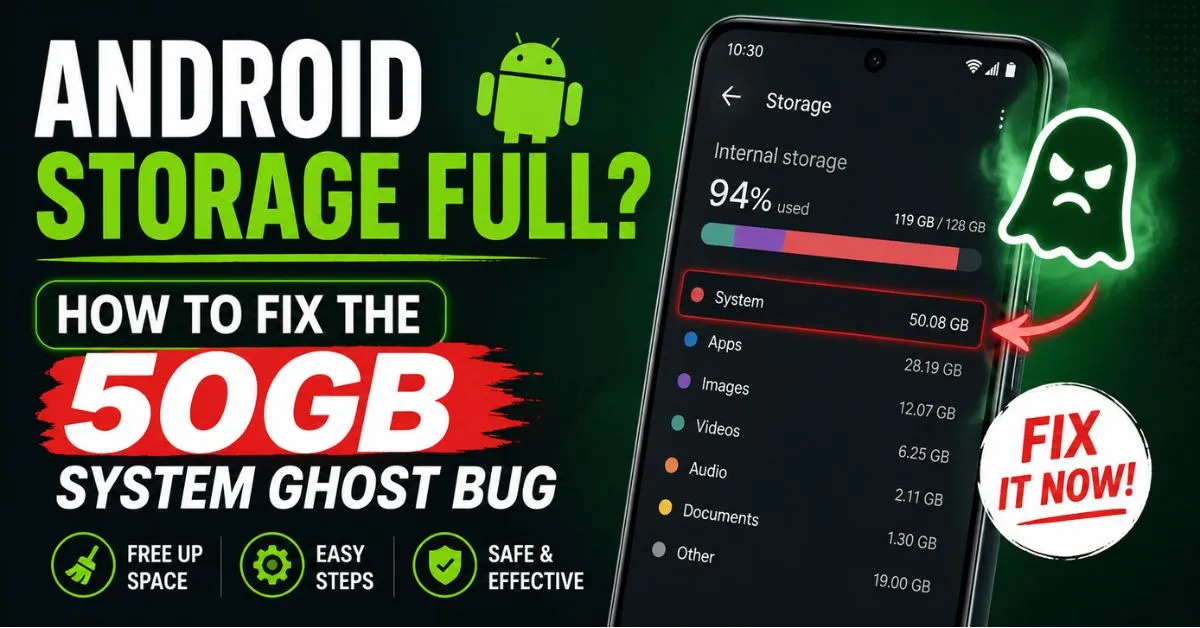
Your Android phone isn’t actually full; a “Ghost Bug” is likely mislabeling temporary cache and media thumbnails as untouchable “System” data. To fix it, you need to clear the Media Storage cache and force a storage recalculation through a Safe Mode reboot. You can reclaim your space in under five minutes without losing a single photo or video.
The Morning Panic: ‘Storage Almost Full’
Waking up to the “Storage Almost Full” notification is the modern equivalent of a jump-scare. You’ve likely already deleted your Spotify downloads, cleared your trash, and even sacrificed that 4K video of your vacation. Yet, the needle doesn’t move.

The psychological toll of “Storage Anxiety” is real—it makes your $1,000 flagship feel like a paperweight. You stop taking photos. You stop updating apps. You start browsing for a new phone you don’t need, all because of a phantom block of data that shouldn’t be there.
Also Reade : Complete Android Fix Guide: Every Android Problem Solved (2026)
The Ghost in the Machine: What is ‘System’ Storage?
In a healthy environment, the Android Operating System should occupy roughly 15GB to 20GB. If your “System” or “Other” category is ballooning to 50GB, 80GB, or even 100GB, you are dealing with a software reporting error.
Android often miscalculates app binary logs, failed system update fragments, and thumbnail caches as core system files. Because the OS thinks these are “System” files, it won’t let you delete them through the standard gallery or file manager. It’s a logic loop that traps your NAND flash memory in a state of permanent fullness.
Personal Take: My 128GB Phone Had 60GB of ‘Nothing’
I nearly threw my Pixel against a wall last week. My 128GB device claimed 60GB was “System” data, leaving me with zero room for a single new text message. I was convinced my storage chip was dying.
After a deep dive into the file structure, I discovered the culprit: a “Media Provider” glitch that had duplicated my photo thumbnails 400 times in a hidden directory. It wasn’t my fault, and it wasn’t a hardware failure—it was a software hallucination. Finding that missing 60GB felt like winning the lottery.

3 Steps to Bust the Ghost Bug
If you’re seeing an impossible “System” storage number, follow these steps before you even think about a factory reset.
- Purge the Media Cache: Go to Settings > Apps > See All Apps. Tap the three dots in the corner and select “Show System.” Find Media Storage and Google Play Services. Clear the “Cache” for both. This won’t delete your photos; it just forces the phone to stop indexing garbage.
- Use a Visualizer: Android’s native storage menu is vague. Use a third-party tool like DiskUsage. It provides a “sunburst” map of your folders. If you see a massive block labeled “System,” it will often allow you to drill down and see the specific log file causing the bloat.
- The Safe Mode Refresh: Hold your power button, then long-press the “Power Off” icon to Reboot to Safe Mode. Let the phone sit for two minutes, then restart normally. This forces the Android Media Scanner to run a fresh audit of your storage, which often “pops” the ghost bug and returns your missing gigabytes instantly.
FAQ
Why is my Android System storage so high?
It is often caused by cached thumbnails, failed system updates, or app logs that are mislabeled by the OS as core system files.
Will clearing system data delete my photos?
No. Targeting the “System” ghost bug involves clearing temporary cache and log files, not your personal media or documents.
Is this a hardware issue?
Rarely. In 95% of cases, it is a software reporting error or a runaway background process creating hidden log files.











