How to Fix TP-Link Router Not Connecting to Internet.I was halfway through a critical Zoom call last Tuesday when my TP-Link Archer AX55 decided to throw a tantrum. You know the feeling—the screen freezes, your boss’s face turns into a pixelated mess, and you look over at your desk only to see that dreaded, glowing orange LED staring back at you. It’s frustrating, especially when you’re paying Spectrum or Xfinity a small fortune every month for “gigabit” speeds.
Having spent years tinkering with networking gear and setting up dozens of Archer and Deco systems for friends here in the States, I’ve realized that a TP-Link router losing its internet connection is rarely a “broken” device. Usually, it’s just a communication breakdown between the router and the ISP’s modem. Whether you’re dealing with a tp-link router orange light no internet situation or you can’t even get tplinkwifi.net to load on your browser, I’ve been there. Let’s get your home network back on its feet without you having to spend two hours on hold with tech support.
Immediate Diagnosis: What the Lights are Telling You
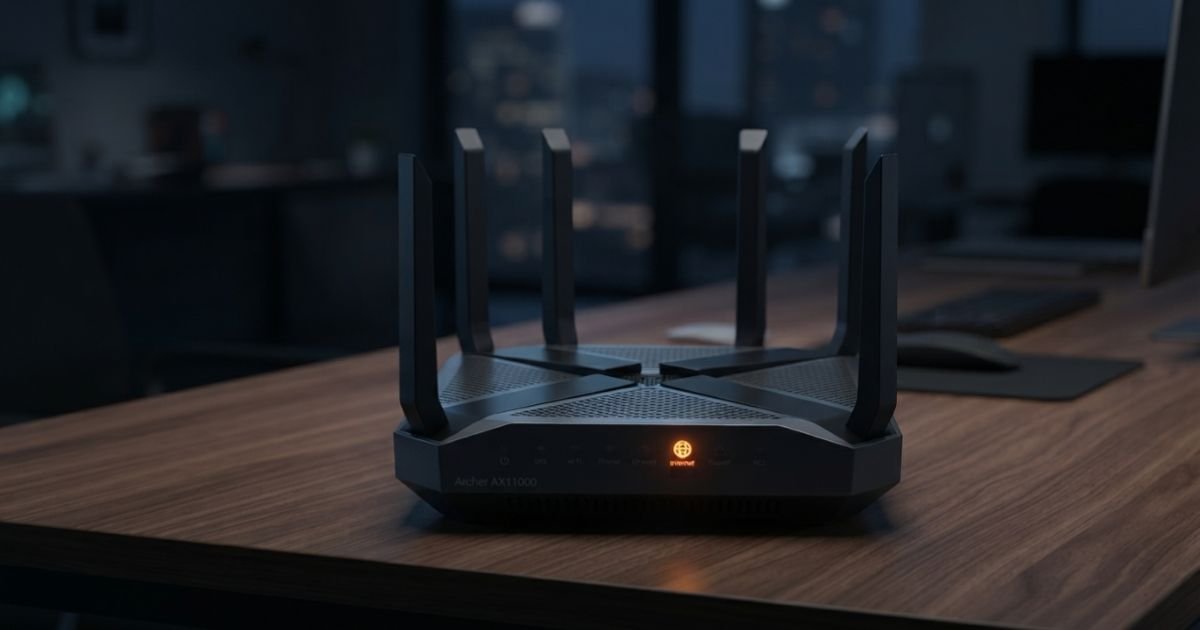
Before you go hitting the reset button like a madman, look at the front panel. TP-Link routers are actually pretty chatty if you know how to read them. On most Archer series routers, a solid green “Internet” icon (the little globe) means you’re golden. But if you see a tp-link router orange light, it means the hardware is fine, but it can’t “see” the internet coming from your modem.
If you’re using the tp-link deco mesh system, that light will be a pulsing red. This usually happens because the WAN Port on the back of the router isn’t getting a valid IP address. I’ve seen this happen a hundred times after a Florida thunderstorm or a random power flicker in the neighborhood. First, check the physical stuff. Is the Ethernet cable from your modem plugged into the blue WAN port on the TP-Link? Give it a firm push until it clicks. I once spent forty minutes troubleshooting a “dead” router only to find my cat had partially chewed through the Cat6 cable behind the entertainment center.
Don’t mistake a modem failure for a router failure. If the lights on your Comcast Xfinity or Cox modem are also blinking or out of whack, the problem is upstream. You can’t fix what the ISP hasn’t delivered.
Step-by-Step Recovery: The Power Cycle Method
The “turn it off and back on” trope is a cliché for a reason—it works. But with TP-Link gear and US-based cable providers, there is a very specific sequence you need to follow. If you do it out of order, the DHCP Server in the modem won’t hand over a fresh IP to the router.
- The Cold Shutdown: Unplug the power cables from both your modem and your TP-Link router.
- The Wait: Wait at least 60 seconds. This allows the capacitors to drain and signals the ISP’s head-end that your session has ended.
- Modem First: Plug the modem back in. Wait for the “Online” or “Sync” light to go solid. This can take 2-3 minutes on Spectrum or Mediacom lines.
- Router Second: Once the modem is fully booted, plug in the TP-Link.
If you’ve experienced a tp link router no internet after power outage, this sequence is non-negotiable. The modem needs to be ready to “talk” the second the router asks for an address. Some folks swear by the 30-30-30 reset rule (hold reset for 30s, unplug for 30s while holding, plug back in for 30s while holding), but honestly, for a simple connection drop, a sequenced reboot is usually enough.

Accessing the Admin Panel (tplinkwifi.net)
If the lights are green but you still can’t browse, or if the orange light persists, we need to look under the hood. You can do this via the Tether App on your iPhone or Android, which is surprisingly robust, or by going to tplinkwifi.net on a laptop connected via Ethernet.
If tplinkwifi.net not opening, don’t panic. Sometimes the DNS redirect fails. Try typing the gateway IP directly into your browser: 192.168.0.1 or 192.168.1.1.
How to login to tp link router:
- Default Username/Password: If you haven’t changed it, it’s often
admin/admin. Newer models force you to create a custom password during the first setup. - The Dashboard: Once inside, look at the “Internet” or “Network Map” tab. If the IP Address shows
0.0.0.0, the router is screaming for help. It’s trying to connect but the ISP is saying “No.”
Advanced Configuration: WAN and ISP Settings
This is where things get “techy,” but stay with me. US ISPs like AT&T Fiber and Xfinity use different authentication methods. If you have a modem-router combo from your ISP (those bulky towers they charge you $15/month for), your TP-Link might be suffering from a “Double NAT” or a Subnet Mask conflict.
MAC Address Cloning
This is the “secret sauce” for Xfinity users. Some ISPs “lock” the internet connection to the hardware ID (MAC Address) of the first device they saw. If you just swapped an old router for a new TP-Link Archer, the ISP might be rejecting the new device. Go to Advanced > Network > Internet and look for MAC Address Clone. Choose “Use Current Computer MAC Address” and hit save. This tricks the ISP into thinking nothing has changed. This fix is a lifesaver for tp link router mac address clone xfinity searches.
Dynamic IP vs. PPPoE
Most US cable providers use Dynamic IP. However, if you’re on an older DSL line or certain fiber providers (like some CenturyLink areas), you might need PPPoE settings, which require a username and password from the ISP. Ensure your “Internet Connection Type” matches what your provider requires.
Changing DNS Servers
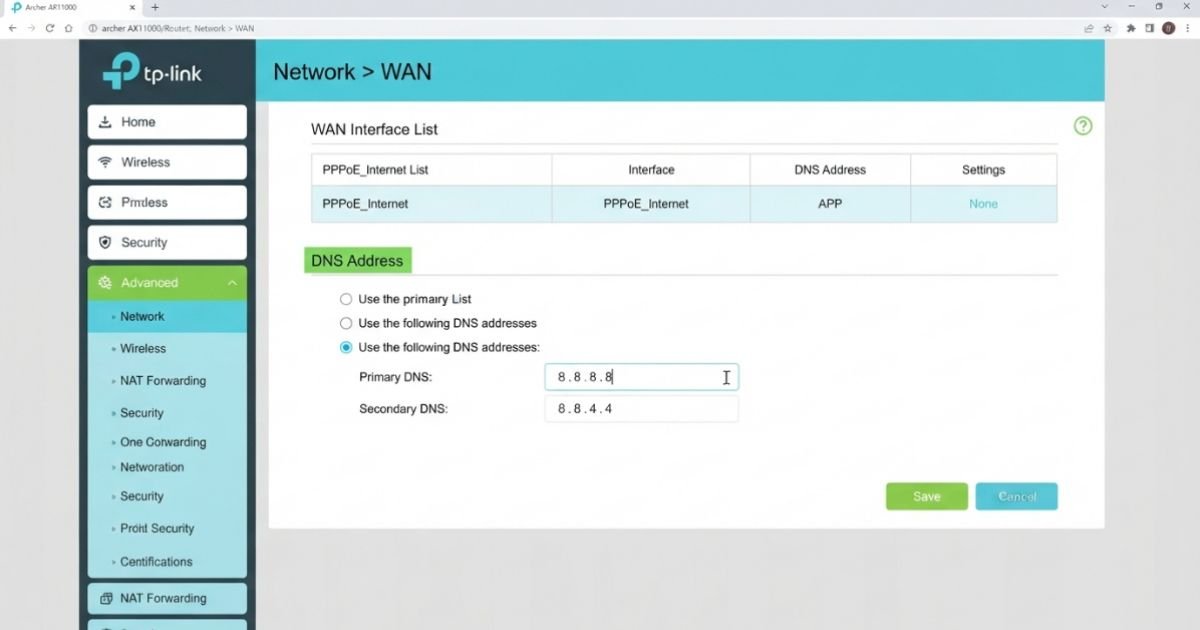
Sometimes the internet is “on,” but your ISP’s DNS Server is down. This makes it feel like the internet is dead because your computer can’t translate “google.com” into an IP address. I always recommend switching to US-based public DNS for better latency:
- Primary: 8.8.8.8 (Google)
- Secondary: 1.1.1.1 (Cloudflare) You can find this under the Advanced > Network > DHCP Server settings or the Internet settings on your TP-Link.
Hands-on Tips & Real-world Scenarios
I’ve seen some weird stuff in the field. One client complained that their tp-link deco red light fix only worked until dinner time. It turned out their ancient microwave was leaking so much interference that it was knocking the 2.4GHz backhaul offline.
Scenario: Internet works on LAN but not on Wi-Fi If your PC plugged directly into the router works, but your phone doesn’t, it’s a wireless radio issue. Check if you have “Smart Connect” enabled. Sometimes, TP-Link routers struggle to hand off devices between 2.4GHz and 5GHz. Try disabling it and giving the bands different names (e.g., “Home_Wifi_2G” and “Home_Wifi_5G”).
Expert Insight:
“If you’re using AT&T Fiber, you can’t truly put their gateway into Bridge Mode. You have to use ‘IP Passthrough.’ If you don’t set this up correctly, your TP-Link router will constantly fight the AT&T box for control, leading to frequent drops and that annoying orange light.”
Also, don’t overlook a Firmware Update. I know, it’s a chore, but TP-Link frequently releases patches for “Improved ISP Compatibility.” I’ve seen Archer AX series routers stabilize significantly after a simple update via the Tether App.
The Nuclear Option: Factory Reset & Re-setup
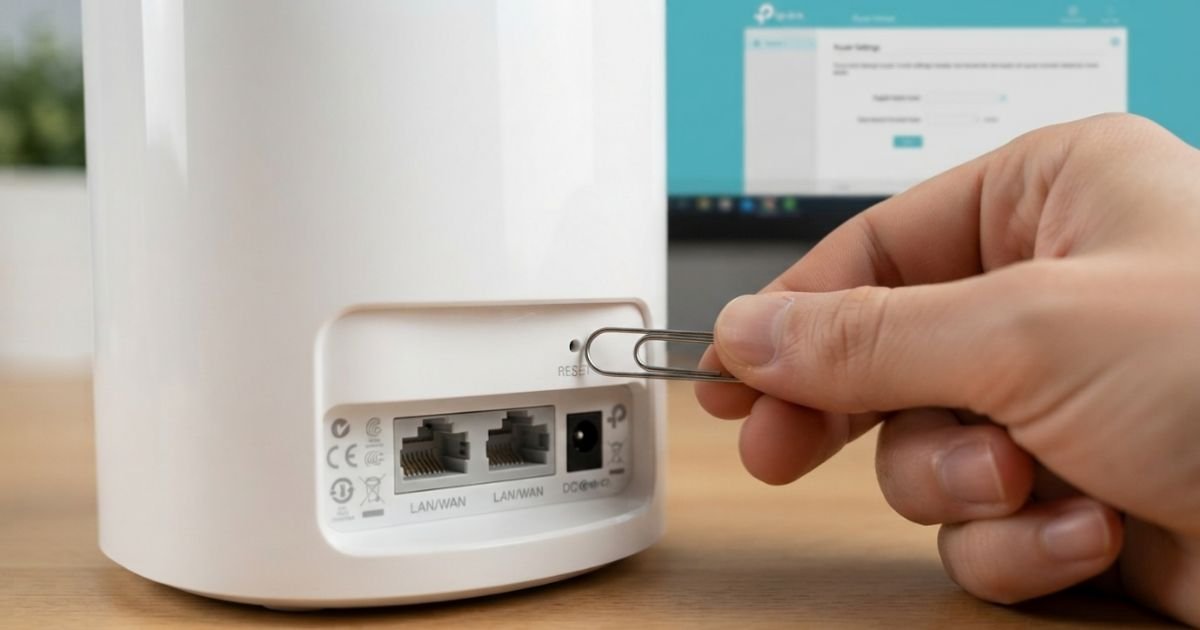
If you’ve tried everything and that orange light is still mocking you, it’s time to reset tp link router to factory settings. This wipes everything—your Wi-Fi name, your passwords, your custom port forwarding.
- Find the tiny “Reset” hole on the back.
- Use a paperclip to press and hold it for about 10 seconds while the router is powered on.
- The lights will flash, and the router will reboot.
Now, start from scratch using the Tether App. It’s much more streamlined for modern US setups. The app will walk you through the handshake with your modem step-by-step. If it fails here, and a direct connection from your laptop to the modem also doesn’t work, then it’s time to call the ISP and tell them there’s a line issue in your neighborhood.
Real-Time FAQs
Q: Why is my TP-Link router orange even after a reset? A: This usually means the router isn’t getting an IP address from the modem. Check the Ethernet cable between the modem and the router’s WAN port. If the cable is good, you may need to power cycle the modem specifically to clear its MAC table.
Q: Can I use my TP-Link router with a combined Modem/Router from Xfinity? A: Yes, but you should put the Xfinity “Gateway” into Bridge Mode. If you don’t, you’ll have two routers fighting over who directs traffic, which causes “Double NAT” and can break online gaming or VPNs for work.
Q: My TP-Link Deco is pulsing red. Does that mean it’s broken? A: Not necessarily. A pulsing red light on a Deco unit means it has lost its connection to the main Deco or the internet. Try moving the satellite node closer to the main one, or check the main Deco’s connection to the modem.
Q: Why can’t I access tplinkwifi.net even when connected to the Wi-Fi? A: Your device might be using a “Private DNS” or “MAC Randomization” feature (common on newer iPhones) that interferes with the local redirect. Try using the IP address 192.168.0.1 or turn off your cellular data while trying to connect to the admin page.
Q: Will a firmware update delete my settings? A: Generally, no. Modern TP-Link firmware updates are designed to keep your configurations intact. However, it is always a “pro move” to go to System Tools > Backup & Restore and save a config file before updating, just in case.
The bottom line? Most TP-Link connection issues are just “handshake” problems. Be patient with the power cycles, don’t be afraid of the admin panel, and always double-check those pesky Ethernet cables. You’ll be back to streaming and scrolling in no time.