How to Change WiFi Channel on Router to Fix Slow Speed.Last Tuesday, I was right in the middle of a high-stakes Zoom presentation from my Brooklyn apartment when the dreaded “Your connection is unstable” notification popped up. I pay for Spectrum’s gigabit plan, and I was sitting barely ten feet from my router. My video turned into a pixelated mess, and my audio sounded like I was underwater.
If you live in a high-density area—whether it’s a NYC walk-up or a suburban neighborhood where houses are practically touching—you’ve likely faced this. Your hardware isn’t broken; you’re just stuck in a massive, invisible traffic jam. Most people think their ISP is throttling them, but more often than not, it’s just wireless congestion. We’re going to fix that today by diving into your router’s backend to find a “clear lane” for your data.
The Science of WiFi Congestion: Why Your Internet is Lagging
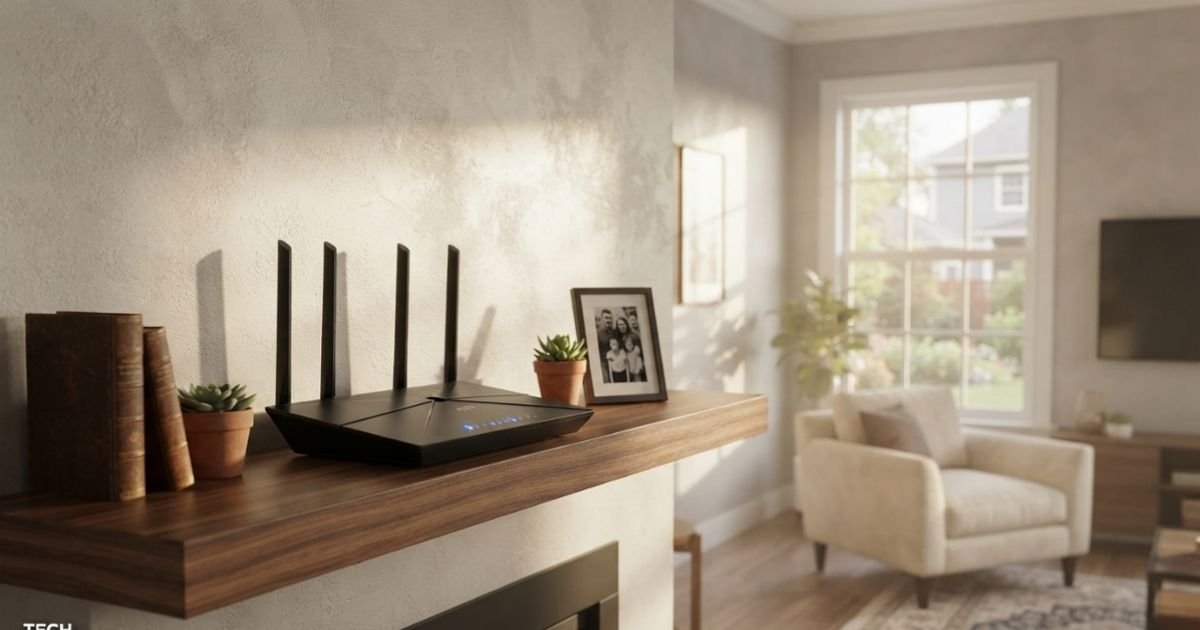
Think of your WiFi as a walkie-talkie system. If everyone in your apartment building is shouting on the same frequency, nobody can hear anything. This is what we call Frequency Interference. In the United States, the 2.4GHz band is the most crowded because it only has 11 available channels, and only three of them—1, 6, and 11—are non-overlapping.
When your neighbor’s router is on Channel 2 and yours is on Channel 1, they “bleed” into each other. This causes Channel Overlap, leading to packet loss and high latency. While the newer 5GHz band offers more room, it introduces its own quirks. For instance, the FCC (Federal Communications Commission) has strict regulations regarding DFS (Dynamic Frequency Selection) channels. These are channels shared with radar systems (like weather radar or military hardware). If your router detects a radar pulse, it’s legally required to jump to a different channel immediately, which can cause a sudden 60-second drop in your connection—the absolute worst for gaming or streaming.
In a detached suburban home in Texas, you might not care as much. But in a high-density “tech hub” environment, manual channel selection isn’t just a “pro tip”; it’s a survival tactic for your sanity.
Finding Your ‘Secret’ Fast Lane: Tools and Scanning Apps
I’ve learned the hard way that guessing doesn’t work. I once spent two hours manually cycling through channels only to find out a neighbor’s old-school 2.4GHz baby monitor was nuking the entire lower spectrum.
To see what’s actually happening in the airwaves, you need a WiFi analyzer for Windows 11 free or a mobile equivalent.

- For Windows: Use WiFi Analyzer from the Microsoft Store or NetSpot.
- For Android: WiFi Analyzer (the one by farproc) is a classic.
- For macOS: Hold the ‘Option’ key and click the WiFi icon in your top menu bar, then select ‘Open Wireless Diagnostics.’ Go to Window -> Scan.
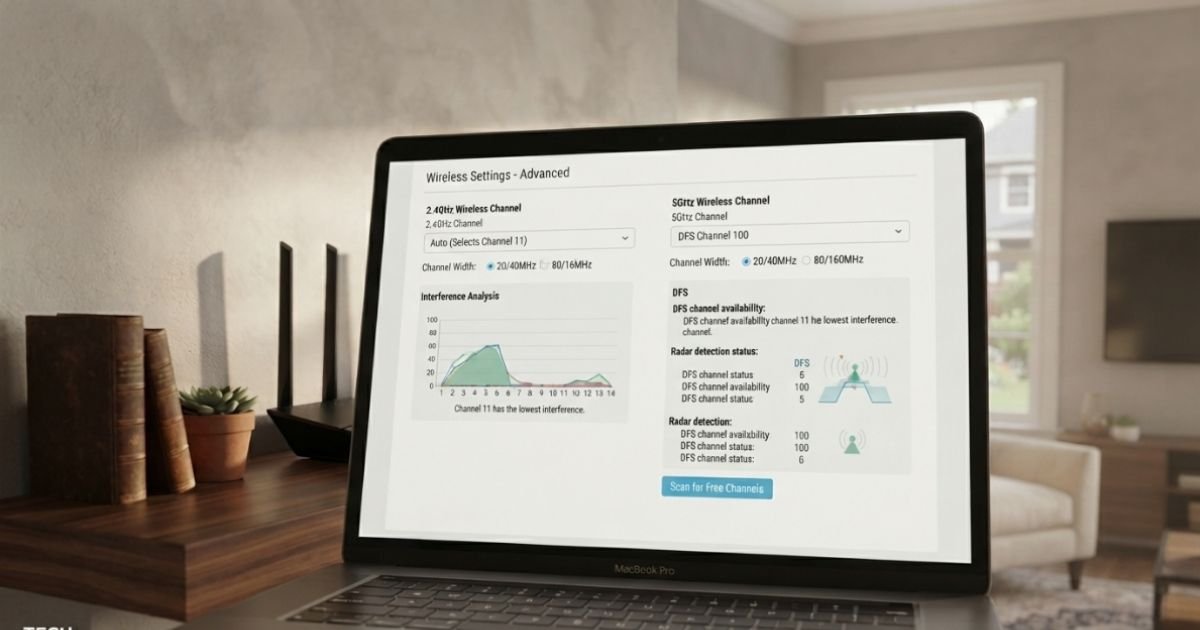
When you run these scans, look for the Signal-to-Noise Ratio (SNR). You want a high signal and low noise. Look at the graphs. Are there ten different SSIDs stacked on top of Channel 6? That’s your sign to move to 1 or 11. If you’re on the 5GHz band, look for gaps in the higher channel numbers (like 149-161), which are often less congested in residential areas.
Step-by-Step: Accessing Your Router’s Backend in 2024
To change your settings, you need to “talk” to your router. Most hardware from big-box retailers like Best Buy—think Netgear Nighthawk, Linksys, or TP-Link Archer—uses a web interface.
- Find your Gateway IP Address: On Windows, open the Command Prompt and type
ipconfig. Look for the “Default Gateway.” It’s usually 192.168.1.1 or 10.0.0.1. On a Mac, go to System Settings > Network > Wi-Fi > Details > TCP/IP. - Login: Open a browser (Chrome, Safari, Edge) and type that IP into the address bar.
- Credentials: If you’ve never changed it, the login is often
admin/passwordor printed on a sticker on the bottom of the unit. Pro Tip: If you’re still using the default password, change it now to enable better security, especially if you’re using WPA3 encryption.
Changing Channels on Major US ISP Routers (Xfinity, Spectrum, AT&T)
If you’re using the equipment your ISP gave you, the process might be slightly different. Most modern “Smart” gateways try to lock you out of manual control because they want their “AI” to handle it.
- Xfinity (Comcast): You often can’t change channels via the 10.0.0.1 gateway anymore. You have to use the Xfinity app. Navigate to ‘WiFi’ > ‘View WiFi equipment’ > ‘Advanced Settings’. However, be warned: if you have xFi Pods, the “Auto” setting is forced.
- Spectrum (Charter): Most newer Spectrum Wi-Fi 6 routers are fully automated. If you have an older model, you can still hit the web interface. If you’re wondering how to change wifi channel on spectrum router 5ghz, and the option is greyed out, you might need to call tech support and ask them to “unprovision” the managed WiFi optimization.
- AT&T Fiber: Use the Smart Home Manager app or navigate to 192.168.1.254. AT&T is great about letting you see the “Find Best Channel” tool, which actually does a decent job of scanning local interference.
2.4GHz vs. 5GHz vs. 6GHz: Which Band to Optimize?
If you’re asking, “Why is my wifi so slow all of a sudden 2026?”, check which band you’re on.
- 2.4GHz Band: Great for range (it goes through walls), but it’s slow. Use 20MHz channel width here. Setting it to 40MHz in a crowded area actually makes things worse because you’re more likely to hit interference.
- 5GHz Band: Much faster, utilizes Orthogonal Frequency Division Multiplexing (OFDM) for better efficiency. For the best speed, set your channel width to 80MHz, but if the connection drops frequently, scale back to 40MHz.
- WiFi 6E (6GHz): This is the new “empty highway.” If you have a brand-new iPhone 15 Pro or a high-end laptop and a 6E router, move to the 6GHz band. There is almost zero interference here… for now.
Expert Insight: If you’re a gamer, does changing wifi channel help gaming lag? Absolutely. By moving to a non-DFS 5GHz channel (like 149), you reduce the chance of “ping spikes” caused by the router hopping channels to avoid interference. Also, ensure MIMO (Multiple-Input Multiple-Output) is enabled in your settings to allow the router to talk to multiple devices simultaneously.
Common Pitfalls: Why ‘Auto’ Mode Often Fails
Router manufacturers love the “Auto” setting. In theory, the router scans the area and picks the best spot. In practice, routers are often “lazy.” They only scan when they reboot. If your neighbor turns on a massive signal-boosting extender at 6 PM, your router won’t know unless you restart it or have it set to a static, manual channel.
I’ve seen routers “thrash”—switching channels every 10 minutes. Every time it switches, your devices disconnect for a split second. If you’re on a Teams call, that’s a dropped connection. Manual is always better for stability. Search “best wifi channel for 2.4 ghz apartment reddit” and you’ll see a consensus: pick 1, 6, or 11 and stick with it.
Summary and Next Steps for a Lag-Free Home
Once you’ve picked a channel and hit “Apply,” your WiFi will restart. Don’t panic; it’ll be back in about 30 seconds.
Your Post-Optimization Checklist:
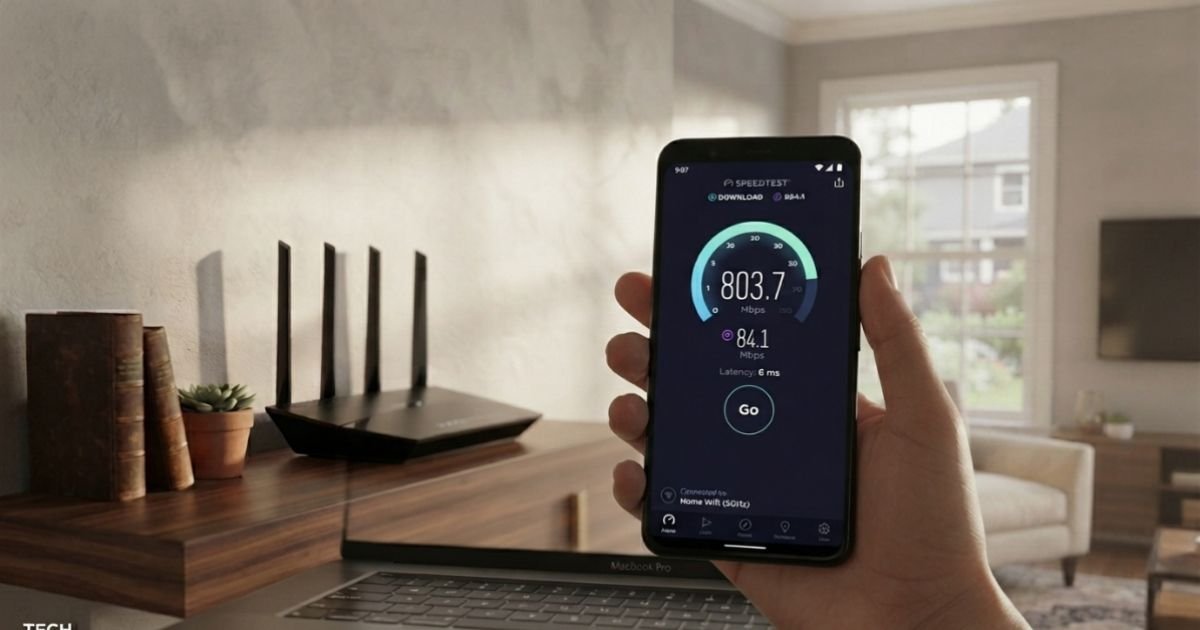
- Run a Speed Test: Use Ookla or Fast.com. Compare it to your “before” speeds.
- Check the “Dead Zones”: Walk to the furthest corner of your house. Does the 5GHz signal still hold?
- Update Firmware: While you’re in the router settings, check for an update. Security patches in 2024 are critical.
- Confirm WPA3: If your devices support it, switch from WPA2 to WPA3 for better handshake security.
Changing your WiFi channel is the single most effective “free” upgrade you can give your home network. You aren’t paying for more speed; you’re just finally getting the speed you already pay for.
Frequently Asked Questions
1. What are the non overlapping wifi channels 5ghz? In the US, the 5GHz spectrum is much broader. Non-overlapping channels include 36, 40, 44, 48 (UNII-1) and 149, 153, 157, 161 (UNII-3). There are also DFS channels in the middle (52-144), but use those with caution as they can be interrupted by radar.
2. How to access router settings 192.168.1.1 if it’s not working? If 192.168.1.1 doesn’t load, try 192.168.0.1 or 10.0.0.1 (common for Xfinity/Cox). If you’re on a mesh system like Eero or Google Nest, you likely cannot use a web browser and must use their specific mobile app to find any available advanced settings.
3. Will changing my WiFi channel affect my smart home devices? Most smart plugs and bulbs use the 2.4GHz band. If you change from channel 1 to channel 6, they should follow automatically. However, some older, cheaper 2.4GHz devices can be finicky. If a device goes offline, just power-cycle the smart device (unplug and replug), and it will reconnect to the new channel.
4. Why is my 5GHz WiFi slower than 2.4GHz in my bedroom? Frequency physics! 5GHz waves are shorter and struggle to penetrate walls and furniture. While 5GHz is faster near the router, 2.4GHz has better “penetration power.” If you’re far away, the 2.4GHz band might actually provide a more stable (though slower) experience than a struggling 5GHz signal.
5. How often should I scan for new channels? If you live in a crowded city, I’d recommend a quick scan once every few months. People move in and out, buy new routers, or ISPs push updates that reset neighbor devices to “Auto,” potentially creating new interference patterns in your living room.