How to Fix Router Dropping Connection Every Hour.It’s 2:14 PM. You’re in the middle of a high-stakes meeting or a clutch round of Apex Legends. Suddenly, the dreaded “No Internet” icon pops up. You wait thirty seconds, and like magic, it’s back. You check the clock. 3:14 PM. It happens again. Then 4:14 PM.
If this sounds familiar, you aren’t losing your mind. You’re dealing with a “clockwork disconnect.” In my ten years as a field technician troubleshooting home networks across the US, I’ve seen this exact scenario more times than I can count. Whether you’re using a rented Xfinity Gateway or a high-end Asus gaming router, a rhythmic disconnect every 60 minutes points to a specific set of configuration loops rather than a random hardware failure. Let’s get your connection stable again.

The ‘Clockwork’ Connection Drop: Identifying the Symptoms
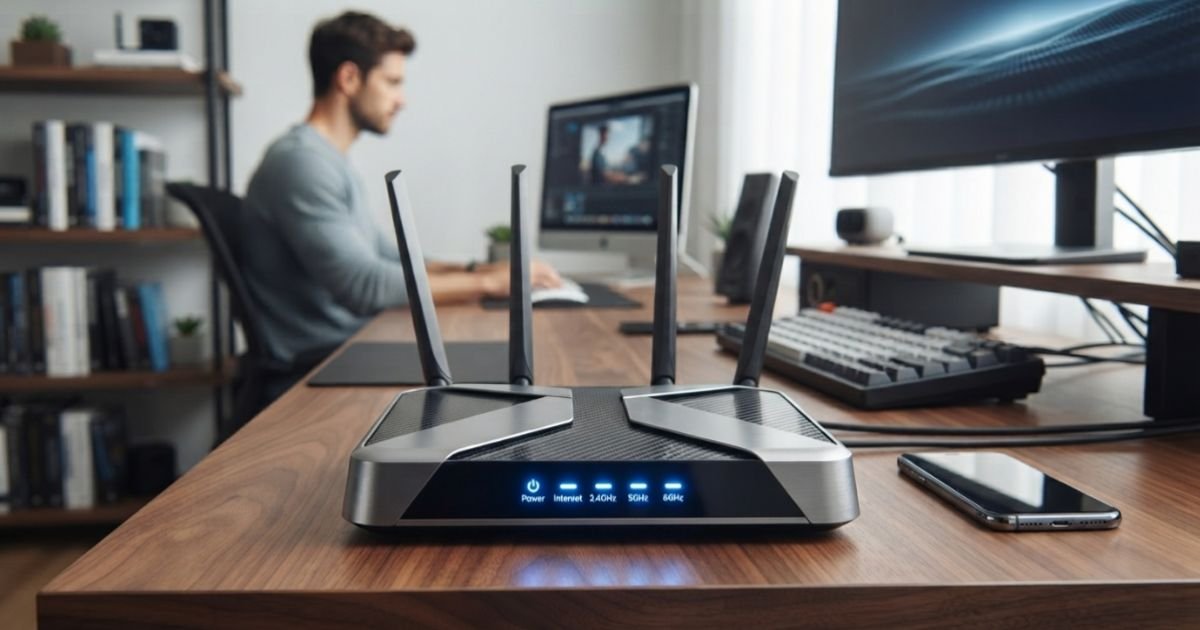
When a customer tells me their spectrum internet keeps disconnecting every hour, the first thing I do is check my watch. Random drops are usually physical (a loose coax cable or a bad splitter). Scheduled drops—the ones that happen at almost exactly the same minute every hour—are almost always “logical” or “thermal.”
Why does the timing matter? Because computers and routers are obsessed with schedules. There are processes that run every 60 minutes: IP address renewals, firmware heartbeat checks, and even smart-home polling. I once spent three days diagnosing a “phantom drop” for a client in Denver. It turned out to be a cheap smart-light hub from a big-box store that was flooding the Network Topology with a massive burst of requests every hour, effectively DDOSing the owner’s own router.
The Primary Culprit: DHCP Lease Time Expiration
If you are wondering fix wifi dropping every 60 minutes, the very first place you should look is your DHCP Lease Time.
Dynamic Host Configuration Protocol (DHCP) is the system your router uses to assign IP addresses to your devices (your iPhone, your laptop, your smart TV). These addresses aren’t permanent; they are “leased.” Usually, a lease lasts 24 hours or even a week. However, some ISP-provided gateways (looking at you, older Cox and AT&T models) or misconfigured TP-Link routers might have the lease time set to 3600 seconds—exactly one hour.
Here’s the kicker: A device is supposed to renew its lease at the 50% mark (the T1 timer). If it fails to do so—perhaps due to a MAC Address Filtering conflict or a software bug—it will keep trying until the lease expires. At the 60-minute mark, the lease ends, the IP is dropped, and your internet drops every hour for 30 seconds while the device frantically requests a new one.

Hands-on Fix:
- Log into your router’s admin panel (usually
192.168.1.1or192.168.0.1). - Navigate to LAN Settings or DHCP Server.
- Look for “Lease Time” or “Address Lease Time.”
- If it’s set to 60 or 3600, change it to 86400 (24 hours).
- If you’re wondering how to change dhcp lease time on netgear router, it’s under the “Advanced” tab > “Setup” > “LAN Setup.”
Heat Management: The Thermal Reset Cycle
We Americans love tucking our tech away. I’ve found routers stuffed into unventilated oak cabinets, sandwiched between a hot Xbox Series X and a cable box. This is a recipe for a thermal reboot.
Electronics have a “thermal threshold.” When your router’s internal CPU hits a certain temperature, it triggers a protective “soft reboot” to prevent the chip from melting. This can feel rhythmic because it takes roughly the same amount of time (about an hour of heavy use) for the heat to build up to the breaking point. Once it reboots and cools down slightly, the cycle starts over.
Pro Tip: Feel the top of your router. If it’s hot enough to keep a cup of coffee warm, it’s too hot. Move it to an open area and ensure it’s vertical if it has a stand. This simple move often fixes TP Link router dropping internet every hour without a single software change.
Power and Electrical Interference in US Households
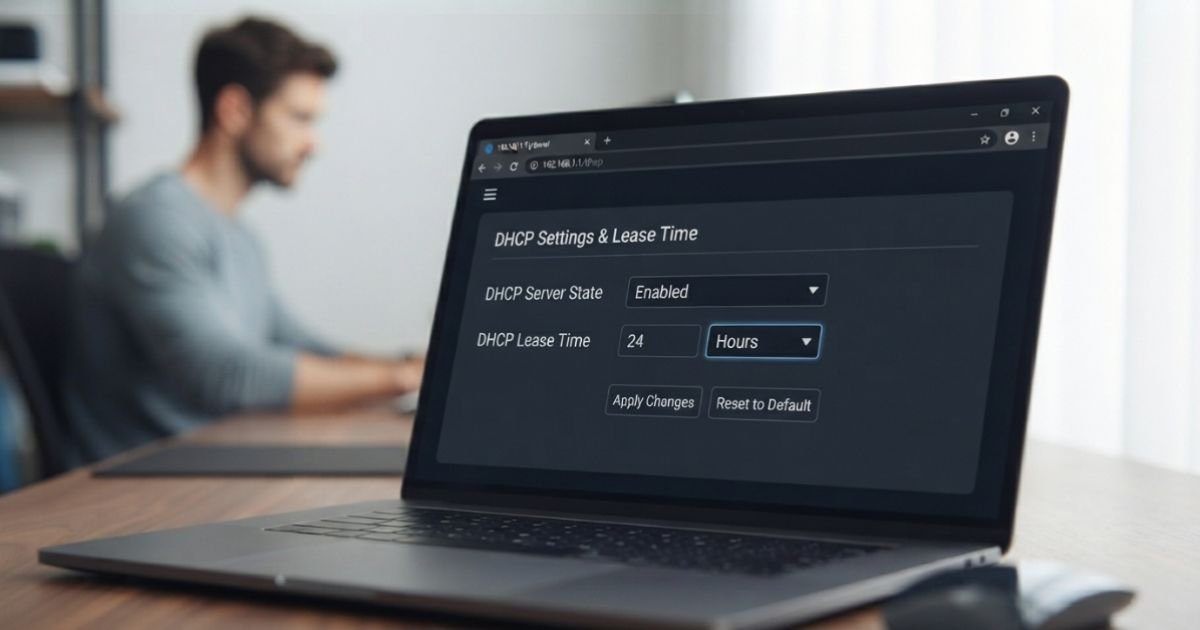
This is a niche issue that most “top 10” tech blogs miss. In many older US homes (especially in East Coast cities like Boston or Philly), the electrical wiring can be… adventurous.
If your router is on the same circuit as a high-draw appliance like a refrigerator, a portable AC unit, or a space heater, you might experience “voltage sags.” When the compressor kicks on (which often happens on a fairly regular cycle), the voltage at the outlet can dip. While your lights might just flicker, your router’s power brick might not be able to compensate, causing the WAN link to “hiccup.”

I once solved a case where a client’s windows 10 wifi drops every hour because her laser printer performed a self-cleaning/warming cycle every 60 minutes on the dot, drawing just enough power to make the router lose its “handshake” with the modem.
Firmware and Software Conflicts
Is your router stuck in an update loop? Modern “Gateways” from Xfinity and Spectrum are designed to auto-update. Sometimes, a Firmware Update fails to “seat” properly. The router attempts to pull the update, fails, and schedules a retry for exactly one hour later. During this retry, the wireless radios often reset.
If you suspect this:
- Check your router’s logs. Look for keywords like “Image Upgrade Failed” or “SW download init.”
- If you use a personal router, consider a manual Power Cycle (the 30-30-30 reset): Hold the reset button for 30 seconds while on, 30 seconds with the power cord pulled, and 30 seconds after plugging it back in. It’s the “nuclear option,” but it clears out corrupted cache files that survive a standard reboot.
Signal-to-Noise Ratio (SNR) and the “Leaky” Node
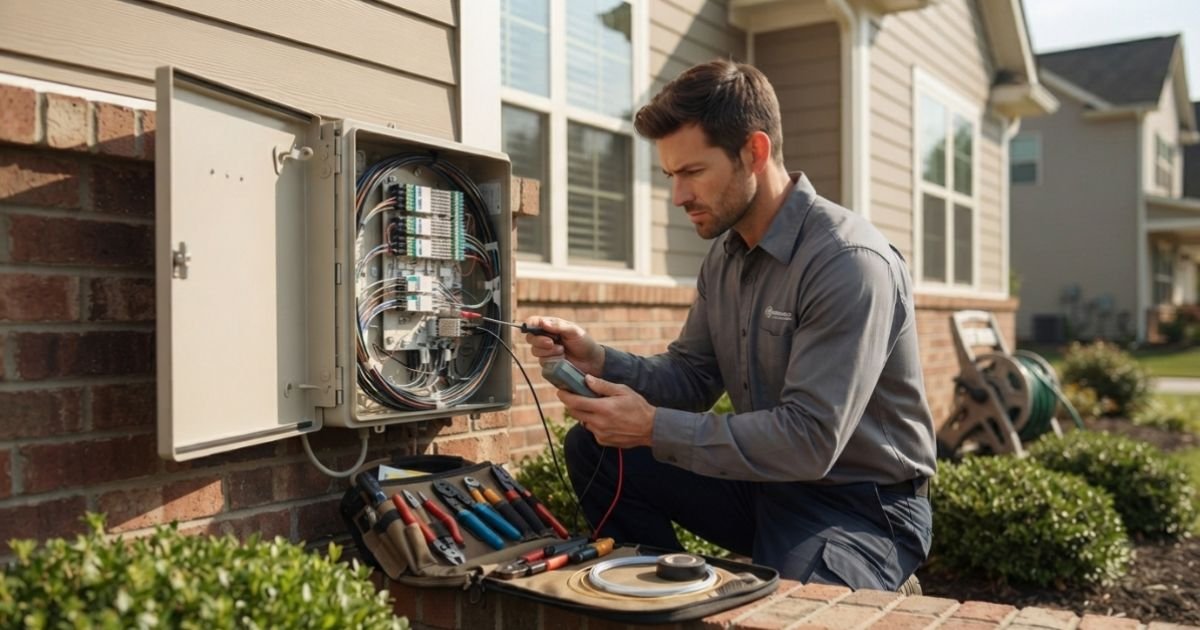
Sometimes the problem isn’t inside your house. If you’ve tried the DHCP fix and moved your router, but your xfinity internet drop every hour continues, the issue is likely at the “drop”—the line coming from the street to your house.
Cable internet uses frequencies. If there is “noise” on the line (interference from a neighbor’s bad equipment or a cracked shielding on a pole), your Signal-to-Noise Ratio will plummet. ISPs often run automated line tests or “heartbeats” to their nodes. If your connection is marginal, it might pass for 59 minutes, but fail when the ISP’s headend does its hourly sweep.
If you see Packet Loss spiking in your router logs every hour, stop troubleshooting your gear. It’s time to call Spectrum or Cox and demand a “line tech” (not just a basic installer) to check the SNR levels at your tap.
Expert Insight: If you’re using a separate modem and router, try putting your modem into Modem-Router Bridge Mode. This disables the routing functions of the modem, letting your personal router handle all the heavy lifting. This prevents “Double NAT” issues, which are a common cause of rhythmic connection drops in US households using third-party mesh systems like Eero or Orbi.
The Smart Home “Broadcast Storm” (Case Study)
I mentioned this briefly, but it’s worth a deep dive for the “Information Gain.” I recently dealt with a client whose internet drops every hour for 30 seconds. We checked the DHCP, changed the cables, and even swapped the router. No luck.
I brought in a packet sniffer (Wireshark). We discovered that a generic “smart” refrigerator was trying to upload diagnostic data to a defunct server every hour. When the server didn’t respond, the fridge would spam “ARP requests” to the entire network. This created a Radio Frequency Interference event and overwhelmed the router’s processor.
The lesson? If your drops are hourly, try turning off your smart home hubs one by one. You might find a single $20 device is killing your $300 network.
Real-Time FAQs: Solving Your Hourly Disconnects
Q: Why does my Xfinity internet drop every hour specifically at night?
A: This is often due to the “Daily Maintenance Window” or temperature-related contraction in the copper/coax lines. In the US, Xfinity often pushes configuration updates between 1 AM and 4 AM. However, if it’s exactly every 60 minutes, it’s more likely a DHCP lease issue in your XB6 or XB7 Gateway settings. Check your “Lease Time” via the Xfinity app or the 10.0.0.1 admin portal.
Q: Can a Windows 10/11 setting cause the WiFi to drop every hour?
A: Yes. Windows has a “Power Management” feature for network adapters. Sometimes, the OS will “put the card to sleep” to save power, and this can coincide with a system-timer check. Go to Device Manager > Network Adapters > [Your Adapter] > Properties > Power Management, and uncheck “Allow the computer to turn off this device to save power.”
Q: Does using a Dual-Band Frequency (2.4GHz and 5GHz) cause hourly drops?
A: Indirectly. If you have “Smart Connect” enabled (where the router chooses the band for you), it might try to “re-steer” your device to a different band every hour based on traffic. If the handoff fails, you drop. Try splitting your SSIDs into two names (e.g., “Home_2G” and “Home_5G”) and see if the drops stop. Remember, in the US, stick to FCC-regulated channels 1, 6, or 11 for 2.4GHz to avoid overlap.
Q: My router is fine, but my Spectrum modem lights flash every hour. What gives?
A: This usually indicates a “T3 or T4 Timeout.” It means the modem lost sync with the ISP’s “headend.” This is almost always a physical line issue—either a bad splitter in your crawlspace or a loose “F-connector” behind your wall plate. Tighten every screw-on cable you can find.
Q: Could a VPN cause rhythmic disconnects?
A: Absolutely. Many VPNs have a “re-keying” feature where they generate a new encryption key every 60 minutes for security. If the re-keying handshake fails, the tunnel collapses and has to restart. Try disabling your VPN for two hours to see if the cycle breaks.
Fixing a router that drops every hour is a process of elimination. Start with the DHCP Lease Time, check the temperature of your gear, and then look at your ISP’s line quality. Usually, the fix is just a few clicks away in a hidden settings menu. Stay connected!