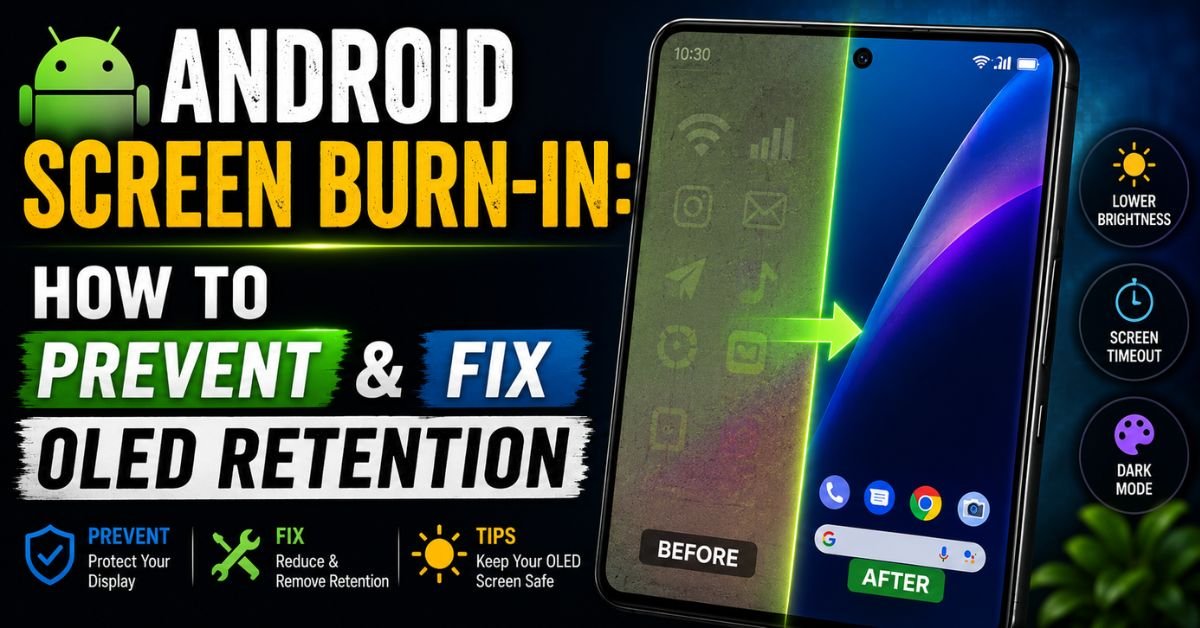
Android Screen Burn-In: How to Prevent & Fix OLED Retention.I still remember the sinking feeling in my chest back in 2018 when I pulled up a solid white webpage on my Galaxy S9 and saw it: a faint, ghostly outline of the Waze search bar and the “speedometer” circle etched into the bottom corner. I was a “power user,” or so I thought, which apparently meant I was also a power-abuser of my display. That permanent shadow is what we call OLED burn-in, and if you’ve spent $1,000 on a modern flagship like a Pixel 8 Pro or an S24 Ultra, it’s the monster under the bed you really should be worried about.
We’ve come a long way since the early days of “ghosting,” but the physics of organic light-emitting diodes (OLED) haven’t changed. These screens are beautiful, vibrant, and possess infinite contrast, but they are also technically “dying” from the moment you first peel off the plastic.

The Science of the Screen: Why Burn-In Happens
To understand how to stop burn-in, you have to understand what’s actually happening under the glass. Unlike a traditional LCD, which uses a single backlight to shine through a liquid crystal layer, an OLED (and its cousin, AMOLED) panel is made up of millions of tiny, individual pixels. Each pixel creates its own light.
The Sub-Pixel Problem
Every pixel on your Android phone is composed of sub-pixels: Red, Green, and Blue. Here’s the kicker: they aren’t created equal. Blue sub-pixels have a significantly lower luminous efficiency than red or green ones. To match the brightness of the other two, blue sub-pixels require more current. More current equals more heat and faster phosphor degradation.
When you leave a static image on your screen—like the white icons in your Status Bar—those specific sub-pixels are working harder and wearing out faster than the pixels around them. Burn-in isn’t something “added” to your screen; it’s the uneven “wearing out” of certain pixels.
Burn-In vs. Image Retention
I often get emails from panicked readers who see a “ghost” of an app after a long session. Before you freak out, check if it’s just Image Retention. This is temporary. It’s like the “afterimage” you see when you look at a bright light and then close your eyes. OLED burn-in is permanent hardware damage. If the ghost is still there after your phone has been off for an hour or after watching a full-screen video, you’re likely looking at permanent degradation.
The Heat Factor
Nit brightness is the measurement of how much light your screen pumps out. Modern phones can hit a staggering 2,500 nits. While that’s great for seeing your screen in the Sahara desert, it’s a death sentence for your pixels if sustained. When you combine high brightness with external heat (like a car dashboard), you bypass your phone’s internal thermal throttling safeguards, accelerating the chemical breakdown of the organic material.
Proactive Prevention: Daily Habits for Display Longevity
Preventing burn-in isn’t about being paranoid; it’s about making small, invisible adjustments to how your Android device operates. After five years of testing every flagship under the sun, these are the settings I toggle the moment I take a phone out of the box.

The Dark Mode Mandate
This is the single most effective thing you can do. Dark Mode doesn’t just save battery; it literally rests your pixels. On an OLED screen, “black” means the pixel is completely turned off. If a pixel is off, it isn’t wearing out. I use system-wide dark mode and specifically ensure that apps like Reddit, X (Twitter), and my email client are set to “True Black” or “OLED Dark” rather than dark gray.
Taming the “Static Killers”
The two biggest culprits for burn-in are the Status Bar (top) and the Navigation Bar (bottom). They are almost always there, and they are usually high-contrast (white icons on a black or colored background).
- Gesture Navigation: Switch from the three-button layout to gesture navigation. This removes those static “Home,” “Back,” and “Recents” icons.
- Auto-Hide Status Bar: If you use a third-party launcher like Nova Launcher, you can set the status bar to hide on the home screen.
- Keyboard Themes: If you text a lot, your keyboard is a static element. I use Gboard with a dark theme and no “key borders” to minimize high-contrast edges.
Refresh Rate and Brightness
While a high Refresh Rate (120Hz) doesn’t directly cause burn-in, it does increase power draw and heat. However, Adaptive Brightness is your best friend. It uses the ambient light sensor to ensure your screen isn’t blasting at 100% when you’re lying in bed at night.
Pro Tip: The 50% Rule Try to keep your manual brightness slider at or below 50% for indoor use. Most modern panels are plenty bright at this level. If you find yourself constantly needing 80% or more, it might be time to check your “Eye Comfort Shield” or “Blue Light Filter” settings, as these can sometimes make the screen feel “dimmer” than it actually is, prompting you to crank the brightness.
High-Risk Scenarios: Navigation, Gaming, and Social Media
We all use our phones differently, but three specific activities are “burn-in factories.”
The GPS Trap
I learned this the hard way on a road trip from NYC to Nashville. Six hours of Google Maps with the screen at max brightness in a windshield mount. The result? A permanent “Search here” bar at the top of my display.
- The Fix: Use a car vent mount instead of a windshield mount (keeps the phone cool). More importantly, use voice prompts and turn the screen off during long stretches of highway. If you must have it on, switch the app to Dark Mode.
The Gamer’s Dilemma
Mobile RPGs and MOBAs (like Genshin Impact or Wild Rift) are notorious for static UI elements. Your health bar, the mini-map, and the skill buttons never move.

- The Fix: Many Android phones (especially Samsung and Asus) have “Game Tools” that include a “Screen Dim” feature. If you’re AFK farming, this dims the screen to the lowest possible level while the game runs. Also, look for an Immersive Mode setting that hides the system UI while playing.
Social Media “Bars”
TikTok and Instagram Reels have static icons on the right side and bottom of the screen. If you spend three hours a day scrolling, those white icons are being burned into the panel. Mix up your content. Don’t stay on one app for four hours straight.
Hands-On Mitigation: What to Do When You Spot a Ghost
If you’ve noticed a faint shadow, don’t panic yet. There are a few things I’ve tried over the years that can help distinguish between retention and permanent damage.
The “Solid Color” Test
Download a “Screen Test” app or simply go to YouTube and search for “Burn-in test colors.” Watch a video that cycles through full-screen Red, Green, Blue, and White.
- If the “ghost” only appears on the Blue screen, your blue sub-pixels are degrading.
- If it’s visible on all colors, the damage is more advanced.
Do “Screen Fixer” Apps Work?
You’ll see apps on the Play Store claiming to “fix” burn-in by flashing bright colors rapidly. I’ve tested these extensively, and here is the truth: they don’t fix the damage. What they actually do is “level out” the rest of the pixels. They intentionally wear down the healthy pixels so they match the worn-out ones, making the burn-in less noticeable. It’s a scorched-earth policy. I don’t recommend it unless your burn-in is so bad the phone is unusable.
Manufacturer Features
Samsung uses a technique called Pixel Shifting. It imperceptibly moves the UI elements (like the clock and battery icon) by a few pixels every few minutes. You won’t see it happening, but it spreads the “wear” over a larger area. Ensure this is never disabled in your developer options.
Common Pitfalls and Misconceptions
Through my years of tinkering, I’ve seen people make the same mistakes over and over.
- The Car Mount Charging Mistake: Charging your phone generates heat. Navigating generates heat. Sunlight generates heat. When you do all three at once, you’re basically “baking” your OLED panel. If you’re using GPS, try to avoid fast-charging at the same time.
- The Lock Screen Myth: Some people think a static lock screen image causes burn-in. While true in theory, most of us only look at our lock screens for seconds. The real danger is “Always On Display” (AOD). If you use AOD, make sure “Auto-brightness” is on for it, so it doesn’t glow like a beacon in a dark room.
- The Blue Light Filter Fallacy: While Blue Light filters are good for your eyes, they don’t necessarily “save” the blue sub-pixels if you just turn up the overall brightness to compensate for the “yellowish” tint.
Frequently Asked Questions
Q: Is OLED burn-in covered under warranty?
A: This is a gray area. Most manufacturers (Samsung, Google, Apple) consider burn-in “normal wear and tear.” However, if it happens within the first few months, I’ve had success arguing that it’s a “defective panel.” If you have a premium protection plan like Samsung Care+, it is usually covered.
Q: Can a software update fix my burn-in?
A: No. Burn-in is a physical, chemical change in the organic material of the screen. No amount of code can “un-burn” a pixel. Software can only prevent future damage or hide existing damage by shifting the UI.
Q: Does Dark Mode really save that much of the screen?
A: Yes. In a “True Black” dark mode, the pixels are literally off. You are effectively giving those pixels a 0% wear rate while you use the app. It is the most powerful tool in your arsenal.
Q: How long does an OLED screen typically last before burn-in?
A: With modern panels (S21 generation and newer), if you keep brightness at 50-60%, you can easily go 3-4 years without any visible burn-in. If you run 100% brightness on static content, you might see “ghosting” in as little as 6 months.
Q: Do screen protectors help prevent burn-in?
A: No. Screen protectors protect against scratches and impacts. They have no effect on the internal degradation of the OLED pixels. In fact, some thick, poor-quality protectors can trap heat, which is actually worse for the screen.
Keeping your Android display pristine is a marathon, not a sprint. By moving away from static UI elements, embracing the dark side (of themes), and being mindful of heat, you can keep that vibrant AMOLED panel looking like it just came out of the box for years to come. Just don’t forget to turn off the screen when you fall asleep to Netflix!










