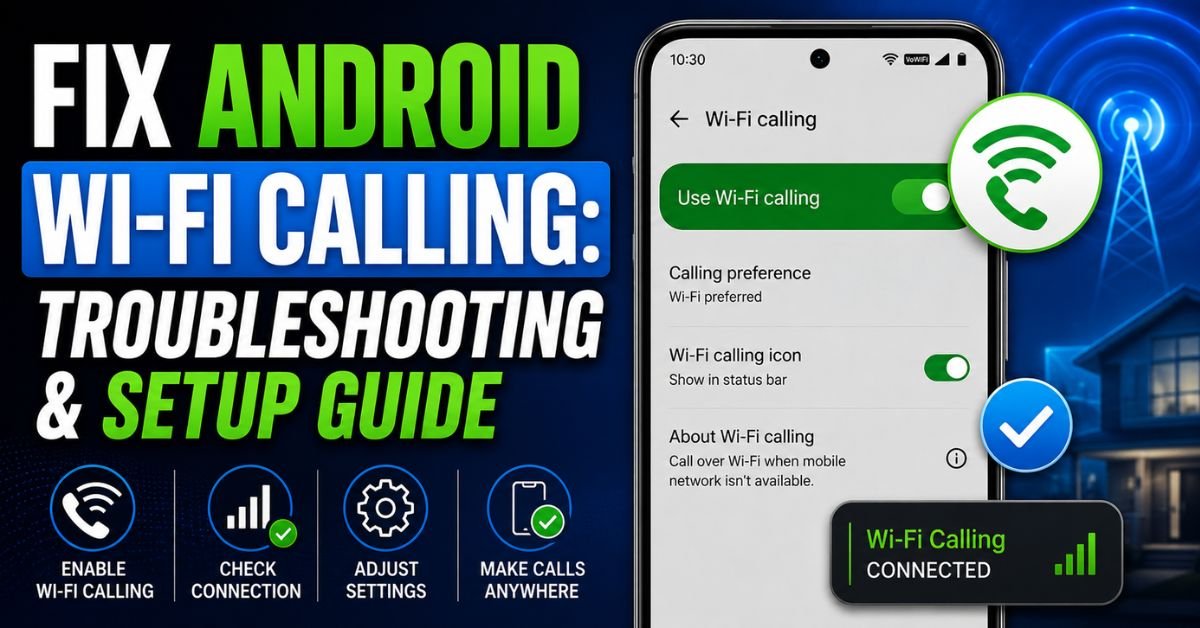
Fix Android Wi-Fi Calling: Troubleshooting & Setup Guide.I’ve spent the last decade elbow-deep in Android system partitions, troubleshooting everything from the early days of Nexus rooting to the modern complexities of Android 14. If there’s one thing that consistently drives my clients (and me) up the wall, it’s Wi-Fi calling. You’re in a basement, or maybe a high-rise with lead-lined glass, and your signal bars are non-existent. You look at your phone, expecting that little Wi-Fi calling icon to save your life, but it’s just not there.
Dead silence. No dial tone.
In my experience, Wi-Fi calling issues aren’t usually a “broken” phone. It’s almost always a breakdown in communication between the IMS (IP Multimedia Subsystem) Registration, your carrier’s provisioning, and your router’s firewall. Let’s get into the weeds and fix this once and for all.
Introduction: The Frustration of Dropped Indoor Calls
Why does Wi-Fi calling fail when you need it most? It’s rarely just a “glitch.” Usually, it’s a conflict of interest. Your phone wants to hold onto a weak cellular signal (even if it’s unusable) because the handover to Wi-Fi is technically “expensive” in terms of battery and handshake stability.
I’ve seen a massive spike in these complaints since the rollout of 5G Standalone (SA) networks. Why? Because the way phones handle VoLTE (Voice over LTE) and Wi-Fi handovers has become significantly more complex. We need to distinguish between two scenarios:
- Not Available: The toggle is missing from your settings entirely.
- Not Working: The toggle is ON, but you still see “Emergency Calls Only” or your calls drop as soon as you step away from a window.
If you’re on a newer build like Android 14, the system is smarter, but the “smartness” often leads to aggressive power management that puts the Wi-Fi calling daemon to sleep.
Step-by-Step: How to Properly Enable Wi-Fi Calling
Don’t assume it’s on just because you bought the phone last week. Different manufacturers hide this toggle in the most illogical places. Here is where I usually find them on the bench:
Samsung Galaxy (One UI 6.0+)
Samsung likes to put it in two places.

- Method 1: Open the Phone App -> Three dots (top right) -> Settings. Look for “Wi-Fi Calling” and toggle it.
- Method 2: Settings -> Connections -> Wi-Fi Calling.
- The “Technician’s Secret”: Tap on the text “Wi-Fi Calling” (not the toggle) to enter a sub-menu. Here, you can set “Wi-Fi Preferred” vs “Cellular Preferred.” T-Mobile users usually have “Wi-Fi Preferred” as an option, while Verizon often locks this to “Cellular Preferred” unless the signal is practically zero.
Google Pixel (Android 13/14)
Pixels are the “purists,” but they still bury it.
- Settings -> Network & Internet -> SIMs -> [Select your SIM] -> Wi-Fi Calling.
- Google uses a very strict IMS Registration check. If your carrier hasn’t “blessed” your specific IMEI, this menu might not even show up.
OnePlus and Others
OnePlus has a habit of hiding these settings in “Mobile Network” -> [SIM Card Info]. On some older OnePlus models (like the 8 or 9 series), I’ve actually had to use a third-party app called “LogKit” to manually force the VoLTE and Wi-Fi calling switches to appear because the carrier (looking at you, AT&T) tried to disable them on “uncertified” devices.
Real-World Quick Fixes: What Actually Works
I’ve fixed thousands of phones, and 80% of the time, the solution isn’t in the settings—it’s in the “refresh.”
The Airplane Mode “Force”
This is my go-to test. If you suspect your phone is just being stubborn and clinging to a 1-bar LTE signal:
- Turn on Airplane Mode.
- Manually turn Wi-Fi back on and connect to your network.
- Wait 30 seconds. If Wi-Fi calling is working, the icon should pop up in the status bar. If it works in Airplane Mode but not normally, your carrier has set a high “threshold” for cellular signal, meaning it won’t switch to Wi-Fi until the cellular signal is truly dead.
Updating the E911 Address
This is the “silent killer” of Wi-Fi calling. For legal reasons in the US (and many other countries), carriers will not activate the IMS tunnel unless they have a verified emergency address on file.
- Go to your Wi-Fi calling settings.
- Look for “Emergency Address” or “Update E911.”
- Re-enter your home address. I’ve seen cases where a simple typo in a zip code kept the service from provisioning for months.
Clearing the Phone App Cache
Sometimes the Carrier Services app or the default Phone app gets a corrupted cache.
- Settings -> Apps -> See all apps -> Carrier Services -> Storage & Cache -> Clear Storage.
- Do the same for the Phone app.
- Restart the device. This forces a fresh Carrier Provisioning handshake.
Expert Insight: If you’re using an older SIM card (I’m talking 4+ years old), it might not support the latest IMS stack requirements. On T-Mobile, for example, the older “P6” SIM cards often struggle with newer 5G-integrated Wi-Fi calling. Upgrading to a “R15” or “P7” SIM—or switching to an eSIM—can solve the “connection failed” error instantly.

Advanced Troubleshooting: Router and Network Settings
If your phone works on your neighbor’s Wi-Fi but not yours, the problem is your router. Most people think Wi-Fi calling is just “internet data.” It’s not. It’s an encrypted IPSec tunnel.
Disabling SIP ALG
Almost every modern router has a feature called SIP ALG (Application Layer Gateway). It’s intended to help VoIP traffic, but in reality, it’s a disaster for Android Wi-Fi calling. It modifies the data packets in a way that breaks the IMS encryption.
- Log into your router settings (usually
192.168.1.1). - Look under “Advanced” or “Firewall” settings.
- Find SIP ALG and turn it OFF.
Opening UDP Ports
Wi-Fi calling relies on specific ports to maintain a secure connection to the carrier’s servers. If your router’s firewall is too aggressive, it will drop these packets.
- UDP Port 500: Used for IKE (Internet Key Exchange).
- UDP Port 4500: Used for the IPSec NAT Traversal. If these ports are blocked, your phone will show “Wi-Fi Calling” for a second and then immediately disconnect. Ensure your router allows traffic on these ports.
Check Your DNS
I once spent three hours troubleshooting a Google Pixel that wouldn’t connect to Wi-Fi calling. The culprit? The user was using a custom Private DNS (AdGuard). Some ad-blockers block the carrier’s ePDG (evolved Packet Data Gateway) addresses. Try switching your Private DNS to “Automatic” or “Off” to see if that fixes the handshake.
Common Pitfalls: Why Your Fixes Might Be Failing
The “Unlocked Phone” Curse
This is a big one. If you bought an “International Version” of a phone (like an Exynos Samsung or a specific Xiaomi) and are trying to use it on AT&T or Verizon, you might be out of luck. Carriers maintain a “Whitelist.” If your phone’s IMEI isn’t in their database for VoLTE/IMS compatibility, they won’t send the provisioning files needed for Wi-Fi calling.
Battery Saver Mode
Android 13 and 14 are incredibly aggressive with background processes. If you are in Battery Saver mode, the system might kill the “com.android.ims” process to save juice. I always tell my clients to whitelist “Carrier Services” and the “Phone” app from battery optimization if they live in a low-signal area.
Latency and QoS
Wi-Fi calling is extremely sensitive to Latency (ping). If your Wi-Fi is being hammered by someone streaming 4K video or gaming, your voice packets might get delayed. If your router supports QoS (Quality of Service), set your phone as a “Priority Device” to ensure the voice packets get the fastest lane.
Frequently Asked Questions
1. Why does my Wi-Fi calling keep turning itself off automatically?
This usually happens because of a Carrier Settings Update. When your carrier pushes a new profile to your phone, it can sometimes reset the Wi-Fi calling toggle to “Off” by default—especially if the carrier detects your E911 address is missing or outdated. Another common reason is a “Network Reset” performed by the user or an OS update that corrupted the preferences file.
2. Can I use Wi-Fi calling while traveling abroad without extra charges?
Generally, yes, but there’s a massive “but.” If you are a US customer on Wi-Fi calling in London, and you call a US number, it’s usually treated as a domestic call (free). However, if you use Wi-Fi calling in London to call a local London number, many carriers will charge you International Long Distance rates because your “origination point” is considered your home country. Always check your specific carrier’s “Roam Like Home” policy.
3. Does Wi-Fi calling use my data plan?
It does not use your cellular data (MBs/GBs), but it does use your home/office internet bandwidth. However, it still counts against your minutes if you aren’t on an unlimited talk plan. Since most modern plans are unlimited talk, this is rarely an issue anymore.
4. Why is the voice quality poor even though I have fast fiber internet?
Speed isn’t the same as stability. Wi-Fi calling needs low jitter and zero packet loss. If you are on the 2.4GHz Wi-Fi band, interference from microwaves or neighboring routers can cause “robotic” voices. Switch to the 5GHz or 6GHz (Wi-Fi 6E) band for a much cleaner signal.
5. What is “IMS Registration Status” and how do I check it?
IMS is the “brain” behind Wi-Fi calling. To check it on most Androids:
- Open the dialer and type
*#*#4636#*#*. - Tap Phone Information.
- Tap the three dots (or “More”) and select IMS Service Status.
- If it says “IMS Status: Not Registered,” your carrier hasn’t authorized your phone to use Wi-Fi calling yet. You’ll likely need to call them and ask them to “re-provision” your line.
The bottom line is that Wi-Fi calling is a three-way handshake between your hardware, your local network, and the carrier’s IMS core. If any one of those three is out of sync, the whole thing falls apart. Start with the E911 address, try the Airplane Mode trick, and if all else fails, look at your router’s SIP ALG settings. One of those is bound to bring those bars back to life.










