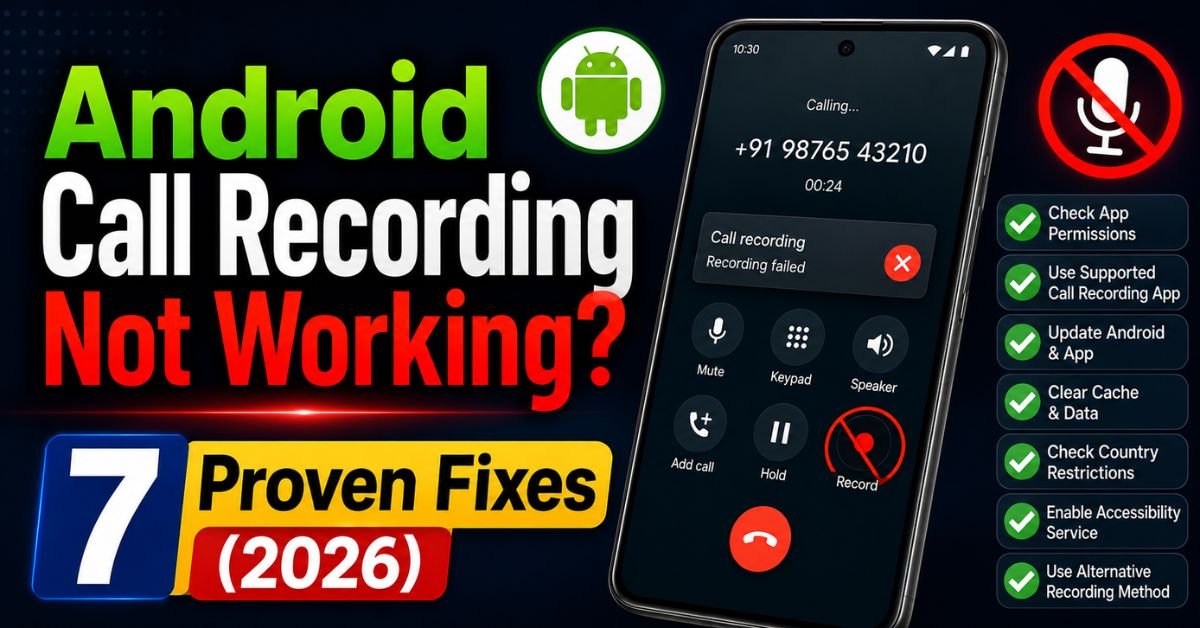
Android Call Recording Not Working? 7 Proven Fixes (2026).I remember the exact moment my trust in Android’s call recording died. I was interviewing a source for a technical deep-dive on my old Pixel 6, feeling confident because my trusty third-party app showed the “recording” timer ticking away. When I hung up and hit play? Silence. Total, soul-crushing silence. Just the sound of my own voice echoing in a digital void, with the caller’s side completely missing.
If you’re reading this, you’ve probably had a similar “heart-sink” moment. Maybe your recording button vanished after an OTA update, or maybe your favorite app from the Play Store suddenly stopped capturing audio. It isn’t just you, and it isn’t necessarily a “bug” in the traditional sense. It’s a calculated, multi-year teardown of recording capabilities by Google.

Let’s get into the weeds of why this is happening and how I’ve managed to fix it on devices ranging from Android 11 to the latest Android 14 builds.
Introduction: Why Call Recording is Breaking on Newer Androids
The landscape of Android audio changed forever on May 11, 2022. That was the day Google’s new Play Store policy went into effect, specifically targeting the Accessibility API.
For years, third-party developers used the Accessibility API as a “backdoor” to scrape audio from the cellular stream. Google finally slammed that door shut, citing privacy and two-party consent laws. If an app is on the Play Store, it is technically forbidden from using that API to record call audio. This is why apps like ACR or Cube ACR suddenly went “silent” for millions of users.
Beyond the policy, there’s the technical hurdle of “sandboxing.” Starting with Android 10, Google moved toward a more restrictive scoped storage and permission model. Apps can no longer easily “listen” to what other apps (like the Dialer) are doing.
We now have two distinct worlds:
- Native (System) Apps: The dialer that came with your phone (Samsung, Xiaomi, or Google Dialer).
- Third-Party Apps: Anything you downloaded from the Store.
The “fix” for one rarely works for the other.

Troubleshooting Built-In Recorders (Samsung, Xiaomi, Pixel)
If you’re using a Samsung Galaxy or a Xiaomi device, you should have a native recording button. If it’s missing or grayed out, the issue is almost always regional or firmware-related.
1. The Regional Disappearing Act
Google and OEMs (Original Equipment Manufacturers) use your SIM card’s country code to determine if call recording is legal in your area. If you’re in a region like the UK, most of the US, or parts of Europe, the native recording button in the Google Dialer often won’t even appear.
My Test: I took a Samsung S22 with a UK SIM—no recording button. I swapped in an Indian SIM and rebooted—the button appeared instantly in the native dialer. This is hardcoded into the Firmware.
2. Clearing the “Call Management” Cache
Sometimes the system’s handoff between the microphone and the recorder gets stuck.
- Go to Settings > Apps.
- Tap the “Filter and Sort” icon and toggle on “Show system apps.”
- Search for Call Management and Phone.
- Go to Storage > Clear Cache (don’t clear data for Phone unless you’ve backed up your call history).
- Reboot. I’ve seen this “wake up” a dormant recording toggle on Samsung One UI more than once.
3. Check for Permission Conflicts
If you have a third-party recorder installed and you’re trying to use the native one, they will fight over the “Audio Source.” Android only allows one “primary” listener for the microphone stream. Uninstall any third-party recording apps before troubleshooting the built-in one.
Reviving Third-Party Apps: The Accessibility API Workaround
If you refuse to use the Google Dialer (because you hate the “This call is now being recorded” announcement) and want to use something like Cube ACR, you have to jump through hoops.
The “App Connector” Strategy
Since the Play Store version of these apps is crippled, developers have released “Helper” or “Connector” apps. These are usually APK Sideloading jobs.

- Download the “App Connector” directly from the developer’s official website (not the Play Store).
- Install the APK.
- Go to Settings > Accessibility > Installed Apps.
- Find your recorder’s connector and toggle it ON.
Expert Insight: Android 13 and 14 introduced a “Restricted Setting” feature. When you try to enable Accessibility for a sideloaded app, it might be grayed out. To fix this: Go to App Info for that specific recorder app, tap the three dots in the top right corner, and select “Allow restricted settings.” Only then can you toggle the Accessibility switch.
Defeating Battery Optimization
Android’s “Doze” mode is the enemy of call recording. If the system decides your recorder is consuming too much juice in the background, it kills the process exactly when the call starts.
- Go to Settings > Apps > [Your Recorder App] > Battery.
- Select Unrestricted. In my experience, “Optimized” is the death knell for reliable recording.
Real-World Scenarios: Fixing Common Audio Failures
Scenario: Recording works but there is no sound (Silent audio)
This usually happens because the app is trying to use the “Voice Call” audio source, which Google has blocked.
- The Fix: Change the Audio Source in your app settings to “Microphone.”
- The Catch: You will likely need to turn on your Speakerphone during the call so the microphone can “hear” the caller’s voice. It’s not elegant, but on Android 14, it’s often the only way for third-party apps to work without root.
Scenario: Only your voice is recorded
This is a classic “Communication Device” priority issue. If you are using a Bluetooth headset, the recording will almost always fail or only capture your side.
- The Fix: Disconnect Bluetooth and use the phone’s earpiece or speaker. Most third-party apps cannot intercept Bluetooth SCO (Synchronous Connection Oriented) audio streams on modern Android versions.
Scenario: App works on Wi-Fi calls but fails on Cellular
VoIP (Voice over IP) and Wi-Fi calling use different data paths than standard GSM/LTE voice. Many recorders aren’t optimized for the VOICE_COMMUNICATION audio preset.
- The Fix: Disable Wi-Fi Calling in your phone’s connection settings if you absolutely must record a specific call.
Pro Tip: The “Second Device” Reality Check If you are on a locked-down corporate device or a Pixel running Android 14 and you cannot get audio to record both ways, stop wasting hours on software. I keep a small, dedicated Olympus digital voice recorder with a 3.5mm “Earphone Pickup” microphone. You put the bud in your ear, put the phone over it, and it records the physical vibrations. It’s “un-patchable” by any OS update.
Common Pitfalls and Expert Pro-Tips
The Driver Conflict Pitfall
Never have two call recording apps active at once. Even if one is “disabled,” its background services might still be hooked into the audio driver. I once missed a crucial legal consultation recording because ACR and Boldbeast were both trying to initialize at the same time. Pick one, nuking the other from orbit.
Ignoring “Overlay” Permissions
For a recorder to trigger the moment a call starts, it needs the “Appear on Top” or “Display over other apps” permission. If this is off, the app won’t “see” the incoming call trigger, and the recording won’t start.
The “Hardware” Truth
Some modern chipsets (especially certain MediaTek variants) have hardware-level blocks on simultaneous mic/call stream access. If you’ve tried everything and still get “File could not be saved,” your hardware might literally be incapable of the task at a kernel level.
Advanced Workarounds for Tech Enthusiasts
1. Changing CSC/Region Codes (Samsung Only)
This is my favorite “clean” fix. If you have a Samsung phone in a restricted region, you can use a tool like SamFW on a PC to change your CSC (Country Specific Code) to a region where recording is legal (like India – INS, or Egypt – EGY).
- This does not trip Knox or void your warranty in most cases.
- It enables the native, crystal-clear recording button in the dialer.
- Warning: Only attempt this if you are comfortable with ADB and basic firmware concepts.
2. ADB Commands for Native Recording
On some OxygenOS (OnePlus) or Motorola devices, the recording flag is just hidden. You can sometimes force it on using ADB (Android Debug Bridge): adb shell settings put global op_voice_recording_supported_by_mcc 1 This doesn’t work on every model, but it’s a 5-minute test that could save you from sideloading shady apps.
3. The Root Option
If you Root your device (using Magisk), the restrictions vanish. Modules like “Call Recorder Skvalex” operate at the system level, capturing audio directly from the mixer. However, rooting breaks banking apps and Google Pay (SafetyNet/Play Integrity issues), so it’s a heavy price to pay.
Frequently Asked Questions
Q: Why did my call recording stop working after the Android 14 update?
A: Android 14 tightened the “Accessibility Service” requirements and blocked more “Audio Source” presets. If you were using a third-party app, the update likely reset your “Restricted Settings” or killed the app’s ability to overlay on the new system dialer. You’ll need to re-enable “Allow Restricted Settings” in the app info menu.
Q: Is it possible to record calls on a Google Pixel without the “announcement”?
A: Not using the native Google Dialer. Google is very strict about their “consent announcement.” To avoid it, you either need to sideload a third-party app (and use the speakerphone method) or use a different dialer entirely if your phone is rooted.
Q: My app records, but the volume of the other person is very low. How can I fix this?
A: This is because the app is recording via the physical microphone rather than the internal system audio. To fix this, increase your in-call volume and, if possible, turn on the speakerphone. Also, check if your app has an “Audio Gain” or “Increase Volume” setting in its recording options.
Q: Does call recording work on WhatsApp or Telegram calls?
A: Generally, no. These are VoIP calls and use a different encryption and audio processing layer than standard cellular calls. Most standard call recorders won’t even “see” a WhatsApp call happening. You would need a specialized “VoIP Recorder” app, which again, heavily relies on the Accessibility API and is often hit-or-miss on Android 13+.
Q: Can I get in trouble for recording a call if I fix the app?
A: Technical fixes don’t change the law. In “Two-Party” states/countries, recording without consent is illegal. Always check your local regulations before using these workarounds. I use recording primarily for my own note-taking during interviews, and I always notify the other party.










