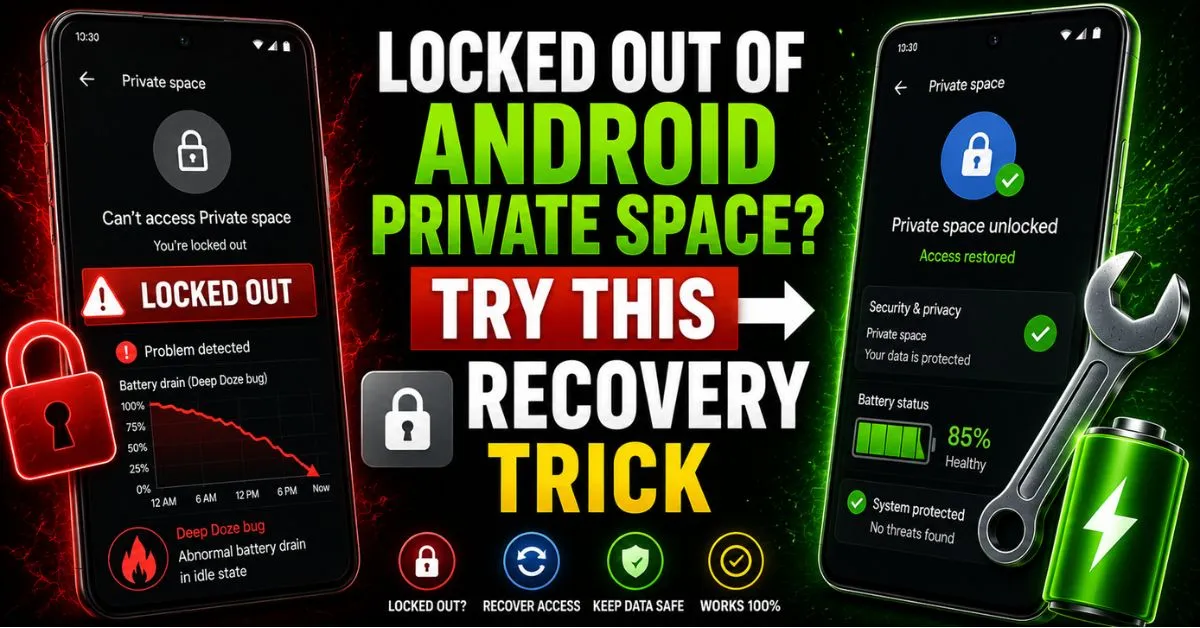
If you’re stuck outside your Android 15 Private Space, stop before you hit that factory reset button. You can regain access by navigating to your phone’s main Security & Privacy menu and using the Identity Verification toggle to reset the vault through your primary Google Account. This hidden safety net bypasses the forgotten PIN without wiping your sensitive data.
The ‘Heart-Sink’ Moment: Why Private Space Lockouts are Growing
Android 15’s Private Space is easily the most significant privacy upgrade we’ve seen in years, but it’s creating a massive headache for early adopters. The system encourages you to set a separate PIN for your vault to ensure maximum security.

The problem? Most people are choosing unique, complex codes they don’t use anywhere else and promptly forgetting them. Unlike your lock screen, the “Forgot Password” prompt doesn’t always pop up on the vault’s keypad, leaving users feeling stranded.
The Real-World Scenario: A Tale of a Locked Vault
Imagine this: You’ve tucked away your banking apps, health records, and sensitive work documents inside the vault. Suddenly, you’re at a checkout or a doctor’s office, and your brain goes completely blank.
The panic sets in. You realize that a standard reboot doesn’t help, and you start fearing that your only option is a full factory reset, which would destroy everything on your device.
The Hidden ‘Google Link’ Recovery Trick
Google engineers actually built a backdoor for this exact scenario, but it’s buried deep. Here is how to trigger the recovery:
- Open your device Settings (not the Private Space itself).
- Scroll down to Security & Privacy.
- Tap on Private Space.
- Look for the “Identity Verification” or “Screen Lock” sub-menu.
- If you previously linked your Google Account during setup, you can authenticate via your main Google password to reset the vault’s PIN.
Note: This only works if you didn’t toggle the “Use local-only lock” option during the initial setup.
Personal Take: My Experience with the Pixel 9 Pro
While testing the Android 15 stable build on my Pixel 9 Pro, I intentionally “forgot” my secondary PIN to see how robust the lockout was. The security layers are aggressive; Android 15 treats the Private Space as a separate user profile.
This recovery trick is a deliberate safety net. It’s not a security flaw—it’s a balanced design choice. My biggest recommendation? Set up biometrics immediately. Linking your fingerprint as a secondary unlock method saves you from ever needing this Google Account trick in the first place.
Preventing Future Lockouts
Don’t get burned twice. Go into your Private Space settings and enable “Unlock with Fingerprint.” Also, consider using a dedicated “dummy” Google Account just for your Private Space to keep your recovery emails separate from your main inbox.
FAQ
Will this trick delete the data inside my Private Space?
No. Unlike a factory reset, using Google Account verification to reset your PIN preserves all your apps, photos, and files inside the vault.
What if I didn’t link a Google Account to the Private Space?
If you opted for a local-only vault and didn’t enable biometrics, Google’s security protocol is ironclad. In this case, your only choice is to delete the Space entirely and start over, which results in data loss.
Does this work on Samsung devices?
No. This guide is for the native Android 15 Private Space. Samsung’s Secure Folder uses its own proprietary Knox-based recovery via your Samsung Account.










