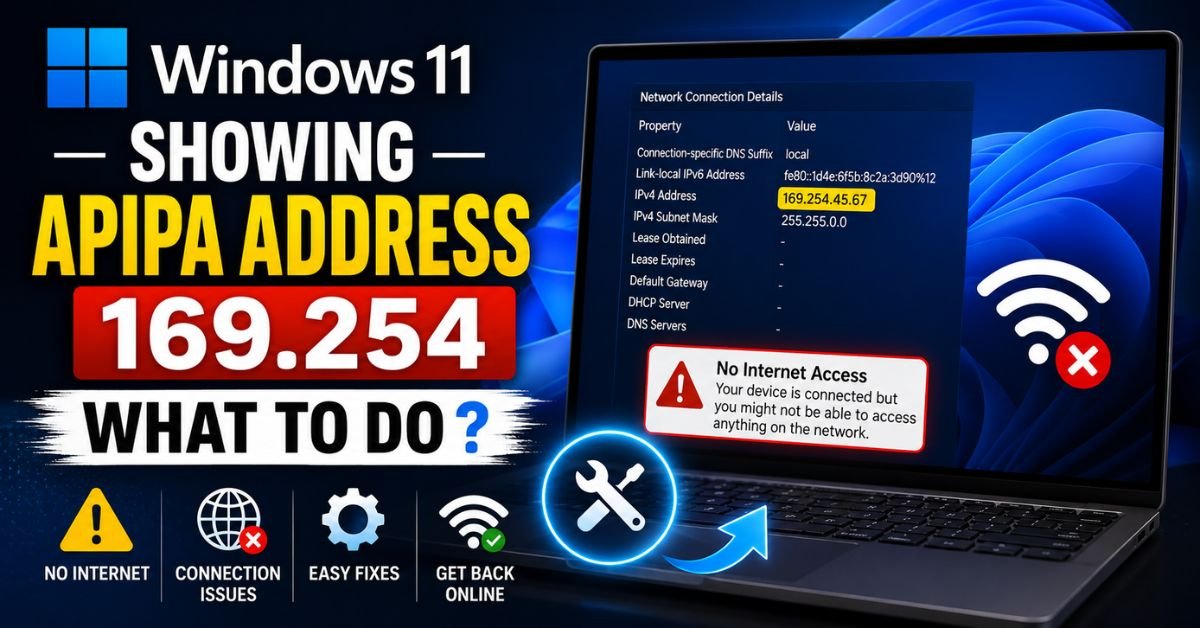
Windows 11 Showing APIPA Address 169.254 — What to Do.Yesterday, I got a frantic call from my buddy Dave over in Columbus. He was trying to jump onto a Microsoft Teams meeting, but his sleek Windows 11 custom rig was showing “No Internet Access.” He had that dreaded yellow warning triangle over his network icon. I had him open up his settings, and sure enough, his network card was clinging to an IP address starting with 169.254.
If you are seeing this right now, do not panic. Your computer isn’t broken, and your network adapter didn’t suddenly burn out. You have run into the classic network purgatory known as APIPA. Whether you are dealing with a windows 11 wifi showing 169 ip situation or scratching your head asking why is my ethernet showing 169.254, this deep-dive guide will walk you through exactly how I got Dave—and dozens of my corporate clients—back online.
1. What is an APIPA Address (169.254) and Why Does Windows 11 Use It?
When your Windows 11 machine boots up or connects to a network (whether it is your home Comcast/Xfinity Wi-Fi, a Charter Spectrum connection, or an AT&T Fiber jack), the very first thing it does is broadcast a request for an IP address. It screams into the digital void: “Hey! Is there a DHCP Server out there? Give me an address!”
Under normal circumstances, your home router (be it a Netgear Nighthawk, a Linksys Velop, a TP-Link Deco, or an Amazon Eero) hears this plea, assigns a valid local IPv4 Address (usually starting with 192.168.x.x or 10.0.x.x), and hands over a Default Gateway and DNS settings.
But what happens if the router is asleep, rebooting, jammed, or simply ignoring your PC?
Windows 11 cannot function on a network without an IP address. To cope, it uses a fallback mechanism called APIPA (Automatic Private IP Addressing).
[Your PC] -- (DHCP Discovery Request) --> [ No Response from Router ]
                                                  |
                                                  v
[Your PC] <-- (Assigns Self-Signed IP) <--- [APIPA Engine (169.254.x.x)]
Windows self-assigns an address from the reserved block of 169.254.0.1 to 169.254.255.254 with a Subnet Mask of 255.255.0.0.

Here is the kicker: Because this subnet mask is incredibly broad and there is no assigned Default Gateway, your PC cannot route traffic outside of its immediate physical wire or wireless bubble. You cannot reach the local router configuration page, let alone Google or Netflix. You are stuck in a localized sandbox. It is the network equivalent of talking to yourself in an empty room.
2. Step-by-Step Guide to Forcing DHCP Lease Renewal
Often, Windows 11 gets “lazy.” It tries once to get an IP address, fails, grabs the APIPA address, and then stops trying. To kickstart the process, we need to force the operating system to drop its self-assigned address and actively poll the router again.
To do this, we will use the Command Prompt with administrative privileges.
Step 1: Open Command Prompt as Administrator
- Press the Windows Key on your keyboard.
- Type
cmd. - Right-click on Command Prompt in the search results and select Run as administrator. (If prompted by User Account Control, click Yes).
Step 2: Release the Current IP
In the black console window, type the following command exactly as shown and hit Enter:
ipconfig /release
This command tells the network card to drop whatever address it currently has, freeing up the interface.
Step 3: Renew the IP Address
Now, type this command and press Enter:
ipconfig /renew
This forces your computer to send out a fresh DHCP request.

               +----------------------------------------+
               |          ipconfig /renew               |
               +----------------------------------------+
                                   |
                  +----------------+----------------+
                  |                                 |
                  v                                 v
      [ Success: 192.168.1.50 ]          [ Failure: 169.254.x.x ]
        (Back Online!)                    "DHCP server connection timed out"
If everything works, the screen will pause for a second, and then spit out a fresh configuration with an IPv4 Address like 192.168.1.15 and a valid Default Gateway.
What if ipconfig renew fails 169.254?
If you see an error message like “An error occurred while renewing interface… unable to contact your DHCP server,” your network card is shouting into a void and getting dead silence back. Don’t worry—this is where we pull out the heavy-duty wrenches.
3. Resetting the Network Stack and Winsock Catalog
If a simple renew fails, the underlying software plumbing in Windows 11 might be jammed. Corrupted network stacks are incredibly common after major Windows 11 updates, or if you recently uninstalled an aggressive third-party antivirus program like McAfee or Norton.
We can completely rebuild this plumbing using a few simple catalog resets. Keep your Administrator Command Prompt open and run these commands back-to-back:
netsh winsock reset
Why this works: This command resets the Winsock Catalog (the API that determines how Windows network applications access network services). It wipes out any corrupt sockets or bad LSP (Layered Service Provider) entries.
netsh int ip reset
Why this works: This rebuilds the entire TCP/IP Stack from scratch by rewriting key registry keys associated with the internet protocol.
ipconfig /flushdns
Why this works: It clears out the local domain name system cache, removing any stale or corrupted lookup records.
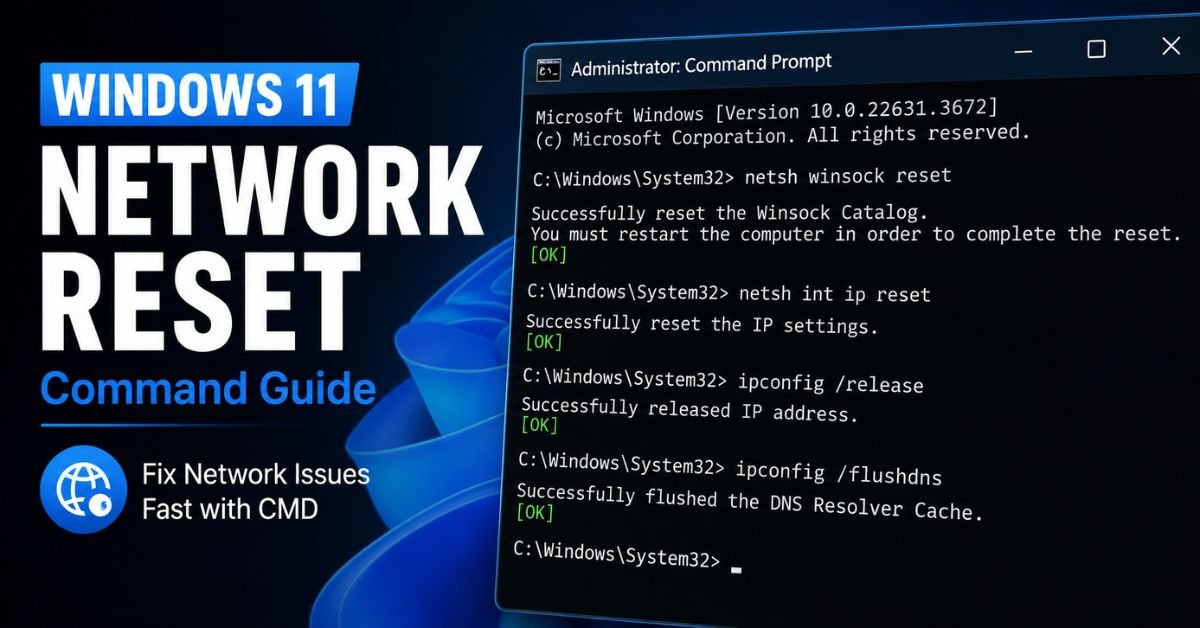
Once you run these commands, you must restart your computer. Windows 11 needs a clean boot to reload these core network components.
4. Troubleshooting Hardware & Drivers (The Intel Wi-Fi 6E Case Study)
If you reboot and still find yourself with no internet access autoconfiguration ipv4 address 169.254, it is time to look at your Network Adapter Drivers or the physical connection itself.
The Real-World Intel Wi-Fi 6E Bug
As a network admin, I ran into a fascinating case study last month. A client’s Windows 11 workstation, powered by an Intel Wi-Fi 6E AX211 card, suddenly developed a permanent APIPA address.
No matter how many times we ran ipconfig /renew, it failed. It turned out a recent cumulative Windows 11 update had delivered a buggy driver that put the wireless card into a low-power “D3” state, from which it couldn’t wake up to request an IP.
Here is how to bypass this driver hang:
- Right-click the Windows Start button and select Device Manager.
- Expand the Network adapters section.
- Locate your controller (e.g., Intel Wi-Fi 6E AX211 or Realtek PCIe GbE Family Controller).
- Right-click it and select Uninstall device.
- CRITICAL: Do NOT check the box that says “Attempt to remove the driver for this device” unless you have another computer to download a replacement driver. Simply click Uninstall.
- At the top of the Device Manager window, click the Action menu and select Scan for hardware changes.
[Device Manager] -> [Network Adapters] -> [Right-Click Adapter] -> [Uninstall] -> [Scan for Hardware Changes]
Windows 11 will immediately detect the missing hardware, reinstall the clean default driver from its internal library, and re-initialize the connection. This fixes driver lockups 90% of the time.
Expert Insight: If you are on a wired connection and seeing a 169 IP, do not rule out physical Layer 1 failure. A copper pin bent inside a cheap Cat5e or Cat6 ethernet cable can disconnect the transmit (Tx) or receive (Rx) lines while leaving the link light active. Windows will see a physical connection, but because it can’t transmit packets, it falls back to APIPA. Swap the cable first before editing registry keys.
5. Router and Gateway Diagnostics
If your PC is healthy, the culprit is almost certainly your router or ISP gateway. Many modern American home setups use ISP-provided hardware like Comcast/Xfinity xFi gateways, Charter Spectrum routers, or AT&T BGW models. These consumer units are notorious for running out of memory or hitting IP address pool exhaustion.
                  +-----------------------------------+
                  |        ISP Gateway Router         |
                  |  (IP Address Pool: .2 to .50)     |
                  +-----------------------------------+
                                    |
     +------------------------------+------------------------------+
     |                              |                              |
     v                              v                              v
[Phone - .2]                  [TV - .3]                  [Smart Plug - .4]
     ... (Fast forward to IP .50 reached) ...
     |
     v
[Your Windows 11 PC] ------------> (Requests IP)
                     <------------ (Refused: No free IPs left!)
                     <------------ (Result: Falls back to APIPA 169.254.x.x)
If your router’s DHCP IP range is configured to only hand out 50 addresses, and you have 50 smart home devices (smart plugs, lightbulbs, streaming sticks, phones, laptops) connected, your Windows 11 PC will be refused an address and will instantly resort to APIPA.
How to Power Cycle Your Gateway Properly:
- Unplug the power cable from the back of your router or ISP gateway.
- Wait a full 60 seconds to let the capacitors drain completely.
- Plug it back in.
- Wait 3 to 5 minutes for the connection lights to turn solid green or white.
- Try reconnecting your PC.
6. Common Pitfalls to Avoid
As you search for how to bypass apipa address on PC, you will run into some questionable advice on Reddit and old forums. Avoid these three common traps:
Trap 1: Disabling the DHCP Client Service
Some guides recommend opening services.msc and disabling the DHCP Client service. Do not do this. In Windows 11, the DHCP Client service is highly integrated into the operating system. Disabling it will completely break your network interface card and block you from obtaining static IPs as well.
Trap 2: Neglecting Buggy Third-Party VPN Adapters
VPNs like NordVPN, ExpressVPN, or corporate clients like Cisco AnyConnect install virtual network adapters. If a VPN crashes, it can leave a virtual routing block in place, forcing your physical card to report 169.254. If you have a VPN, try uninstalling it completely to see if your physical IP returns.
Trap 3: The Danger of Registry Workarounds
You might see guides on how to disable apipa in windows 11 registry by going to: HKEY_LOCAL_MACHINE\SYSTEM\CurrentControlSet\Services\Tcpip\Parameters\Interfaces\ and adding an IPAutoconfigurationEnabled DWORD set to 0.
While this successfully stops Windows from displaying a 169.254.x.x address, it does not fix the connection. Instead of getting a 169.254 IP, your PC will simply have a blank 0.0.0.0 IP address and still won’t connect to anything. It is a cosmetic fix, not a functional one.
Frequently Asked Questions
Why does my phone connect to the Wi-Fi fine, but my Windows 11 PC gets a 169 IP?
This usually indicates a handshake or state issue localized to your PC’s network card or configuration stack, rather than a total router failure. While the router’s DHCP engine is running (which is why your phone works), it is failing to communicate with the specific MAC address of your PC’s network card. Reinstalling your Windows 11 network driver or resetting the Winsock catalog will typically clear this up.
Can I fix a 169.254 IP by setting a static IP address?
Yes! If your router’s DHCP server is buggy but the physical connection is fine, you can bypass APIPA entirely by assigning a manual static IP. For example, assign your PC an IP address of 192.168.1.155 (if your router is at 192.168.1.1), set your Subnet Mask to 255.255.255.0, and set your Default Gateway to 192.168.1.1. If you get online immediately after doing this, your router’s DHCP server is definitely the problem.
Does a 169.254 address mean I have a virus?
Almost certainly not. While some malware can interfere with network stacks, a 169.254 IP address is a standard network protocol behavior built into all operating systems (including macOS and Linux). It simply signifies that your computer cannot reach a DHCP server to request an IP address.
What should I do if none of these steps work?
If you have reset your TCP/IP stack, replaced your Ethernet cable, rebooted your ISP gateway, and reinstalled your drivers, but you are still stuck on 169.254, your network card’s physical port or chip might be dead. You can test this easily by buying a cheap $15 USB-to-Ethernet or USB-to-Wi-Fi adapter. If the new USB adapter connects instantly and gets a valid IP, your motherboard’s onboard network card has failed. Alternatively, if you aren’t comfortable diagnostics hardware yourself, you can take it to a local US repair service like Geek Squad for physical verification.










