How to Fix Asus Router WiFi Dropping Frequently.I remember staring at my Asus RT-AX86U last November during a critical Zoom presentation for a US-based client. Boom. My screen froze. The dreaded “No Internet Connection” warning popped up on my MacBook. The weirdest part? My gaming PC, hooked directly to the router via a yellow Cat6 ethernet cord, was online and streaming perfectly.
This exact scenario—where the asus router wifi drops but ethernet works—is a classic headache that drives home internet users crazy. If your asus router disconnects from internet randomly, or if you’re pulling your hair out because your asus rt-ax86u drops connection multiple times a day, you are not alone. I spent weeks troubleshooting my own RT-AX86U and a testing unit of the RT-AX3000 in my home lab to figure out exactly why Asuswrt behaves this way, particularly when paired with major US internet service providers (ISPs) like Comcast Xfinity, Spectrum, and AT&T.

Step 1: Check the Hardware and Physical Environment (Avoiding Pitfalls)
Before we start altering any settings in the Asuswrt interface, let’s rule out basic hardware failures.
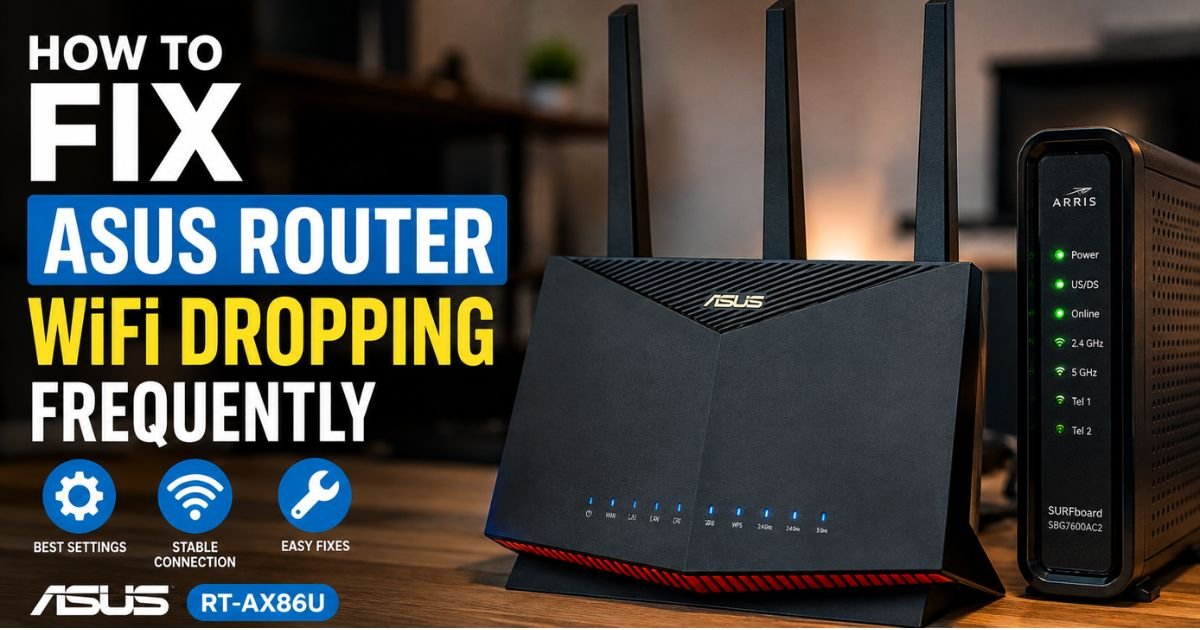
First, consider the “Double NAT” issue. If you use Comcast Xfinity or Spectrum, they likely handed you an all-in-one gateway (a modem-router combo). If you plugged your Asus router directly into that gateway without changing any settings, both devices are trying to route traffic. This conflict can cause your WAN connection to drop periodically. You need to log into your ISP’s gateway and turn on “Bridge Mode.” This turns their device into a dumb modem and lets your Asus router do all the heavy lifting. If you are on AT&T Fiber, you must set their gateway to “IP Passthrough” mode for the same reason.
Next, look at the cables. That cheap, thin ethernet cord that came in the box from your ISP five years ago? Throw it away. A degraded cable between your modem and the Asus router’s WAN port will drop packets and trigger a router-wide reset. Swap it out for a shielded Cat6 cable.
Finally, thermal throttling is real. Asus high-performance routers run hot. If you have tucked your router inside an enclosed wooden entertainment center or behind a stack of books, it will overheat. When it does, the wireless chips shut down first to protect the hardware, leaving you wondering why your how to fix asus router unstable connection search yielded no results while the router itself feels like a hot plate. Keep it in the open.
Step 2: Update and Optimize Asuswrt Firmware
Whenever someone tells me their asus router firmware update broke 5ghz wifi, my first question is: did you factory reset after updating?

Asus frequently pushes security and stability patches to their routers. You can apply these easily using the Asus Router App on your phone or by navigating to router.asus.com on your desktop. However, when transitioning between major firmware versions, old settings stored in the NVRAM can become corrupt and conflict with the new code. This is a primary driver behind why an asus router keeps rebooting itself.
To update and optimize correctly:
- Log into your Asuswrt control panel.
- Go to Administration > Firmware Upgrade.
- Check for updates and apply them.
- Once the update is complete, do not skip this next part: perform a Factory Reset.
- Hold down the physical reset button on the back of the router for 10 seconds using a paperclip until the power LED starts blinking.
- Reconfigure your network from scratch. Do not import a saved settings backup file, as this will simply write the corrupt NVRAM configuration right back onto your clean system.
[Syslog Diagnostic Tip]
If your router is dropping connection, go to Advanced Settings > System Log > General Log.
Look for "wl0: link down" or "rc_service: restart_wireless".
If you see these repeatedly, it indicates a software crash or a severe interference event.
Step 3: Tweak Wireless Settings (Hands-on Fixes)
This is where we get our hands dirty inside the Asuswrt GUI. The factory defaults on Asus dual-band and tri-band routers are optimized for marketing spec sheets, not for real-world reliability in congested American suburbs.
The Smart Connect Trap
By default, Asus pushes a feature called Smart Connect. This merges your 2.4GHz and 5GHz bands into a single Wi-Fi name (SSID). The router then decides which band your phone or smart TV should use based on signal strength.
In theory, it’s brilliant. In practice, asus smart connect keeps dropping because it gets stuck in an endless loop of shifting dual-band devices back and forth. A device on the edge of your living room might constantly bounce between the faster 5GHz and the longer-range 2.4GHz band, dropping connection for a few seconds during every single handoff.
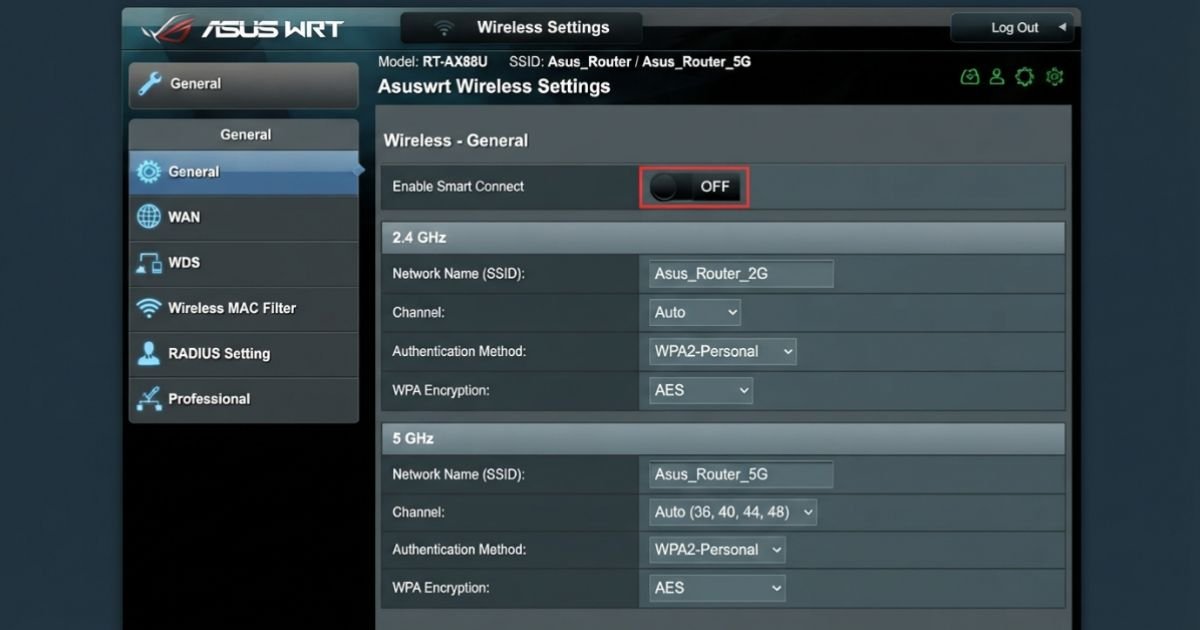
Go to Wireless > General and turn off Smart Connect. Give your 2.4GHz and 5GHz networks different names (e.g., “HomeNet_2G” and “HomeNet_5G”). Connect your high-bandwidth devices (TVs, laptops, phones) to the 5GHz band and your smart plugs to the 2.4GHz band.

Selecting Stable Wireless Channels
Leaving your wireless channel on “Auto” means your router is constantly scanning the airwaves and jumping channels to avoid interference. Every time it jumps, your connected devices experience a brief drop.
- For the 2.4GHz band: Manually set the channel bandwidth to 20MHz and choose channel 1, 6, or 11. These are the only three non-overlapping channels.
- For the 5GHz band: Manually set the channel bandwidth to 40MHz or 80MHz. Avoid 160MHz unless you live in the middle of nowhere; it is simply too prone to local interference.
The Airport/Radar Conflict (DFS Channels)
Here is a highly localized issue that many US homeowners overlook: DFS Channels (Dynamic Frequency Selection). The FCC allows routers to share certain 5GHz channels with radar systems used by airports, military bases, and weather stations.
If your router is set to use a DFS channel and it detects even a faint radar sweep from a nearby regional airport, federal law requires the router to immediately shut down that channel and switch to a non-DFS channel. This causes an instant, temporary drop of your entire 5GHz network. If you live within 20 miles of an airfield or major weather radar installation, go to your 5GHz wireless settings and manually set your channel to 36, 40, 44, 48 or 149, 153, 157, 161. Avoid channels 52 to 144.
Step 4: Troubleshoot AiMesh Node Dropouts
If you are running a whole-home mesh network using Asus’s AiMesh technology, your dropouts might be caused by how your primary router talks to your secondary AiMesh Node.
By default, these nodes talk to each other wirelessly. But if you have thick drywall, plaster, or metallic insulation in your walls, that wireless backhaul link will drop packets. This manifests as your devices showing full signal bars, yet having zero internet access.
To fix this:
- Prioritize Ethernet Backhaul: If your house is wired with RJ45 jacks, run an ethernet cord from the LAN port of your main router to the WAN port of your AiMesh Node. Go into the Asus Router App, select your node, and change the connection priority to “Ethernet.”
- Adjust Node Placement: A common mistake is placing the node in the dead zone. If you place a node in a room where the signal is already weak, the node will repeat a degraded, unstable signal. Place the node halfway between your main router and the dead zone.
- Tweak the Roaming Assistant: Go to Wireless > Professional > select the band > scroll down to Roaming Assistant. If this is set too aggressively (e.g., disconnecting devices when the signal drops below -70 dBm), your phone will constantly get booted off the network as you walk around your house. Set it to -75 dBm or disable it entirely if you have a smaller home.

Step 5: Advanced Asus Router Settings to Adjust
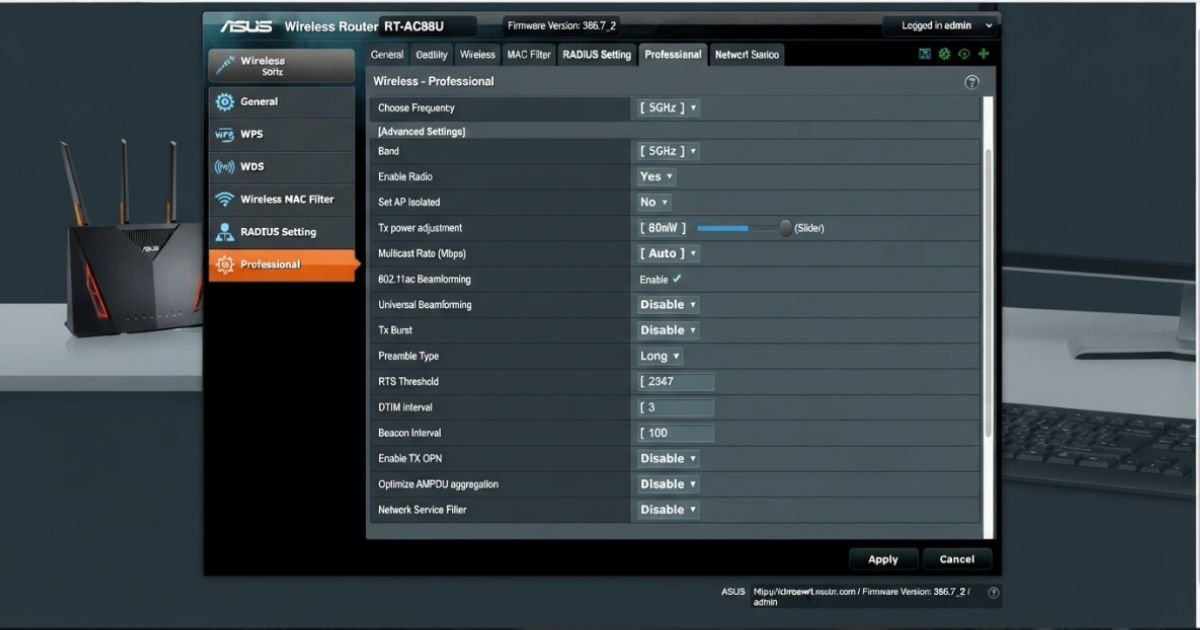
If you’ve tried all of the above and your router still disconnects randomly, we need to dive into the Professional tab in Asuswrt. There are a few legacy features enabled by default that modern client devices simply do not play nice with.
| Setting | Default | Recommended Value | Why Change It? | | :— | :— | :— | :— | | Tx Bursting | Enabled | Disabled | Can cause packet loss on older IoT and smart home devices. | | Airtime Fairness | Enabled | Disabled | Designed to optimize mixed-speed networks, but often disconnects older 2.4GHz smart devices. | | 802.11ax / WiFi 6 mode | Enabled | Enabled | Keep this on unless you have very old legacy clients that crash when seeing WiFi 6 beacons. | | Target Wake Time (TWT) | Enabled | Disabled | Meant to save IoT battery life, but causes some smart devices to drop off the network. |
Fixing the DHCP Lease Drop Issue
A highly specific issue on US cable networks (especially Spectrum and Xfinity) is the asus router dynamic ip dhcp dropping bug. The router struggles to renew its IP address from the ISP’s modem when the lease expires. When the DHCP lease query fails, the router completely drops the WAN connection.
To fix this:
- Navigate to WAN > Internet Connection.
- Look for DHCP query frequency.
- Change it from Aggressive Mode to Normal Mode.
- Click Apply. This stops your router from spamming the ISP’s servers with requests, preventing them from temporarily blocking your router’s MAC address.
[Pro Tip: Adjusting Tx Power]
Under Wireless > Professional, you'll find "Tx Power Adjustment" (Transmission Power).
If you live in a small apartment, your instinct might be to leave this at 100%.
However, excessive power causes signal reflection off walls, creating "self-interference."
Try lowering your Tx Power to 70% or 80%.
Often, this slightly weaker but cleaner signal stabilizes connections for devices nearby.
Real-Time FAQs
Q: Why does my Asus router keep rebooting itself without warning?
A: This is usually a hardware power supply issue or a software-level memory leak. First, make sure you are using the original power brick that came in the box. Using a generic power supply with incorrect voltage can cause the router to restart when processing heavy traffic spikes. If the power supply is correct, flash the latest firmware, perform a hard factory reset, and check if the rebooting stops.
Q: Will changing my DNS servers stop random internet drops?
A: Yes, sometimes. US ISPs often have unreliable DNS servers that drop queries, making it look like your Wi-Fi is down when it’s actually just a DNS resolution failure. In Asuswrt, go to WAN > Internet Connection > WAN DNS Setting and set DNS Server 1 to 1.1.1.1 (Cloudflare) and DNS Server 2 to 8.8.8.8 (Google).
Q: Why did my Asus router’s 5GHz band vanish completely after a firmware update?
A: This is a known issue where NVRAM parameters fail to initialize properly post-update. Switch off the router, hold the WPS button, turn the router back on while continuing to hold WPS for 15 seconds until the power light flashes rapidly. This forces a deep NVRAM wipe, restoring your 5GHz radio to normal operation.
Q: Is it worth installing third-party firmware like Asuswrt-Merlin?
A: If you own a supported model like the RT-AX86U, absolutely. Asuswrt-Merlin is a highly stable, customized firmware built on top of official Asus code. It fixes minor bugs, improves system resource allocation, and offers better logging tools to help you pinpoint exactly why your connection is dropping.
Wrapping Up
Fixing a flaky Asus router connection is a process of elimination. Start with the physical environment and your ISP’s gateway configuration, then move to separating your dual-band networks, and finally dive into the advanced Asuswrt Professional settings. By taking control of your wireless channels and disabling unstable features like Smart Connect, you can transform your Asus router from a source of daily frustration back into the networking powerhouse it was designed to be.










