Netgear Router Keeps Losing Connection — 5 Real Fixes.You are right in the middle of an important Zoom call with your team, or maybe you are about to clutch a 1v1 match in Call of Duty. Suddenly, the screen freezes. You look over at your router sitting on the desk, and your stomach drops. The internet LED status light on your Netgear Nighthawk has turned a stubborn, glowing amber.
As a network administrator with over a decade of hands-on experience troubleshooting home setups across the US, I have seen this exact nightmare play out hundreds of times. In my years of fixing networks in everything from multi-story suburban homes in Ohio to brick-basement apartments in Boston, I can tell you one thing: a netgear router keeps disconnecting from internet issues are rarely a sign that your hardware is dead. Usually, it is just a configuration conflict, a bad firmware update, or local environmental interference.
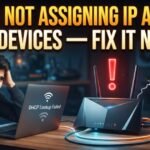
Just last month, my trusty old Netgear Nighthawk R7000 began dropping its signal every few minutes. My local ISP, Comcast Xfinity, insisted everything was fine on their end. So, I roll up my sleeves and did what I do best: dug into the local gateway settings at 192.168.1.1 and systematically solved it.
If your nighthawk drops wifi intermittently or you are asking yourself why does my netgear router keep losing internet, do not run to the store for a replacement just yet. Let us walk through the exact, field-tested troubleshooting steps I used to fix my R7000 and get your home network back to rock-solid stability.
The Frustration of Constant Drops (Real-World Scenarios & Diagnostics)
When a netgear router drops internet every few minutes, it throws off the entire household. Your smart thermostat disconnects, the Apple TV starts buffering, and your phone constantly switches over to cellular data.
Before we start changing settings, we need to identify where the breakdown is happening.
- Is your Wi-Fi signal dropping, but devices connected via Ethernet stay online?
- Or is the entire router losing its connection to the outside world, resulting in a netgear router loses connection orange light?
If your wired desktop PC still has internet but your phone does not, you are dealing with local wireless channel congestion or Wi-Fi chip overheating. However, if the router itself is showing an orange or amber light on its front panel, it means the handshake between your Netgear router and your cable modem (like an Arris Surfboard or Motorola unit) has failed.

Let us dive into the five fixes that actually work to restore your connection.
Fix 1: Perform a Clean Power Cycle & Check Physical Connections
I know, I know. “Have you tried turning it off and on again?” is the ultimate tech support cliché. But hear me out: there is a right way and a wrong way to power cycle your networking gear.
Simply pulling the power cord out of the back of the router for three seconds does not do the trick. You need a complete, sequential power cycle to clear the cache of both your modem and your router, re-allocating a fresh IP Address via the DHCP Server from your ISP.
How to Perform a Clean Power Cycle:
- Unplug everything: Pull the power cables out of both your ISP modem and your Netgear router.
- Inspect the lines: If you have cable internet (Comcast Xfinity, Spectrum, or Cox), unscrew the coaxial cable from the back of the modem and the wall outlet. Check for bent copper pins or loose fittings, then screw them back on tightly. If you have AT&T fiber, ensure the Ethernet cable running from the ONT (Optical Network Terminal) to your router is seated firmly with a clean “click.”
- Wait 2 full minutes: This allows the capacitors in the power supplies to drain completely.
- Power up the modem first: Plug your modem back into the wall outlet. Wait about 2 to 3 minutes until the online connection lights are completely solid.
- Power up the Netgear router: Plug the router back in. Give it a few minutes to boot up and establish a handshake with the modem.
The Standard US Voltage (120V) Power Strip Mistake
Here is a bit of information gain most guides will not tell you: Are you using a cheap, daisy-chained power strip? In typical US home setups, we tend to plug our PCs, monitors, modems, and routers into a single, low-grade power strip under the desk. Over time, these strips degrade. A slight dip in the standard 120V wall outlet delivery can cause the delicate power adapter of a Netgear Nighthawk to briefly brown out, forcing the router to reboot silently. Try plugging your router directly into a dedicated wall outlet for a week and see if the intermittent drops disappear.
Fix 2: Update (or Roll Back) Netgear Firmware
Usually, the first piece of advice you get is to run a Firmware Update. While keeping your router updated is crucial for security, Netgear has a history of releasing occasionally unstable firmware versions.
For instance, the netgear r7000 keeps dropping wifi issue is often directly linked to a notoriously buggy firmware update (specifically versions in the 1.0.9.x range). In my own testing, rolling back to an older, highly stable firmware release actually fixed the random dropouts entirely.
How to Safely Manage Netgear Firmware:
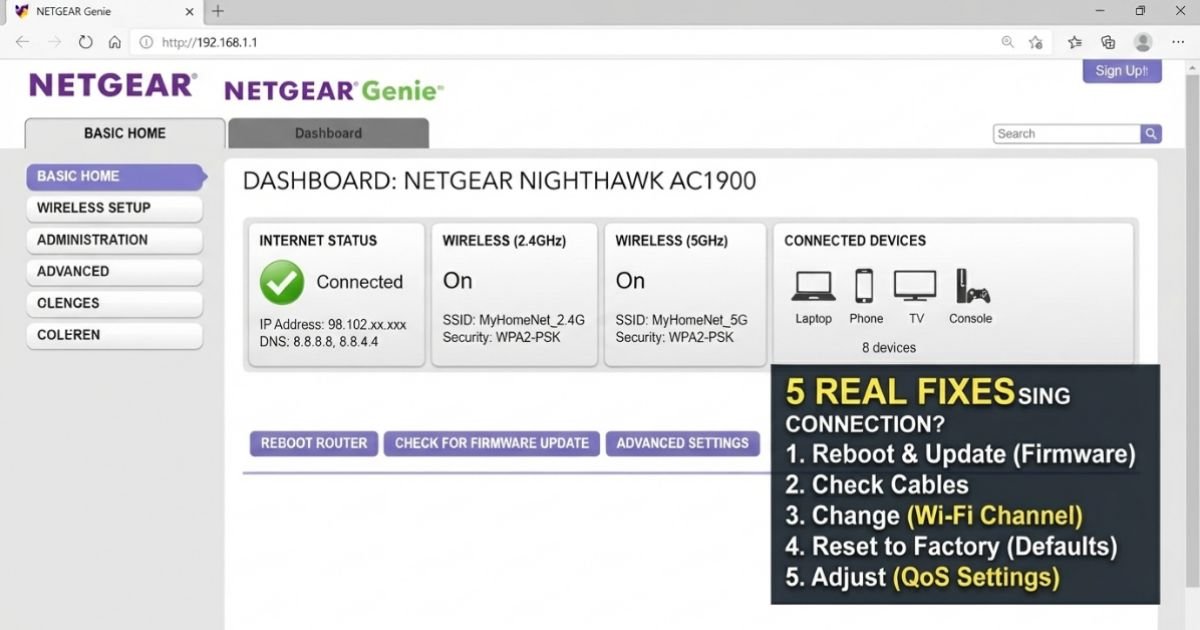
- Open a web browser on a device connected to your network and type
192.168.1.1orrouterlogin.netinto the address bar. - Log in using your admin credentials (if you never changed them, the defaults are usually printed on the sticker underneath the router).
- Navigate to the Advanced tab > Administration > Router Update.
- Click Check to see if there is a newer version available. If you want to update, let the system download and install it automatically. Do not unplug the router during this process.
Pro Tip (The Rollback Method): If your drops started right after an update, go to the Netgear Support website, type in your exact router model, and download an older version of the firmware file (usually a .chk file) to your computer. In the same Router Update screen, click Browse, select that downloaded file, and upload it to manually downgrade.
Fix 3: Change Wireless Channels to Avoid Local Interference
If you live in a suburban neighborhood where houses sit relatively close to one another, or in a multi-family townhouse, your Wi-Fi is constantly fighting your neighbors’ routers for airspace. This causes massive Wi-Fi Interference.
By default, Netgear routers are set to “Auto” channel selection. This means your router constantly hops channels to find a clear one. Every time it hops, you get a brief drop in connection, making it seem like your nighthawk drops wifi intermittently.
Optimize Your Dual-Band Frequencies:
Most modern Netgear routers run a Dual-Band network, offering both 2.4GHz and 5GHz bands.
- 2.4GHz travels further and penetrates drywall and brick basements easily, but it is incredibly crowded.
- 5GHz is blazing fast but has a shorter range and struggles to get through thick walls.
+-------------------------------------------------------+
|                 RECOMMENDED WI-FI CHANNELS             |
+---------------------------+---------------------------+
|      2.4 GHz Band         |        5 GHz Band         |
|   (1, 6, or 11 ONLY)      |   (36, 40, 44, or 48)     |
+---------------------------+---------------------------+
| Non-overlapping channels  | Avoids DFS radar issues   |
| that prevent interference | for a more stable signal  |
+---------------------------+---------------------------+
How to set static, interference-free channels:
- Log in to your Netgear administrative page (
192.168.1.1). - Go to Wireless Settings.
- Under the 2.4GHz network settings, change the channel from Auto to 1, 6, or 11. These are the only three non-overlapping channels in the 2.4GHz spectrum.
- Under the 5GHz network settings, change the channel to a lower index like 36, 40, or 44. Avoid higher channels (like 100-144) as they are shared with radar systems (DFS) and can cause your router to temporarily shut down its 5GHz radio if a radar signal is detected.
- Click Apply to save changes.
Fix 4: Adjust MTU and Fragmentation Threshold Settings
This is an advanced tweak, but it is one of those hidden gems that has resolved dozens of stubborn connection issues on Comcast Xfinity and Charter Spectrum lines for my clients.
MTU stands for Maximum Transmission Unit. It determines the largest size packet of data your router can transmit over the network. If your router is sending packets that are too large for your ISP’s gateway to handle, those packets get fragmented and dropped, causing a netgear router connected but no internet access state.
Step-by-Step MTU Adjustments:
- Log in to the Netgear dashboard.
- Navigate to Advanced > Setup > WAN Setup.
- Look for the MTU Size (in bytes) field. The default is typically
1500. - Change this value to
1492(common for PPPoE/DSL connections) or even lower to1450if you are on a cable provider. - Click Apply.
This minor reduction in packet size ensures that your packets pass through your ISP’s nodes smoothly without triggering packet fragmentation drops.
Additionally, under your DNS Server settings (found in Advanced > Setup > Internet Setup), bypass your ISP’s default servers. ISPs often have slow, flaky DNS routing that drops connections. Switch your DNS servers to Google’s public DNS (8.8.8.8 and 8.8.4.4) or Cloudflare’s secure DNS (1.1.1.1).
Fix 5: Prevent Overheating and Power Supply Failures
Netgear routers are high-performance machines. Inside that sleek plastic casing is a powerful processor that works incredibly hard.
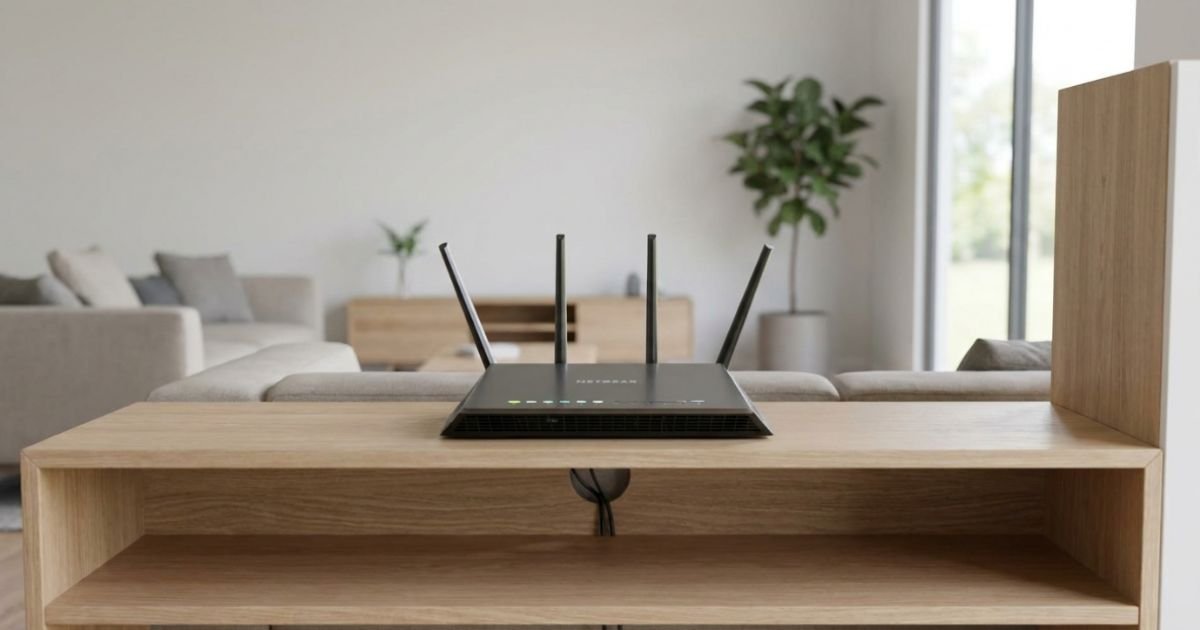
In many American homes, routers are tucked away out of sight—placed in low-ventilation environments like wooden entertainment centers, dusty basements, or cluttered closets. If your Netgear router is running too hot, the CPU will automatically downclock or restart itself to prevent physical damage. This is a common answer to how to fix netgear router dropping signal.
How to Keep Your Router Cool:
- Elevate it: Use small adhesive rubber feet to raise the bottom of your router off flat surfaces, allowing cool air to circulate underneath.
- Keep it clear: Do not stack other devices (like your modem or external hard drives) directly on top of or beneath your Netgear router.
- Inspect the power brick: Touch the 120V power adapter plugged into the wall. If it feels burning hot, the internal transformer is failing and dropping current, which reboots your router. Replacements are cheap and easily found on Amazon.
What to Do If Nothing Works: Factory Reset and ISP Diagnostics
If you have tried all the steps above and your Netgear router still drops connection, it is time for the final option: a complete system purge.
The True 30-30-30 Factory Reset
A standard reset through the software doesn’t always clear deep-seated NVRAM bugs. I recommend doing a hard Factory Reset using the 30-30-30 method:
- Locate the tiny Reset pinhole on the back of your Netgear router.
- With the power turned on, press and hold the reset button with a paperclip for 30 seconds.
- Keep holding the reset button down, and unplug the power cord of the router. Hold it for another 30 seconds.
- While still holding the reset button, plug the power cord back in and hold for another 30 seconds.
- Release the button. Your router will completely restore itself to the factory default state.
After doing this, you will need to set up your Wi-Fi name (SSID) and passwords from scratch using either the Nighthawk App on your phone or by navigating to 192.168.1.1 on a computer.
Contacting Your ISP
If a complete factory reset still results in your router dropping offline with an amber light, the problem likely lies outside your walls. Call your ISP (Xfinity, Spectrum, Cox) and ask their tier-2 support to look at your modem’s T3 and T4 timeouts. If there is physical water in the coaxial drop line outside your house, or if the local node is failing, it will cause your modem to briefly drop offline, taking your Netgear router down with it.
For massive multi-story homes where a single router simply cannot penetrate structural obstacles, consider upgrading your setup to a whole-home mesh system like the Orbi Mesh to eliminate dead zones entirely.
Frequently Asked Questions
Why does my Netgear router randomly drop the internet and show an orange light?
The orange (or amber) internet light means your Netgear router is not receiving an active internet feed from your modem. This is typically caused by a loose physical coaxial/Ethernet connection, an IP conflict where your modem fails to assign a public IP address to your router, or temporary service drops from your ISP.
Why does my Nighthawk drop Wi-Fi intermittently but the wired connection works?
If your wired ethernet connections are stable but your Wi-Fi drops, the issue is wireless congestion or a firmware bug. Try changing your Wireless Channel to 1, 6, or 11 on the 2.4GHz band, or use a lower channel on the 5GHz band to bypass local Wi-Fi interference.
How do I access my Netgear router settings if 192.168.1.1 isn’t working?
Make sure you are connected directly to your Netgear network. If 192.168.1.1 does not load, try typing routerlogin.net or 192.168.0.1 into your browser. If that still fails, open a command prompt on Windows, type ipconfig, look for your “Default Gateway,” and type that exact IP address into your browser.
Can a faulty coaxial cable cause my Netgear router to keep disconnecting?
Yes, absolutely. A bent, rusted, or loose copper pin inside your coaxial cable can cause high packet loss and signal noise on your modem line. If your modem constantly loses sync, your connected Netgear router will keep dropping its internet connection as a result.
Is it better to use the Nighthawk App or the web browser for advanced settings?
The Nighthawk App is convenient for quick password changes and basic reboots. However, for deep technical adjustments—such as changing MTU sizes, rolling back firmware, or setting specific wireless channels—using a web browser to access the local admin panel at 192.168.1.1 is vastly superior and offers much deeper control over your hardware.