Router Keeps Rebooting Itself Every Few Minutes — Fix.I was halfway through a critical Zoom call with a client in Chicago last month when my screen froze. I looked over at my Netgear Nighthawk, and there it was—the dreaded sequence of blinking lights. It wasn’t just a signal drop; the hardware was performing a full, unprompted power cycle. If you’ve ever searched for “router keeps restarting every 10 minutes” or wondered “why is my xfinity router blinking orange and rebooting,” you know the specific brand of “tech-rage” this triggers. It’s not just an inconvenience; it’s a total disruption of your work-from-home life or your late-night gaming session.
In my ten years as a network technician, I’ve realized that a router rebooting itself every few minutes is rarely a “random” glitch. It’s usually a specific cry for help from your hardware. Whether you’re dealing with the standard-issue gateway from Spectrum or a high-end TP-Link, the causes usually boil down to three things: bad juice (power), too much heat, or a “brain freeze” (firmware/software). Let’s dive into how to diagnose and kill this problem for good.
Common Physical Culprits: Heat and Power
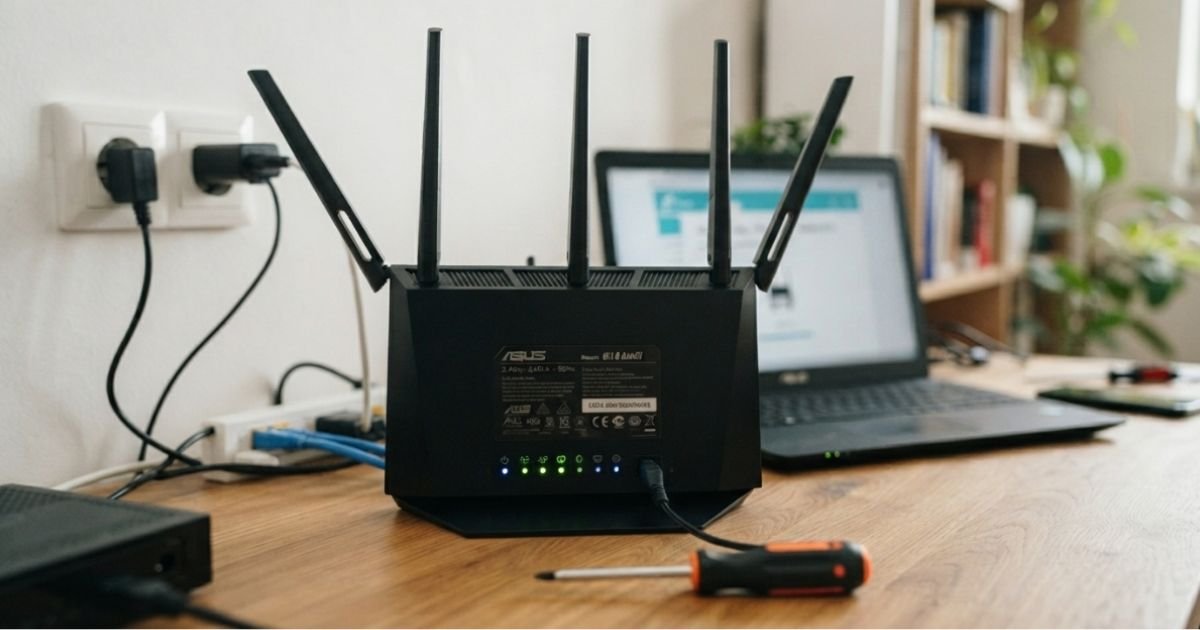
The very first thing I do when I walk into a house where the internet keeps cutting out and router restarts is feel the top of the unit. If it feels like a warm grilled cheese sandwich, we’ve found our problem. Overheating is the silent killer of home networking gear. Most people tuck their routers into tight cabinets or behind a stack of books to hide the “ugly” antennas. That’s a mistake.
Routers have CPUs just like your laptop. When they get too hot, they trigger a thermal shutdown to prevent the board from melting. If your router reboots when downloading large files, it’s likely because the processor is working overtime, generating heat, and hitting that thermal ceiling.
Insider Tip: If your router feels hot to the touch, don’t just move it. Buy a cheap USB-powered laptop cooling pad and sit the router on top of it. I tested this with an old Linksys that was crashing daily; the cooling pad dropped the internal temp by 15 degrees, and the reboots stopped instantly.
Then there’s the Power Supply Unit (PSU). In the US, our standard 120V outlets are generally stable, but the “wall wart” adapters that come with routers are often cheaply made. Over time, the capacitors inside these bricks fail. They might still provide enough power to light the LEDs, but the moment the WiFi radios draw more current (like when you start a 4K stream), the voltage dips, and the router resets.
Signs of a failing router power supply include a faint high-pitched whining noise from the brick or the router rebooting specifically when you put a load on the network. If you’re tech-savvy, use a multimeter to check if it’s outputting a steady voltage. If not, replace it—but ensure the amperage matches exactly. Using a third-party brick with the wrong voltage is a fast track to a dead router.

Software and Firmware Glitches
We’ve all seen the notification: “A firmware update is available.” Most of us click “Remind me later” for six months. However, sometimes an automated update goes sideways. A Netgear Nighthawk keeps rebooting after firmware update is a common complaint in tech forums. This usually happens because the update was interrupted or the configuration file became corrupted during the flash.
If your TP Link router is rebooting itself frequently after a recent update, the best move is a manual firmware flash. This involves downloading the firmware file directly from the manufacturer’s US support site (ensure it’s the US version to comply with FCC regulations) and uploading it via the router’s web interface (usually 192.168.1.1 or 192.168.0.1).
Step-by-Step Manual Flash:
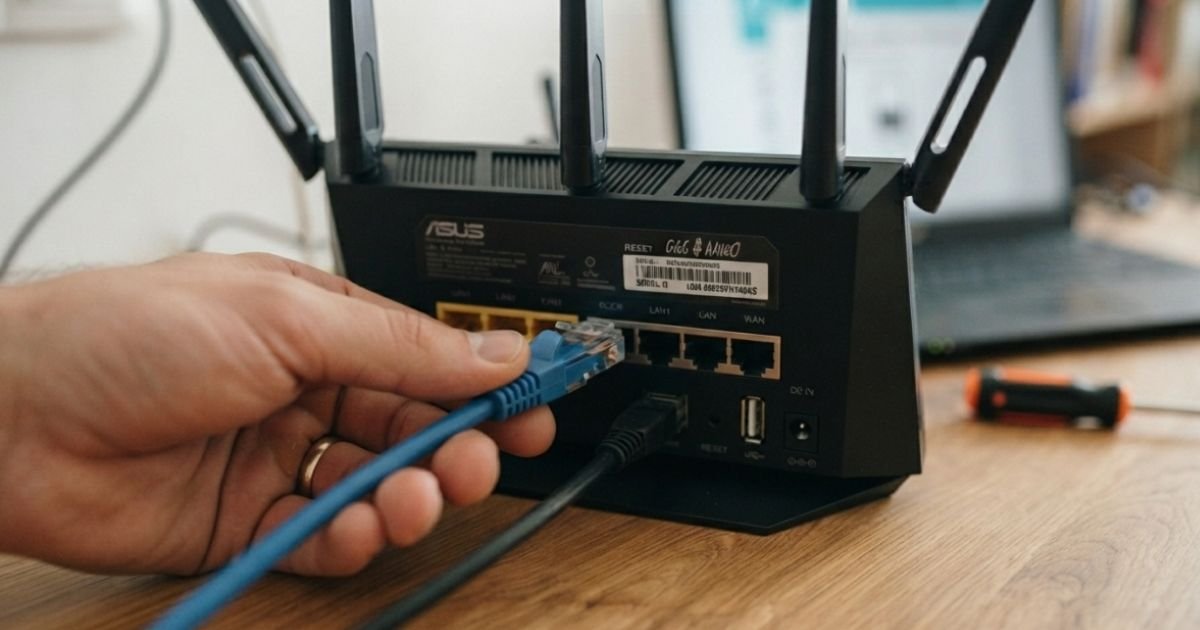
- Connect your laptop to the router via an Ethernet Cable (Cat6). Never do a firmware flash over WiFi.
- Log into the UI (check the sticker on the bottom for the admin password).
- Navigate to ‘Advanced’ > ‘Administration’ > ‘Router Update’.
- Upload the .chk or .bin file you downloaded.
- Let it finish. Do NOT unplug it, or you’ll turn your $300 router into a paperweight.
Advanced Network Conflicts and DFS
Sometimes the hardware is fine, but the environment is hostile. One often overlooked issue in the US is DFS (Dynamic Frequency Selection). If you live near a major airport like O’Hare or LAX, your router might be using 5GHz channels that are reserved for weather radar. When the router detects radar interference, FCC rules require it to immediately jump off that channel. This can sometimes look like a reboot because the WiFi Frequency Bands momentarily go dark while the router reassigns the SSID Settings.
To fix this, log into your router and manually set your 5GHz channel to a non-DFS channel (like 36, 40, 44, or 48) instead of leaving it on “Auto.”
Another culprit is the IP Address Conflict. If you have a standalone Modem and a separate router, they might both be trying to act as the DHCP server. This creates a “tug-of-war” for IP addresses. Ensure your modem is in “Bridge Mode” so the router handles all the traffic. I’ve seen Xfinity gateways cause massive headaches when they aren’t properly bridged with a secondary Eero or Google Home mesh system.

ISP-Side Issues and External Factors
Is it the router, or is it the line? If your Xfinity router is blinking orange, it’s often searching for a signal from the headend. If the signal noise (SNR) on your coax line from Cox or Spectrum is too high, the modem/router might reboot itself to try and re-establish a “clean” handshake with the ISP.
Scenario: I once had a client whose router rebooted every time it rained. We traced it back to a cracked junction box on the side of the house. Water was seeping in, causing a short, which sent a surge back through the coax line, triggering the router’s safety reset.
If you’ve tried everything and the logs show “T3” or “T4” timeouts, it’s time to call your ISP. Tell them you suspect “upstream noise” on the line. They can run a remote line test to see if the signal hitting your house is within the acceptable decibel range.
Expert Insight: Check your SSID Settings. If you have many smart home devices (30+ bulbs, plugs, and cameras), a budget router’s memory might be hitting its limit, causing a “kernel panic” and a reboot. Consider upgrading to a WiFi 6 router which is better equipped to handle high Network Congestion.
The Final Resort: Factory Reset and Hardware Replacement
If you are still asking how to stop router from rebooting automatically after checking the power, heat, and firmware, it’s time for the “Nuclear Option”: the 30-30-30 reset.
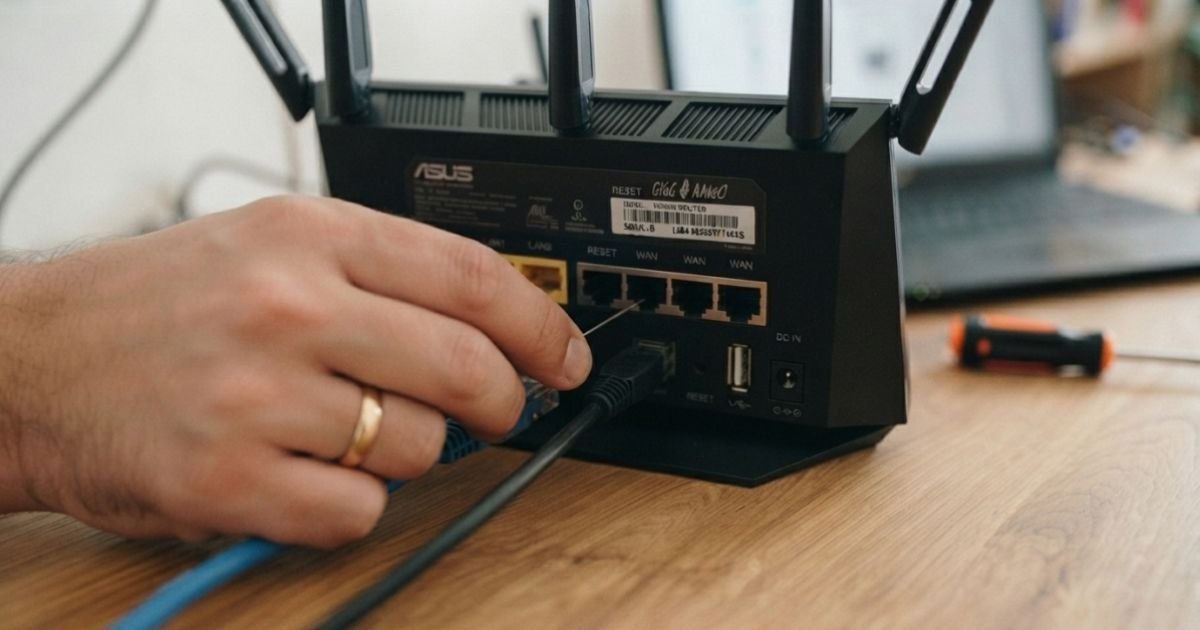
- With the router powered on, hold the reset button for 30 seconds.
- While still holding it, unplug the power and wait 30 seconds.
- While still holding it, plug the power back in and wait another 30 seconds.
This wipes the NVRAM and returns the unit to the exact state it left the factory. It’s a “Hail Mary” that fixes about 50% of the persistent reboot issues I encounter.
If the 30-30-30 reset doesn’t work, you’re likely looking at a dying capacitor on the internal circuit board. Electronic components in consumer-grade routers aren’t meant to last forever. If your unit is more than 4-5 years old and keeps cycling, it’s probably time to retire it.
Frequently Asked Questions
Can a bad ethernet cable cause my router to reboot?
It sounds crazy, but yes. I’ve seen Cat6 cables with frayed internal shielding cause a tiny electrical short between the pins. The router’s logic board detects this “fault” and reboots to protect itself. If your router cycles, try unplugging all Ethernet cables and see if it stays stable. If it does, plug them back in one by one until you find the “killer” cable.
Why does my router only reboot when I start gaming?
Gaming (and large downloads) puts the highest stress on the router’s CPU and Power Supply Unit. When you’re just browsing, the power draw is low. The moment you start a high-bandwidth activity, the CPU clocks up, heat spikes, and the power demand increases. If the PSU is weak or the ventilation is poor, the system crashes. It’s the networking equivalent of a car overheating only when you drive uphill.
Is it normal for my router to reboot once a week?
While modern routers are designed to run for months, a weekly “fresh start” isn’t a bad thing. It clears out the cache and resets the DHCP lease times. However, if it’s happening without your permission, it’s a problem. Most high-end routers have a “Scheduled Reboot” setting—check to make sure you didn’t accidentally turn that on!
Why is my Xfinity gateway blinking orange and then restarting?
A blinking orange light on an Xfinity (Comcast) gateway usually indicates a firmware update in progress or a failure to connect to the ISP’s network. If it stays orange for more than 15 minutes and then reboots, there is likely a service outage in your area or the coax cable behind your wall is loose. Tighten those connections!
How do I know if my router is actually failing?
Check for the “Three Horsemen of a Dying Router”: inconsistent speeds even after a reset, the smell of ozone or hot electronics, and—most importantly—reboots that happen even when the router is plugged into a different outlet with no devices connected. If it reboots while “idle,” the hardware is likely toast.