How to Fix Router Admin Page Not Opening on 192.168.1.1.You’re sitting on your couch, maybe in a suburb outside of Chicago or a cramped apartment in NYC, and you just want to do one thing: change your Wi-Fi password because your neighbor is definitely leeching off your Spectrum connection. You type 192.168.1.1 into Chrome, hit enter, and… nothing. The spinning circle of doom leads to a “site can’t be reached” or “connection timed out” error.
I’ve been a field technician for over a decade, and I can tell you, this is the #1 reason people call for support. Most of the time, the “door is locked” because you’re trying to use the wrong key or you’re standing at the wrong house entirely. Before we dive into the deep technical weeds, let’s go through a quick “sanity check” list. Is your router actually plugged in? Are you actually connected to your home network and not accidentally on your neighbor’s “XfinityWiFi” hotspot? If the hardware is on and your Wi-Fi icon is active, but the page still won’t load, we’ve got some work to do.
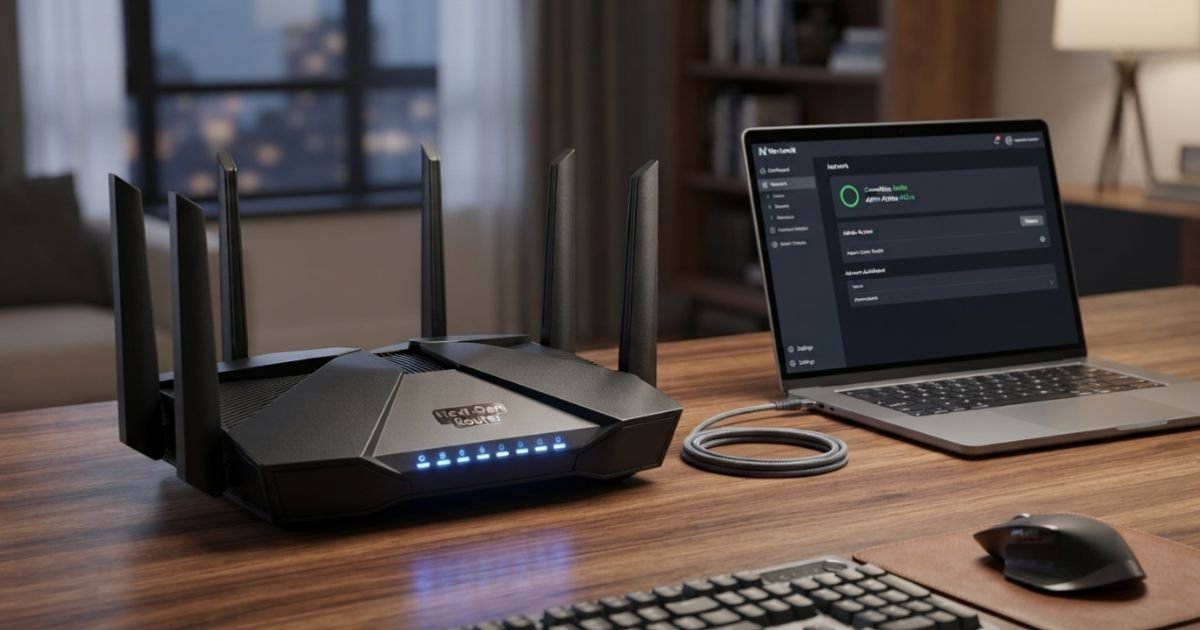
Quick Checklist for Immediate Fixes
- Check the Physical Connection: If you’re on a desktop, make sure the Ethernet cable is snug. If you’re on a laptop, toggle the Wi-Fi off and back on.
- Power Cycle: Unplug the power cord from the back of the router, wait 30 seconds (count them!), and plug it back in. This clears the DHCP server temporary cache.
- Disconnect the VPN: I see this all the time with remote workers. If your work VPN is active, it’s routing your traffic through a server in another state, making your Local Area Network (LAN) invisible. Turn it off.
Step 1: Confirming Your Default Gateway IP Address
Here is the reality check: not every router uses 192.168.1.1. In the US, major ISPs have their own “standards.” If you have Comcast Xfinity, your xfinity router admin login address is almost certainly 10.0.0.1. If you’re on AT&T Fiber, you’re likely looking for 192.168.1.254. Even a spectrum router login ip address can vary depending on whether they handed you an older Arris or a newer Sercomm unit.
To find your specific Default Gateway, don’t guess. Let the computer tell you.
On Windows:
- Press the Windows Key + R, type
cmd, and hit Enter. - In the black box, type
ipconfigand press Enter. - Look for the line that says Default Gateway. That number (e.g., 192.168.0.1) is the exact address you need to type into your browser.
On Mac:
- Click the Apple icon > System Settings > Network.
- Select your active connection (Wi-Fi or Ethernet) and click ‘Details’ or ‘Advanced’.
- Click the ‘TCP/IP’ tab. Your router’s address is listed right there.
If the default gateway is blank how to fix? This usually means your Network Adapter hasn’t been assigned an Internet Protocol (IP) address by the router. This happens if the router’s DHCP server has crashed or if you’ve accidentally set a static IP address on your device that doesn’t match the router’s range.

Step 2: Troubleshooting Browser-Side Blockers
Sometimes the router is fine, but your browser is being “too helpful.” Modern browsers like Chrome, Edge, and Safari are obsessed with security. Many older routers (especially those Netgear or Linksys models you’ve had for six years) use an unencrypted “http” login page.
If your browser tries to force an “https” connection (HSTS), the 192.168.1.1 login admin password netgear page might simply refuse to load.
Try these browser fixes:
- Incognito/Private Mode: This bypasses your Web Browser Cache and extensions. If the page loads here, one of your extensions (like an ad-blocker or a security suite) is the culprit.
- Clear Cache: Manually clear your browsing history and cookies for the “last hour” and try again.
- Type the Full Address: Instead of just typing the numbers, try typing
http://192.168.1.1directly into the address bar.
Step 3: Network Adapter and IP Conflict Resolution
If you’ve confirmed the gateway is 192.168.1.1 and the browser is clean, but the router configuration page is not loading on mac or PC, we need to look at your Network Adapter settings.
I once spent two hours at a client’s house in North Carolina only to realize they had manually set their laptop’s IP to 192.168.2.5 while the router was on the 192.168.1.x subnet. They were in two different “neighborhoods” and couldn’t talk to each other.
The Fix:
- Go to your Network Connections (on Windows, it’s
ncpa.cplin the Run box). - Right-click your adapter > Properties > Click “Internet Protocol Version 4 (TCP/IPv4)”.
- Ensure “Obtain an IP address automatically” and “Obtain DNS server address automatically” are both selected.
Also, be wary of third-party firewalls. I’ve seen Norton and McAfee treat local router login attempts as “unauthorized redirects” and kill the connection instantly. Try disabling your third-party antivirus for five minutes to see if the page pops up.
Step 4: The Physical Layer – Bypassing Wireless Glitches
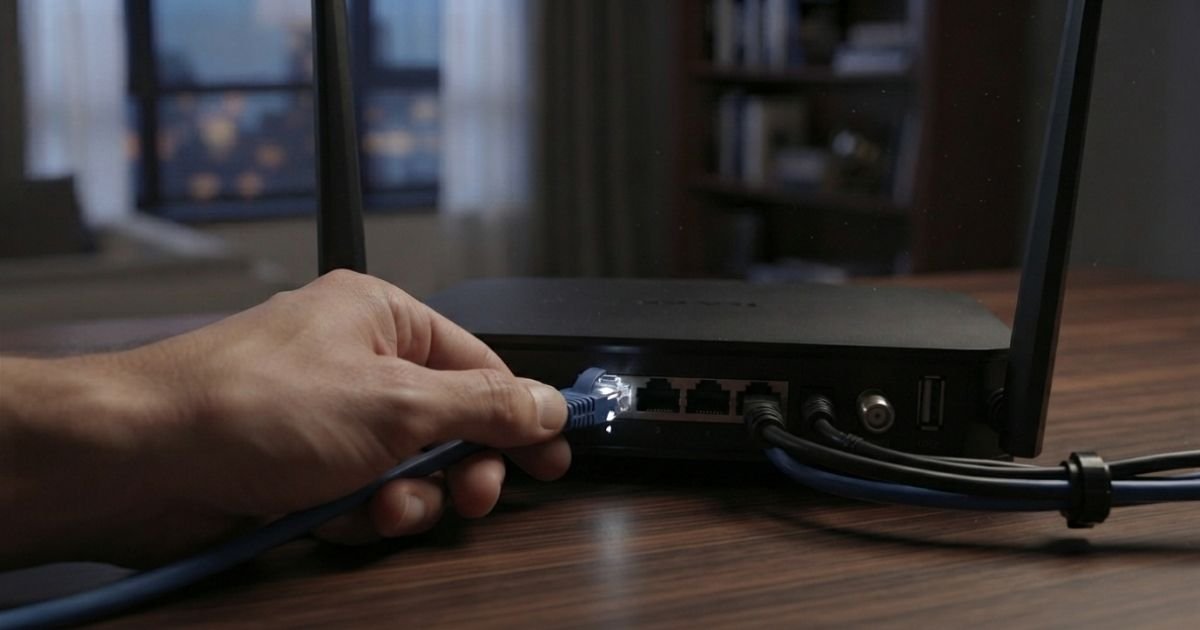
We live in a wireless world, but when it comes to router firmware updates or deep configuration, Wi-Fi is flaky. If your tp link router page not opening 192.168.1.1, grab a physical Ethernet cable.
Plug one end into your laptop (you might need a dongle if you have a modern MacBook) and the other into one of the LAN ports on the back of the router (usually yellow). Turn off your Wi-Fi entirely to force the computer to use the wired connection. This eliminates issues like signal interference or “hidden SSIDs” that make it hard to access router settings without wifi.
Pro Tip: If you are using a mesh system like Eero or Google Nest, remember that the “Main” node is the only one that usually responds to these requests. If you’re plugged into a “satellite” node in the hallway, it might not let you into the admin panel.
Step 5: When All Else Fails – The Factory Reset Procedure
If you’ve tried everything and the 192.168.1.1 taking too long to respond error persists, the router’s internal software might be hung in a “zombie” state. This is where we use the nuclear option: the Factory Reset.
Important Warning: This is NOT a power cycle. A factory reset wipes everything. Your custom Wi-Fi name, your password, your port forwarding rules for gaming—gone. Your router will go back to the settings it had the day it was manufactured.
The 30-30-30 Rule: This is an old-school technician trick for stubborn hardware:
- With the router powered on, hold the reset button (usually a tiny hole you need a paperclip for) for 30 seconds.
- While still holding the button, unplug the power and hold for another 30 seconds.
- While still holding the button, plug the power back in and hold for a final 30 seconds.
After this, the router will reboot. You will need to look at the sticker on the bottom or back of the unit to find the “Default Credentials.” It’s often something generic like “admin/password” or “admin/admin.”
Real-Time FAQs: Solving the Most Persistent Problems
Q: Why does my Spectrum router use a weird address instead of 192.168.1.1?
A: Spectrum, like many US ISPs, often uses “Smart WiFi” features where you are encouraged to manage settings via their mobile app (My Spectrum App) rather than a local browser page. However, many of their local gateways still use 192.168.1.1 or 192.168.0.1. If those fail, check the sticker on the side of the physical modem/router combo—they often print the unique login URL right there.
Q: I can get to the login page, but “admin” and “password” don’t work. What now?
A: If you never changed the password, check the sticker on the router for a “Factory Password” or “Security Key.” Note that “admin” is almost always the username, but for many ASUS and Netgear routers, the password is now a unique string of characters for security reasons (required by newer California laws, for example, to prevent generic hacks).
Q: Can I access my router settings if I don’t have an internet connection?
A: Absolutely. You don’t need “the internet” (the outside world) to access your router. You only need a “Local Area Network” (the connection between your phone/PC and the router). As long as you are connected via Wi-Fi or Ethernet, you can reach the admin page even if the “Internet” light on your modem is red.
Q: My “Default Gateway” shows as my public IP address (e.g., 72.x.x.x). Why?
A: This usually happens if your router is in “Bridge Mode” or if you are connected directly to a standalone modem without a router. In Bridge Mode, the router’s management features are disabled to let another device handle the routing. To fix this, you’ll likely need to perform a factory reset to regain local control.
Expert Insight: The “Hidden” IP
In my years in the field, I’ve found that many people struggle because they are trying to access the router through a “range extender” or “Wi-Fi booster.” These devices often have their own IP addresses (like 192.168.1.250). If you are connected to the extender, you might not be able to “see” the main router. Always try to be in the same room as the primary router when doing this kind of maintenance. It saves a lot of headaches and prevents the “taking too long to respond” errors that plague mesh-heavy American households.
By following these steps—from checking your actual gateway via CMD to the 30-30-30 reset—you should be able to reclaim control over your network. Just remember: once you get in, change that default password! Leaving it as “admin” is like leaving your front door unlocked in the middle of a busy city. Stay safe out there.