Router Not Assigning IP Address to Devices — Fix It Now.It’s 8:55 AM on a Monday. You’ve got a Zoom call with your boss in five minutes, your coffee is piping hot, and you sit down only to see that dreaded spinning circle on your laptop. You’re connected to the Wi-Fi, sure, but there’s a yellow exclamation mark or a message that feels like a slap in the face: “Obtaining IP Address…” or “No Internet, secured.” You check your iPhone, and it’s doing the same dance. Your Spectrum or Xfinity gateway is sitting there, glowing blue or white like everything is fine, but your devices are essentially shouting into a void and getting no answer.
I’ve spent the better part of a decade troubleshooting home networks—from small NYC apartments to sprawling suburban homes filled with smart bulbs—and I can tell you, few things are as frustrating as a router that refuses to do its one main job: handing out IP addresses. It’s like a waiter who takes your seat but never brings the menu. You’re in the restaurant, but you aren’t getting fed.

The “Obtaining IP Address” Loop: Real-World Scenarios
When you see a message like “windows 11 wifi doesn’t have a valid ip configuration” or an Android phone stuck on a dhcp lookup failed notification, you’re witnessing a breakdown in communication. In the networking world, we often see devices assign themselves a “ghost” IP. If you look at your network settings and see an address starting with 169.254.x.x, your device has given up on the router and made up its own number (APIPA). This address is useless for the internet; it’s basically your computer talking to itself in a mirror.
I remember helping a neighbor last month who had just switched to a high-speed AT&T Fiber line. Everything worked for two days, and then suddenly, his iPad just stopped. He was connected to wifi but no ip address fix was nowhere to be found in the basic manual. It turned out his router’s internal table was clogged. These glitches don’t care how much you pay for your monthly plan; they happen to the best of us.
Understanding the Root Cause: Why DHCP Fails
At the heart of this issue is the Dynamic Host Configuration Protocol (DHCP). Think of the DHCP Server inside your router as a busy librarian. Every time a device (your phone, smart TV, or laptop) joins the network, it asks the librarian for a temporary ID card—the IP Address Lease.
The librarian also hands out a “map” of the network, which includes the Subnet Mask and the Default Gateway (the router’s own address). If the librarian is asleep, overwhelmed, or has run out of ID cards, your device remains “unassigned.”
Why does this happen?

- IP Pool Exhaustion: You might have the router reached max number of ip addresses error. Most US-based routers come with a default range (e.g., 192.168.1.2 to 192.168.1.50). If you have 51 smart gadgets, the 51st one is out of luck.
- IP Conflicts: Two devices are fighting over the same address.
- Firmware Glitches: The TCP/IP Stack on your router or device has crashed.
- MAC Address Filtering: You (or a savvy roommate) might have turned on a security feature that blocks any “unrecognized” hardware from getting an address.
The 5-Minute Fix: Power Cycles and Basic Checks
Before we start digging into command prompts or admin panels, let’s do the “IT Crowd” special. But there’s a specific sequence that matters—you can’t just pull all the plugs at once.
- The Sequential Reboot: Power down your modem (the box from Spectrum or Cox), then your router (if it’s a separate unit), then your device.
- Wait 60 Seconds: This allows the capacitors to drain and the Address Resolution Protocol (ARP) table to clear.
- Power Up in Order: Plug the modem in first. Wait for the “Online” light to go solid. Then plug in the router. Finally, turn on your laptop or phone.
This “Reboot Sequence” clears out stale IP Address Lease data that might be gumming up the works. If you’re lucky, your spectrum router not assigning ip address issue just vanished. If not, we need to go deeper.
Advanced Hands-on: Adjusting Router Settings
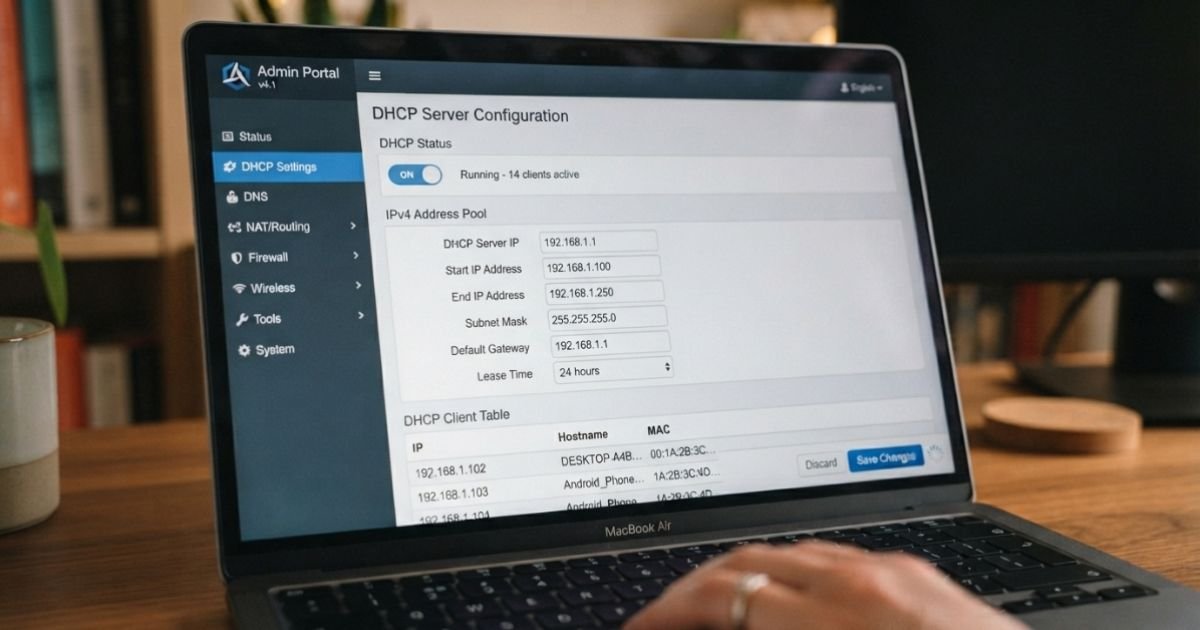
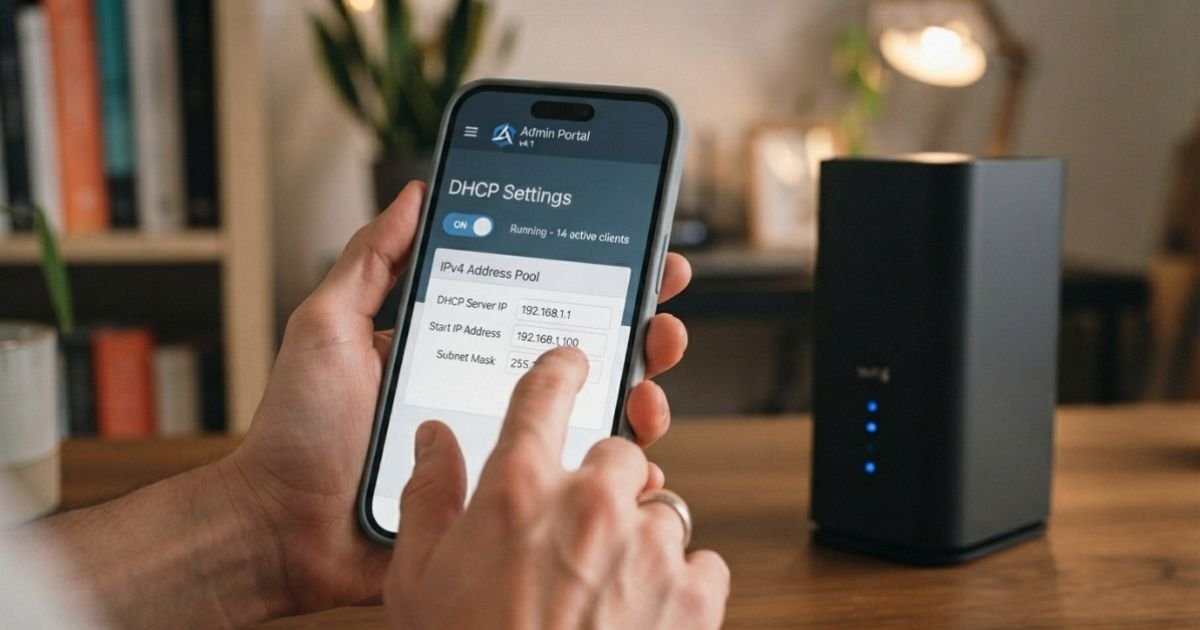
If the reboot failed, it’s time to log into the “brain” of your network. Most US routers use the local address 192.168.1.1 or 192.168.0.1. Pop that into your browser. Whether you’re using Netgear Genie, Linksys Smart Wi-Fi, or ASUSWRT, the logic is the same.
1. Check the DHCP Range
Look for “LAN Settings” or “DHCP Server.” I’ve seen some default configurations set to only 20 addresses. In a world of IoT, that’s nothing. If you’re wondering how to increase dhcp range on linksys router, simply change the “End IP Address” from something like 192.168.1.21 to 192.168.1.254. This gives you plenty of breathing room.
2. Disable MAC Address Filtering
Navigate to the “Security” or “Advanced Wireless” tab. If MAC Address Filtering is enabled, it acts as a digital bouncer. If your new laptop’s Network Interface Card isn’t on the “VIP list,” the router won’t even talk to it. Turn this off temporarily to see if the device connects.
3. Update the Firmware
Manufacturers like TP-Link and Netgear release updates to fix bugs exactly like the “cannot get ip address from dhcp server” error. Check the “Advanced” -> “Administration” -> “Firmware Update” section.
Expert Insight: If you’re in a crowded apartment complex, your router might be struggling with interference. US routers are restricted by the FCC to channels 1-11 on the 2.4GHz band. If your router is set to “Auto” and keeps jumping around, it can occasionally drop the DHCP handshake. Try “pinning” it to channel 1, 6, or 11 for better stability.
Troubleshooting Specific Devices
Sometimes the router is fine, but the device is being stubborn. Here’s how to force a new conversation.
For Windows 11 Users
If you’re getting why is my router not giving my laptop an ip address, use the command line.
- Type
cmdin the search bar, right-click, and “Run as Administrator.” - Type
ipconfig /releaseand hit Enter. (This drops your current, broken IP). - Type
ipconfig /renewand hit Enter. (This forces a fresh request to the DHCP server). - If that fails, try
netsh int ip reset. This nukes your TCP/IP Stack settings and starts from scratch.
For Android and iPhone
The dhcp lookup failed on android fix is usually as simple as “Forgetting” the network.
- Go to Wi-Fi settings, tap your network, and select Forget Network.
- Re-enter the password. This forces the phone to initiate a brand-new “handshake” with the router.
For macOS
Go to System Settings > Network > Wi-Fi > Details > TCP/IP. Click the Renew DHCP Lease button. It’s surprisingly effective and saves you a reboot.
Common Pitfalls to Avoid
I’ve seen people try to fix this by setting a Static IP Assignment on their laptop. While this can work as a temporary band-aid, it often leads to more headaches later. If you manually set your IP to 192.168.1.50 and then your spouse’s phone joins the network and the router also gives them .50, you’ve got an IP conflict. Both devices will lose internet.
Also, check your SSID Configuration. If you have a 2.4GHz and 5GHz network with the exact same name, some older devices get “confused” during the IP assignment phase. Try giving them slightly different names (e.g., “Home_Wifi” and “Home_Wifi_5G”) to see if the behavior improves.
Lastly, don’t overlook the hardware. If you’re still using a router from 2015 provided by your ISP, it might just be dying. Old capacitors can’t handle the load of 20+ modern devices constantly requesting data. Sometimes the best fix is a trip to Best Buy for a modern Wi-Fi 6 router.
Frequently Asked Questions
Q: Why does my device say “Connected, no internet” even though the signal is full?
A: This usually means the physical connection to the Wi-Fi radio is successful, but the DHCP Server failed to provide an IP address, or the router itself has lost its connection to the ISP (Spectrum, Xfinity, etc.). Check if your router’s “Internet” or “WAN” light is red or amber.
Q: Can a bad Ethernet cable cause DHCP issues?
A: Absolutely. If the cable between your modem and router is frayed or old (Cat5 instead of Cat6), the router may struggle to communicate with the outside world, causing the whole Dynamic Host Configuration Protocol process to stall for local devices.
Q: Is a “Factory Reset” the same as a “Reboot”?
A: No. A reboot just restarts the software. A factory reset (usually a tiny button you poke with a paperclip) wipes every setting, including your Wi-Fi name and password. Only do this as a last resort, and make sure you have your ISP login credentials handy.
Q: How many devices can a standard home router handle?
A: Most “consumer-grade” routers provided by ISPs like Cox or AT&T can comfortably handle 20-30 devices. If you’ve added a dozen smart plugs, three cameras, and a few smart speakers recently, you might have hit the hardware’s limit, leading to unassigned IP addresses.
Q: Will changing my DNS settings fix an IP assignment issue?
A: Usually, no. DNS (like Google’s 8.8.8.8) helps your computer find websites after it has an IP address. If you can’t get an IP address in the first place, changing your DNS won’t help because you aren’t even “on the road” yet.
Fixing a router that won’t assign IP addresses isn’t magic; it’s just a matter of identifying where the “handshake” is failing. Start with the cables, move to the power cycle, and if all else fails, dive into those admin settings. You’ve got this!