I remember the night I unboxed my Samsung Galaxy S24 Ultra. I’d been waiting weeks for that M13 OLED panel to arrive, promised as the pinnacle of mobile display tech. I sat in my darkened living room, pulled the plastic off, and fired up the setup process in Dark Mode. Then, I saw it. On the grey background of the settings menu, at about 5% brightness, it looked like I was staring at a piece of fine-grit sandpaper or a pair of denim jeans.
If you’re reading this, you probably know exactly what I’m talking about. You paid $1,300+ for a “Dynamic AMOLED 2X” powerhouse, only to find the screen looks “dirty” when you’re scrolling through Reddit or Kindle before bed.
Is your phone broken? Is it a software bug? Or is this just the “new normal” for Samsung’s high-nit displays? I’ve spent the last few months digging into sub-pixel layouts, chatting with hardware techs, and scouring every corner of the Samsung Community and Reddit to find out how to actually “fix” (or at least hide) the S24 Ultra grainy display issue.
Understanding the Grainy Display Phenomenon
Let’s get the technical jargon out of the way first. What most of us are calling “grain” is technically known in the industry as the Mura effect.
In a perfect world, every single sub-pixel on an OLED panel would emit the exact same amount of light at a given voltage. But we don’t live in a perfect world. The M13 OLED material used in the S24 Ultra is pushed to an incredible 2,600 nits peak brightness. To achieve this, the sub-pixel layout and the way current is managed across the panel have become incredibly complex.
When you drop the brightness to 0–10%, the voltage supplied to each pixel is so low that tiny variations in the manufacturing process become visible. One pixel might be slightly brighter than its neighbor. This creates that “sandy” texture.
Hardware Grain vs. Software Bugs
It’s important to distinguish between two things I’ve observed:
- Hardware Mura: This is the physical “grain” that stays static on the screen. It doesn’t move when you scroll. This is a characteristic of the panel itself.
- Dithering Artifacts: This is a software issue where the phone tries to transition between colors but does so poorly, creating “banding.”
The grain we are talking about here is almost certainly hardware-level non-uniformity. However, Samsung’s firmware updates have attempted to mitigate how our eyes perceive it by changing how colors are rendered.

Real-World Scenarios: When the Issue Occurs
You won’t see this grain while watching a bright YouTube video or browsing Chrome in the sunlight. It’s a creature of the dark.
- The eBook Trap: I first noticed it while reading on the Kindle app with the “Dark” theme (grey background, not pure black). The “sand” was everywhere.
- The Settings Menu: Navigate to your Settings in Dark Mode. At 5% brightness, the grey headers often look like they have a “jeans” texture.
- The Notification Shade: Pull down your notifications on a low brightness setting. If the blur effect isn’t perfect, the grain becomes glaring.
Why grey? Because pure black on an OLED means the pixels are off. You can’t see grain on a pixel that isn’t emitting light. It’s when those pixels barely turn on to show “near-black” or “dark grey” that the Mura effect dances in your face.
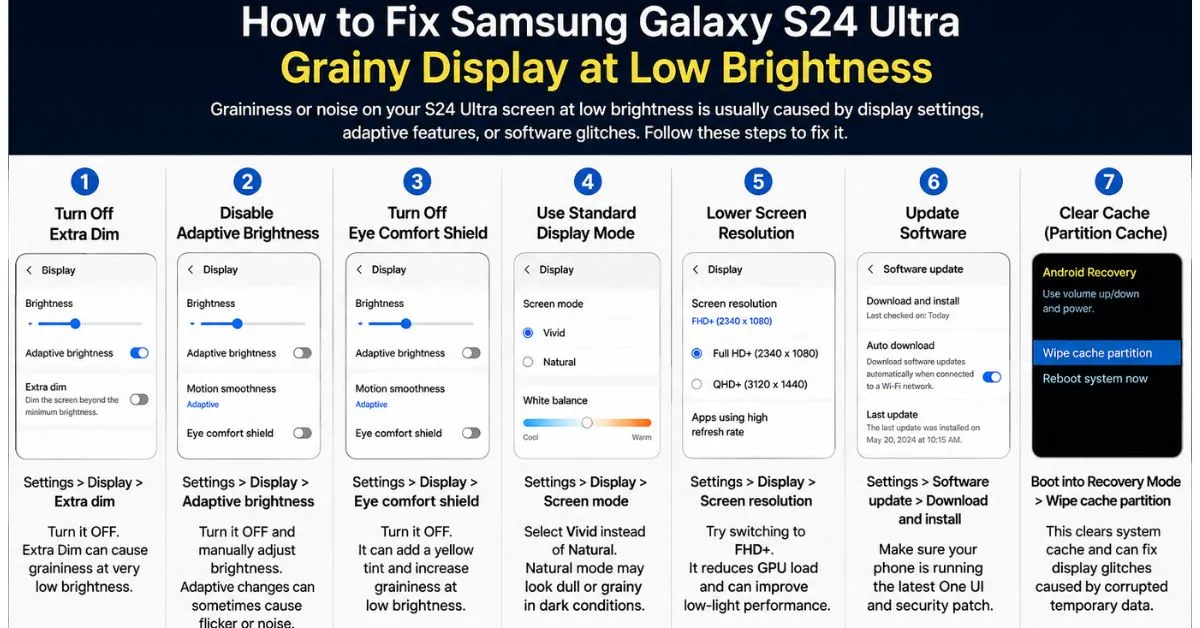
Hands-on Fix 1: Optimizing Vividness and Color Settings
When the S24 Ultra first launched, the “Vivid” mode was… well, not vivid. Samsung eventually pushed a firmware update that added a “Vividness” slider. While this doesn’t “fix” the physical pixels, it changes the Color Gamut and how light is distributed, which can help mask the grain.
- Go to Settings > Display > Screen Mode.
- Ensure Vivid is selected.
- Tap Advanced Settings.
- Move the Vividness slider to the second or third notch.
By increasing the saturation, you’re essentially forcing the pixels to work a bit harder, which can sometimes “drown out” the subtle variations of the Mura effect.
Expert Insight: The White Balance Hack In the same “Advanced Settings” menu, try moving the RGB sliders. I found that pushing the Blue slider slightly higher and pulling the Red down makes the “grain” less yellowish/sandy and more “cool,” which is often less distracting to the human eye at night.
Hands-on Fix 2: Brightness and Filter Adjustments
Samsung’s software includes a few features that interact with PWM dimming (Pulse Width Modulation). PWM is how the screen flickers to simulate lower brightness. If the flicker rate and the pixel grain align, it looks ten times worse.
The “Extra Brightness” vs. “Extra Dim” Battle
Here is something counter-intuitive I discovered:
- Avoid “Extra Dim”: While “Extra Dim” (found in your Quick Settings) is great for your eyes, it’s a software-level filter that darkens the screen without lowering the actual voltage to the pixels in a way that helps grain. In fact, it often makes the grain more apparent because it crushes the dynamic range.
- The Sweet Spot: Instead of using “Extra Dim,” try to keep your brightness slider slightly higher (around 15%) and use a third-party app like Screen Filter or just live with the brightness.
Disable Eye Comfort Shield (Temporarily)
I’ve noticed that the Eye Comfort Shield adds a yellow tint that exacerbates the “dirty” look of the grain. If you’re doing something where the grain is driving you crazy, toggle this off. The “Natural” color of the M13 panel is already quite good at managing blue light compared to older M11 or M12 panels.
Pro Tip: If you use “Adaptive Color Tone,” the phone uses the cameras to sense ambient light and adjust the display. In low light, this sensor can sometimes “hunt” for the right white balance, causing the grain to appear to “shimmer.” Try turning this off if you notice the grain shifting while you hold the phone.
Common Pitfalls and What to Avoid
In the panic to fix a $1,300 phone, people do weird things. I’ve seen them all on the forums.
- “Screen Repair” Apps: Do not download apps that claim to “fix” stuck pixels by flashing bright colors for hours. This is not a stuck pixel. It is a sub-pixel uniformity issue. You’re just wasting battery and wearing out your LEDs.
- Cleaning Chemicals: I saw one user suggest that the grain was “internal dust” and recommended using high-pressure air or alcohol. Don’t. The grain is inside the glass, part of the OLED sandwich. You cannot clean it away.
- Ignoring Firmware: Some people stay on the launch firmware because they heard it had better battery life. Samsung’s later updates significantly improved the dithering algorithms, which helps the screen transition between dark colors more smoothly, reducing the “perception” of grain.
Technical Troubleshooting: Is it a Defect or a Feature?
This is the million-dollar question. Samsung’s official stance, generally, is that this is within “manufacturing tolerances.” However, some batches are clearly worse than others.
The #0# Test
If you want to see how bad your panel really is:
- Open the Phone app and dial
*#0*#. - Tap on Red, Green, and Blue to check for dead pixels.
- The real test is the Grays. If the grey looks like a “patchy” mess rather than a uniform “grain,” you might actually have a defective panel.
How to Document it for RMA
If you decide to go for an RMA (Return Merchandise Authorization), you need proof. But here’s the kicker: taking a photo of screen grain is hard.
- The Pro-Tip: Use another phone in “Pro” or “Manual” mode. Set the ISO to 800 or 1600 and the shutter speed to 1/10 or 1/15 of a second. This “long exposure” will capture the Mura effect exactly as your eyes see it. If you just take a regular “point and shoot” photo, the phone’s AI will likely smooth out the grain, making your evidence disappear.
My Personal Take
After testing three different S24 Ultra units, I’ve come to a realization: they all have it to some degree. It’s the trade-off for the new anti-reflective Gorilla Armor glass and the high-nit M13 material. If your grain is uniform and only visible below 10% brightness in a pitch-black room, it’s likely “normal” for this generation. If you see “streaks” or “blobs” (often called “smearing”), that’s a hardware defect. Request a replacement.
Frequently Asked Questions
1. Will a software update ever completely fix the grain?
Probably not “fix” it in the sense of making it disappear, because it is a physical characteristic of the M13 OLED panel’s sub-pixel uniformity. However, Samsung can—and has—improved the software dithering to make the transitions between dark colors smoother, which makes the grain less noticeable.
2. Is the S24 Ultra grain issue present on the S24 or S24+?
Yes, but it seems most prevalent on the Ultra. This might be due to the Ultra’s specific screen size, its unique anti-reflective coating (Gorilla Armor), or the way its specific panel batch is driven at low voltages.
3. Does the screen grain affect the long-term lifespan of the phone?
No. Mura is a static uniformity issue. It isn’t “burn-in” and it won’t get worse over time. In fact, as the OLED pixels age slightly over the first few hundred hours of use, some users report that the “harshness” of the grain settles down (though this might just be their eyes adjusting).
4. Should I return my S24 Ultra if I see grain?
If you can see the grain at 30% brightness or in a lit room, yes, return it. That is a poor-quality panel. If you only see it at 5% brightness in a dark room and it’s a uniform “sandy” texture, a replacement unit will likely have the same “issue.”
5. Does using a screen protector make the grain worse?
Actually, some matte screen protectors can slightly “diffuse” the light, which might actually hide the grain. However, the S24 Ultra’s best feature is its anti-reflective glass. Putting a cheap plastic protector on it ruins that benefit.










