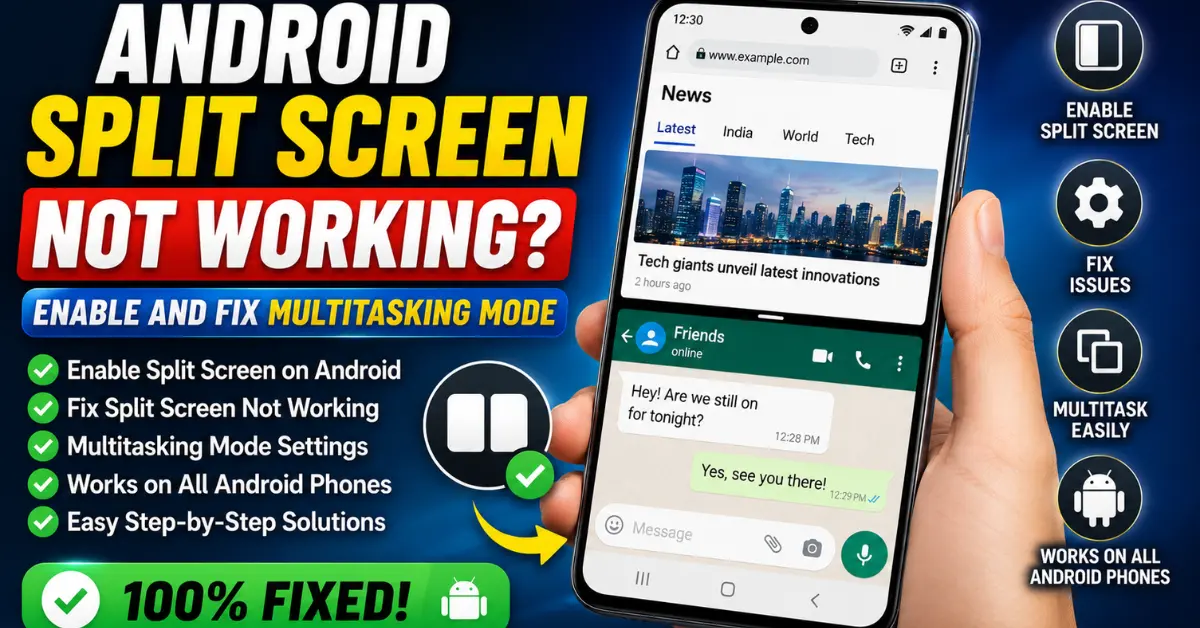
I was sitting in a cramped corner of a local coffee shop last week, desperately trying to join a Zoom meeting while simultaneously referencing a massive PDF report on my phone. On my laptop, this is a breeze. On my Android? It was a nightmare. Every time I tried to trigger the split-screen mode, the PDF viewer would snap shut, or Zoom would throw a tantrum and go full-screen.
If you’ve ever felt that spike of adrenaline when your phone refuses to do two things at once, you’re not alone. Multitasking on the Android Operating System has evolved massively from the clunky days of Android 7.0, yet here we are in the era of Android 14, still fighting with “App doesn’t support split screen” errors.

Whether you’re rocking a Samsung with One UI or a sleek Pixel UI device, the frustration remains universal. Let’s dive into why this happens and how we can force our devices to behave.
Understanding Why Android Split Screen Fails
Modern smartphones have more RAM than my first three laptops combined. So why does multitasking feel so fragile? The shift from physical home buttons to Gesture Navigation changed the way we interact with the User Interface (UI). We used to long-press a “Recent Apps” button; now, we perform a delicate thumb-swipe-and-hold that feels more like a secret handshake than a command.
The primary culprit behind a failed split-screen session is often the Application Manifest. This is a file every app developer includes that tells the system what the app can and cannot do. If a developer hasn’t explicitly flagged their app as “resizable,” the System UI won’t allow it to shrink into a split-screen window. This is common with games, some banking apps, and—notoriously—Instagram.
Another hidden factor is RAM Management. Android is aggressive. If your device senses that keeping two heavy apps open simultaneously will choke the processor or drain the battery, it will silently kill one of the processes. This is especially true on mid-range devices where the system prioritizes “foreground” stability over your desire to watch YouTube while scrolling through Chrome.
The Basics: How to Properly Activate Split Screen
Before we get into the “hacker” fixes, let’s make sure we’re doing the basics right. The method has changed significantly between Android versions 11, 12, 13, and 14.
- Enter the Overview Screen: Swipe up from the bottom of your screen and hold (if using gestures) or tap the square “Recents” button (if using the 3-button nav).
- The Icon Tap: Don’t try to drag the app window. Instead, look at the very top of the app preview card. There is a small app icon. Tap it.
- Select the Mode: A menu will appear. Look for “Split top” or “Open in split screen view.”
- Pick Your Second App: Your screen will shift, and you’ll be prompted to select another app from your recent list or your app drawer.
Wait, what about Pop-up View? On Samsung devices running One UI, you have an extra choice: “Open in pop-up view.” This creates a floating window instead of a rigid split. I personally find this better for calculators or chat apps like WhatsApp, but it requires even more RAM to run smoothly.

Expert Insight: The “Lock” Trick If you find your split-screen apps closing randomly, try “locking” the app in the background first. In the Recents screen, tap the app icon and select “Keep open” or “Lock this app.” This tells the Android Operating System’s RAM manager to keep its hands off that specific process, preventing the dreaded “App closed” crash during multitasking.
The Pro Fix: Using Developer Options for Unsupported Apps
This is the “aha!” moment for most users. If you’ve ever tried to split-screen an app and saw a message saying it wasn’t supported, there is a hidden backdoor. We’re going to force the Android Operating System to ignore the developer’s restrictions.
Step 1: Unlocking Developer Options
You can’t fix what you can’t see.
- Go to Settings > About Phone.
- Scroll down to Build Number.
- Tap “Build Number” seven times. You’ll see a toast notification saying “You are now a developer!” (It feels pretty cool every time, doesn’t it?)
Step 2: Enabling the Multitasking Overrides
Now, go back to Settings > System > Developer options. You are looking for two specific toggles:
- Force activities to be resizable: This is the big one. It forces every app—even Instagram or old legacy apps—to allow split-screen mode.
- Enable non-resizable in multi-window: This ensures that even if an app has a fixed Aspect Ratio, the system will still try to window it.
Step 3: The Mandatory Restart
I made the mistake of toggling these and expecting them to work instantly. They won’t. You must restart your phone. Once the system reboots, the Application Manifest overrides take effect. I’ve used this trick to run YouTube (without Premium) in a tiny window while I browse Reddit, and it works like a charm.
Troubleshooting UI and Gesture Navigation Glitches
Sometimes, the hardware isn’t the problem—the software layer is. If you use a third-party launcher like Nova Launcher, Niagara, or Lawnchair, you might have noticed that multitasking feels… “janky.”
Android’s Gesture Navigation is deeply tied to the default system launcher (like Pixel Launcher or One UI Home). When you use a third-party launcher, the handoff between the app and the “Recents” screen often breaks. This can lead to the split-screen option disappearing entirely.

The Fix:
- Clear Launcher Cache: Go to Settings > Apps > [Your Launcher] > Storage > Clear Cache. Do NOT clear data unless you want to set up your home screen again from scratch.
- Switch to 3-Button Navigation: If gestures are consistently failing you, go to Settings > System > Gestures > System Navigation and switch back to the old-school 3-button layout. It’s less “modern,” but it’s significantly more reliable for triggering multitasking modes.
Advanced System-Level Fixes
If you’ve tried the Developer Options and the launcher fixes but your phone still hangs, we need to look deeper into the system health.
Google Play Services and System UI
The System UI is the app that actually draws the split-screen borders. If it’s buggy, your multitasking will be too. Occasionally, a bad update to Google Play Services can also cause background processes to conflict.
- Check for updates in the Play Store specifically for “System WebView” and “Google Play Services.” These are the invisible gears that keep the UI turning.
Clearing the System Cache Partition
This is a “pro-only” move that I’ve used to revive sluggish phones without a full factory reset.
- Power off your device.
- Hold the Power + Volume Up buttons (varies by manufacturer) to enter Recovery Mode.
- Use the volume buttons to select “Wipe Cache Partition.”
- Confirm with the power button. Note: This does NOT delete your photos or apps. It just clears out the temporary system files that can get gummed up after an OS update.
The RAM Management Reality
Let’s be honest for a second: if you’re trying to split-screen a heavy game like Genshin Impact with a high-res video editor on a phone with 4GB of RAM, it’s going to fail. No amount of “Force resizable” will fix a lack of physical memory. In these cases, your best bet is to close all other background apps before starting your multitasking session.
Frequently Asked Questions
1. Why do some apps say “App doesn’t support split screen” even after I enabled Developer Options?
Even with “Force activities to be resizable” enabled, some apps have hard-coded UI elements that break when the Aspect Ratio changes. These apps might crash immediately upon entering split-screen. It’s a conflict between the system’s force-resize and the app’s internal code. If the restart didn’t help, the app might simply be incompatible with windowed modes.
2. Does using split-screen mode drain my battery faster?
Yes, but perhaps not for the reason you think. It’s not just that two apps are visible; it’s that the processor has to maintain two active “foreground” states simultaneously. Usually, Android puts background apps into a low-power “suspended” state. In split-screen, both are drawing power at full tilt.
3. Can I use split-screen on all Android tablets?
Most modern tablets (like the Galaxy Tab series or Pixel Tablet) are actually better at this than phones. They often use a “Taskbar” feature (introduced in Android 12L) that allows you to drag and drop apps directly onto the screen. If it’s not working, check your “Display” settings for “Taskbar” or “Multi-window” toggles.
4. Why did my split-screen stop working after an Android 14 update?
Major OS updates often reset certain flags in the System UI. Occasionally, a “feature update” might also break compatibility with third-party launchers. Try switching back to the default system launcher to see if the functionality returns. If it does, your third-party launcher needs an update from the Play Store.
5. Is there a limit to how many apps I can open at once?
On most Android phones, you are limited to two apps in split-screen. However, devices like the Samsung Galaxy Z Fold or high-end tablets can often handle three apps in a grid, plus additional “Pop-up” floating windows. This is limited by the manufacturer’s specific software skin (like One UI) rather than the base Android Operating System.
Multitasking on Android is a power-user’s dream, but it requires a bit of “tinkering” to get right. By overriding developer restrictions and understanding the limitations of your UI, you can transform your phone from a single-task tool into a legitimate mobile workstation. Just remember: if all else fails, a simple restart is often the smartest “fix” in your toolkit.










