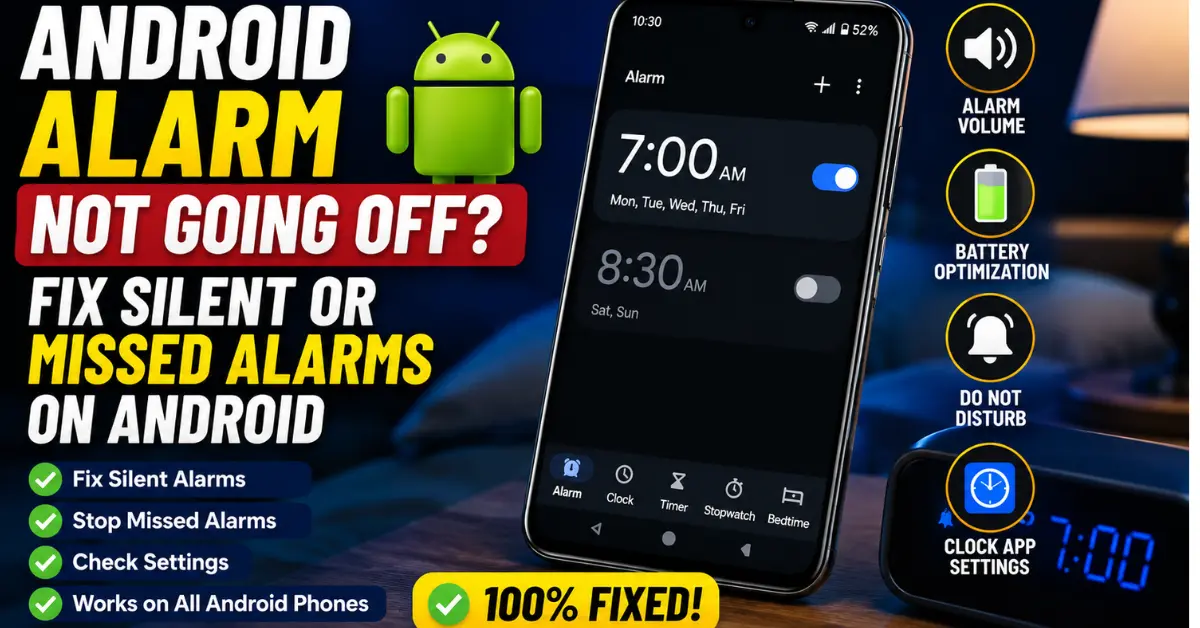
It’s 8:15 AM. Your high-stakes morning meeting started fifteen minutes ago. You roll over, squinting at the harsh sunlight filtering through the blinds, and see your Pixel or Galaxy sitting innocently on the nightstand. The screen is dark. No sound. You tap the power button, and there it is—the mocking notification: “Missed alarm.”
I’ve lived this nightmare. More than once, actually.

As someone who tinkers with the Android Operating System daily, I used to think I was immune to “user error.” But I quickly learned that when an Android alarm fails, it’s rarely because you forgot to set it. Usually, it’s a silent war happening under the hood between your Google Clock app and aggressive power-saving features. If you’re tired of explaining to your boss why your “reliable” tech failed you, let’s dive into the weeds and fix this once and for all.
Introduction: Why Your Android Alarm Failed You
The “Panic Moment” of waking up to a silent house when you should be halfway to work is a universal modern trauma. But here’s the kicker: there is a massive difference between a silent alarm and a missed alarm.
A silent alarm actually “triggers”—the screen lights up, the “Dismiss” slider appears—but no audio comes out. A missed alarm never triggers at all because the system killed the Clock app’s background process before it could fire. Standard troubleshooting guides usually tell you to “check your volume,” but that’s surface-level advice. We need to look at why the Android Operating System might be intentionally silencing your wake-up call or, worse, putting the entire app into a “deep sleep” from which it cannot wake.
The Basics: Volume Settings and Silent Mode Myths
Before we get into the heavy-duty system tweaks, let’s kill the obvious suspects. I’ve seen seasoned techies fall for these more often than they’d like to admit.
Media Volume vs. Alarm Volume
In the Android ecosystem, audio isn’t one-size-fits-all. You have separate sliders for Ringtone, Media, Notifications, and Alarms. I recently helped a friend who swore his alarm was broken on his OnePlus. It turns out he was turning down his “Media Volume” (thinking it controlled everything) while the “Alarm Volume” slider was accidentally dragged to zero during a late-night YouTube scroll.
The Fix: Hit your volume rocker, tap the three dots (or the settings cog) to expand all sliders, and ensure the one with the little alarm clock icon is cranked up.

The “Silent” Tone Trap
Check your Google Clock settings. Did you recently switch to a custom ringtone? If you selected a file from your “Downloads” folder and then deleted that file to save space, the app might default to “Silent.”
Expert Insight: Always use a system-native tone for your primary alarm. If you use a custom MP3, the system has to “fetch” that file. If your storage is encrypted or the file path is broken after a Firmware Update, you’re waking up to silence.
System Conflicts: Do Not Disturb and Battery Optimization
This is where things get technical. Modern Android versions (especially Android 12, 13, and 14) are obsessed with battery life. Sometimes, they’re a little too obsessed.
The “Adaptive Battery” Trap
Google introduced Adaptive Battery to learn your usage patterns and kill background apps you don’t use often. The problem? If you don’t open your Clock app every day, the system might categorize it as a “background hog” and restrict its ability to trigger.
To stop this:
- Open Settings > Apps.
- Find the Clock app (usually Google Clock).
- Tap on Battery.
- Switch it from “Optimized” or “Restricted” to Unrestricted.
I did this on my Samsung Galaxy S23 Ultra after it missed two alarms in a week, and it hasn’t missed a beat since. By whitelisting the app, you’re telling the OS, “Do not touch this process, no matter how much battery it uses.”
Do Not Disturb (DND) Exceptions
We all use Do Not Disturb Mode to keep those 2 AM “check out this meme” notifications from vibrating the nightstand. However, if your DND settings aren’t configured correctly, they can override your alarm.

Go to Settings > Sound & Vibration > Do Not Disturb. Look for Alarms & other interruptions. Ensure that the toggle for “Alarms” is turned ON. If this is off, DND will treat your alarm like a spam phone call and bury it.
Clock App Specific Fixes: Cache, Data, and Updates
Sometimes the app itself gets “gunked up.” I’m talking about corrupted cache files that prevent the Notification Channel from firing correctly.
Clearing Cache and Data
If your alarm UI is laggy or the “Snooze” button doesn’t work, it’s time for a scrub.
- Go to Settings > Apps > Clock > Storage.
- Tap Clear Cache.
- Warning: If you tap Clear Data, you will lose all your saved alarms. Only do this as a last resort, but honestly, sometimes a fresh start is necessary if the app is caught in a loop.
The Spotify/YouTube Music Integration Bug
I love waking up to a specific playlist, but music integration is a common point of failure. If your phone loses Wi-Fi or cellular data in the middle of the night, and the app tries to stream your alarm sound, it might fail. Sometimes it defaults to a “Beep,” but other times, it just hangs there trying to buffer.
Pro Tip: If you use Spotify for alarms, make sure the specific song is downloaded for offline use within the Spotify app. Better yet, set a “Backup Alarm” five minutes later that uses a standard, on-device system beep.
External Interference: Bluetooth and Third-Party Apps
This is the “Hidden Boss” of alarm troubleshooting. I once spent three days wondering why my alarm was silent, only to realize my phone was still connected to a Bluetooth speaker in the garage.
Bluetooth Audio Hijacking
If you leave your Bluetooth on, your phone might stay paired with a headset or speaker in another room. When the alarm goes off, the Android Operating System routes the audio to the connected device instead of the phone’s internal speakers.
Most modern Android versions are supposed to play alarms through both, but firmware bugs happen. If you’re a heavy sleeper and your alarm is playing through tiny earbuds sitting on your desk, you’re not waking up.
The Danger of “Task Killers” and “RAM Boosters”
If you have an app on your phone that promises to “Clean RAM,” “Boost Speed,” or “Kill Background Tasks,” delete it immediately.
These apps are relics of the Android Gingerbread era and do more harm than good. They see the Clock app running a background “timer” service and kill it to “save RAM.” This effectively deletes your alarm from the system’s memory. Android manages its own RAM perfectly fine these days; you don’t need a third-party executioner.
Hands-on Troubleshooting: Real-world Solutions
If you’ve done all the above and your alarms are still ghosting you, we need to go deeper into the system architecture.
Testing in Safe Mode
How do you know if a third-party app (like a sketchy flashlight app or a poorly coded weather widget) is interfering? Boot into Safe Mode.
- Hold the Power button.
- Long-press the “Power Off” icon on the screen.
- Tap “Reboot to Safe Mode.”
In Safe Mode, only system apps run. Set an alarm for two minutes from now. If it works in Safe Mode but not in normal mode, you have a third-party app causing a conflict. Start uninstalling your most recently added apps one by one.
The Cache Partition Wipe
For those who just received a major Firmware Update (like jumping from Android 13 to 14), “ghost bugs” are common. Wiping the Cache Partition (not the same as app cache!) can clear out old system instructions that might be tripping up the alarm service.
- This usually involves turning the phone off and holding a combination of Power and Volume Up to enter the Recovery Menu. (Search for your specific model’s key combo).
- Select “Wipe Cache Partition” using the volume keys.
- Reboot.
Resetting App Preferences
If you’ve messed with Application Permissions and accidentally denied the Clock app the “Display over other apps” or “Alarms & Reminders” permission, it will fail. Instead of hunting for every single toggle, go to Settings > Apps > See all apps > Three dots (top right) > Reset app preferences. This restores all app permissions to default without deleting your data.
Frequently Asked Questions
Why does my alarm only vibrate and not play sound?
This usually happens because the Alarm Volume slider is down, even if your media volume is up. Additionally, check the specific alarm’s settings in the Clock app; each individual alarm can be set to “Vibrate only.” Ensure a ringtone is actually assigned to that specific time slot.
Can “Flip to Shush” or “Bedtime Mode” silence my alarms?
Yes. Features like “Flip to Shush” (Pixel) or “Turn over to mute” (Samsung) use the accelerometer to silence the phone. If you sleep with your phone in the bed and flip it over in your sleep, you might be accidentally snoozing it. Bedtime Mode can also be configured to enable DND, so ensure your alarm is listed as an “Allowed Interruption” in the Bedtime settings.
Does the alarm work if my Android phone is turned off?
On most modern Android devices, no. Unlike old Nokia phones from 2004, most current smartphones cannot boot themselves up to fire an alarm. Some brands like Huawei or Xiaomi have a “Power on/off” schedule you can set, but for Pixels and Samsungs, if the phone is dead or off, the alarm stays off.
Why does my alarm sound for one second and then stop?
This is often caused by a conflict with a third-party alarm app or a Google Assistant routine. If you have a Google Home in the room and a phone on the nightstand, sometimes they “fight” over who handles the alarm. Also, check if you have a “Google Assistant Routine” attached to your alarm that might be crashing immediately upon start.
Is the “Google Clock” app better than the Samsung “Clock” app?
In my experience, the native app that came with your phone (Samsung Clock on Samsung, etc.) is usually more stable because it’s deeply integrated into that specific manufacturer’s Firmware. However, the Google Clock app is excellent and provides better integration with Spotify. If one is failing you, try switching to the other for a week to rule out app-specific bugs.
Final Thought: If your livelihood depends on waking up, don’t trust a single point of failure. I personally use the “Backup Alarm” strategy: a loud, obnoxious system tone set for 5 minutes after my “nice” music alarm. And if I have a flight to catch? I dig out my old-school, battery-powered analog clock. Technology is great—until it decides it’s time for a nap.










